
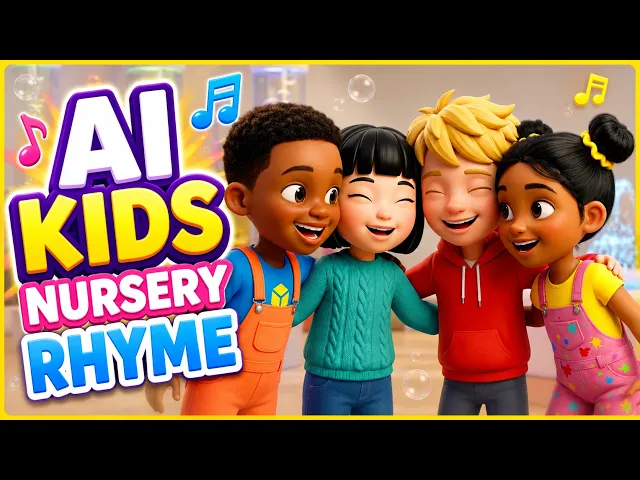

Finish and export your first version, then use the Aspect ratio switch in the Atlabs editor to turn the same story into the other shape. Scenes that still frame well stay as they are. Only scenes where a character or text gets cut off need a new image and new motion.
You don't need to rebuild the whole video. Your song, characters, concept and scene order all stay the same, so a song video you made in the Kids Music Video workflow becomes two finished files. One is vertical for Shorts and social, and one is widescreen for YouTube.
Atlabs is also covered in a MarketersMEDIA roundup of AI kids music video generators.
What you'll need
You need a finished Kids Music Video made from your own uploaded track, open in the editor. Your song can be anywhere from 15 seconds to 15 minutes. You need a paid plan, because Full Video is locked on the Free plan, and enough credits for the scenes you redo and the second export.
No song video yet? Make your first one in Kids Music Video, then come back here.
Keep your original audio file somewhere safe. Trimming a track in Atlabs is permanent, so the untrimmed file is your backup if you ever rebuild from scratch.
Step-by-step: make your first version in Kids Music Video
If you already have a finished song video, skip to the next section. If not, the Kids Music Video workflow has 4 steps: Music, Set Style, Concepts and Finalise.

The Kids Music Video workflow, where your own song becomes a cartoon video.
Step 1: Music
Open Kids Music Video and upload your song (15 seconds to 15 minutes, under 200 MB), or paste a Suno or SoundCloud link. Trim only if you need to, because trimming is permanent.

Music: upload your own track or paste a Suno or SoundCloud link.
Step 2: Set Style
Pick your style and your first aspect ratio. Choose 9:16 if Shorts come first, or 16:9 if YouTube comes first. You'll make the other shape later in the editor.

Set Style: pick the look and the first aspect ratio.
Step 3: Concepts
Atlabs suggests creative directions based on your song. Pick the one that fits your lyrics, or write your own.

Concepts: choose the idea that matches your song.
Step 4: Finalise
Check your characters, then choose your output. Pick Video Teaser first: it animates up to 4 opening scenes into a 20 to 25 second clip. If it looks right, render the Full Video.

Finalise: check your cast, preview with Video Teaser, then render the Full Video.
Your first version opens in the editor when it's done.
Step-by-step: make the second version
1. Export your first version
Open your finished song video in the editor and export it first. Pick 1080p, 2K or 4K. 2K is the default.
This matters. You are about to change the shape of this story, so the exported file is your saved copy of the first version.
2. Switch the aspect ratio
In the editor, use the Aspect ratio switch. Choose 16:9 if your first version was vertical, or 9:16 if it was widescreen. Atlabs supports 16:9, 9:16 and 1:1 only.
You'll see every scene in the new shape. Your song, scene order and characters stay the same.
3. Play through every scene
Watch the whole video once in the new ratio. Note each scene where something looks wrong. Look for three things:
A character's head, hands or feet cut off at the edge.
Two characters squeezed apart, or one pushed out of frame.
Text in the image, like a word or number on a sign, cut off.
Going from 9:16 to 16:9 usually leaves empty space at the sides. Going from 16:9 to 9:16 usually cuts the sides off, so characters standing apart are the first to break.
4. Make a new image for each broken scene
Click the first scene on your list and open the Visual panel. Use Change Angle to get a framing that fits the new shape, or Edit Image with a short prompt, such as: keep both characters fully in frame, centered. Your earlier images stay in the Visual panel, so you can always go back.
Check that the character looks the same as in the scenes around it.
5. Redo motion for that scene only
Open the Motion panel for the same scene and regenerate its motion. A new image needs new motion to move. Don't use generate all motion, because your good scenes are already done.
If your song video uses the Performance direction, regenerate lip sync for that scene in the Lip Sync panel too.
6. Repeat for each scene on your list
Go through every scene you noted in step 3, one at a time: new image, then new motion.
7. Check captions and text overlays
Open the Captions panel and play the video. If the caption style looks crowded in the new shape, pick another of the 28 caption styles or hide captions for this version. If you added text overlays in B-Roll, check their timing and placement too.
8. Export the second version
Export again. You now have both files: one vertical, one widescreen, from the same song.

The same characters in 9:16. Center both characters so nothing is cut off at the sides.
Kids Music Video tutorial
The tutorial shows the whole workflow: add your music, set the style, pick a concept and finalise.
Making your next song? Open Kids Music Video and add your track.
When to start from scratch instead
Switching works best when most scenes still frame well. Start a new Kids Music Video instead when:
Most scenes break in the new shape, so you would redo almost every image anyway.
You want a different concept or style for the second version, not the same video in a new shape.
To start over, open Kids Music Video and upload your original, untrimmed file again. Pick your new ratio on the Set Style step, choose a concept, then on Finalise pick Video Teaser first. It animates up to 4 opening scenes into a 20 to 25 second clip, so you can check the framing before you render the Full Video.
Tips for better results
Know what costs credits. Every new image, motion run, lip sync run and export spends credits. Scenes you keep cost nothing extra. Long, multi-scene songs use credits fast, so check your balance before you start the second version.
Check your song length for Shorts. YouTube Shorts take videos up to 180 seconds in 9:16 or 1:1. If your song runs over 3 minutes, your vertical version goes up as a regular video, not a Short.
Fix the busiest scenes first. Scenes with two or more characters break most often when you change shape. Start with those.
Make sure the track loaded before you go on. When you start a new song video, check that scenes were built before moving past the Music step. If a story comes out with no scenes, start a new one and upload the file again. Use mp3, wav, m4a, aac, ogg, mp4 or mov, under 200 MB.
FAQ
Do I need to upload my song again for the second version?
No. When you use the Aspect ratio switch in the editor, your song stays in the story. You only upload it again if you start a new Kids Music Video from scratch.
Which scenes need new images after I switch the ratio?
Only the scenes where a character or text gets cut off, or where characters end up too far apart. Play through the video once in the new shape and make a list before you change anything.
Does the second version cost credits?
Yes. Each new image, each motion and lip sync run, and the second export spend credits. Scenes you keep as they are don't need regenerating.
Can a long song go up as a YouTube Short?
Only if it is 180 seconds or shorter, in 9:16 or 1:1. A longer song's vertical version publishes as a regular YouTube video.
Your song already has one great video. Make the other shape in Kids Music Video: add your music, set the style, pick a concept, finalise, then switch the ratio in the editor.








