
How do I make an animated kids' learning song where the character sings?
Upload the song to the Atlabs Kids Music Video workflow, pick 3D Style, write a concept and save your characters as cast. Atlabs splits the song into scenes on the beat. Then animate each start frame with a motion prompt, and add “Sync mouth and lip movement to the attached audio” so your character sings the lyric.

“Mochi Lily” is a 62 second animated kids' song made entirely in Atlabs. A little girl named Lily walks through a candy colored neighborhood with her fluffy white cat, Mochi, and teaches him his colors: red like an apple, yellow like the sun, blue like the sky and green like the grass. It started as an uploaded song, became 18 scenes, and was animated in a bright 3D style. This tutorial shows the setup, then every scene in order with its lyric, its start frame and the prompt that was actually run. Atlabs is also covered in a MarketersMEDIA syndicated roundup of AI kids music video generators.
What you'll need
You need a finished kids' song with clear vocals, because the lyrics become your scene script. A learning song works best when each line teaches one thing, like one color per line here. Decide who sings and who reacts. For this project that meant the “Mochi” colors song, Lily as the singer and Mochi the cat as her excited sidekick.
The setup, step by step
Step 1: Upload the song in Music
Open the Kids Music Video workflow and upload your track in the Music step. For this video the script source was set to Uploaded Audio Story and the language to English, so the scene script came straight from the sung lyrics.

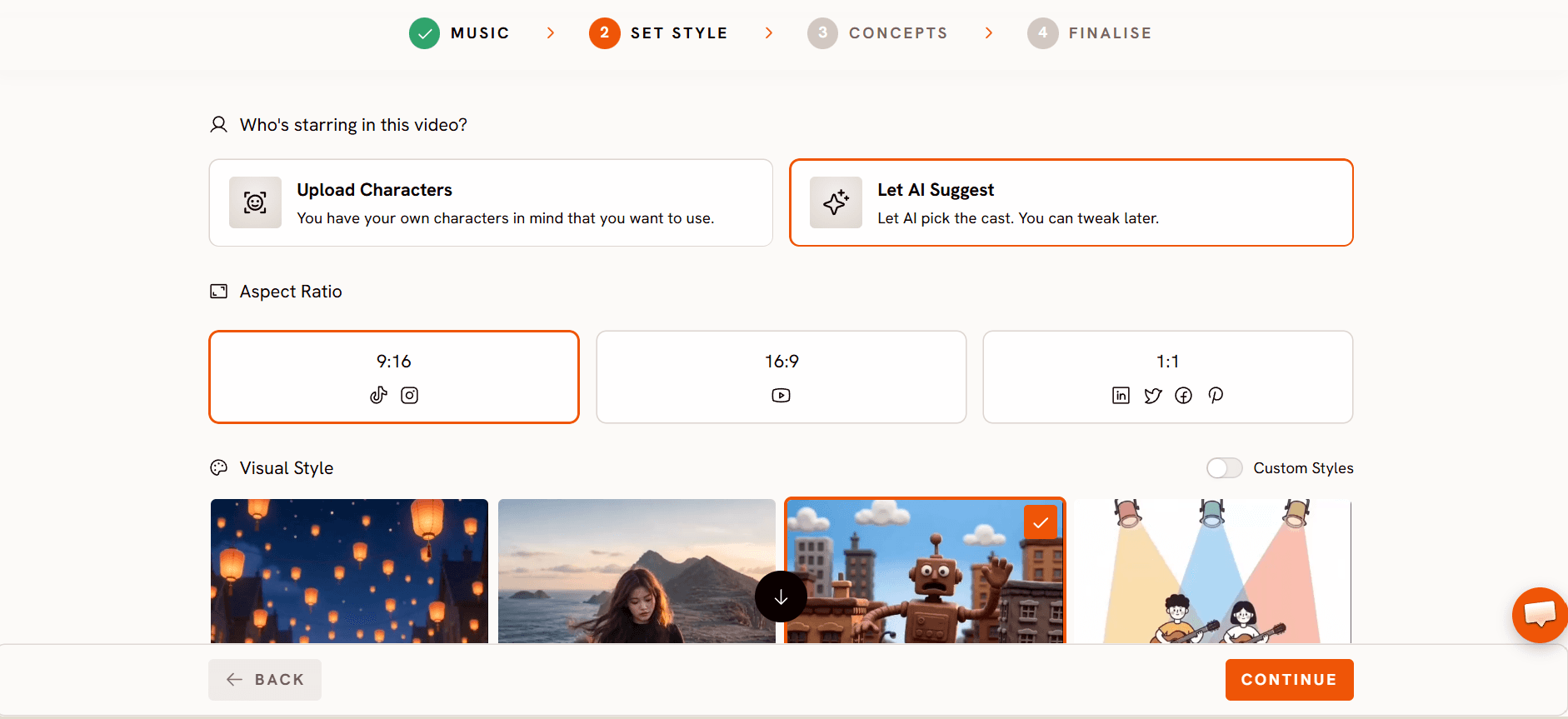
Step 2: Choose the look in Set Style
In Set Style, pick the image style, aspect ratio and output. This project used 3D Style, a 16:9 frame and Video as the output mode.
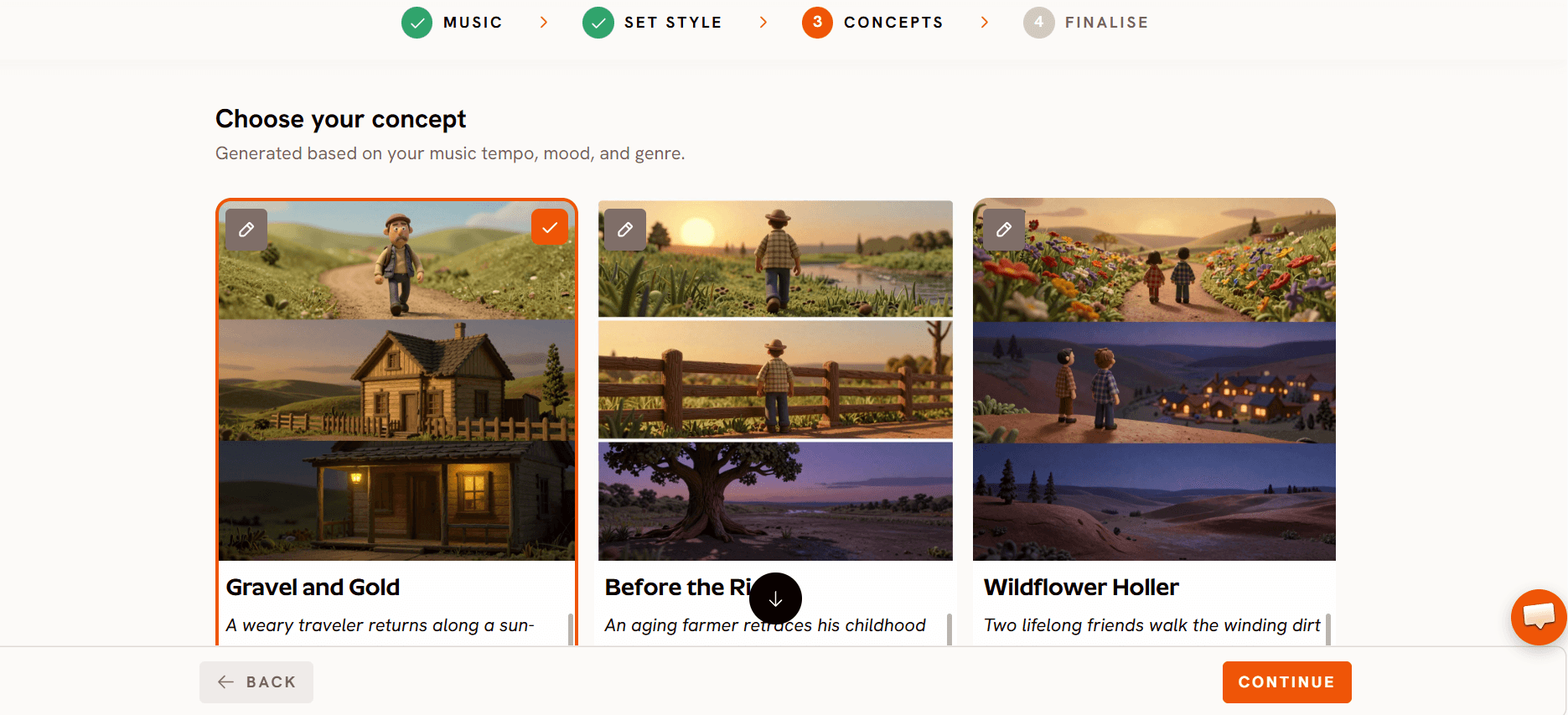
Step 3: Write the concept in Concepts
In Concepts, describe the look and the pacing. The “Mochi Lily” concept asked for a bright 3D pop video for children aged 2 to 6, with soft skin, plush fur, very bright colors and bouncy, toy like movement.
The camera follows Lily and Mochi at eye level in a steady side scrolling walk, like a storybook page sliding by, with rounded houses and balloon like trees drifting past. Each color gets its own big reveal on the beat of the 130 BPM song: a red apple drops in with a bounce, the yellow sun bursts out like a friendly firework, the blue sky floods in like a paint wave and green grass rolls up like a carpet. Lily and Mochi jump and clap on every reveal with simple moves kids can copy.
Each color can flash up as a big, bold word, like RED or GREEN, then clear quickly so the focus stays on the characters. The reveals come faster as the song builds, and the video ends in warm golden light with Lily hugging Mochi as hearts and rainbow bubbles float up, before a fade to white.
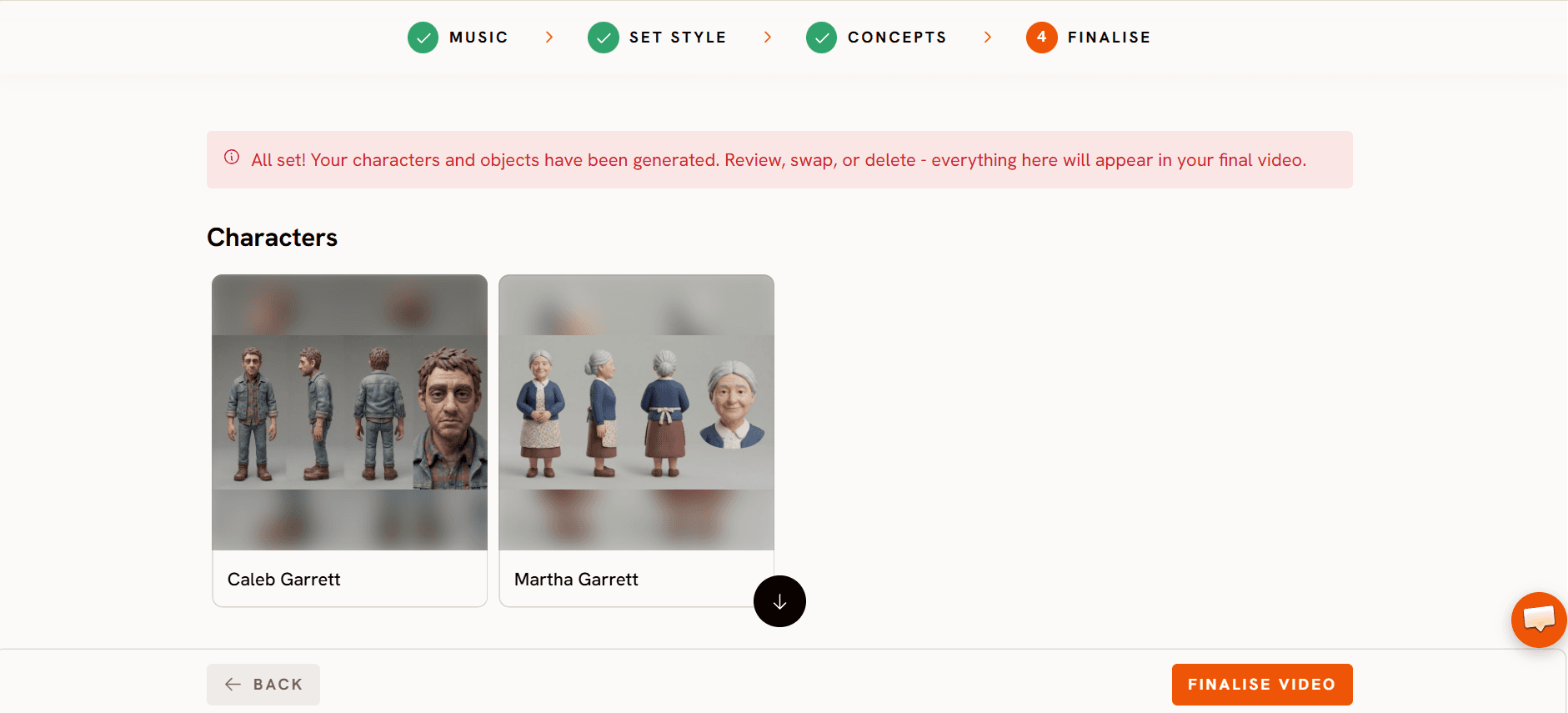
Step 4: Save your characters in Finalise
In Finalise, set the cast. Three were saved here: Lily Rivers (the girl), Mochi the Cat and The Learning Backpack. Saving them as cast keeps them looking the same in every scene. The finished cut runs 62 seconds across 18 scenes.
Step 5: Animate each scene
Atlabs splits the song into scenes and gives each one its lyric line. Lines are cut on the beat, so a sentence can start in one scene and finish in the next. Each scene gets a still start frame, and you turn that frame into a clip in one of two ways: with a motion prompt that describes the action and the camera move, or by lip syncing the character straight to the song.
This video leans on singing. Many prompts end with “Sync mouth and lip movement to the attached audio”, which moves Lily and makes her sing the lyric in one generation. Seven scenes (2, 3, 6, 7, 8, 9 and 11) have no saved prompt at all. They were lip synced straight to the song, so Lily sings the line while the camera holds still.
Watch the Kids Music Video tutorial
Scene by scene: every lyric, frame and prompt
Scene 1 (1.3s): “La, la, la, la, la.”

The whole side scrolling walk from the concept fits in one prompt: who moves, how the cat copies her, and a low tracking camera with houses drifting past.
Scene 2 (3.4s): “I'm Lily, I'm walking with my”

Lip sync only, so no prompt is saved. Lily sings the line to the track while the camera holds still.
Scene 3 (3.7s): “cat. His name is Mochi, fancy”

Lip sync only, so no prompt is saved. Lily sings the line to the track while the camera holds still.
Scene 4 (3.7s): “that. We walk outside to learn today.”

Scene 5 (4.1s): “Come on, Mochi, hip, hip, hooray!”

“Hip, hip, hooray” is the high point of the verse, so the camera does the most here: a fast push in with a tilted angle, timed to her clap on the beat.
Scene 6 (3.3s): “Red like an apple,”

Lip sync only, so no prompt is saved. The red apple is already drawn into the start frame, so Lily only needs to sing.
Scene 7 (3.7s): “yellow like the sun. Blue like the sky,”

Lip sync only, so no prompt is saved. The yellow sun and the blue wave sit in one frame to match two colors in one line.
Scene 8 (3.7s): “colors are so fun. Green like the grass beneath”

Lip sync only, so no prompt is saved. The grass carpet from the concept is drawn rolling up under their feet.
Scene 9 (3.7s): “our feet. Learning colors is”

Lip sync only, so no prompt is saved. Lily sings the line to the track while the camera holds still.
Scene 10 (1.9s): “oh so sweet.”

The last line of this prompt makes Lily sing the lyric in the same generation as the motion.
Scene 11 (5.6s): “Mochi sees a purple flower. Orange leaves for every”

Lip sync only, so no prompt is saved. The purple flower and orange tree are in the frame, so the lyric and the picture match.
Scene 12 (3.7s): “hour. Pink balloon goes up so”

Scene 13 (3.7s): “high. White clouds floating in the sky.”

Scene 14 (3.7s): “Red like an apple,”

The second chorus puts the color word on screen, RED next to the apple, just as the concept asked.
Scene 15 (3.7s): “yellow like the sun. Blue like the sky,”

Scene 16 (3.7s): “colors are so fun. Green like the grass beneath”

The prompt tells the word what to do: “the word 'GREEN' formed of grass fades away”. The text clears and the focus goes back to Lily and Mochi.
Scene 17 (3.7s): “our feet. Learning colors is”

Scene 18 (2.0s): “oh so sweet.”

The ending from the concept, the hug in golden light with hearts and bubbles, is already in the start frame. The prompt only keeps the energy low and lets the camera hold.
What makes these prompts work
Write in three parts. Body first (“weight shifts onto one hip”), then feeling (“the vibe is sweet and airy”), then camera (“the camera holds, breathing with the scene”). Almost every prompt here follows that order.
Let your character sing. Adding “Sync mouth and lip movement to the attached audio” to a motion prompt makes the character sing the lyric. Scenes 10, 12, 13, 14, 15 and 18 all do this.
Lip sync the simple shots. When a scene is just Lily singing to camera, lip sync alone is enough. Seven scenes needed no written prompt.
Put the lesson in the start frame. The apple, the sun, the blue wave, the grass carpet and the RED and GREEN words are all drawn into the scene image first. The prompt then only has to move Lily and Mochi.
Give the sidekick its own line. “The cat alongside her mirrors the relaxed gait” keeps Mochi moving with Lily instead of standing still.
Save a style line. Ending a prompt with “Maintain 3D Style consistently across all shots” keeps the look the same from clip to clip.
Match the camera to the energy. A low tracking shot for the walk, a fast tilted push in for “hip, hip, hooray” and a steady hold for the final hug.
FAQ
Can my character sing the song?
Yes. Add “Sync mouth and lip movement to the attached audio” to the end of a motion prompt, or lip sync the scene straight to the song with no prompt. Both were used in “Mochi Lily”.
Do I need a prompt for every scene?
No. Seven of the 18 scenes in “Mochi Lily” were lip synced straight to the song with no written prompt.
How do I show words like RED or GREEN on screen?
Draw the word into the start frame, then tell the prompt what the word should do, for example that it fades away. That keeps the text short and the focus on your characters.
How do I keep the characters the same in every scene?
Save them as cast in Finalise. Lily, Mochi and The Learning Backpack were all saved as cast for this video.
Final verdict
“Mochi Lily” shows how easy it is to make a learning song where the character really sings. Four setup steps in Atlabs did the groundwork: uploading the song in Music, choosing 3D Style and 16:9 in Set Style, writing a beat by beat concept in Concepts and saving the cast in Finalise. From there, the lesson went into each start frame, prompts followed a simple body, feeling and camera order, and one lip sync line made Lily sing every chorus. Use these prompts as templates, put your own lesson into the frames, and lip sync the shots where your character just sings.
New to the workflow? Watch the tutorial first.








