How do I turn a script written by ChatGPT into a full animated preschool cartoon episode?
Ask ChatGPT for an episode brief with a character sheet, a lesson in one line and one speaker per line. Paste it into Atlabs Animated Video, pick 3D Cartoon and 16:9, check the cast and screenplay, preview with Video Teaser, then render the full 2 to 4 minute episode.
You’ve got the script. ChatGPT wrote you a series intro, a little story, a lesson and an outro. Now you need it as a real episode for kids aged 2 to 5, with the same two characters every week. This guide takes you from that script to a finished cartoon.
What should I ask ChatGPT for?
Ask for a brief in four parts: series intro, story, lesson, outro. Then add three rules.
A character sheet at the top. One line per main character: name, animal, colour and one detail, such as “a small otter with a blue scarf.”
A lesson in one line. “Sharing makes play more fun.” The whole episode should point at it.
One speaker per line. Every line starts with who says it: the narrator or one character. This is how voices and lip sync land on the right character.
What should I keep from the ChatGPT script, and what should I drop?
Keep the character lines and the scene descriptions. Drop the timestamps and runtime estimates. Atlabs times each scene from the lines themselves, so “00:45 to 01:10” in your script only adds noise.
How to do it in Atlabs
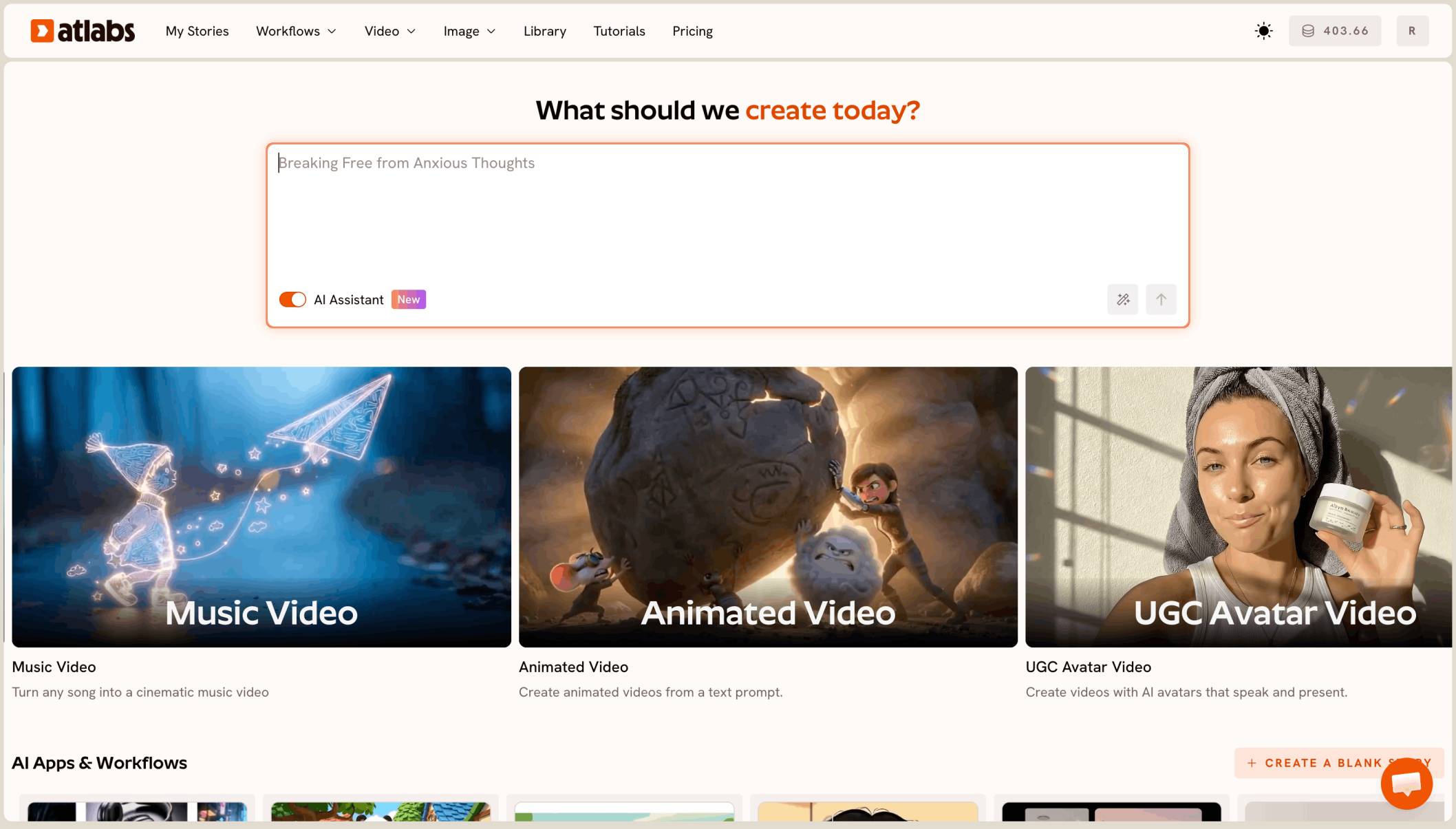
The Animated Video workflow has 4 steps: Script, Style, Cast and Screenplay. Then you preview and render.
Step 1: Script
Open Animated Video and paste the brief, character sheet first. Pick the language, then press Continue.
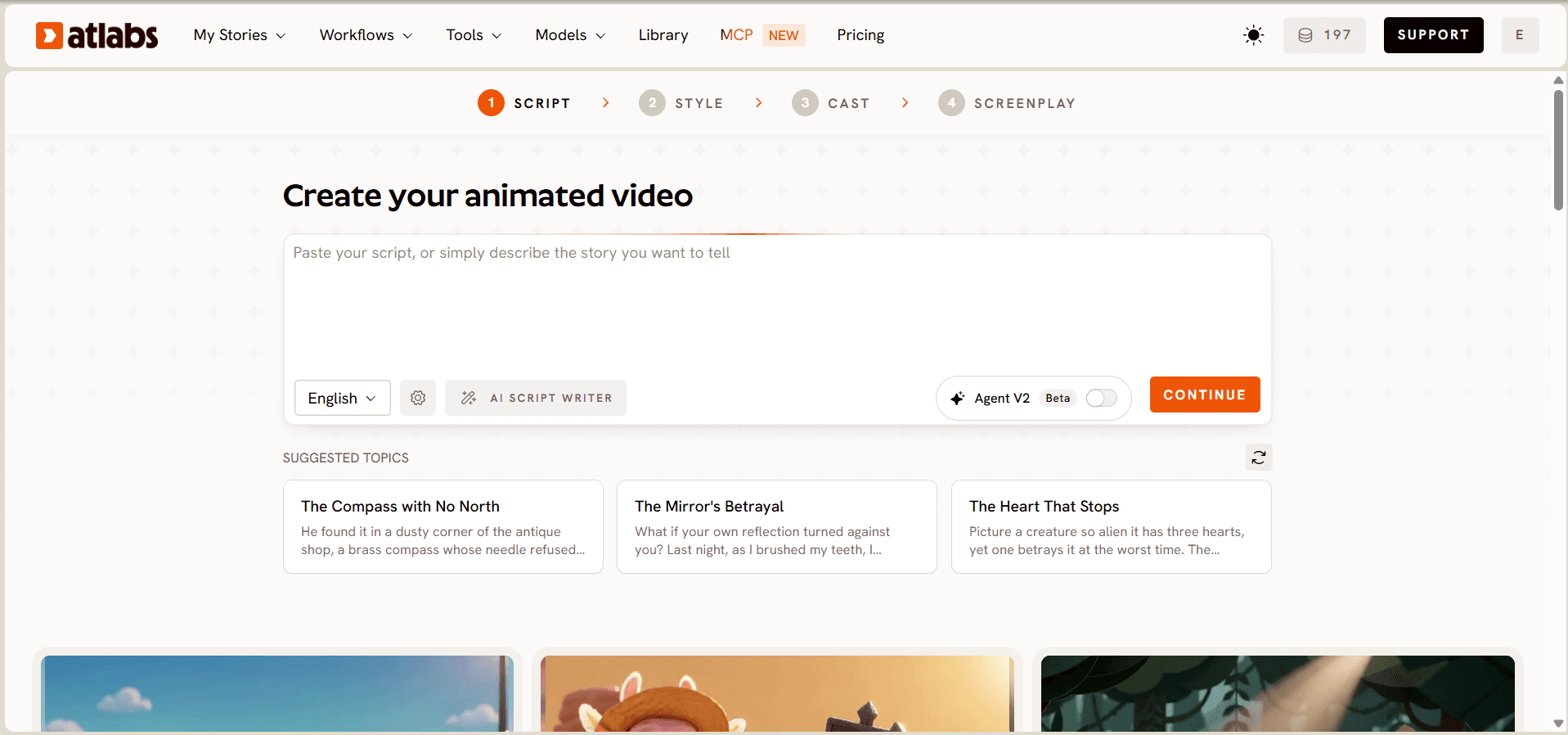
Script: paste the brief with the character sheet at the top.
Step 2: Style
Pick 16:9 for YouTube. Then choose 3D Cartoon, the soft, rounded look most preschool series use.

Style: choose 16:9, then pick 3D Cartoon.
Step 3: Cast
Atlabs lists the characters it found and makes a portrait of each one. Pick a narrator voice at the top. Check both main characters against your character sheet, because every scene uses these portraits.

Cast: check your two main characters and pick the narrator.
Step 4: Screenplay
Read every scene. Check that each line sits with the right speaker, and that the lesson lands near the end. Then press Finalise.

Screenplay: check speakers and the lesson, then press Finalise.
Step 5: Preview with Video Teaser
Pick Video Teaser. It animates up to 4 opening scenes into a 20 to 25 second clip, so you see your characters move and talk before you spend credits.
Step 6: Render the Full Video
If the teaser looks right, render the Full Video. A 2 to 4 minute 16:9 episode opens in the editor.

The lesson moment: the same two friends working together.
Step 7: Fix one scene, not the episode
If a scene is off, open it in the editor and fix only that scene. The rest of the episode stays as it is.
Watch the Animated Video tutorial
The tutorial shows the workflow in order: Script, Style, Cast, Screenplay, then Finalise.
Should my characters speak, or should a narrator tell the story?
Use both. Character lines get lip sync, which works on cartoon and animal characters. Narrator lines get motion. For ages 2 to 5, let the narrator set up each scene and let the characters say the short, repeatable lines.
How do I keep my two characters the same every episode?
Define them once. After episode 1, save both characters to the Character Library, then pick them on the Cast step of every new episode. Keep 3D Cartoon every time, so the whole series matches.
Can I do all of this from ChatGPT?
Yes. With the Atlabs MCP, you can plan the episode, cast the characters, edit any scene and export, all from ChatGPT, Claude or Grok. Write the brief in the chat, then ask for the episode in the same chat.
What to watch out for
Lines with no speaker. A blank or unlabelled line can fail when Atlabs makes the voice. Give every line a speaker.
Very long briefs. Long scripts make many scenes. Trim side scenes ChatGPT added that don’t serve the lesson.
Character designs that copy famous cartoons. These can get blocked. Keep your characters original.
Your own review. Read the lesson and every line yourself. ChatGPT can drift from what you want a 3 year old to hear.
FAQ
Can I paste a ChatGPT script straight into Atlabs?
Yes. Paste it into the Script step of Animated Video. Put the character sheet first and give every line a speaker.
Should I keep the timestamps from ChatGPT?
No. Drop timestamps and runtime estimates. Atlabs times each scene from the lines, and you can see the total duration on the Screenplay step.
How do I keep my two characters the same across episodes?
Save them to the Character Library after episode 1 and pick them on the Cast step of every new episode, with the same 3D Cartoon style.
Can the characters speak, or only a narrator?
Both. Character lines get lip sync, and narrator lines get motion. Use the narrator to set scenes and the characters for short lines.
Can I make the episode without leaving ChatGPT?
Yes. With the Atlabs MCP you can plan, cast, edit and export the episode from ChatGPT, Claude or Grok.
Your script is ready for its cartoon: paste the brief, pick 3D Cartoon and 16:9, check the cast and screenplay, preview with Video Teaser, then render the full episode.