
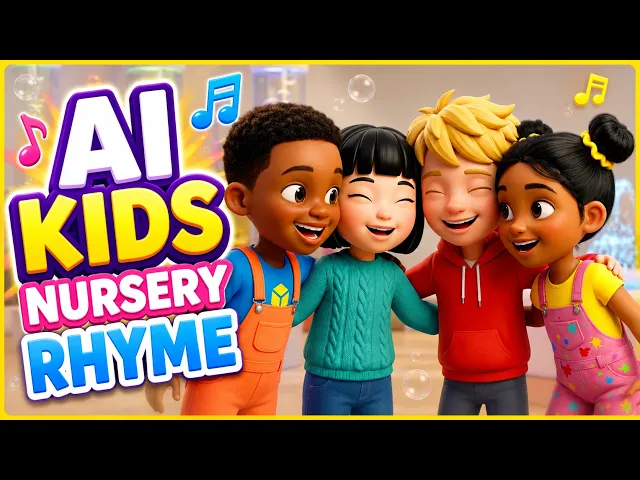
Open your finished video in the Atlabs editor, choose to publish to YouTube, and connect your channel. Then set the made for kids choice, pick a privacy setting, replace the title and description Atlabs fills in, and publish.
You don't need to download the file and upload it again yourself. A sing-along, a nursery rhyme or a narrated story you made in Kids Music Video can go straight from the editor to your channel. Atlabs also publishes to Instagram and Facebook Pages, but this guide covers YouTube.
Atlabs is also covered in a MarketersMEDIA roundup of AI kids music video generators.
What you'll need
You need a finished video in the Atlabs editor. You need access to the YouTube channel you want to post on, so you can connect it when Atlabs asks. Publishing spends credits, like generating and exporting do, so check your balance first.
Have your title and description written before you start. Atlabs fills these in for you, but the filled-in text is generic, and your viewers' parents will read it.
Step-by-step: make the video first
If your video is already finished, skip to the next section. If not, here are the 4 Kids Music Video steps.
Step 1: Music
Open Kids Music Video and upload your recording (15 seconds to 15 minutes), or paste a Suno or SoundCloud link. A sung track or a recorded story both work here.

Music: upload your recording or paste a Suno or SoundCloud link.
Step 2: Set Style
Pick a soft style such as Cozy Plush and your screen shape: 16:9 for a regular YouTube video, or 9:16 for a Short.

Set Style: choose the look and the screen shape you'll publish.
Step 3: Concepts
Pick the creative direction that fits your song or story.

Concepts: pick the idea that matches your track.
Step 4: Finalise
Check your characters, preview with Video Teaser (up to 4 scenes, 20 to 25 seconds), then render the Full Video. It opens in the editor when it's done.

Finalise: preview first, then render the Full Video.
Step-by-step: publish to YouTube as made for kids
1. Open your finished video
Open the video in the Atlabs editor. Play it once to the end. Fix anything you need now, because the upload goes live with whatever is in the editor.
2. Choose publish to YouTube
Pick Publish, then YouTube. You'll see the YouTube publish form.
3. Connect your channel
The first time, Atlabs asks you to connect your YouTube account. Sign in with the Google account that owns or manages your kids channel, and pick that channel. Next time, it's already connected.
4. Replace the title
Atlabs fills in a title. Delete it and type your own. Use the words a parent would search for, like the song or story topic and the age group. For example: Counting Ducks Song for Toddlers.
5. Replace the description
Atlabs also fills in a generic description. Replace it with two or three plain lines: what happens in the video, who it's for, and what children learn. Add tags and pick a category while you're on this form.
6. Set made for kids
Choose Yes, it's made for kids. YouTube requires this choice on every upload, and a video for young children must be marked made for kids. Don't skip past it.
7. Pick your privacy
Choose one:
Public: anyone can watch it now.
Unlisted: only people with the link can watch it. Use this to check the upload first.
Private: only you can watch it.
You can also schedule the upload for a later time, and add a thumbnail.
8. Publish
Publish the video. Atlabs sends it to your channel.
9. Check it on your channel
Open YouTube Studio and find the new upload. Check that it shows as made for kids, the privacy is right, and the title and description are yours.
Watch the Kids Music Video tutorial
The tutorial shows how to make the video itself: add your music, set the style, pick a concept and finalise.
Next video ready to make? Open Kids Music Video and add your track.
Publish a second version in the other shape
Many kids channels post one long video and one Short from the same story. Here's how.
In the editor, use the Aspect ratio switch to change from 16:9 to 9:16 (or the other way).
Play through every scene. Fix any scene where a character is cut off, using the Visual and Motion panels.
Publish to YouTube again, with its own title and the same made for kids choice.
A YouTube Short must be 180 seconds or shorter, in 9:16 or 1:1. If your song or story runs longer, the vertical version goes up as a regular video, not a Short.
Want to plan both shapes from the start? Start a new video in Kids Music Video and pick your first shape on the Set Style step.
Tips for better results
Upload as unlisted first. Watch it on YouTube, check the made for kids label, then switch it to public.
Write the title before you open the form. It's easy to leave the filled-in title by mistake.
Keep one style for your channel. Using the same style, like Cozy Plush, for every video makes your channel easy to spot.
FAQ
Do I have to choose made for kids?
Yes. YouTube asks every uploader to choose, and Atlabs shows the same required choice before you publish. For videos aimed at young children, choose made for kids.
Can I change the title Atlabs fills in?
Yes. The title and description fields are filled in for you, but you can delete them and type your own before you publish.
Can I upload a 9:16 version as a YouTube Short?
Yes, if it's 180 seconds or shorter. Switch the aspect ratio in the editor, fix any cut-off scenes, and publish again.
Does publishing use credits?
Yes. Credits are spent on generating, exporting and publishing. Check your balance before you publish two versions.
Your video is ready for your channel. Make the next one in Kids Music Video: add your music, set the style, pick a concept and finalise.








