
Preview every song with a Video Teaser (20 to 25 seconds, up to 4 scenes) before you render the Full Video. Fix the look in Storyboard while scenes are still images, check that lip sync lands in the teaser, and only then render the whole song. Plan a month of songs against your plan's video minutes before you start.

If you run a kids' song channel, you already know the pattern. You upload a three minute song, render the whole thing, spot a character with the wrong outfit in scene 6, regenerate, spot the singer's mouth drifting in the chorus, regenerate again. By Thursday the week's credits are gone and two songs are still unfinished. Channels that publish several long songs a week can reach 50 to 80 regenerations on a single story this way.
The fix is not making fewer videos. It is changing the order you do things in. This guide shows how to use the Atlabs Kids Music Video workflow so every credit you spend goes into a scene you keep. Atlabs is also covered in a MarketersMEDIA syndicated roundup of AI kids music video generators.
What you'll need
You need finished audio for each song in the batch, as an .mp3 or .wav under 200MB, with clear vocals. Muddy vocals make the transcription and lip sync miss, and that is where a lot of wasted regenerations start. Have your recurring characters ready too, either saved in your Atlabs library or as reference images, so every song in the series reuses the same cast instead of generating new ones. Finally, know your plan's video minutes for the month. The planning section below shows how to use them.
The credit saving workflow, step by step
Step 1: Upload the song in Music
Open the Kids Music Video workflow and click Upload Audio. Leave the language on Automatic (Recommended) unless the song mixes languages. Atlabs transcribes the track and detects the language, mood, genre and BPM.

The Music step: upload the song and check the transcription before anything else.
Read the transcription now. Fix any misheard lyric here. Scenes are built from these words, so a wrong word becomes a wrong scene you would otherwise pay to regenerate later.
Check the credits shown. The credits for transcription appear before you confirm.
Step 2: Pick 3D Cartoon in Set Style
In Set Style, choose 16:9 for YouTube or 9:16 for Shorts, then pick 3D Cartoon. It is the most common look on kids' song channels, and its clean, rounded characters make it easy to see when a scene needs fixing.

Set Style: pick 3D Cartoon once and keep it for the whole series.
Keep one style per series. Switching styles between songs means new character looks, which means more fixes.
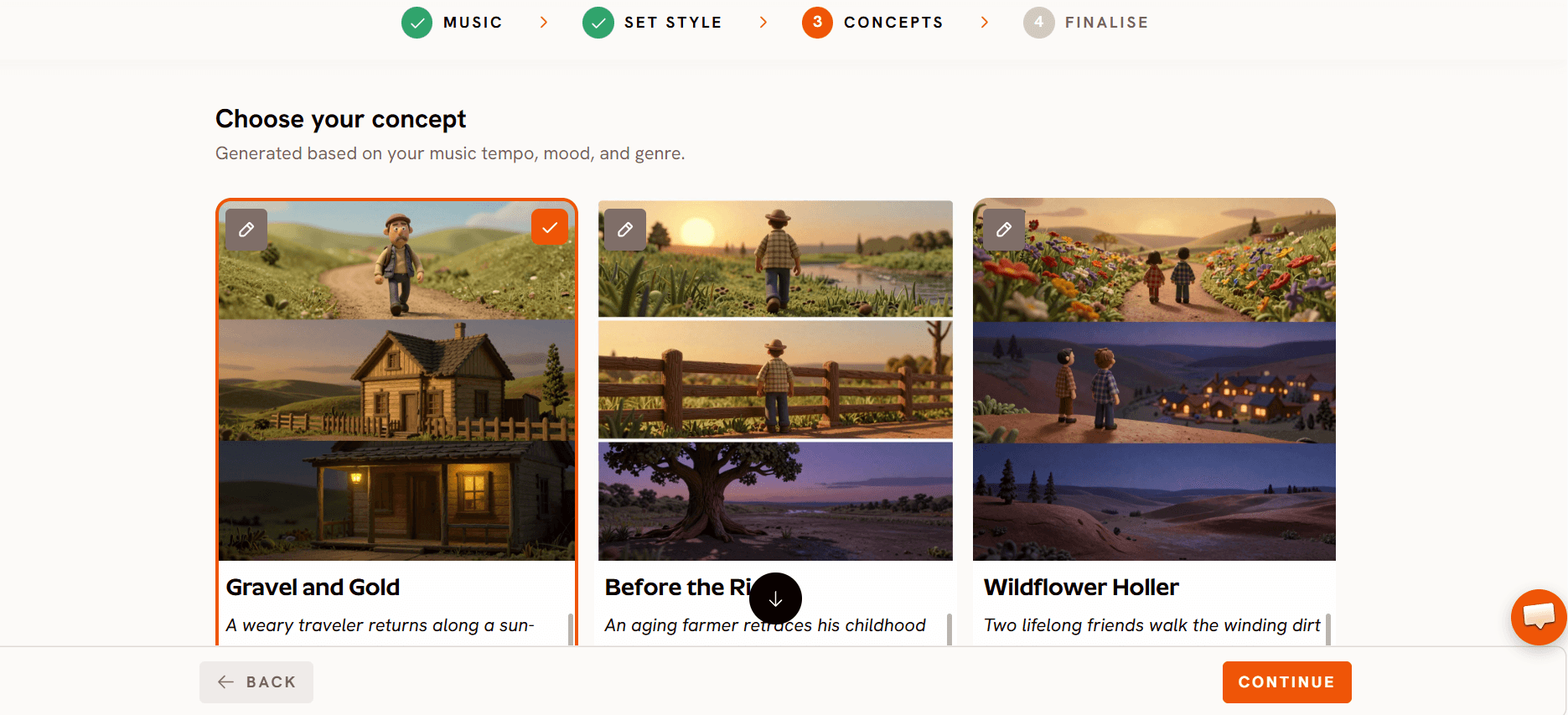
Step 3: Choose a concept in Concepts
Pick one of the generated story concepts, or select Describe your content and write one or two lines. A clear concept up front means fewer scenes that miss the brief later.
Step 4: Set your cast in Finalise
Click each character card and use the Library tab to reuse your saved channel characters, or Upload your own image. Assign the singer role in the cast panel.

Finalise: reuse the same saved characters in every song so they never need fixing twice.
Reuse, don't regenerate. A character you fixed once in song 1 stays fixed for song 2 if you pull it from the Library.
Step 5: Choose Video Teaser, not Full Video
Click Finalise Video. The full credit estimate appears before you confirm. Choose Video Teaser first. It renders 20 to 25 seconds, up to 4 scenes, with motion and lip sync, so you see the real look of the song for a fraction of a full render.
Judge the teaser on three things: do the characters match your channel, does the style read clearly, and does the singer's mouth follow the words.
If any of the three is wrong, stop here. Fixing it now costs one short preview, not a three minute render.
Step 6: Fix scenes in Storyboard before animating
Open the story in Storyboard. Here scenes are still images, so fixing a wrong prop, outfit or background only regenerates a picture. Fix every scene you don't like at this stage.
Fix images before motion. Animating a scene you will later change pays for the motion twice.
Change one scene at a time. Editing a single scene leaves the rest of the song untouched.
Step 7: Check lip sync in the teaser
Play the teaser with sound and watch the singer on the chorus lines. If the mouth drifts, fix it on that scene now. Lip sync problems usually repeat across the song, so a fix found in the teaser saves the same fix in every chorus of the Full Video.
Step 8: Render the Full Video
Only when the teaser looks right, the Storyboard images are fixed and lip sync lands, choose Full Video. You can close the window while it renders and find the result under My Stories.
Watch the Kids Music Video tutorial
How to plan credits for a multi-song batch
Running out mid-week happens when credits are spent song by song with no plan. Plan the batch instead.
Start with finished minutes. Three songs a week at three minutes each is about 9 minutes a week, or roughly 39 minutes a month. Then add a buffer for teasers and fixes on top of the finished minutes, so a bad week doesn't empty the account. Finally, check the plan's coverage, which the pricing page lists as minutes of video per year, against your monthly total times twelve.
Spend in the same order every week. Run Video Teasers for every song in the batch first, fix all of them in Storyboard, then render the Full Videos together. If the teasers show one song is not working, you find out before its full render, not after.
The credit estimate at Finalise Video is your check. Read it before every confirm, and compare it with what is left for the week. Unused plan credits roll over while you stay subscribed, so a light week builds a buffer for a heavy one.
Choose the right plan tier for your volume
Atlabs' Music Video workflows start on the Pro plan, with videos up to 5 minutes and 1080p export. The pricing page lists three paid plans by how much video they cover each year.
Pro is $39 a month, or $29 a month billed annually, and covers 36 to 48 minutes of video a year. It suits a channel posting a few songs a month.
Plus is $79 a month, or $59 a month billed annually, and covers 84 to 120 minutes a year. It suits a weekly song or two.
Max is $249 a month, or $189 a month billed annually, and covers 300 to 420 minutes a year. It is the tier for channels publishing several long songs every week, and the pricing page notes discounted extra credit packs for Max subscribers.
If your yearly finished minutes plus your fix buffer are above your plan's range, move up a tier before you start buying top-ups. A channel publishing three three minute songs every week needs well over 400 minutes a year, which is beyond Max's listed range, so talk to Atlabs about Enterprise custom pricing rather than topping up week after week. Prices and coverage are from the pricing page as of October 2026, so check it before you choose.
Tips for spending fewer credits
Correct lyrics at the Music step. A wrong transcribed word is the cheapest thing to fix and the most expensive thing to discover after a Full Video.
Keep one cast and one style per series. Every new look is a new round of fixes.
Batch your teasers. Seeing four teasers side by side shows which song needs more work before you commit credits to any of them.
Fix still images, then motion. Never animate a scene you still plan to change.
FAQ
What is a Video Teaser in Atlabs?
A Video Teaser is a short preview of your song, 20 to 25 seconds and up to 4 scenes, with motion and lip sync. You choose it at Finalise Video to check the look before rendering the Full Video.
Why fix scenes in Storyboard before animating?
In Storyboard, scenes are still images, so a fix only regenerates a picture. Fixing after animation pays for the motion again.
How do I know how many credits a song will use?
The full credit estimate appears when you click Finalise Video, before you confirm. Credits for transcription are also shown before you confirm the Music step.
Which Atlabs plan suits a kids' song channel posting every week?
Multiply your weekly finished minutes by 52, add room for fixes, and compare it with the yearly minutes on the pricing page. Channels posting several long songs a week usually need Max or Enterprise.
Final verdict
Most credits on a kids' song channel are not lost on the songs you publish. They are lost on full renders you throw away. The fix is a set order: correct the lyrics in Music, keep one 3D Cartoon style and one saved cast, preview every song with a Video Teaser, fix the images in Storyboard, check lip sync, and only then render the Full Video. Plan the month in finished minutes, read the estimate at Finalise Video before every confirm, and move to the plan tier that matches your volume instead of topping up week after week. Do that and your credits go into songs your channel actually posts.








