
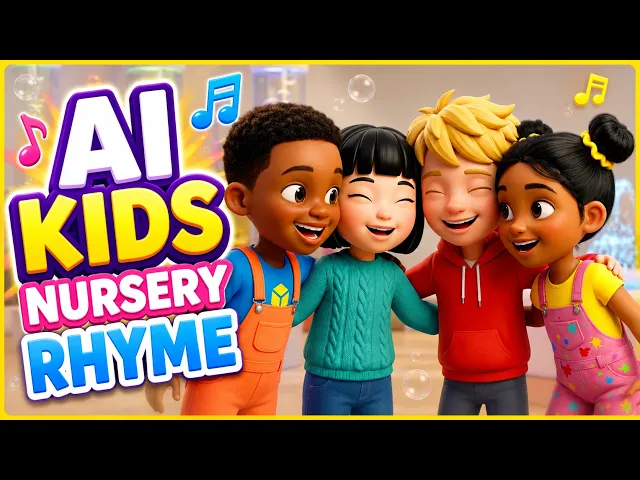
Use Kids Music Video. It builds the video from your song's audio: an uploaded track of 15 seconds to 15 minutes, or a Suno or SoundCloud link. If you only have lyrics and no recording yet, make the song first, then bring it in.
Explainer Video is a different tool. It turns a script into narration, and its characters never speak. Paste song lyrics with [Verse] and [Chorus] markers there, and you won't get a song video. So if you've written an alphabet song, a counting song or a bedtime song for little ones, start in Kids Music Video.
Atlabs is also covered in a Pinion Newswire roundup of AI nursery rhyme video tools.
What you'll need
You need your song as audio: a file (mp3, wav, m4a, aac, ogg, mp4 or mov, under 200 MB), or a Suno or SoundCloud link. If you only have lyrics, keep them in a document. You'll use them to make the track.
You also need a paid plan to render the Full Video, since it is locked on the Free plan. Decide one thing before you start: widescreen (16:9) for YouTube, or vertical (9:16) for Shorts and phones.
Already started in Explainer Video? Switch without losing your lyrics
This is the most common first mistake, and it takes a minute to fix.
Copy your lyrics out of the Explainer Video text box and paste them into a document.
Leave Explainer Video and open Kids Music Video.
Use your saved lyrics to make or find your track, as in Step 1 below.
Nothing you made in Explainer Video carries over, so there's nothing else to move.
Step-by-step: make your song video in Kids Music Video
The Kids Music Video workflow has 4 steps: Music, Set Style, Concepts and Finalise.
Step 1: Music
Add your song in one of three ways:
You have a recording: upload the file (15 seconds to 15 minutes).
Your song is on Suno or SoundCloud: paste the link.
You only have lyrics: use Generate from lyrics to make the track in Atlabs, or make the song in Suno and paste its link here.
Trim only if you need to, because trimming is permanent. You can add a short Storyline note too, such as: bright island beach, one letter of the alphabet in each scene.
Then pick a direction. Narrative tells a story across scenes, with no lip sync. Performance gives you a lip-synced singer and is a Premium option.

Music: upload your track, paste a Suno or SoundCloud link, or generate it from your lyrics.
Step 2: Set Style
Pick Soft Pastel 2D for a gentle, picture-book look that suits songs for young children. Then pick your aspect ratio: 16:9 for YouTube or 9:16 for Shorts. You can also choose who stars in the video.

Set Style: pick Soft Pastel 2D and your screen shape before you go on.
Step 3: Concepts
Atlabs suggests creative directions based on your song. Pick the one that fits your lyrics, or write your own. For an alphabet song, a direction with one letter per scene works well.

Concepts: choose the idea that matches your lyrics.
Step 4: Finalise
Check your cast, then choose an output. Pick Video Teaser first. It animates up to 4 opening scenes into a 20 to 25 second clip. If the look is right, render the Full Video.

Finalise: check your characters, preview with Video Teaser, then render the Full Video.
What you'll see next
Atlabs shows a progress screen while it reads your song, paints your scenes and puts it all together. Then your video opens in the editor.
From there you can fix any single scene without redoing the rest. Use the Visual panel to change a scene's image and the Motion panel to redo its movement. For a learning song, open Captions and show the words on screen. There are 28 caption styles, and you can fix word timing so each word lands on the beat. When it looks right, export it or publish it to YouTube.
Ready to see your lyrics move?
Watch the Kids Music Video tutorial
The tutorial shows all 4 steps in order: add your music, set the style, pick a concept and finalise.
Got your song ready?
Tips for better results
Check your credits before the Full Video. A 3 minute song can come out as dozens of scenes, and motion plus lip sync on every scene uses credits fast. Preview with Video Teaser, check your balance, then render.
Pick Performance only if you want a singer's lips to move. Lip sync only works in the Performance direction. It works on human, cartoon and animal characters. If lip sync runs fail, check your credit balance first, then try again.
Make the second shape later, not first. Finish one version in your main shape. You can switch the aspect ratio in the editor afterwards.
Keep your lyrics file. Trimming a track is permanent, and you may want to make the song again later.
FAQ
Can I paste my lyrics into Explainer Video?
You can paste them, but you won't get a song video. Explainer Video reads a script as narration, and its characters never speak. Use Kids Music Video for any song.
I only have lyrics. Can I still make a song video?
Yes. On the Music step of Kids Music Video, use Generate from lyrics to make the track in Atlabs. Or make the song in Suno and paste the link.
Should I pick widescreen or vertical?
Pick 16:9 if YouTube is your main home, or 9:16 if Shorts and phones come first. Decide before the Set Style step, since it shapes every scene.
Why did lip sync not work on my song video?
Lip sync only runs in the Performance direction, and each run needs credits. If your balance hits zero, the runs stop. Top up, then run lip sync again.
Your song is ready for its video. Add your music, set the style, pick a concept and finalise.








