Not everyone can become a great artist. But a great artist can come from anywhere. Talent was never the problem. Access was.
Think about what makes a film feel alive. It is colour. Long before anyone notices the camera or the edit, they feel the warm glow of a sunset, the cold blue of a city at night, the soft haze of a memory. For years, colour grading has been the hardest part to reach. It meant expensive software, a screen full of controls and years of practice before your shots looked the way you saw them in your head.
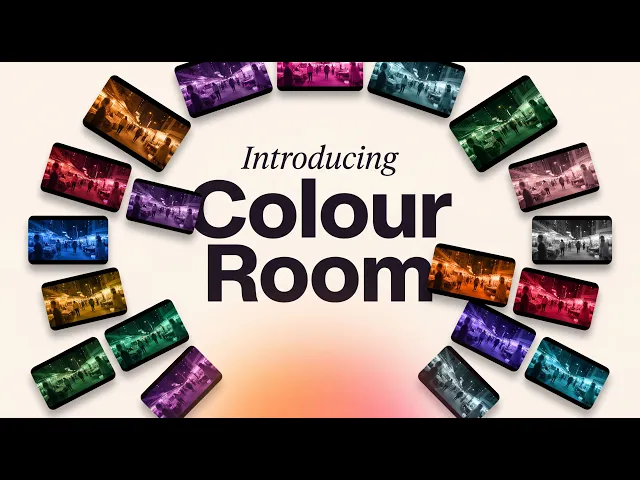
Not anymore. Today we are launching Colour Room by Atlabs, a colour grading space where you pick a look and you’re there, and every pro control is waiting when you want it.
What is Colour Room?
Colour Room is the new colour grading space inside Atlabs. You open your shot, pick one of 43 looks to start, and the rest of the tools open only when you need them. Beginners get a finished grade in one click. Colourists get lift, gamma and gain wheels, curves, masks and scopes. And anyone who gets stuck can simply ask Pal, the built in assistant, in plain words.
We built Colour Room because grading shouldn’t take years.
What’s inside Colour Room

Colour Room: Looks, Adjust, Palette, Match a still, History, Pro tools and Ask Pal in one panel.
Looks. 43 ready made grades, from Rose petal, Neon drive and Montmartre to Wasteland chrome, Moonlit cyan, Pastel symmetry and Beach landing. Pick one and your whole shot takes on that look at once.
Adjust. Light, contrast and warmth, for quick changes on top of a look.
Palette. Set the colour scheme of your shot.
Match a still. Take a still’s colour and bring it to your shot, so a frame you love becomes the grade you use.
History. Every version is saved, so you can go back to any grade you tried.
Pro tools. Wheels, curves, masks, scopes, every control. Lift, gamma and gain wheels for shadows, midtones and highlights, and curves for exact control over light and colour.
Ask Pal. Type what you want, like “make it moody” or “Desert orange haze”, or add a reference image and ask Pal to “make it look like this”.
Compare and check. Switch between Graded, Split and Original views, hold to compare, use the Picker and set White balance from the bar under your shot.
Export. Save your graded shot when it looks right.
How to grade your shot, step by step
Step 1: Open your shot in Colour Room
Open Colour Room in Atlabs and bring in the shot you want to grade. The panel on the left reads “Grade your shot”, with every tool listed in one place.
Step 2: Pick a look
Start with Looks. Click through the 43 looks and watch your shot change as you go. Pick a look, and you’re there.

Pick a look, and you’re there. 43 looks, from Rose petal to Montmartre.
Step 3: Fine tune with Adjust and Palette
If the look is close but not quite right, open Adjust to change light, contrast and warmth, or Palette to shift the colour scheme.
Step 4: Match a still you love
Have a frame from a film or a photo with the exact colour you want? Use Match a still to take its colour and apply it to your shot.
Step 5: Go pro when you want to
Want to get nerdy? Open Pro tools for lift, gamma and gain wheels, curves, masks and scopes. Every control is there, but only when you ask for it.

Pro tools: lift, gamma and gain wheels, plus curves, masks and scopes.
Step 6: Stuck? Just ask Pal
Type what you want in Ask Pal, such as “make it moody”. You can also add a reference image and type “make it look like this”. Pal grades the shot for you.

Ask Pal: type “make it moody” and Pal grades the shot.

Add a reference image and ask Pal to “make it look like this”.
Step 7: Compare and export
Use Graded, Split and Original or Hold to compare to see the change, check History if you want an earlier version, then click Export.
Who Colour Room is for
Filmmakers and music video creators who want every scene to share one look, without learning pro grading software.
Content creators who want their shots to feel like a film, not a phone recording.
Editors and colourists who want fast starting looks plus the wheels, curves, masks and scopes they already know.
Anyone with a reference. If you have a still or an image with the mood you want, Match a still and Ask Pal take you there.
Tips for a better grade
Start with a look, then adjust. A look gets you most of the way. Small changes in Adjust usually finish the job.
Keep one look across a project. Use the same look on every shot of a film or music video so the scenes feel like they belong together.
Use Split view. Seeing the graded and original shot side by side shows whether a change really helps.
Be specific with Pal. “Warm, faded, late afternoon” gives Pal more to work with than “make it nice”.
Save versions as you go. History keeps every version, so try bold ideas without fear of losing a good grade.
FAQ
What is Colour Room by Atlabs?
Colour Room is the colour grading space in Atlabs. You pick from 43 looks, fine tune with Adjust and Palette, match a still, use pro tools like wheels and curves, or ask Pal to grade your shot in plain words.
Do I need colour grading experience?
No. Pick a look and your shot is graded. The pro tools are there when you want them, but you never have to open them.
Can I copy the colour of a film or photo I like?
Yes. Use Match a still to take a still’s colour, or add the image to Ask Pal and type “make it look like this”.
Does Colour Room have pro controls?
Yes. Pro tools include lift, gamma and gain wheels, curves, masks and scopes, plus white balance and a picker.
Final verdict
Colour is what makes a film feel alive, and it should never have been locked behind years of practice. Colour Room puts 43 looks, Match a still, pro wheels and curves, and Pal, an assistant that grades from plain words, in one place inside Atlabs. Pick a look and you’re there. Get nerdy if you want to. Or just ask Pal. Your shot, graded the way you saw it in your head.