GPT Image 2 is OpenAI's second-generation image model released in April 2026. It features native Thinking Mode, 95%+ text rendering accuracy, web search during generation, up to 16 reference images, and native 4K output. It replaces GPT Image 1.5 as the default across ChatGPT and the OpenAI API.
Unlike its predecessor, GPT Image 2 introduces four major capabilities:
Native Thinking Mode: The model reasons through composition, object counts, lighting, and constraints before rendering the first pixel, dramatically reducing reroll prompts for complex briefs.
Pixel-Perfect Text Rendering: Over 95% text accuracy for long headlines, dense paragraphs, small UI labels, and packaging copy, including non-Latin scripts (Japanese, Korean, Chinese, Hindi, Bengali).
Web Search During Generation: In thinking mode, the model can pull live reference images and facts mid-generation, which is what makes fact-grounded infographics and diagrams actually accurate.
Strong Multi-Reference Consistency: Accepts up to 16 reference images for edits, with far better character, brand, and material transfer than GPT Image 1.5.
Flexible Output: Native up-to-4K resolution (beta above 2K), aspect ratios from 3:1 wide to 1:3 tall, and up to 8 to 10 consistent images from a single prompt.
How to Prompt GPT Image 2: The Perfect Prompt Formula
What is the best way to prompt GPT Image 2? The best GPT Image 2 prompt follows this structure: [Subject + Adjectives] doing [Action] in [Scene]. [Composition/Camera]. [Lighting/Atmosphere]. [Style/Medium]. [Exact Text]. [Aspect Ratio]. Avoid keyword spam like '8k masterpiece' and instead use clear natural-language descriptions. For text in images, always specify EXACT TEXT with font style. |
GPT Image 2 is a natural-language model with real reasoning on top. You no longer need keyword-stuffed spam. The model rewards clear, structured description.
The Formula
FORMULA |
|
Example Breakdown
Subject: A matte black ceramic coffee mug with a subtle ridge texture...
Action: ...sitting on a wet slate countertop next to a folded linen napkin...
Scene: ...in a minimalist Scandinavian kitchen at sunrise...
Composition: ...three-quarter angle, 50mm lens, shallow depth of field...
Lighting: ...soft directional window light, cool morning tone, gentle rim highlight...
Style: ...editorial product photography, natural film grain...
Text Constraint: The mug has MONDAY printed in thin uppercase sans-serif on the side, perfectly legible.
10 GPT Image 2 Prompt Templates That Actually Work
Copy and paste these into ChatGPT (Plus/Pro for Thinking mode), the gpt-image-2 API, or any hosted platform (fal.ai, Pollo AI, Higgsfield, Microsoft Foundry). Every template is credited to the X creator who shared it.
1. The Simple Product Ad Best for: E-commerce, DTC brands, mobile-first creators. |
Prompt:
Shared by: @AiwithLariab |
https://x.com/i/status/2046786956714287569
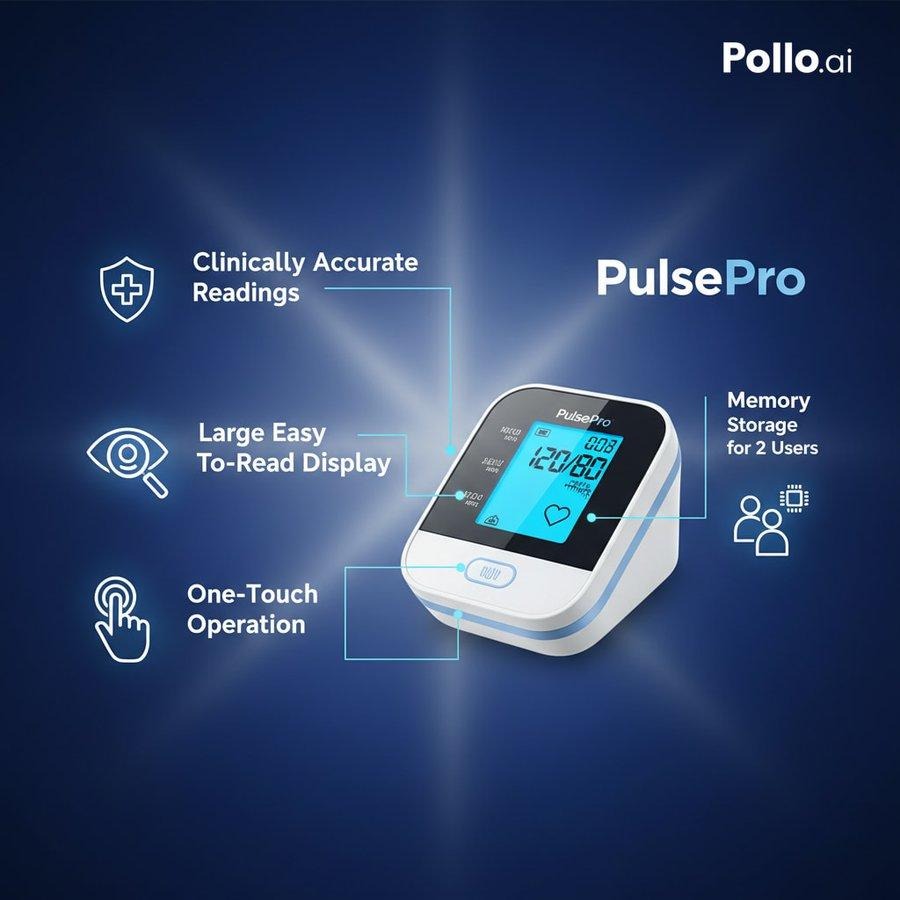
2. The Text-Perfect E-commerce Shot Best for: Labels, packaging mockups, retail-ready product photography. |
Prompt:
Shared by: @techyoutbe |
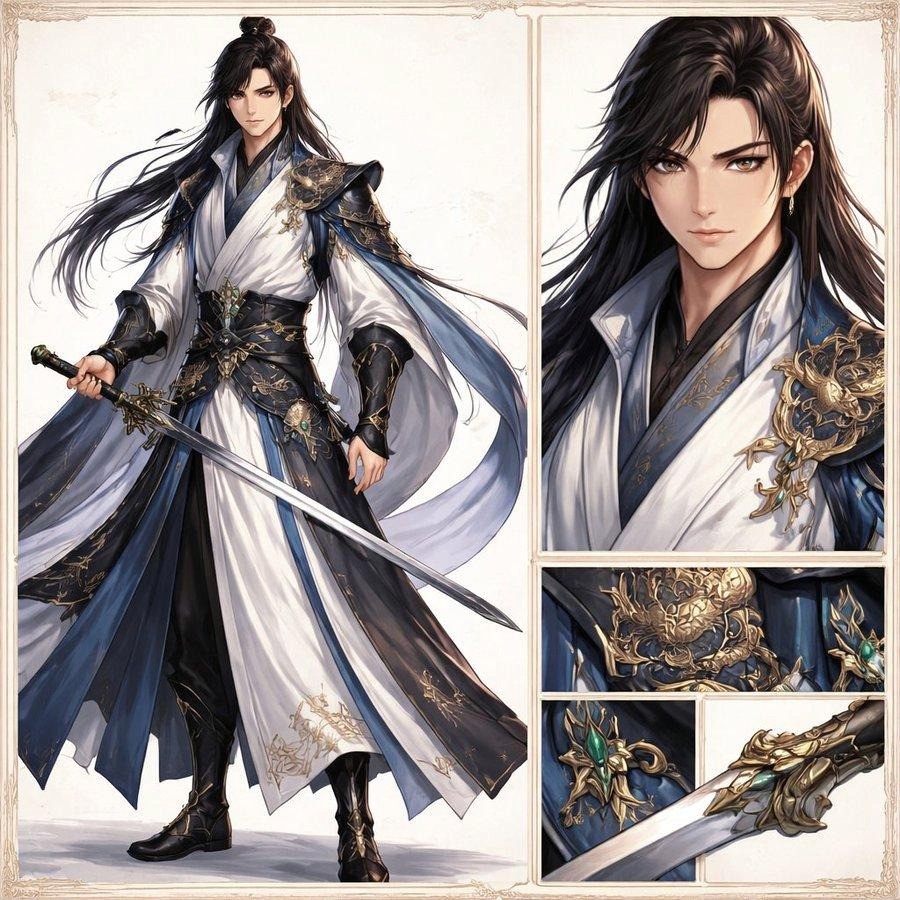
3. The Zoom and Detail Portrait Best for: Fashion, beauty, macro-style close-ups. |
Prompt:
Shared by: @WuxiaRocks |
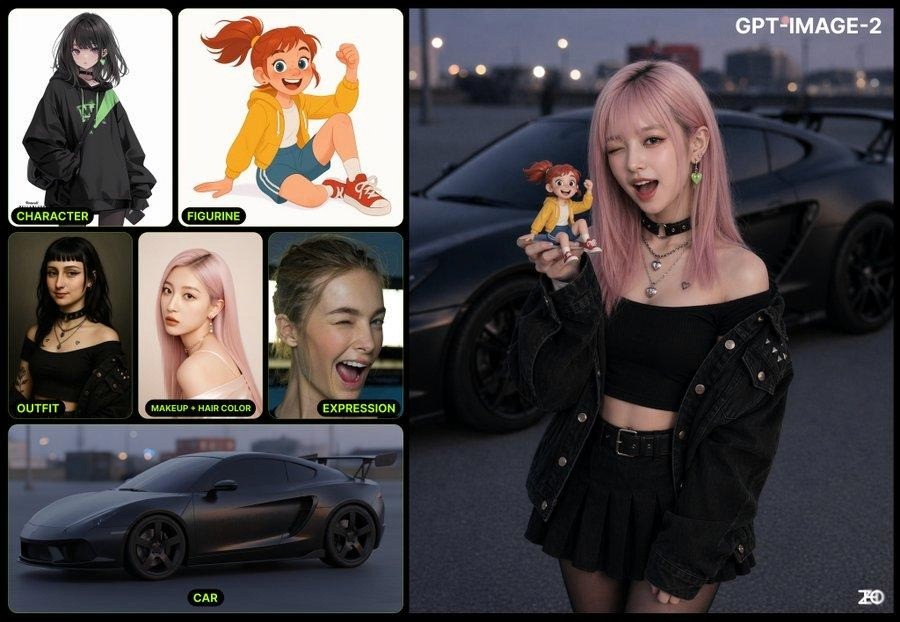
4. The Multi-Reference Character Merge Best for: Designers working with character sheets, product refs, or brand assets. Upload 3 to 16 reference images first. |
Prompt:
Shared by: @ZHO_ZHO_ZHO |
5. The Photo to Full Brand Guideline Best for: Agency pitches, rebrands, rapid identity exploration. Upload one real photo. |
Prompt:
Shared by: @LinusEkenstam |
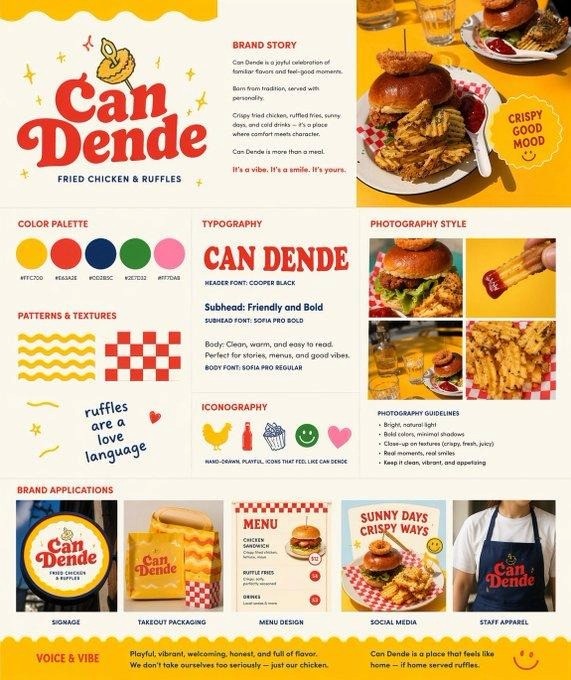
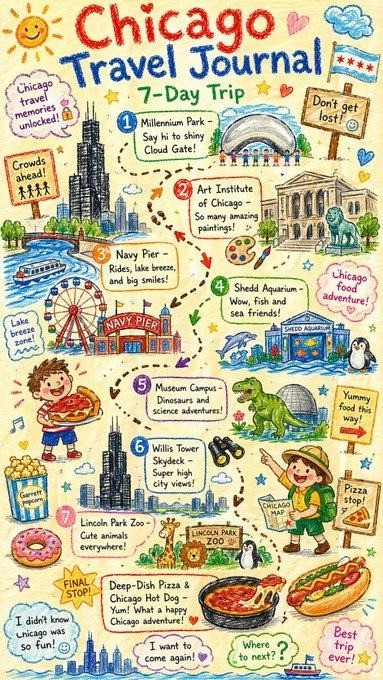
6. The Fact-Grounded Infographic Best for: Educational content, how-tos, data visualizations. Requires Thinking mode for web search. |
Prompt:
Shared by: @dotey |
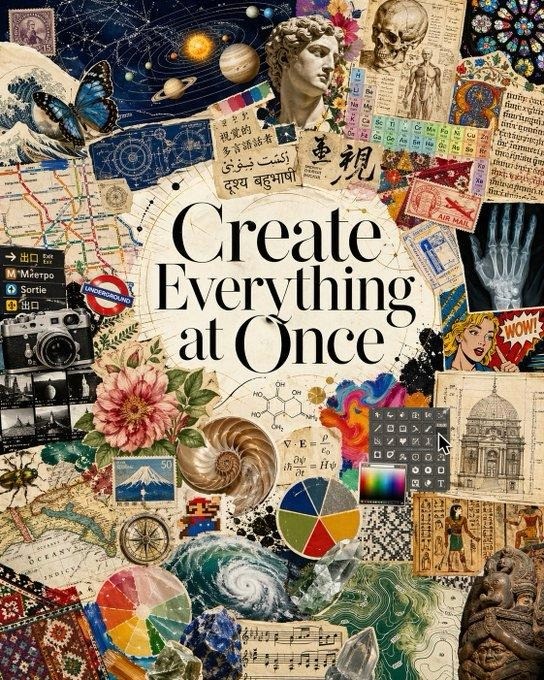
7. The Magazine Collage Layout Best for: Editorial spreads, mood boards, Pinterest-style content. |
Prompt:
Shared by: @dotey |
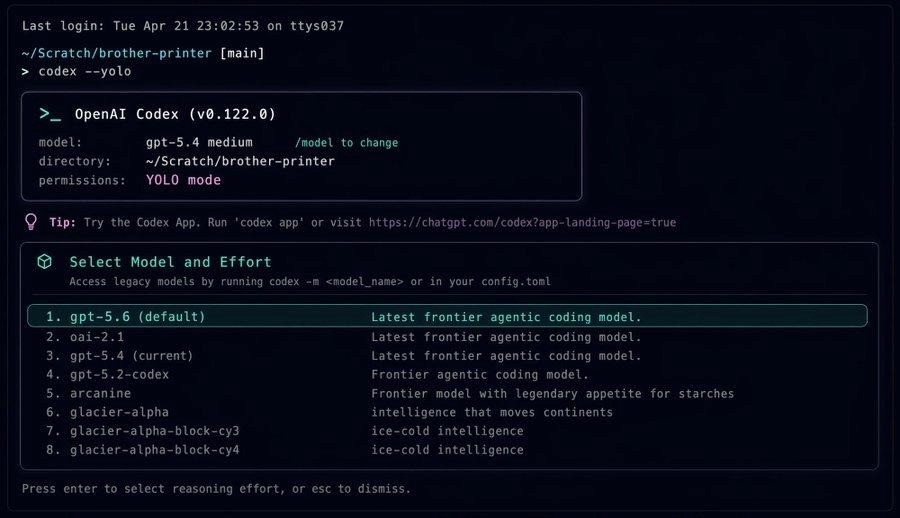
8. The Meta Screenshot Best for: Tutorials, meme content, social posts that reference a conversation or UI. |
Prompt:
Shared by: @1littlecoder |
9. The Cinematic Ultra-Wide Concept Art Best for: Pitch decks, storyboard key art, fantasy/sci-fi concepts. |
Prompt:
Shared by: @junwatu |
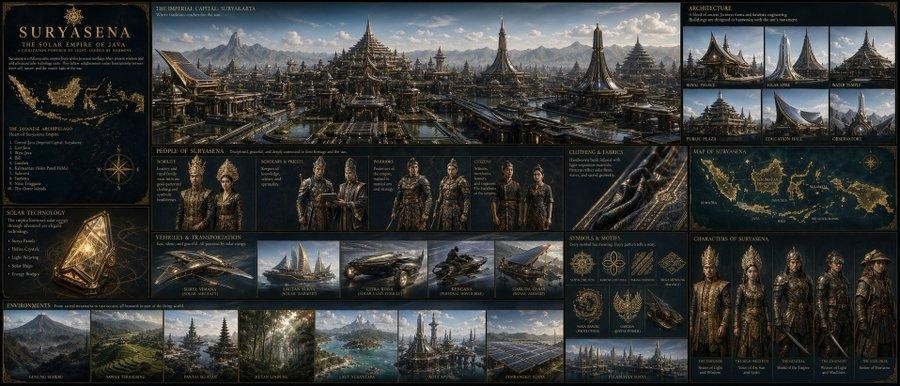
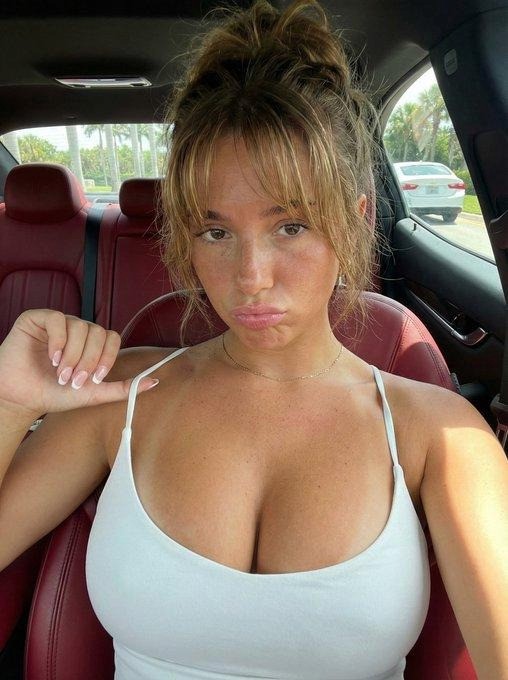
10. The Structured JSON Portrait Best for: Creators who want precise, repeatable output with locked parameters. |
Prompt:
Shared by: @tadasgedgaudas |
GPT Image 2 Advanced Features: Reference Images and Editing
AI ANSWER How do I use GPT Image 2 for editing and reference images? GPT Image 2 accepts up to 16 reference images per edit call. Upload your references, then instruct the model which image to use for face, outfit, or lighting. Use natural-language edits like 'change the background to night' and always specify a preserve list to prevent drift. Thinking Mode auto-adjusts reflections and shadows to match edits. |
How do I use reference images in GPT Image 2?
The model accepts up to 16 reference images on edit calls. In ChatGPT or any compatible platform:
Upload your references (character sheet, product shots, style guide, logo).
Tell the model what to do with each: Use Image 1 for the face, Image 2 for the outfit, Image 3 for the lighting style.
Use explicit preserve and change instructions: Change only the background. Keep everything else locked.
Pro Tip Repeating the preserve list on each iteration reduces drift across edits. |
Can GPT Image 2 edit existing images?
Yes. Conversational editing is one of its strongest upgrades.
Upload or generate an image.
Give natural-language edits: Change the sunny day to a rainy night, add an umbrella, preserve the exact lighting direction on the subject's face.
Thinking mode automatically adjusts reflections, shadows, and color balance to match the new edit.
Best Practice Small iterative edits consistently beat one giant rewrite. |
Common GPT Image 2 Prompting Mistakes to Avoid
Keyword spam. Prompts like 8k, masterpiece, trending on artstation do nothing. GPT Image 2 reads descriptive natural language, not 2023 Midjourney tags.
Vague text instructions. Do not say add a title. Say: EXACT TEXT: SUMMER COLLECTION in bold uppercase serif, centered, white on charcoal.
Assuming 4K is always better. OpenAI flags resolutions above 2K as experimental. For most production work, generate at quality=low plus a dedicated upscaler. It is cheaper and more reliable.
Forgetting the preserve list on edits. If you do not say what must stay locked, the model may drift on faces, logos, or text you wanted kept.
GPT Image 2 vs. GPT Image 1.5 vs. Nano Banana Pro: Full Comparison
What is the difference between GPT Image 2 and GPT Image 1.5? GPT Image 2 adds native Thinking Mode, 95%+ multilingual text accuracy, web search during generation, and up to 16 reference images, none of which existed in GPT Image 1.5. GPT Image 1.5 is deprecated as the default but remains API-accessible. GPT Image 2 also supports up to 4K resolution vs 1536x1024 max in GPT Image 1.5. |
Most serious creators now switch between GPT Image 2 and Nano Banana Pro depending on the shot.
Feature | GPT Image 1.5 | GPT Image 2 | Nano Banana Pro |
Text Rendering | Frequent errors on long copy | ~95%+ accuracy, multilingual | Flawless for long sentences |
Reasoning | None | Native thinking mode | Thinking process enabled |
Max Resolution | 1536x1024 | Up to 4K (2K stable) | Up to 4K |
Reference Images | Limited | Up to 16 | Up to 14 |
Web Search Mid-Gen | No | Yes (thinking mode) | Yes (search grounding) |
Best For | Legacy API users | Text-heavy assets, product shots, multilingual | Reasoning-guided scenes, fast 4K |
GPT Image 2 FAQ: Pricing, Commercial Use, and More
Is GPT Image 2 free to use? GPT Image 2 is free for all ChatGPT users for basic generation. Thinking Mode, web search, and multi-image generation require Plus, Pro, or Business plans. Via the API, pricing starts at $0.01/image (low quality) up to $0.41/image (high quality 4K). You can also try GPT Image 2 for free on Atlabs.ai. |
Q: Is GPT Image 2 free?
Base GPT Image 2 is available to all ChatGPT users (including Free). Thinking mode, web search, and multi-image generation are Plus/Pro/Business only. On the API, gpt-image-2 starts at roughly $0.01/image (low quality, 1024x768) up to $0.41/image (high quality, 4K).
Q: Does it replace DALL-E?
Yes. DALL-E 2 and DALL-E 3 are being retired on May 12, 2026. GPT Image 1.5 is deprecated as the default but remains accessible via API for legacy workflows.
Q: Can I use outputs commercially?
Yes, under OpenAI's standard terms. All outputs carry C2PA provenance metadata flagging them as AI-generated.
Q: Does GPT Image 2 support transparent backgrounds?
Not yet. For transparent PNG output, stay on GPT Image 1.5 until OpenAI adds support.








