If you are an indie artist with a finished track and no budget for a director or a film crew, the Atlabs Music Video mini app is built for exactly your problem. It takes an uploaded song, reads its tempo and mood, and produces a cinematic, live-action-feeling video without a single day of shooting. This review walks all five steps of the workflow, points out where the realistic look holds up, and flags the spots where an indie musician should slow down and direct.
What the Atlabs Music Video mini app actually is
The Music Video workflow sits inside Atlabs as a focused, five step flow rather than a blank timeline. For an indie artist that distinction matters. You are not editing footage you do not have. You upload a track, the app reads it, and it routes the audio through video models like Kling 3.0 for cinematic motion and Google Veo 3.1 for photoreal establishing shots. The output leans live-action, which is the look most hip hop, pop, rock, folk, and lo-fi releases want for a single.
Calling it a mini app is fair. It is opinionated and fast, and it hides the model wrangling behind named steps. The trade is less manual control than a full editor, which most indie musicians shipping a release on a deadline will happily accept.
What you need before you start
You need an Atlabs account, one finished track as an mp3 up to 200MB or a Suno link, and roughly ten minutes. A rough idea of the mood you want helps, though the app proposes concepts on its own. That is the entire setup for an indie artist testing the workflow on a real song.
The five step walkthrough
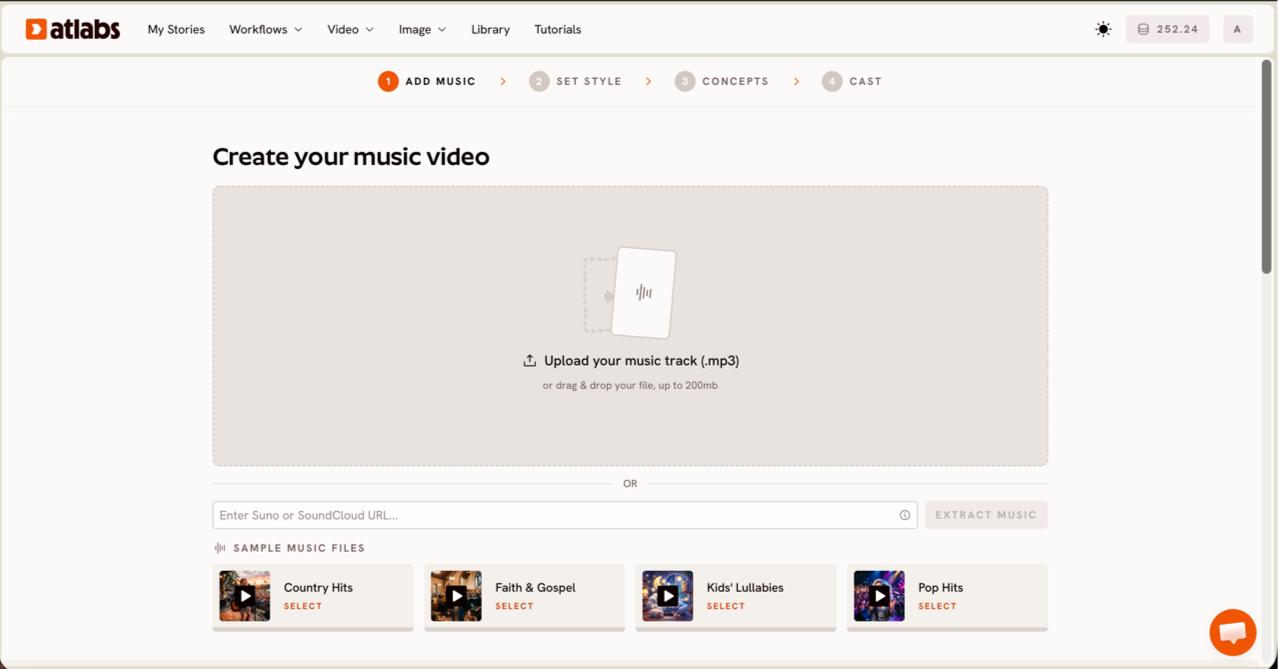
Open the Music Video workflow and add your track. On the Add Music screen, upload your mp3 or paste a Suno music URL, then click EXTRACT MUSIC. Atlabs auto-detects the track properties so the later concepts match your tempo and genre. The header reads Create your music video.
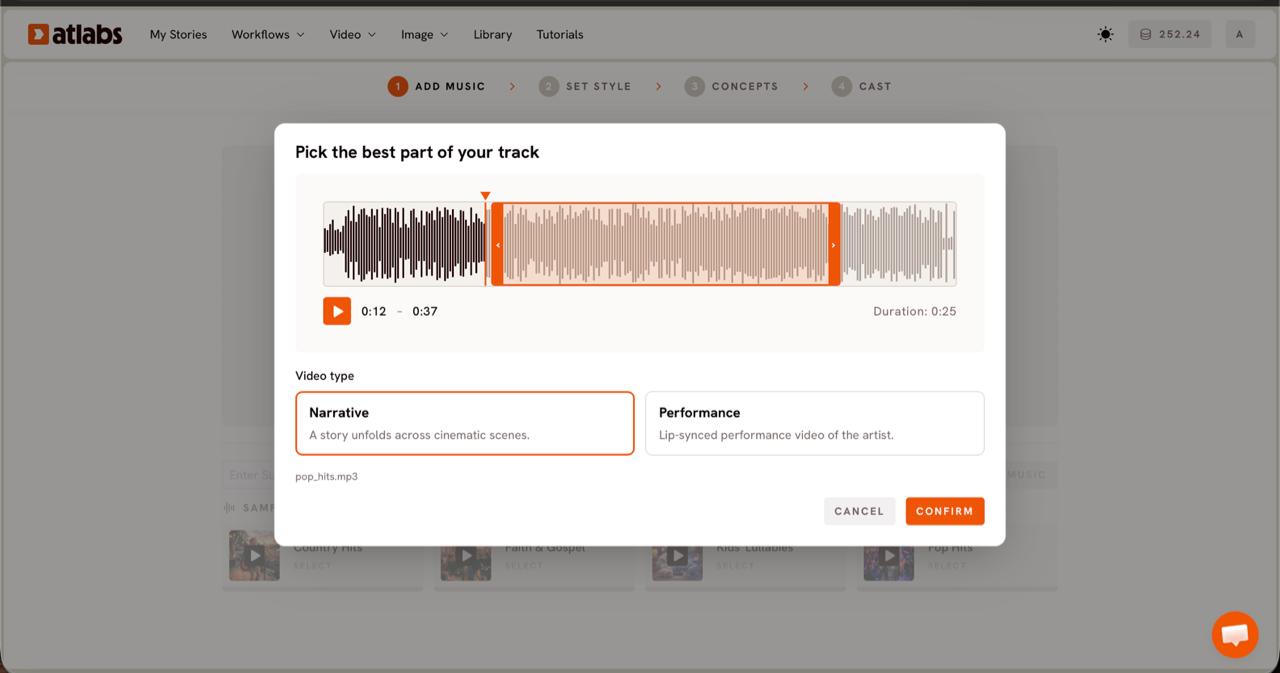
Pick the strongest segment and choose a Video Type. The Pick the best part of your track modal opens over the waveform. Drag the green selection window across the section that carries the song, usually up to about 25 seconds. For an indie release, choose Narrative when the track is atmospheric and you want a story across cinematic scenes, or Performance when there are vocals and you want a lip-synced artist on screen.
For the full step-by-step build, see how to make an AI music video for your indie song.
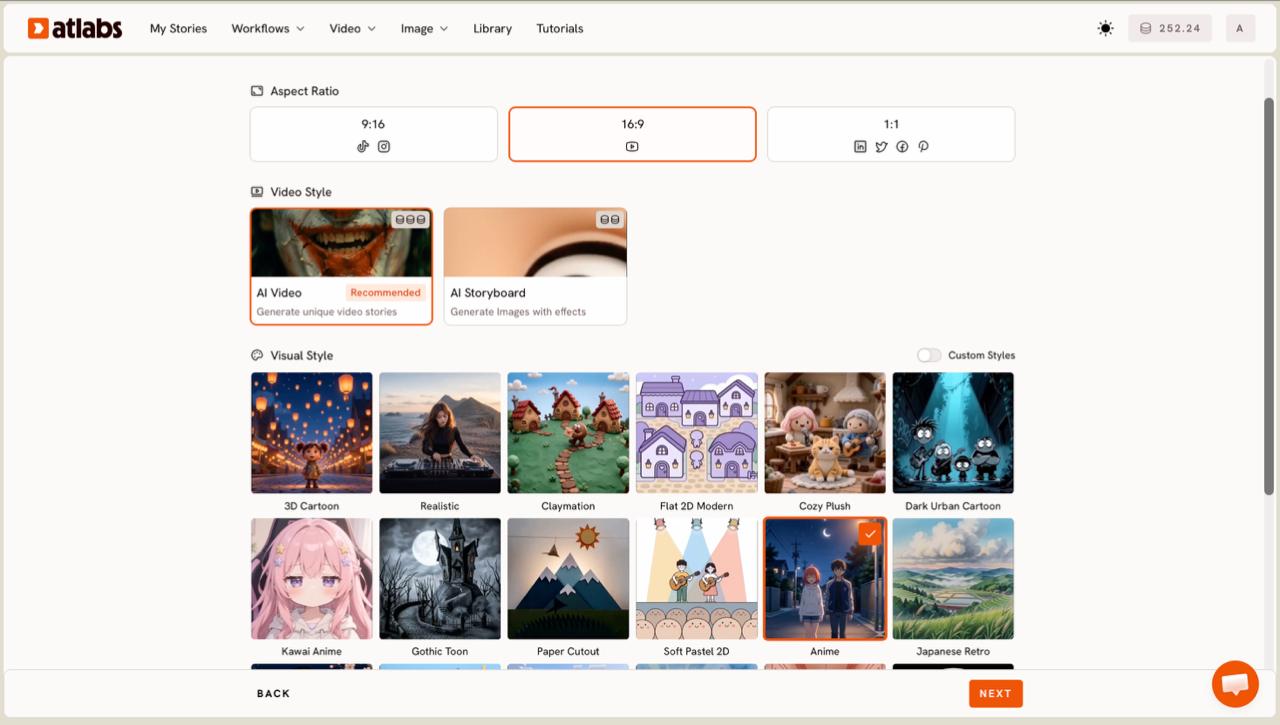
Set the style for a realistic look. On Set Style, choose your Aspect Ratio: 9:16 for TikTok and Instagram, 16:9 for YouTube, or 1:1 for square platforms. Keep Video Style on AI Video for unique generated scenes. For the live-action vibe indie artists usually want, select Realistic from the Visual Style library rather than the cartoon or anime options.
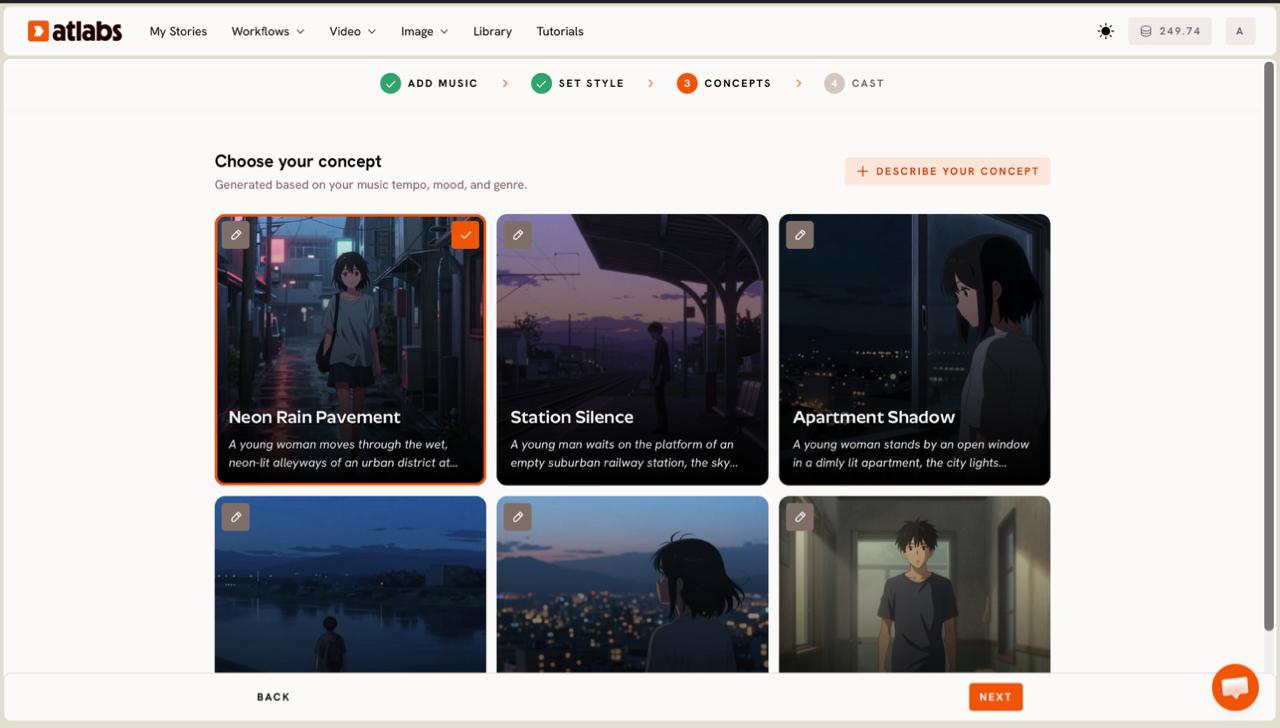
Choose a concept the app generated from your track. The Concepts screen shows six scene concepts built from your music tempo, mood, and genre, each as a card with an edit pencil. Pick the one closest to your song, or click the describe your concept option to write fully custom direction. This is where an indie artist becomes the director instead of a passenger.
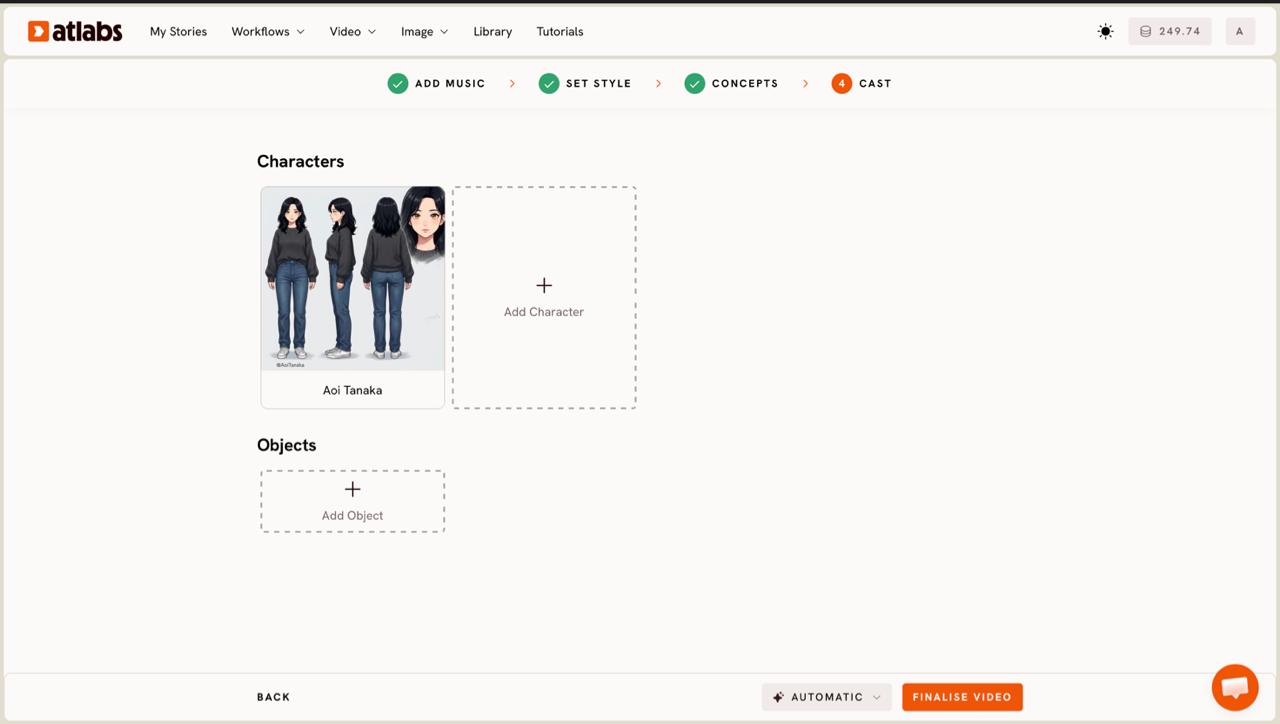
Cast your characters and objects. On the Cast screen, each character card shows a generated reference sheet with multiple angles and a portrait, which is what keeps the same face consistent across every scene. Click an empty slot to Add Character, use Click to edit to refine a look, and add any signature props in the Objects section, an instrument or a car that recurs in your video.
Tips for a better indie result
Pick the hook, not the intro. The 25 second window is short, so select the part of the track that already moves a listener. Lean on Narrative for instrumental and lo-fi pieces where there is no vocalist to lip-sync. Write your own concept text when the six cards feel generic, since the model follows specific direction far better than a one line mood. If your song carries strong vocals and you want a performer on screen, the separate Lip Sync app pairs cleanly with a Performance video for tighter mouth movement.
Two concept prompts to copy
Drop either of these into the describe your concept box on the Concepts step, then adjust the genre and setting to your own track.
A solo indie artist walks through a rain-slick neon street at night, handheld camera, shallow depth of field, warm streetlights reflecting on wet asphalt, cuts that land on the beat, cinematic film grain.
Try this in Atlabs Music Video
An instrumental lo-fi track plays over a sunrise drive through empty desert highway, golden hour light, slow dolly shots, dust in the air, a single vintage car, calm and reflective mood throughout.
The verdict
For an indie or instrumental artist who needs a cinematic video for a single without filming, the Atlabs Music Video mini app earns its place. The five named steps remove the guesswork, the Realistic style holds up for live-action moods, and the reference sheets keep a character recognisable across scenes, which is where most quick AI video tools fall apart. The honest limits: the per-segment window suits a single hook rather than a full four minute song, and the realistic look rewards artists who write specific concept direction over those who accept the first card. As a review takeaway, treat it as a fast cinematic engine you still direct, not a one click button, and indie results jump.
If you want the finished cut at a higher resolution for YouTube, run it through the Upscale app, and use Reframe to spin a 16:9 master into a 9:16 cut for Reels and TikTok.
FAQ
Is the Atlabs Music Video mini app good for instrumental tracks?
Yes. Instrumental and lo-fi tracks suit the Narrative video type, which builds a story across cinematic scenes instead of relying on a vocalist. You select the segment, pick Realistic style, and let the concepts follow the tempo and mood.
How long does it take to make an indie music video?
Plan for roughly ten minutes of hands-on setup across the five steps, from Add Music to Cast. Generation runs after that. Most of your time goes into picking the right 25 second segment and refining the concept text.
Can I keep the same character across every scene?
Yes. On the Cast step each character has a generated reference sheet with multiple angles, which is what holds the same face and look consistent from shot to shot across the video.
Does the app work for a live-action look rather than animation?
It does. Choose the Realistic option in the Visual Style library on the Set Style step. Models like Kling 3.0 and Google Veo 3.1 drive the cinematic, live-action-leaning motion that indie releases usually want.
Get started
Upload a track and walk the five steps yourself in the Music Video workflow.








