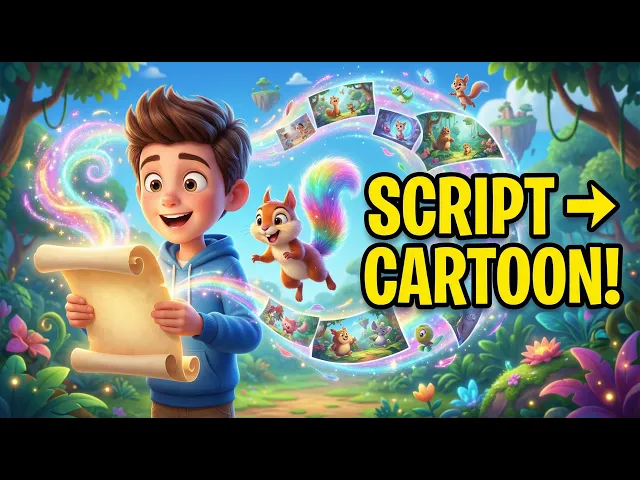
Teachers who convert lessons into animated videos consistently report stronger student recall and higher in-class engagement than static slide decks or printed handouts. With the Animated Video workflow on Atlabs, any teacher can take a written lesson script and produce a fully voiced, animated short in three steps, with no animation software, no graphic design background, and no production budget. This guide covers the full process from script to finished classroom video, including the exact settings that work best for educational content.
What you will need
1. An Atlabs account at atlabs.ai
2. A written lesson script, or a topic for the AI Script Writer to draft from scratch
3. A classroom subject ready to animate (any grade level, any subject area)
4. 10 to 15 minutes from start to finished video
Watch the full video on YouTube
Step 1: Add your lesson script
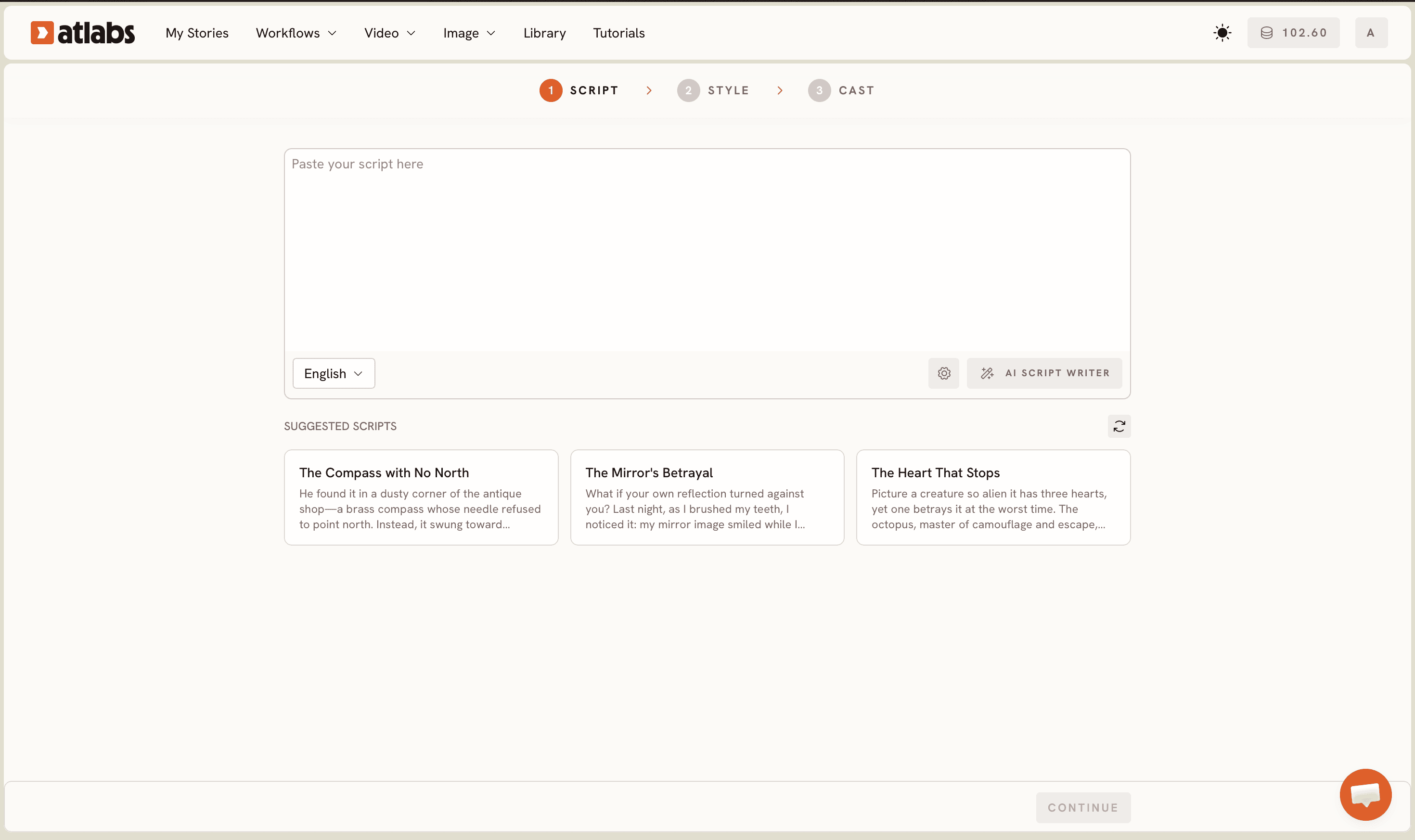
Open the Animated Video workflow from your Atlabs dashboard at app.atlabs.ai/app. The screen header displays a progress bar reading SCRIPT, SET STYLE, and CAST. Two tabs appear at the top of the editor: Add your script for free-form text, and Add your screenplay for structured screenplay mode. Paste your lesson content directly into the script editor. The system reads the text and generates characters, scenes, and voiceover from the material you provide.
If you have a topic but no written script yet, click the AI Script Writer button at the bottom right of the editor. Type your topic, for example The water cycle for Grade 5 students, and the AI produces a narrated lesson script ready to animate. The SUGGESTED SCRIPTS section at the bottom of the screen also shows three example cards as starting points if you want to see the format before writing your own. For multilingual classrooms, the Language selector at the bottom left of the screen switches the output language before generation.
Step 2: Set the visual style
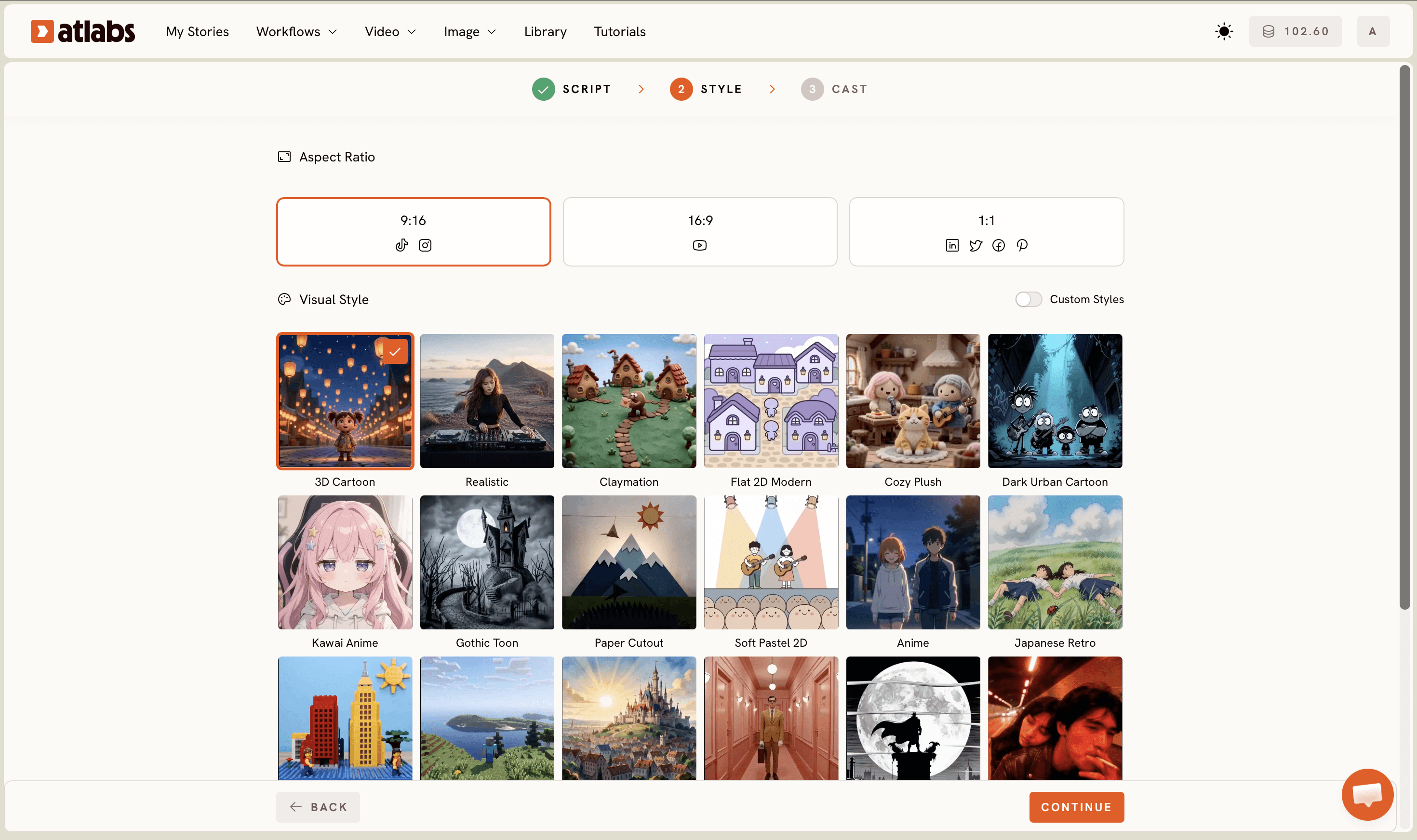
Click Next to reach the Set Style screen. Three choices define the look of the animated lesson. Aspect Ratio sets the video format: 16:9 for classroom projector display or YouTube, 9:16 for Instagram Reels or short-form student content, or 1:1 for a square format suited to multiple platforms at once. Video Style sets the generation method: AI Video (recommended) produces fully animated scenes from the script, AI Storyboard produces illustrated image sequences with motion effects, and Upload lets teachers add their own visuals later.
The Visual Style library covers a wide range of aesthetics including 3D Cartoon, Soft Pastel 2D, Flat 2D Modern, Cozy Plush, and Paper Cutout, among others. For most primary and secondary classroom subjects, 3D Cartoon or Soft Pastel 2D produces the clearest, most student-friendly visuals. STEM topics with diagrams and labeled components render especially well in Flat 2D Modern. Toggle Custom Styles at the bottom of the library to access the full range of visual options available on the platform.
Step 3: Cast the narrator and characters
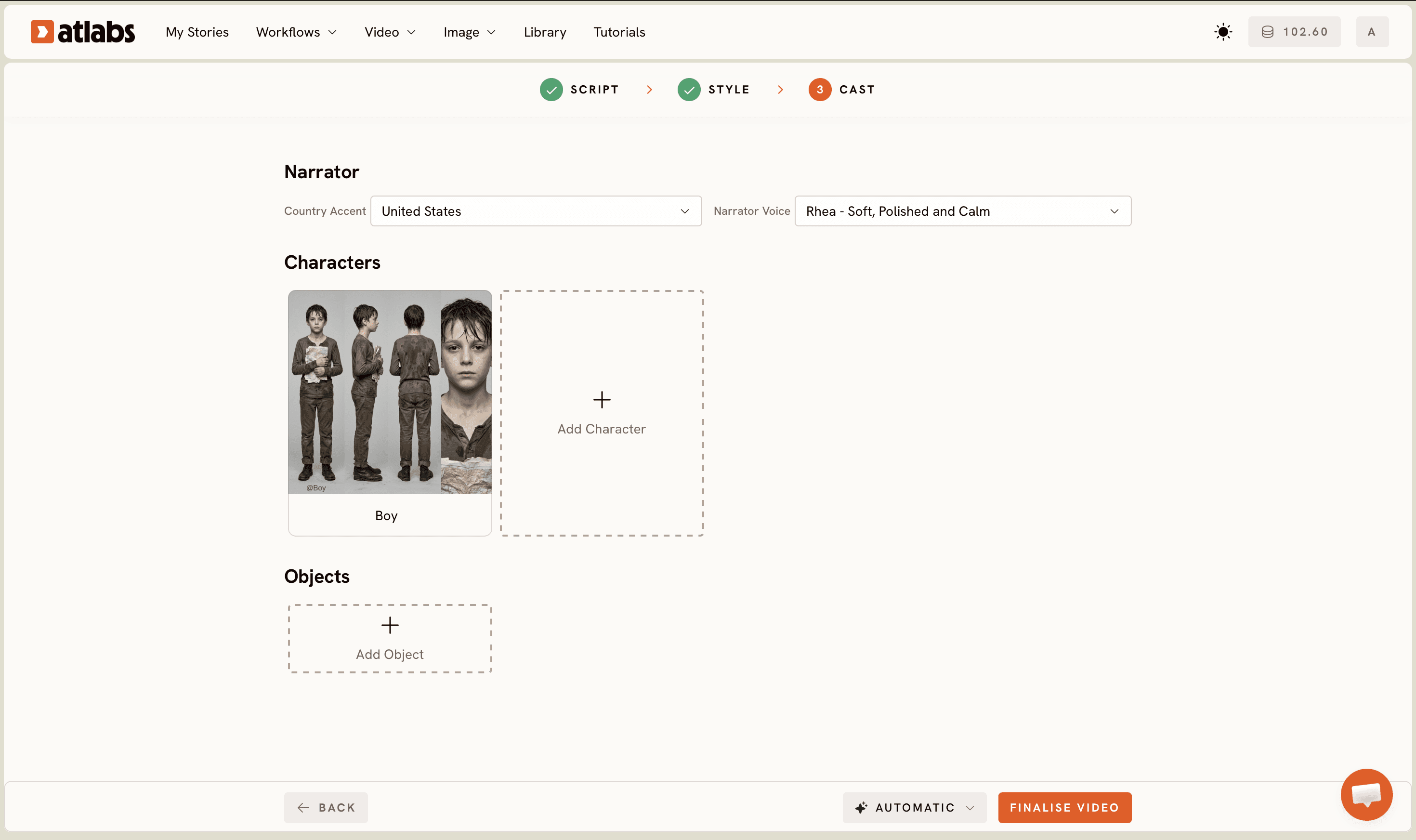
The Cast screen is divided into three sections. At the top, the Narrator section has a Country Accent dropdown (United States by default) and a Narrator Voice dropdown with options such as David. Pick a voice that suits the lesson tone: a calm, clear narrator for science explanations, or a warmer and more expressive voice for storytelling subjects like history or literature. The Characters section in the middle shows generated character cards for any named figures or roles in the script, with each card displaying a reference sheet of the character across multiple angles and the Click to edit overlay for refinements. The Objects section at the bottom adds optional visual props to the scene. Click Generate when the cast is set.
Tips for better animated lesson videos
Keep each lesson script to two minutes of narration or less. The Animated Video workflow produces tighter, more focused scenes when the script stays concise. For longer lessons, break the content into episode-style parts: Part 1 Introduction, Part 2 Core Concept, Part 3 Examples and Review. Students engage better with three shorter videos than one ten-minute animation, and shorter episodes also make it easier to update individual parts when the curriculum changes.
Use subject-specific vocabulary throughout the script. When the text mentions mitochondria, photosynthesis, or the Silk Road, the AI generates visually relevant scenes rather than generic backgrounds. Vague scripts produce vague visuals. Precise subject language produces precise, curriculum-aligned imagery that reinforces the lesson concept rather than distracting from it.
Match the narrator voice and accent to your classroom audience. Atlabs supports multiple country accents in the Narrator section, and students in different regions respond differently to accent familiarity. A narrator that sounds local carries more attention than a clearly foreign delivery, particularly for younger students or classrooms where English is a second language.
Example lesson scripts to try
The following two scripts are ready to paste into the Script editor of the Animated Video workflow. Each is written at a length and reading level suited to classroom animation, and each uses subject-specific vocabulary so the AI generates relevant scene content.
Science, Grade 5: The water cycle moves water between the ocean, atmosphere, and land in a continuous loop. Evaporation heats water from the ocean surface and turns it into water vapor. This vapor rises, cools, and condenses into clouds. When clouds grow heavy with water droplets, precipitation falls as rain or snow back to Earth. The water collects in rivers, lakes, and oceans, and the cycle begins again.
Try this in Atlabs Animated Video
History, Grade 9: In the 15th century, the Silk Road connected China, Central Asia, Persia, and Europe through a network of overland and maritime trade routes. Merchants carried silk, spices, and porcelain westward, while gold, wool, and glassware traveled east. Cities like Samarkand and Constantinople became wealthy trading hubs where cultures exchanged not only goods but also ideas, religions, and technologies that reshaped the ancient world.
Try this in Atlabs Animated Video
FAQ
How long does it take to produce an animated lesson video?
Most teachers complete a one-to-two minute animated lesson video in 10 to 15 minutes from script to output. The Script, Set Style, and Cast steps each take about two to three minutes, and rendering adds a few minutes depending on the scene count and visual style selected.
Do I need any animation or design skills to use the Animated Video workflow?
No design or animation skills are required. The Animated Video workflow handles scene generation, character design, and voiceover production automatically. Teachers provide the lesson script or topic, and Atlabs generates the visual and audio elements from there.
What formats can animated lesson videos be exported in?
Animated videos on Atlabs are generated in the aspect ratio set during the Set Style step: 16:9 for YouTube or classroom projector display, 9:16 for Instagram Reels or TikTok, and 1:1 for square social formats. Choose based on where the video will be shown to students.
Can animated lesson videos be produced in languages other than English?
Yes. The Language selector on the Script screen lets teachers set the output language before production starts. The Narrator voice options also include different country accents, which helps match the video to the language and regional context of the classroom.
Get started
Animated lesson videos take a concept a student might struggle to picture and make it visible, voiced, and memorable in minutes. Open the Animated Video workflow on Atlabs to turn your next lesson plan into a video your students will not forget.
Open Atlabs