
Explaining photosynthesis to a nine year old is a different job from explaining it to a shareholder. The concept has to arrive in one piece, in under three minutes, in pictures a child can hold onto, with a narrator who sounds like a person rather than a manual. For most teachers and education creators that has meant either a slideshow with a voiceover, or a quote from an animation studio that ends the conversation. In 2026 there is a third option, and it takes about ten minutes of active work per video. Here is the full workflow.
The five step workflow at a glance
Add your script
Set your style
Finalise your cast
Finalise and edit at the scene level
Publish everywhere with the Global Release Kit
Why This Matters in 2026
Children do not watch educational video the way adults do. They do not push through a boring middle because the ending is useful. The research on instructional video is blunt about this: an analysis of 6.9 million video views on edX found most students stopped watching after six minutes, and later work at Stanford found the median watch time for a single viewing session sat around twelve to thirteen minutes even among committed university students. For primary and middle school audiences the honest planning number is shorter still. One concept, two to three minutes, and a visual that does the explaining rather than decorating it.
That constraint is what makes AI production actually useful in education rather than merely faster. When a video takes three weeks and a budget, you make one long video covering six concepts, because that is the only way to justify the production. When a video takes ten minutes, you make six short videos covering one concept each, which is what the learning research has recommended all along. The economics finally match the pedagogy.
The second thing that changed is consistency. Educational content is episodic by nature. A series on the water cycle, a series on fractions, a series on the Mughal empire. Until recently, keeping the same narrator character across twelve episodes meant either an animation pipeline or accepting that episode seven looks like a different show. Character systems built into the workflow rather than bolted on with reference images have made a season of consistent content reachable for a single teacher with a laptop.
The third is language. A classroom in Bengaluru, a homeschool group in Ohio and a supplementary school in Lagos may all want the same fractions explainer in different languages. Translating a finished video used to mean re-recording the narration and re-timing the captions. It is now a release step rather than a second production.
What You Need Before You Start
You need one concept, not one topic. "The water cycle" is a topic and it will produce a vague video. "Why puddles disappear on a sunny day" is a concept and it will produce a good one. Pick the single idea a child should be able to repeat back afterwards, and build everything around that sentence.
You need a script of roughly 150 to 220 words for a 60 to 90 second video. Written for the ear, not the page. Short sentences, active voice, one idea per line. Read it aloud before you paste it anywhere, because stiffness that is invisible on screen is obvious in a narrator's mouth.
You need an age band, because it governs every other decision. Three to five wants big shapes, slow pacing, repetition and a warm narrator. Six to eight can follow a two step process and enjoys a character who gets things wrong first. Nine to twelve will tolerate a diagram, a number, and a narrator who does not talk down to them.
You do not need an animation background, a voice actor, or a licence for stock footage.
Comparison Table
Feature | Atlabs | Traditional animation studio | Slide based tools | Clip generators | Canva |
|---|---|---|---|---|---|
Best for | Episodic educational series, start to finish | High budget flagship content | Quick lesson recaps | Individual hero shots | Thumbnails, worksheets, packaging |
Creation method | Script in, finished video out | Brief, storyboard, animatic, render | Slides plus recorded voiceover | Prompt per clip | Templates plus manual assembly |
Character consistency | Consistent Cast, defined once per series | Full model sheets, reliable | Not applicable | Reference images, unreliable across shots | Not applicable |
Kids animation styles | 30 plus in the Visual Style library, including Paper Cutout, Claymation, Whiteboard Doodle, 3D Cartoon | Anything, at a cost | Limited to template art | Prompt dependent | Illustration and vector |
Voiceover and captions | Country Accent and Narrator Voice built in, plus Caption Video | Recorded separately | Recorded manually | Not included | Auto captions from audio |
Multi language release | Global Release Kit, 40 plus languages | Re-record per language | Re-record per language | Not included | Manual per version |
Scene level fixes | Regenerate one scene without re-rendering the video | Change order, new cost | Re-record the slide | Regenerate the whole clip | Re-edit the timeline |
Time to finished video | Around ten minutes of active work | Weeks | An hour or more | Assembly time on top | Assembly time on top |
Learning curve | Low | High | Low | Medium | Low |
The Step by Step Workflow
Everything below happens in the Animated Video workflow, which you can open from Workflows on the Atlabs dashboard. If your explainer is deliberately low fidelity, a whiteboard style walkthrough of long division for example, Stick Style is the sibling workflow built for exactly that look.
1. Add Your Script

What this step does. It turns your written explanation into the structural spine of the video. Everything downstream, the number of scenes, what each scene shows, where the narrator pauses, comes from what you paste here.
Key controls. You can paste an existing script directly, or use the AI Script Writer to draft one from a prompt. A Suggested Scripts panel offers starting points if you want to see the shape of a working script before writing your own. A language selector sits alongside the input.
For kids education. Resist the urge to include everything you know. A 90 second explainer holds one idea, one example and one recap. The structure that works most reliably for young audiences is a question, a demonstration, and a payoff: ask why puddles disappear, show the water becoming invisible and rising, then name it as evaporation at the end rather than the beginning. Naming the concept last means the child has already understood it before they meet the word, which is the opposite of how most textbook explanations are built.
If you are producing a series, write all six scripts before you generate the first video. It takes an afternoon and it means your cast, style and narrator decisions get made once for the whole season.
2. Set Your Style
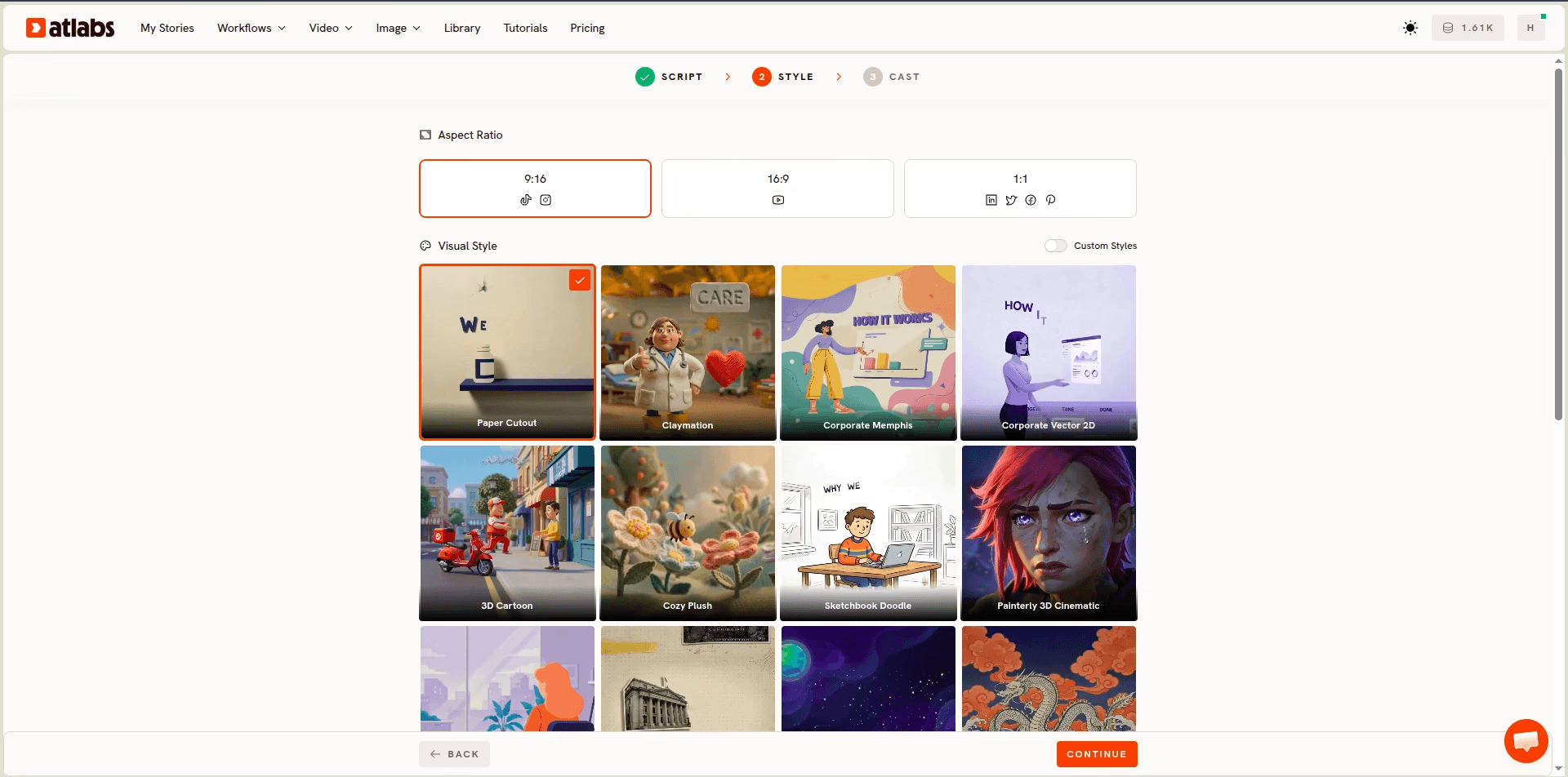
What this step does. It fixes the visual language of the video, and by extension the series.
Key controls. Aspect Ratio offers 16:9 for YouTube and classroom projection, 9:16 for Shorts and Reels, and 1:1 for feed posts. The Visual Style library carries more than thirty animation styles, including Whiteboard Doodle, Paper Cutout, Claymation, 3D Cartoon, Corporate Vector 2D, Inked Graphic Novel, Corporate Memphis and Ukiyo-e. A Custom Styles option lets you hold one look across every video in a series.
For kids education. Style is not decoration here, it is a signal about what kind of attention the video is asking for, and mismatching it is the most common beginner mistake. Paper Cutout and Claymation read as warm, tactile and safe, which suits the three to eight band and anything emotional or story led. Whiteboard Doodle reads as "we are working something out together," which suits process explanations like arithmetic, spelling rules and simple experiments. 3D Cartoon carries energy and works for older primary children on topics like space, dinosaurs and the human body. Corporate Vector 2D is clean and neutral, which makes it right for nine to twelve on factual subjects where the diagram matters more than the character.
Pick one and hold it. A science series that arrives in Claymation one week and Ukiyo-e the next teaches children that the videos are unrelated.
3. Finalise Your Cast
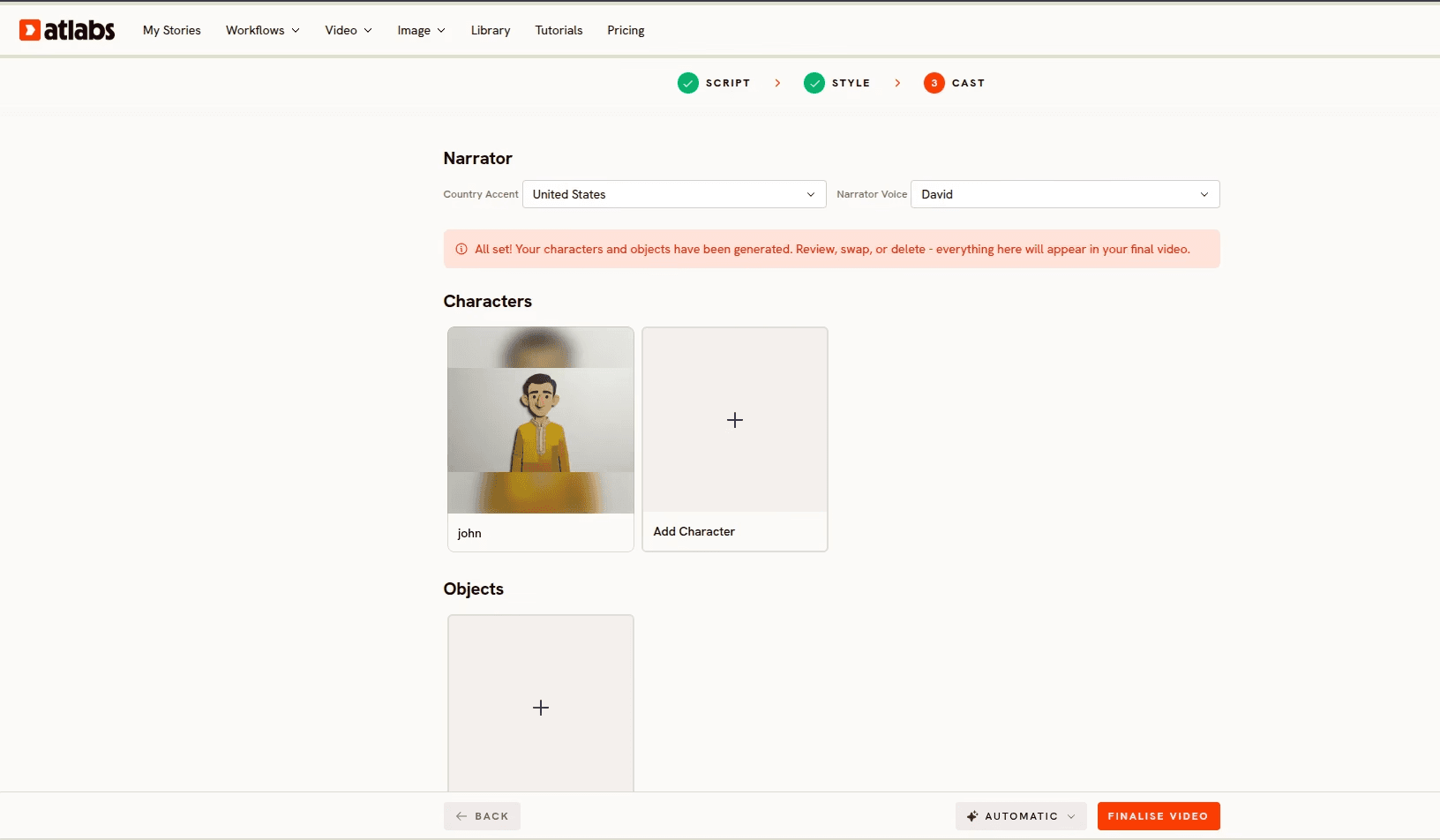
What this step does. It defines who the child sees and hears, and locks those decisions so they carry across every scene and every episode.
Key controls. Country Accent and Narrator Voice set the voice of the video. Add Character defines the people who appear on screen, and Objects covers recurring props, which matters more than it sounds. Together these make up the Consistent Cast system.
For kids education. Lock your cast before your first render, not after. The whole value of Consistent Cast is that the same teacher character, the same curious child, and the same recurring beaker or measuring jug appear identically in episode one and episode twelve. Adding a character in episode four means episode four looks like a different series.
Choose the narrator voice for the age band rather than for yourself. Younger audiences respond to a warmer, slower delivery with more pitch variation. Older children find that patronising and follow a steadier, more matter of fact voice more willingly. The Country Accent selector matters if your audience is regional, because a child follows an unfamiliar accent more slowly than an adult does, and that lost half second compounds across a three minute video.
Objects deserve real thought in educational content. If your fractions series always uses the same pizza, the same chocolate bar and the same measuring jug, those objects become a visual vocabulary the child recognises instantly by episode three, and you get to spend that recognition on the new idea instead of re-establishing the old one.
Try the Animated Video workflow in Atlabs with a single 150 word script and see the cast system work before you commit a series to it.
4. Finalise and Edit at the Scene Level
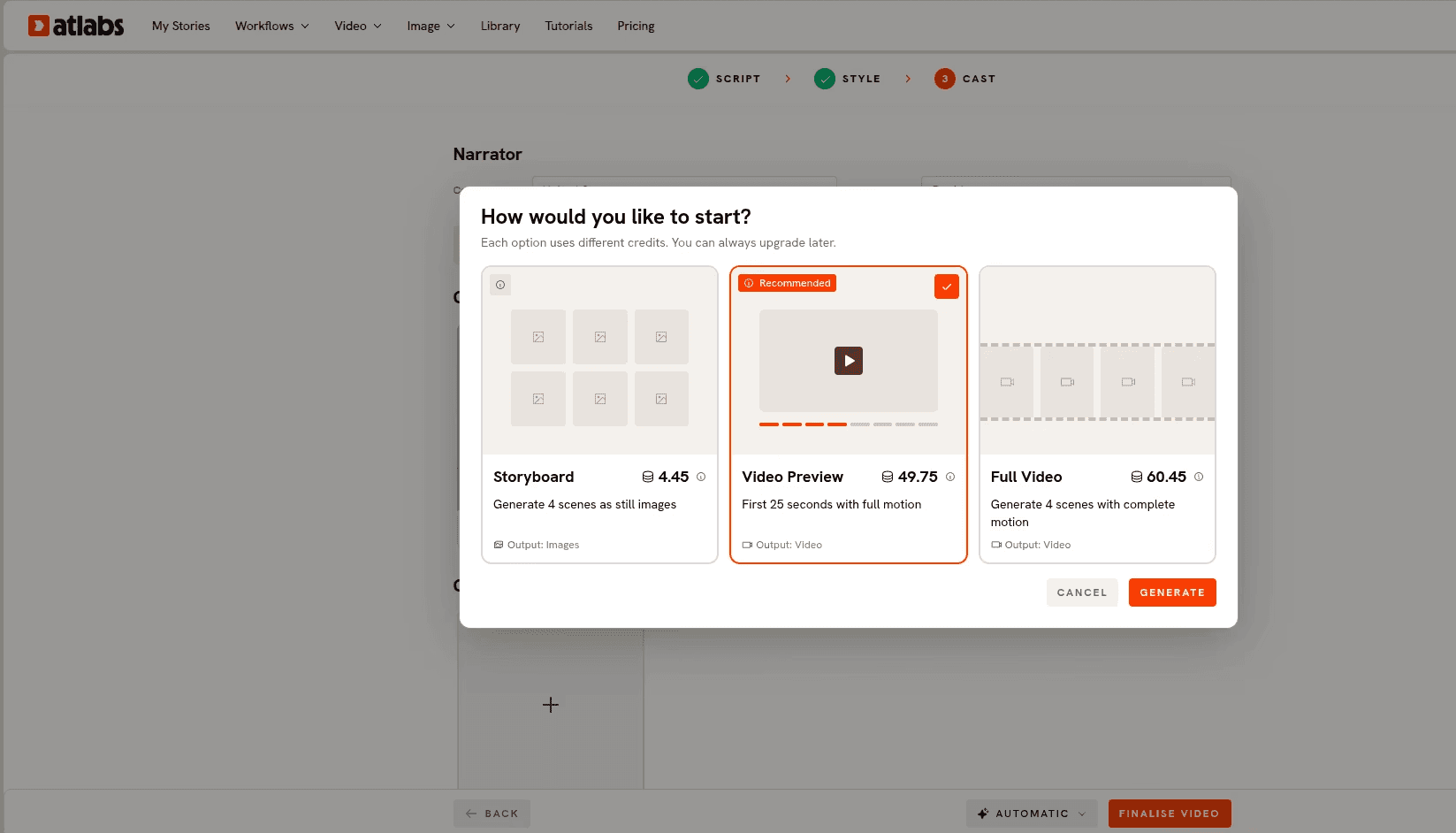
What this step does. It generates the video and then hands you control over individual scenes rather than the whole file.
Key controls. Finalise Video runs the generation automatically. Once it is done, any single scene can be regenerated on its own without re-rendering the rest of the video.
For kids education. This is where educational video quietly diverges from marketing video. In a product explainer a slightly odd scene is a blemish. In a teaching video a slightly odd scene is a misconception, and it will be the part the child remembers. Watch the video once for craft and once for accuracy, specifically checking that any diagram, count, sequence or process shown on screen matches what the narrator is saying.
Common things worth a second look in kids content: the number of objects on screen when the narrator states a number, the direction of a process such as evaporation rising or a plant growing upward, and the order of steps in anything procedural. When one of those is wrong, regenerate that scene alone with a more explicit description of what should be visible. Scene level regeneration is what makes accuracy checking practical, because fixing one shot does not cost you the other eleven.
If a scene needs a specific spoken performance, a character counting aloud with the numbers landing on the right beat for example, record the audio yourself and run the shot through Lip Sync, which takes a character image or video and an audio file between two seconds and 120 seconds and matches the mouth to the performance.
5. Publish Everywhere with the Global Release Kit
What this step does. It turns one finished video into a multi platform, multi language release.
Key controls. The Global Release Kit handles translation into more than forty languages, vertical reframing for short form platforms, and thumbnail generation.
For kids education. Translation is the highest impact step available to education creators and the most underused. A fractions explainer that works in English works in Hindi, Spanish and Portuguese without a single change to the pedagogy, and the audience for children's educational content in those languages is chronically underserved. If you are producing for schools, the same feature covers a multilingual classroom where the parents at home read one language and the children learn in another.
Vertical reframing matters because discovery for children's education now happens in short form. The 45 second version answering the hook question drives the search that finds the full explainer. If you would rather reframe an existing file on its own, Reframe converts a video to another aspect ratio with AI generated fill, and Upscale raises resolution up to 4K for classroom projection where a soft image is measurably harder to read.
Finish with captions. Caption Video, available from the dashboard, adds styled captions, and in education they are doing more work than accessibility alone. Captions support emerging readers, carry the video in sound off feeds, and help any child following a second language.
Why Atlabs Works Well for Kids Education Content
The workflow starts with a script rather than a shot, which matches how teaching material is actually written. You do not think in six second clips when you explain the water cycle. You think in an explanation, and the platform accepts that explanation as its input and returns a sequence.
Consistent Cast solves the specific problem episodic education has and one off marketing video does not. A series is a promise that next week's video belongs to the same world as this week's, and defining characters and recurring objects once at the workflow level is what keeps that promise across a term of content.
The style library is broad enough to match register to age band. Being able to choose Paper Cutout for five year olds and Corporate Vector 2D for eleven year olds inside the same platform means you can run two series for two audiences without learning two tools.
Model routing sits underneath all of it. Seedance 2.0 handles stylized character work and dialogue close ups, which is most of a kids explainer. Hailuo 2.3 gives you fluid movement when a scene needs real motion, a seed sprouting or a ball rolling down a ramp. Google Veo 3.1 is the pick when an establishing shot should look photoreal, a real rainforest before you cut to the illustrated diagram of it. Kling 3.0 brings weight and smooth camera movement when a shot needs to feel physical. Routing different scenes of one video through different models is a selection rather than a second subscription.
Final Verdict
Kids education explainers have always been constrained by a mismatch: the pedagogy wants many short videos on single concepts, and the old production economics only justified a few long ones. A script driven workflow closes that gap. You write one concept, choose a style that fits the age band, define a cast once for the whole series, check the accuracy scene by scene, and release it in as many languages as your audience speaks.
If you have one explanation you have given a hundred times in a classroom, that is the video to make first., paste 180 words, and see what comes back before you plan a series around it. You can see the full range of workflows at Atlabs.
Frequently Asked Questions
How long should a kids education explainer video be? For primary and middle school audiences, two to three minutes covering a single concept is the reliable range, and 60 to 90 seconds works well for a single idea or a short form cut. The instructional video research consistently shows engagement dropping well before the ten minute mark even among adult learners, so the safe approach is one concept per video rather than a longer video covering several.
How long does it take to make one video? Around ten minutes of active work once your script is written, plus generation time. The script itself is usually the longest part, which is why writing a batch of them in one sitting is worth doing.
Do I need animation or editing experience? No. The workflow takes a script and returns a finished sequence, and the editing you do afterwards is choosing which individual scenes to regenerate rather than working on a timeline.
How do I keep the same characters across a whole series? Define them once in the Finalise Your Cast step using Add Character and Objects, which together make up the Consistent Cast system. Because the definition lives at the workflow level rather than inside each prompt, the same characters and recurring props carry across every episode.
Which animation style is best for young children? Paper Cutout and Claymation read as warm and tactile and suit ages three to eight, particularly for story led or emotional content. Whiteboard Doodle suits process explanations at any age, 3D Cartoon works well for older primary children, and Corporate Vector 2D is the cleaner choice for factual content aimed at nine to twelve.
Can I make the same video in other languages? Yes. The Global Release Kit handles translation into more than forty languages as a release step rather than a second production, which is the fastest way to reach the underserved audience for children's educational content outside English.
What if one scene is wrong or inaccurate? Regenerate that scene on its own without re-rendering the whole video. This matters more in education than elsewhere, because an inaccurate scene is a misconception rather than a blemish, so it is worth watching each video once for craft and once for accuracy.
Can I use my own voice for the narration? You can select a Country Accent and Narrator Voice inside the workflow, and if you want a specific recorded performance on a particular shot, Lip Sync accepts a character image or video along with an audio file and matches the mouth movement to your recording.
Are videos made this way suitable for classroom use? Yes, and Upscale is worth running before classroom projection, since a soft image on a large screen is measurably harder to read from the back of a room. Adding captions with Caption Video also helps emerging readers and any child following a second language.








