How do I make a realistic AI music video scene by scene?
Upload your song to the Atlabs Music Video workflow, set a realistic style, write a short concept and choose your characters. Atlabs splits the track into scenes, each tied to its lyric line. Then animate each scene's start frame with a motion prompt that names the speed, the camera move and one point of focus.
“You Were Always There” is a 56-second cinematic music video made entirely in Atlabs. It started as an uploaded song, became 14 scenes, and each scene was animated with a motion prompt written for that exact shot. This tutorial shows the full project setup, then every scene in order with the lyric, the start frame and the prompt that was actually run, so you can reuse the approach for your own track.
What you'll need
You need a finished song with clear vocals, because the lyrics become your scene script. Have a one-paragraph idea of the mood and setting, and decide on your main characters before you start. For this project that meant the track “Always There”, a muted, rain-heavy look, and two named characters, Ruth Walker and Thomas Walker.
The setup, step by step
Step 1: Upload the song in Music
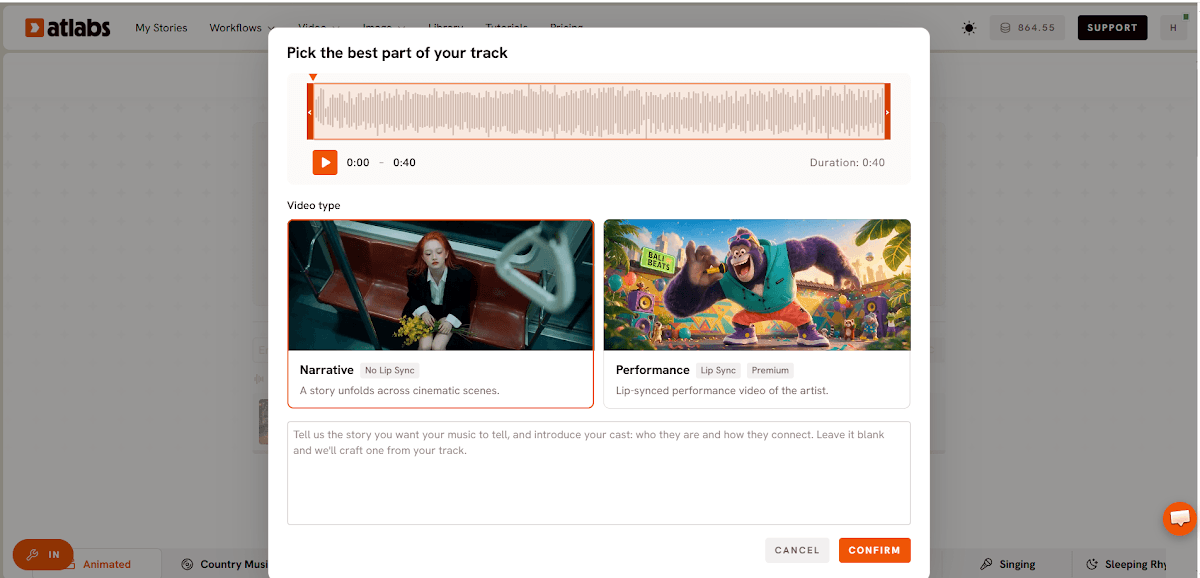
Open the Music Video workflow and upload your track in the Music step. For this video the script source was set to Uploaded Audio Story and the language to English, so the scene script came straight from the sung lyrics.

The Music step: upload the song, and its lyrics become the scene script.
Step 2: Choose the look in Set Style
In Set Style, pick the image style, aspect ratio and output. This project used Realistic images, a 16:9 frame and Video as the output mode, which suits a cinematic YouTube release.

Set Style: pick Realistic, 16:9 and Video for a cinematic release.
Step 3: Write the concept in Concepts
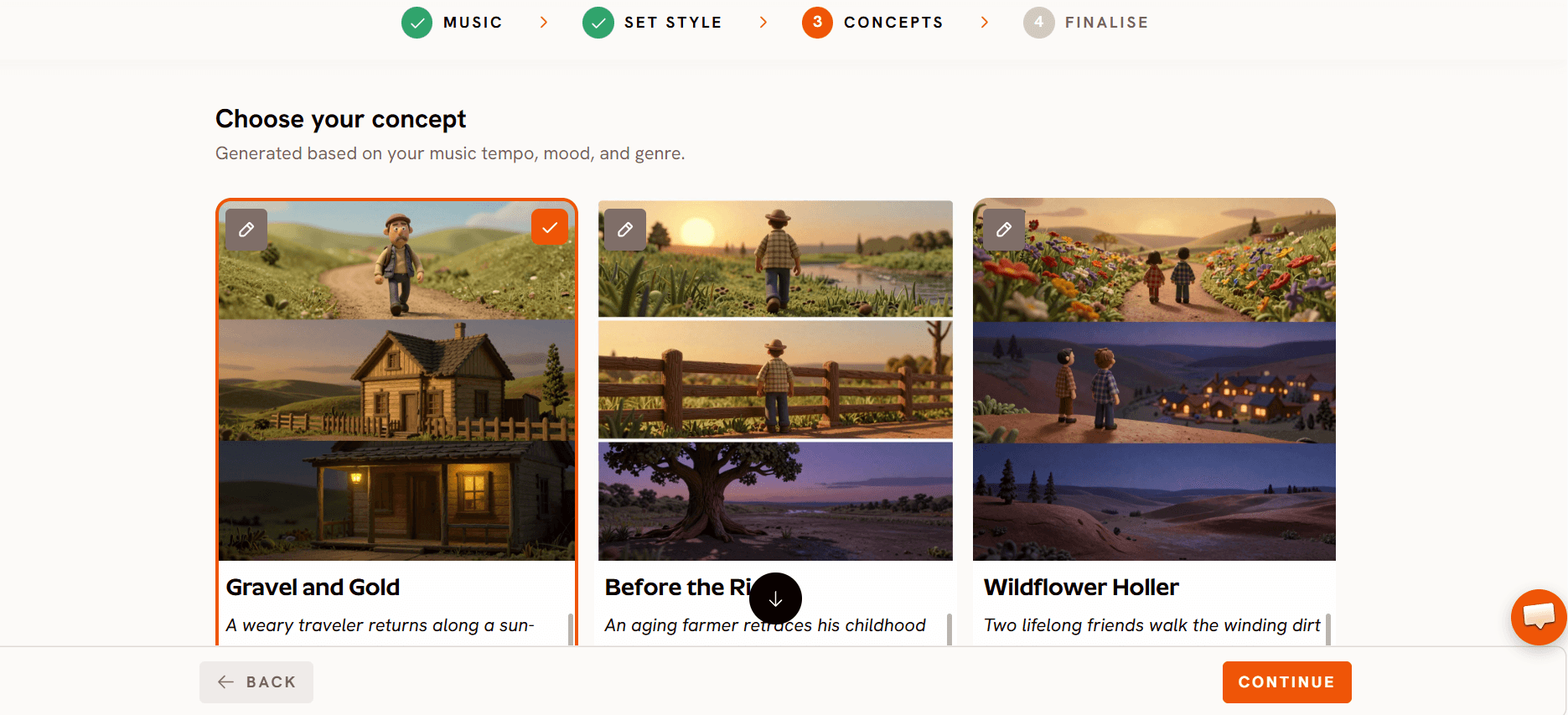
In Concepts, give the video its emotional direction. The concept here was called “Before the Rain”. It follows a woman crossing a wide, dry field under a heavy sky, mirroring a long emotional struggle that is finally starting to shift. The palette stays muted and brown with soft, diffused light, and the video closes on a quiet moment of connection as she finds shelter under a tree. The verses carry the weight of her past, the chorus brings the relief of realising she was watched over, and the bridge settles into their shared history.

Step 4: Add your characters in Finalise
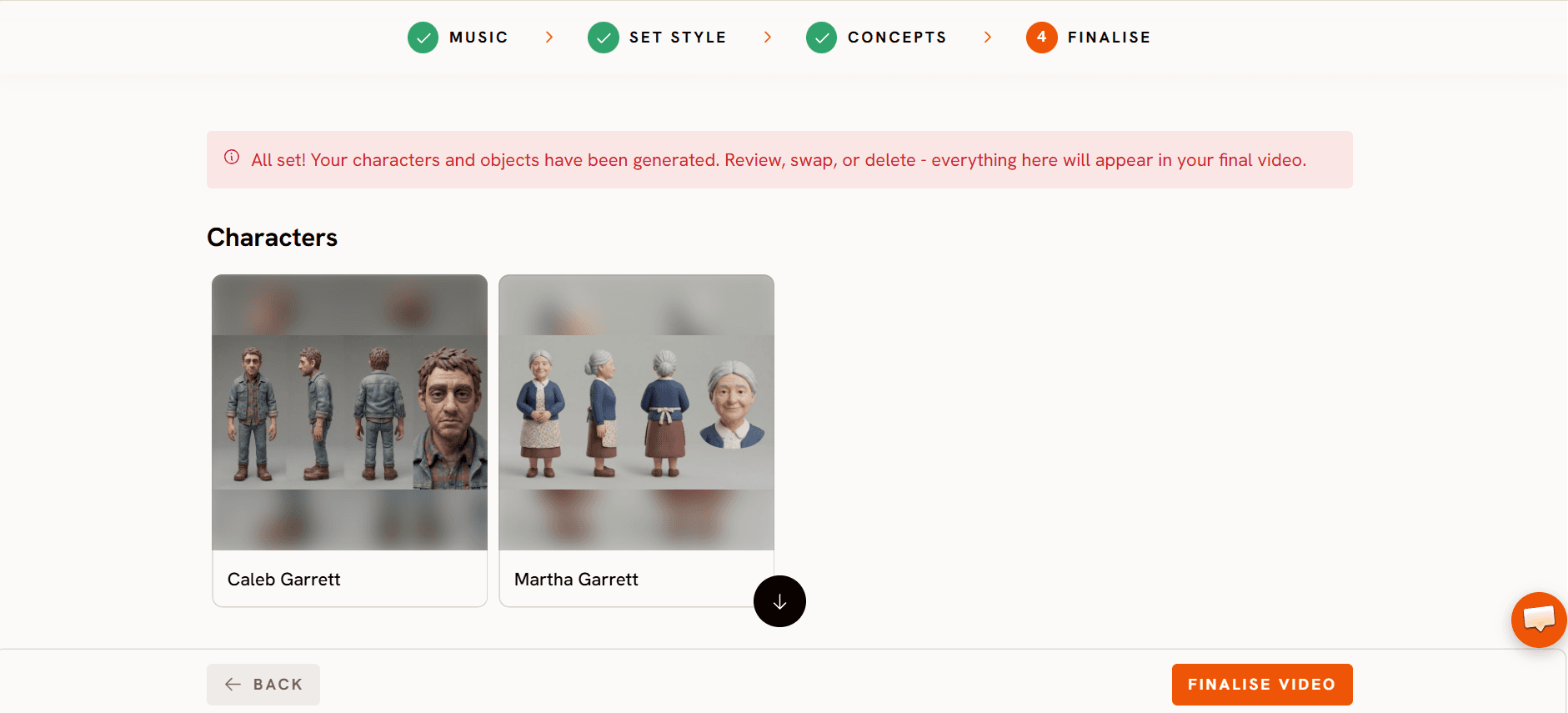
In Finalise, set the cast. This video used two characters, Ruth Walker and Thomas Walker, and the finished cut runs 56 seconds across 14 scenes.
Step 5: Animate each scene with a motion prompt
Once the project is built, every scene works the same way. Atlabs gives each scene its lyric line and a still start frame, and you animate that frame into a clip with a motion prompt describing the camera and what moves in the shot. The motion prompts are where most of the craft sits, and every one used in this video is below.
Scene by scene: every lyric, frame and prompt
Scene 1 (3.5s): “She lay”

Scene 2 (6.0s): “broken on the ground.”

Scene 3 (5.0s): “No one heard her, not a sound.”

Scene 4 (2.0s): instrumental beat

Scene 5 (7.4s): “Then a shadow crossed the sun. He knelt”

This reuses the Scene 4 prompt and adds one line for the woman's reaction. Reusing a prompt across neighbouring shots keeps the motion consistent.
Scene 6 (3.8s): “down and He was one.”
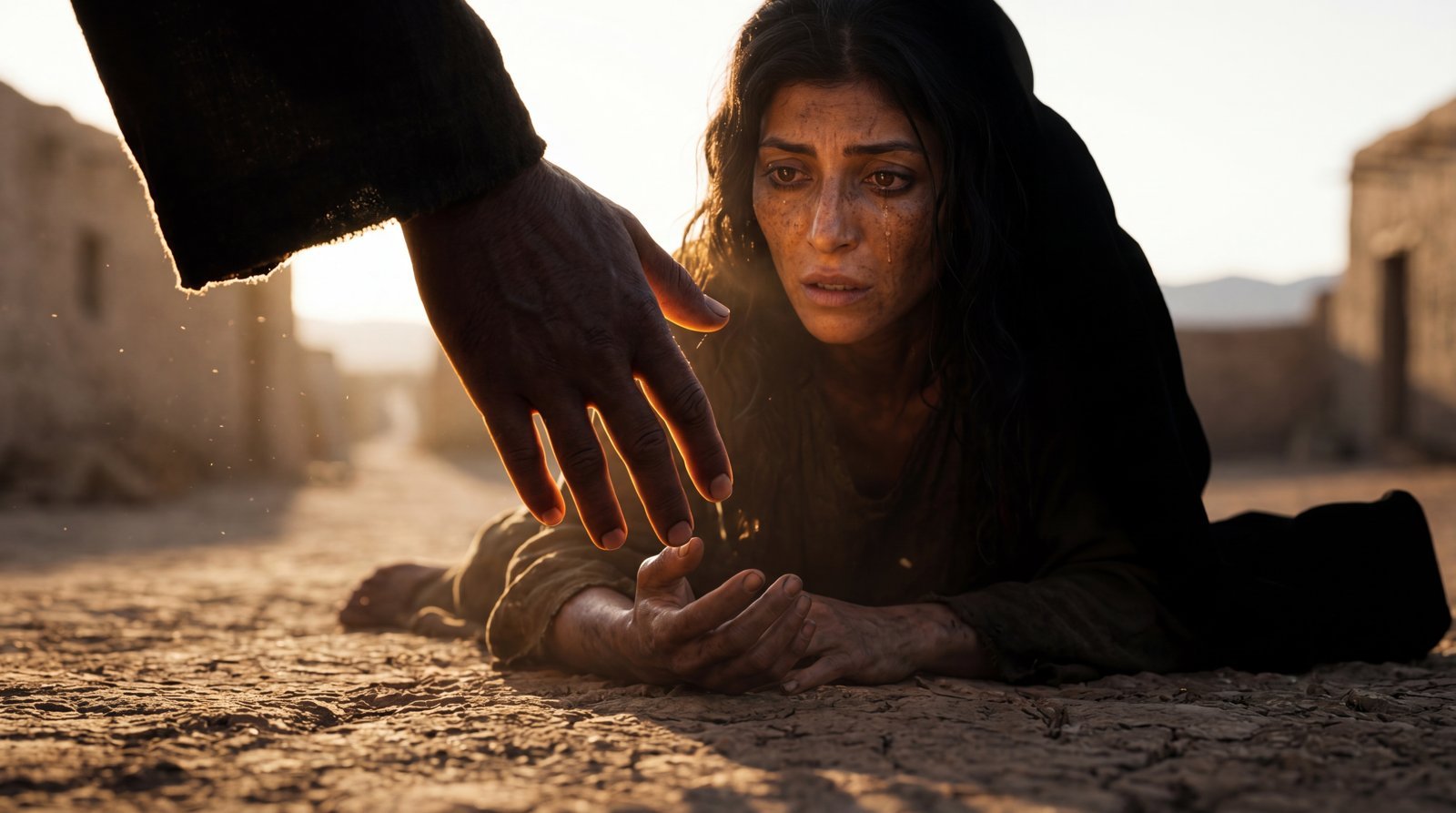
Scene 7 (6.3s): “And even now, even today,”

Scene 8 (3.4s): “He never turned,”

Short, plain prompts like Scenes 7 and 8 work when the start frame already sets the scene and you only need one clear action.
Scene 9 (3.4s): “He never walked away.”

No prompt here. This scene is a still image uploaded into the scene and left unanimated. You don't have to animate every scene, and a held still between moving shots gives the viewer a beat to breathe.
Scene 10 (3.4s): “You were always”

Scene 11 (3.4s): “there, in the dark and the”

Scene 12 (3.4s): “deep. You were always”

Scene 13 (3.4s): “there, when I couldn't breathe”

The “Frame 8” in this prompt refers to the white bleach written into the Scene 10 prompt, so the two endings are planned as a contrast.
Scene 14 (1.8s): closing shot

The goal of this last shot is that every viewer feels the silhouette has just turned toward them.
What makes these prompts work
Control the speed. Almost every prompt names one, from “slow motion at 50% speed” to “ultra slow motion at 30% speed” to “glacially slow”. A named speed sets the pace of an emotional song far better than leaving it to the model.
Tell the camera what to do, or not do. “Camera holds completely still” matters as much as “pushes forward at the slowest possible speed”. Scenes 2, 4, 5 and 14 lock the camera so the only movement is the action that carries the lyric.
Give each shot one focus. “Absolute stillness everywhere except the tear” stops the model adding motion you didn't ask for.
Describe the feeling, not only the action. Lines like “the motion feels like breathing in” in Scene 6 and “like exhaling” in Scene 10 shape the pacing of the camera move.
Write transitions into the prompt. Scene 10 bleaches to white and Scene 13 fades to warm black, both specified inside the prompt rather than added in an editor afterwards.
FAQ
Can I make a realistic AI music video from my own song?
Yes. Upload the track in the Music step of the Atlabs Music Video workflow, choose Realistic in Set Style, write your concept and set your characters in Finalise. Atlabs then splits the song into scenes tied to the lyrics.
How does Atlabs decide the scenes?
Atlabs splits the song into scenes and gives each one its lyric line, so scene length follows the song. In this video the 14 scenes ranged from 1.8 seconds to 7.4 seconds across 56 seconds.
Do I have to animate every scene?
No. Scene 9 in this video is an uploaded still with no motion prompt. A held still between moving shots gives the viewer a pause.
How do I stop the AI adding motion I don't want?
Name a single point of focus and tell the camera what to do. Phrases like “camera holds completely still” and “absolute stillness everywhere except the tear” keep the clip on the one action that matters.
Final verdict
“You Were Always There” shows that a cinematic, emotionally paced music video comes down to two things: a clear setup and deliberate motion prompts. The setup takes four steps in Atlabs, uploading the song in Music, choosing a Realistic 16:9 look in Set Style, writing a concept in Concepts and setting the cast in Finalise. The craft is in the prompts, where naming the speed, locking or moving the camera on purpose, giving each shot one focus and writing transitions in directly turned 14 lyric lines into one connected 56-second story. Start with these prompts as templates, swap in your own characters and moments, and keep what works across neighbouring scenes.