How do I make an animated kids' music video from my own song?
Upload the song to the Atlabs Kids Music Video workflow, choose a 3D style, write a short concept and save your characters as cast. Atlabs splits the track into scenes on the beat, each with its lyric line. Then animate each start frame with a short motion prompt, using Shot Switch to fit two shots into one clip.
“Jesus Smiles” is a 79-second animated kids' music video made entirely in Atlabs. It started as an uploaded worship song, became 28 short scenes, and was animated in a bright 3D style with two recurring characters, Jesus and a little boy. This tutorial shows the full project setup, then every scene in order with the lyric, the start frame and the prompt that was actually run, so you can reuse the approach for your own children's song. Atlabs is also covered in a MarketersMEDIA syndicated roundup of AI kids music video generators.
What you'll need
You need a finished song with clear vocals, because the lyrics become your scene script. Have a rough picture of the world your video lives in and who appears in it. For this project that meant the track “Jesus Smiles”, a sunny meadow and cozy bedroom setting, and two characters: Yeshua Nazer (Jesus) and Samir Nader (the boy).
The setup, step by step
Step 1: Upload the song in Music
Open the Kids Music Video workflow and upload your track in the Music step. For this video the script source was set to Uploaded Audio Story and the language to English, so the scene script came straight from the sung lyrics.

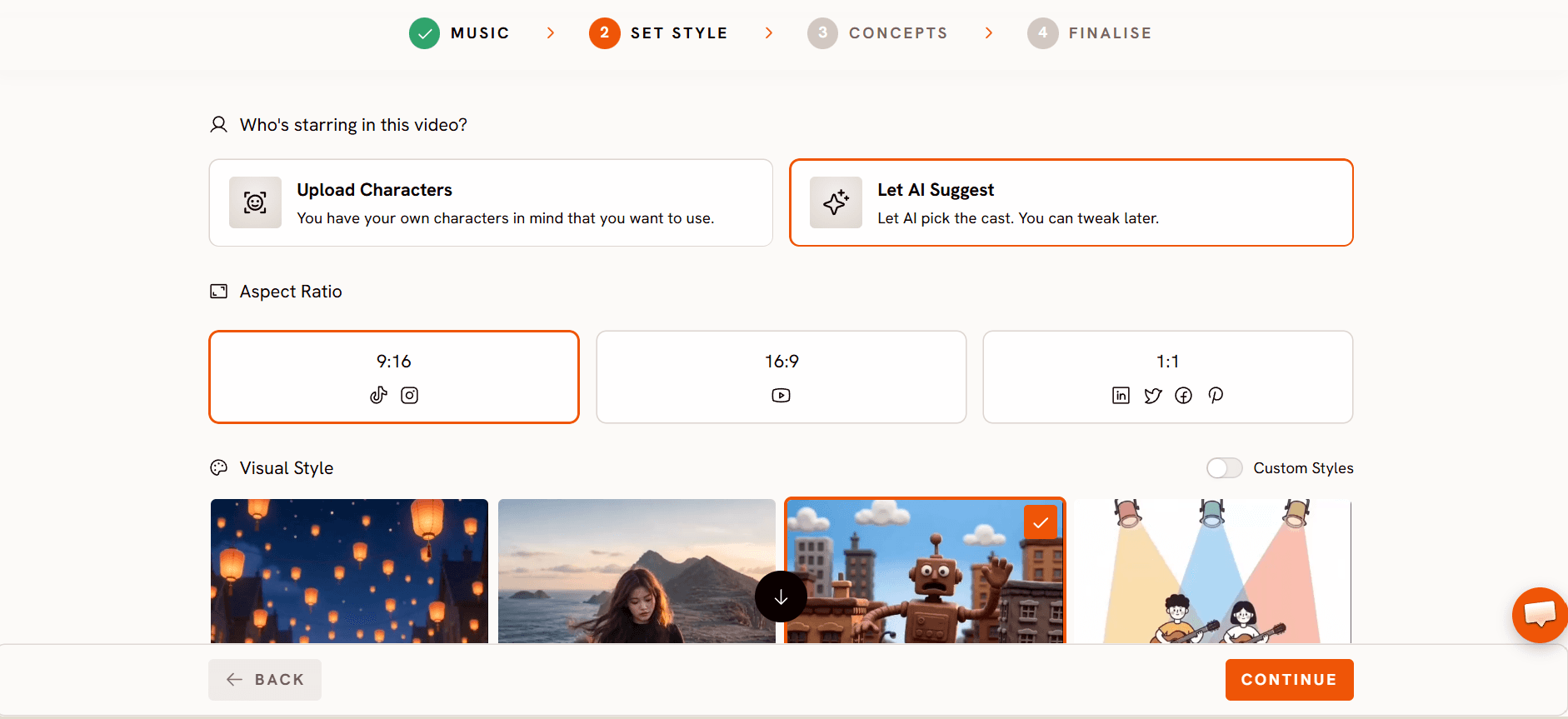
Step 2: Choose the look in Set Style
In Set Style, pick the image style, aspect ratio and output. This project used 3D Style, a 16:9 frame and Storyboard as the output mode.
Step 3: Write the concept in Concepts
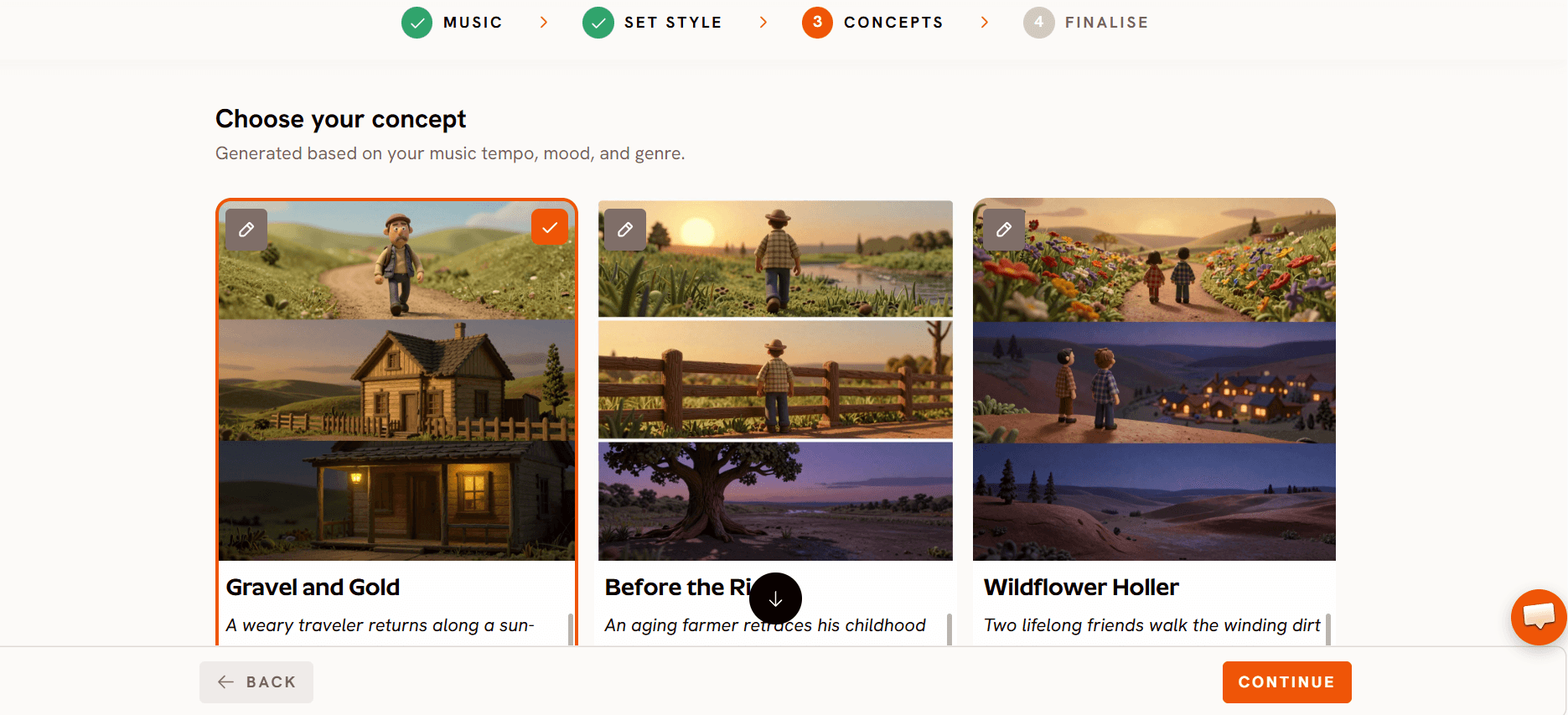
In Concepts, describe how the video should feel section by section. The “Jesus Smiles” concept was written like a storyboard for the whole song:
Intro: a point of golden light grows out of warm darkness and opens onto a tall, gentle figure in a green meadow, leaning toward the camera with one finger raised as if sharing a happy secret.
First verse: a child wakes in a sunlit bedroom, then meets the figure in a field, and the camera follows the child running across the meadow with arms wide. Scenes flow into each other like pages turning in a storybook.
Pre chorus: a high wide shot finds the child sitting alone in a huge field, until the figure walks in, sits down and pulls the child into his lap.
Chorus: the figure opens his arms as golden light bursts from his chest, intercut on the beat with children clapping and jumping under falling petals and confetti.
Second verse: quieter moments return, a child afraid in a dark bedroom, a glow rising from the child's own heart, a fall on a grassy path, and a long warm embrace before the two walk hand in hand toward a glowing horizon.
Step 4: Save your characters in Finalise
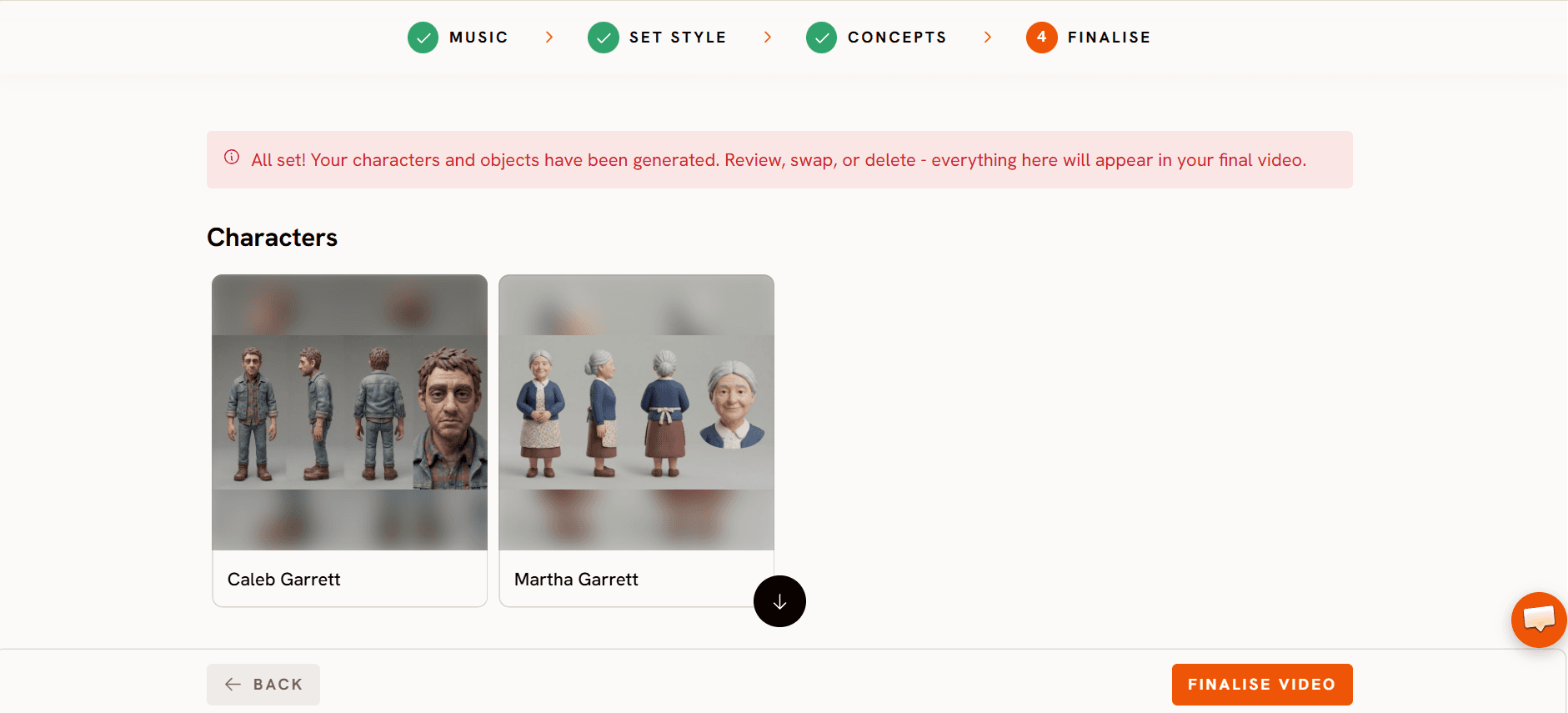
In Finalise, set the cast. Yeshua Nazer and Samir Nader were saved as cast so their faces and outfits stay the same in every scene. The finished cut runs 79 seconds across 28 scenes.
Step 5: Animate each scene with a motion prompt
Once the project is built, every scene works the same way. Atlabs splits the song into scenes on the beat, so a word can start in one scene and finish in the next. Each scene gets a still start frame, and you animate it into a clip with a motion prompt describing the action and the camera move.
The trick that appears again and again in this video is Shot Switch. One prompt describes two shots, and the clip cuts from the first to the second. That puts a cut inside a 2 to 5 second scene, which keeps a fast kids' song lively.
Scene by scene: every lyric, frame and prompt
Scene 1 (2.0s): “Oh. In the morning when you wake,”
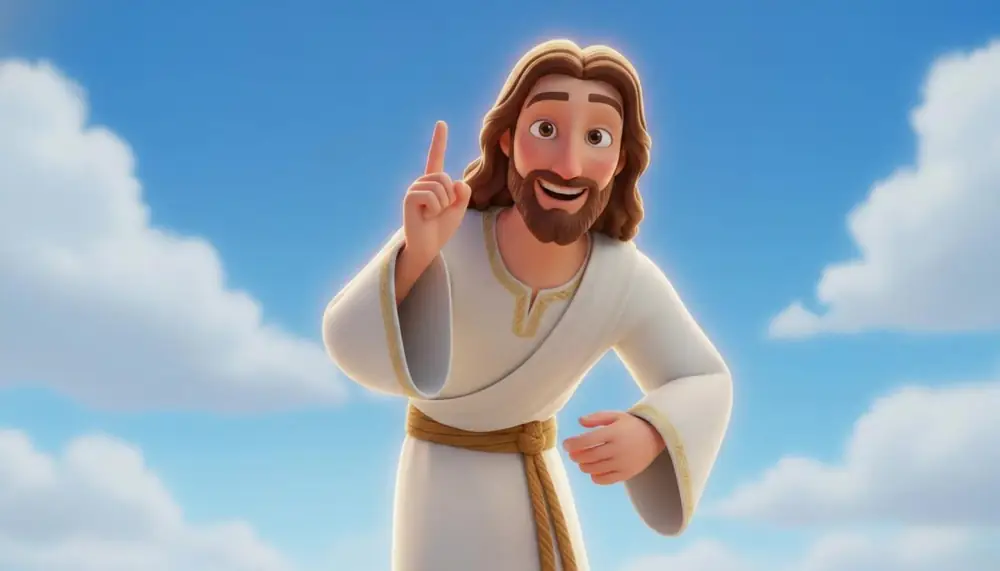
Scene 2 (3.1s): “Jesus smiles”
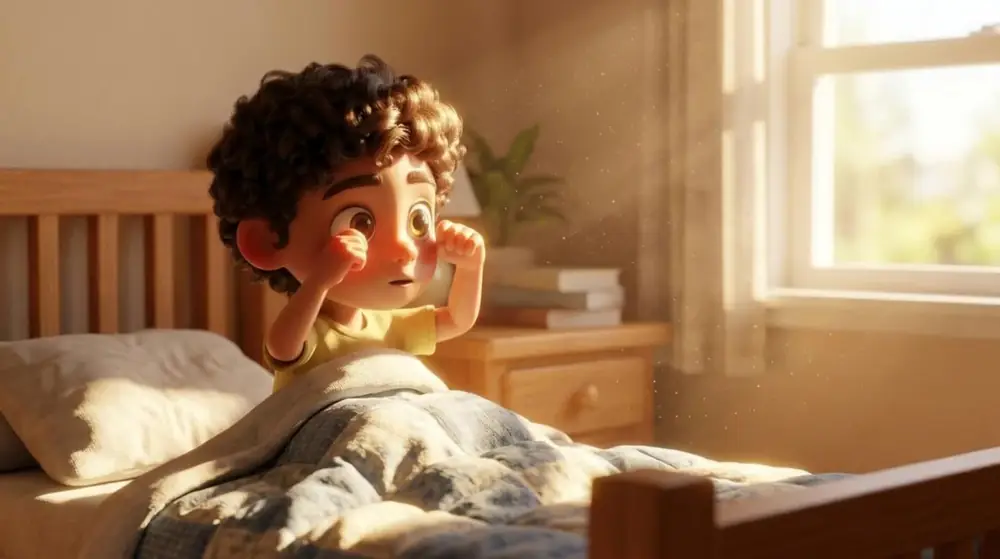
Scene 3 (2.1s): “at your sweet face. When you play and when you”
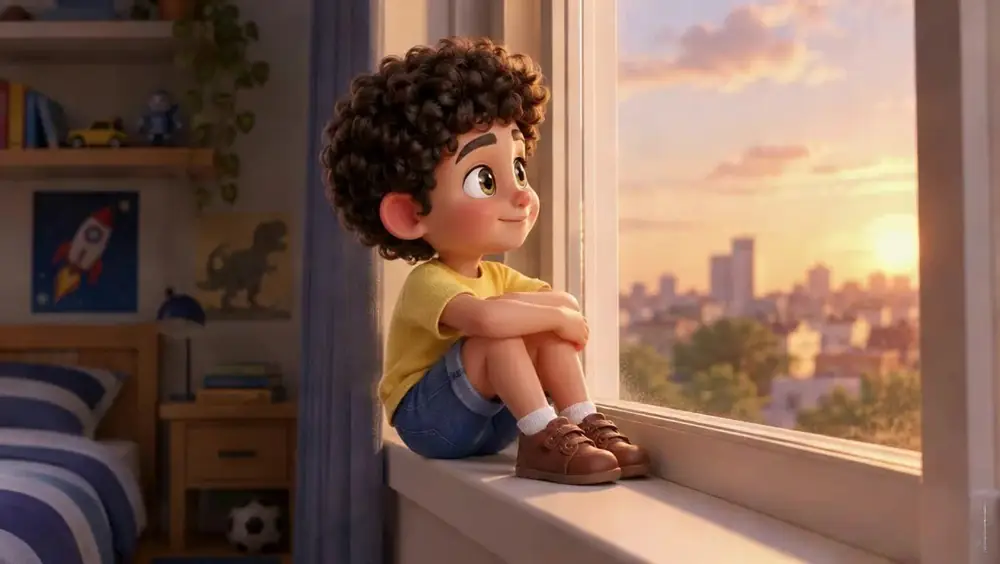
This is the most detailed prompt in the video. It defines each subject by its cast tag (@SamirNader) and location tag (@bedroomwindow), states what must be preserved from the reference images, then describes the single shot in full. Use this structure when a character has to stay exactly on model.
Scene 4 (3.0s): “run, Jesus”
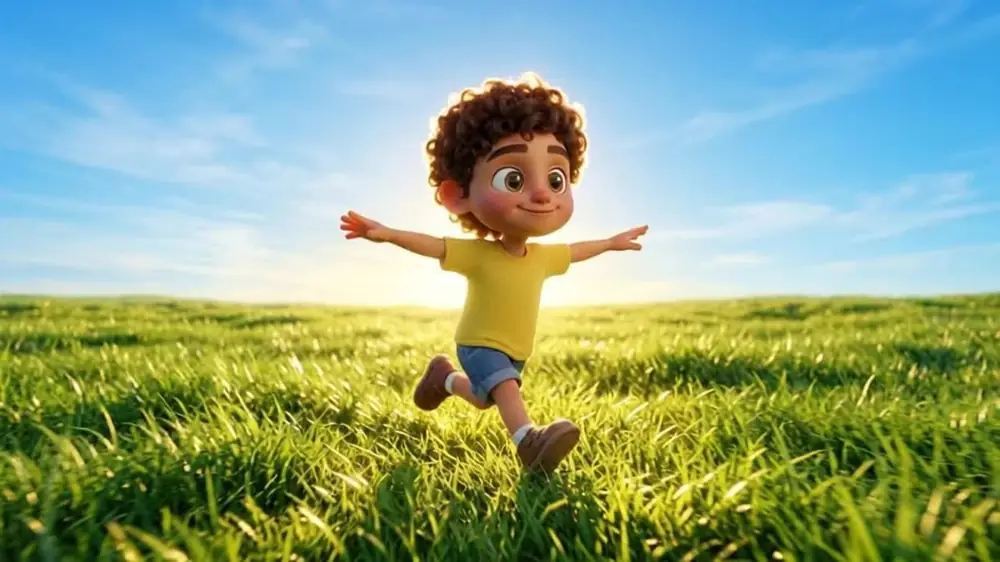
Scene 5 (1.9s): “says, ‘You're the one.’ He made”
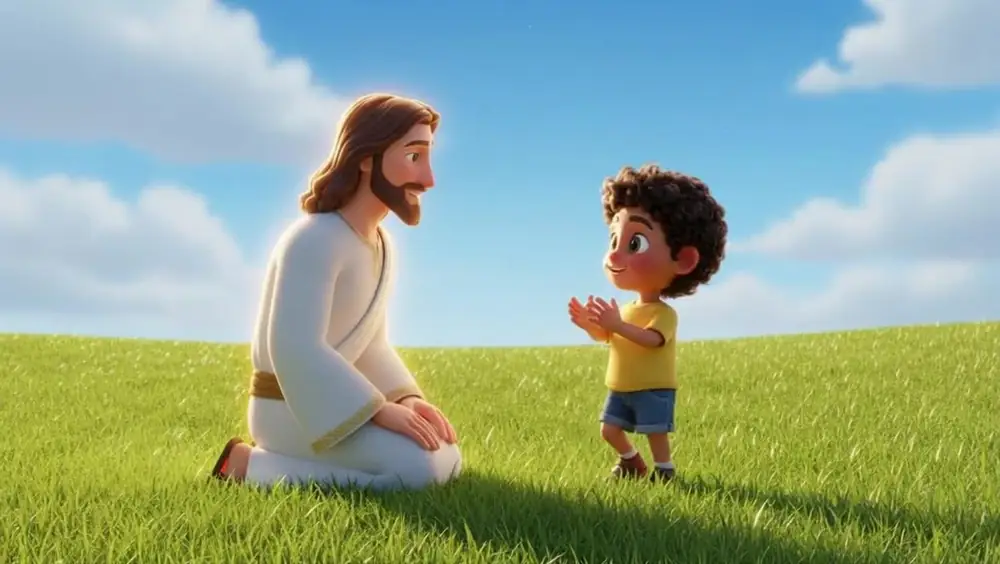
Scene 6 (3.2s): “stars and butterflies. He made”

Scene 7 (2.1s): “you with loving eyes. And whenever”
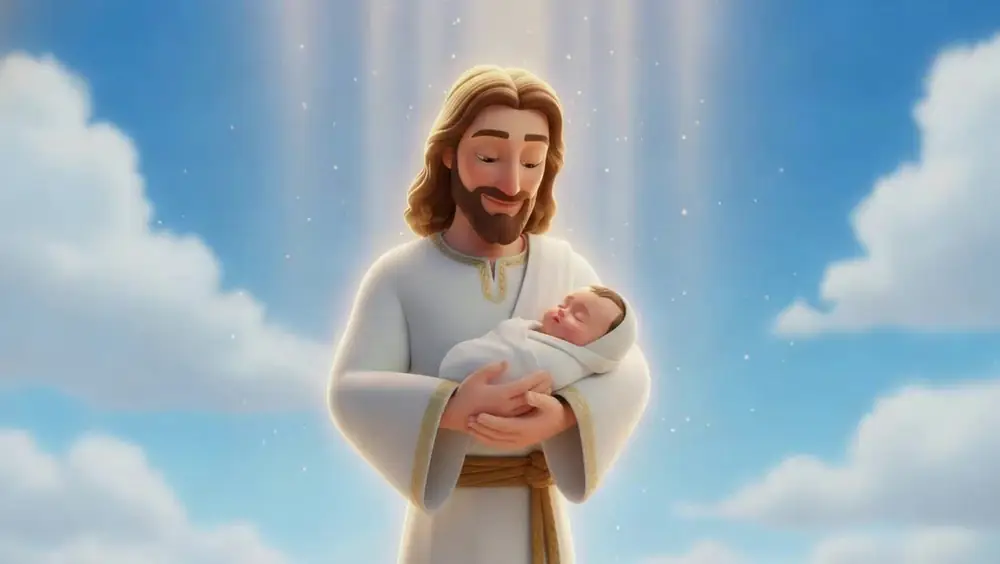
Scene 8 (3.0s): “you feel small, He says, ‘I”
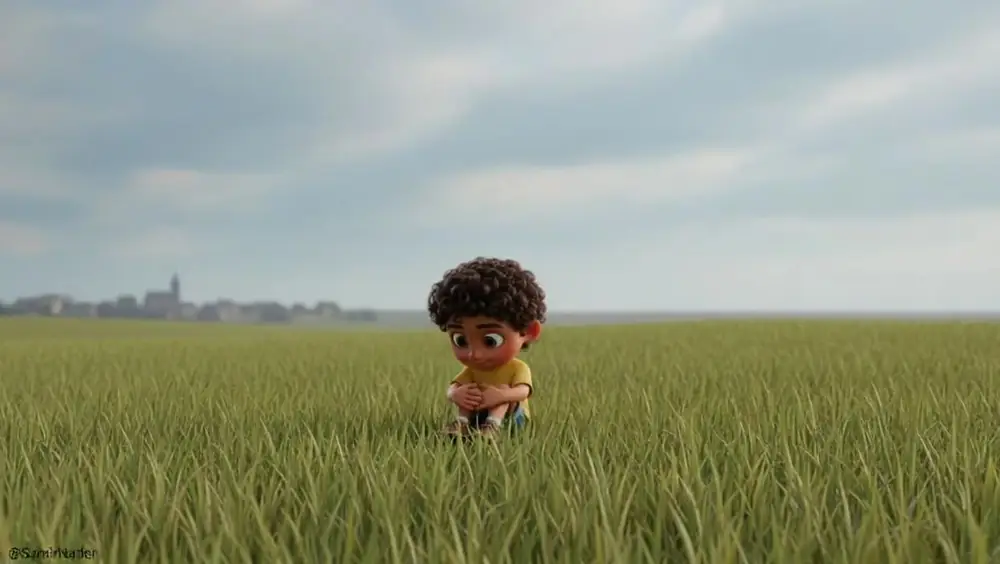
Scene 9 (2.5s): “made you best of all.’”
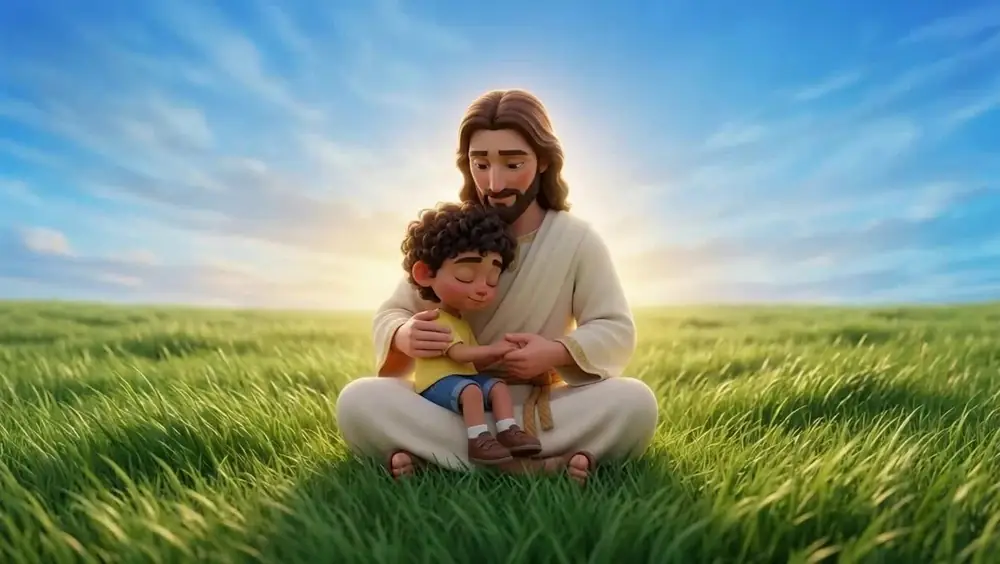
Scene 10 (3.8s): “When I'm happy, when I cry, Jesus”
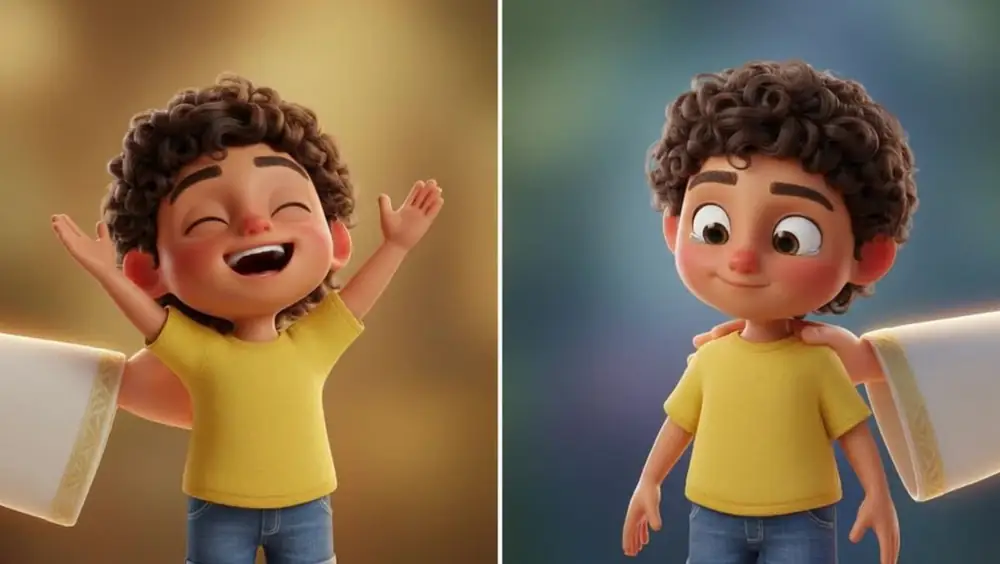
A split-screen start frame lets one clip show both halves of the lyric, happy and crying, at once.
Scene 11 (2.9s): “never says goodbye. He is”
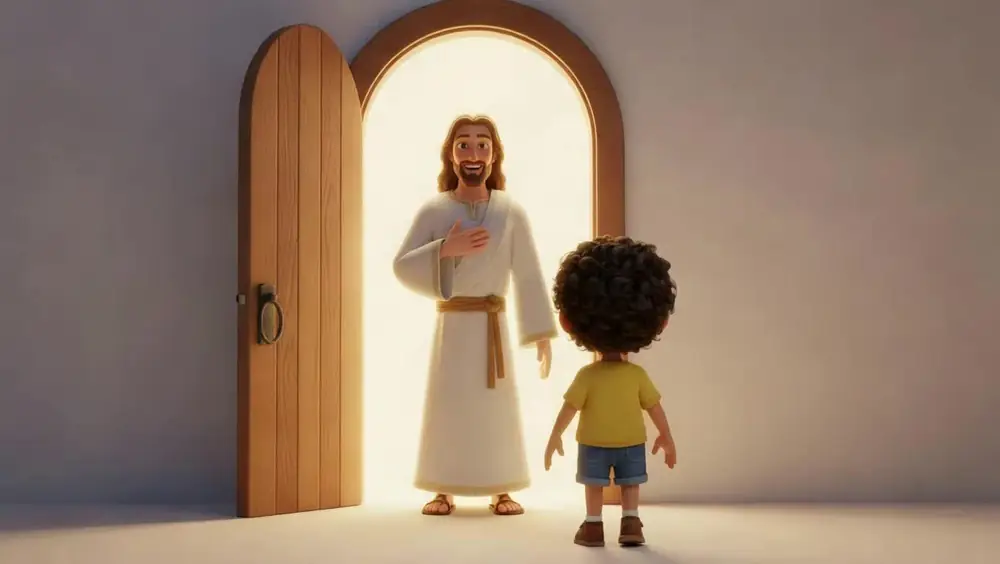
Scene 12 (1.2s): “kind. He is true. Jesus”
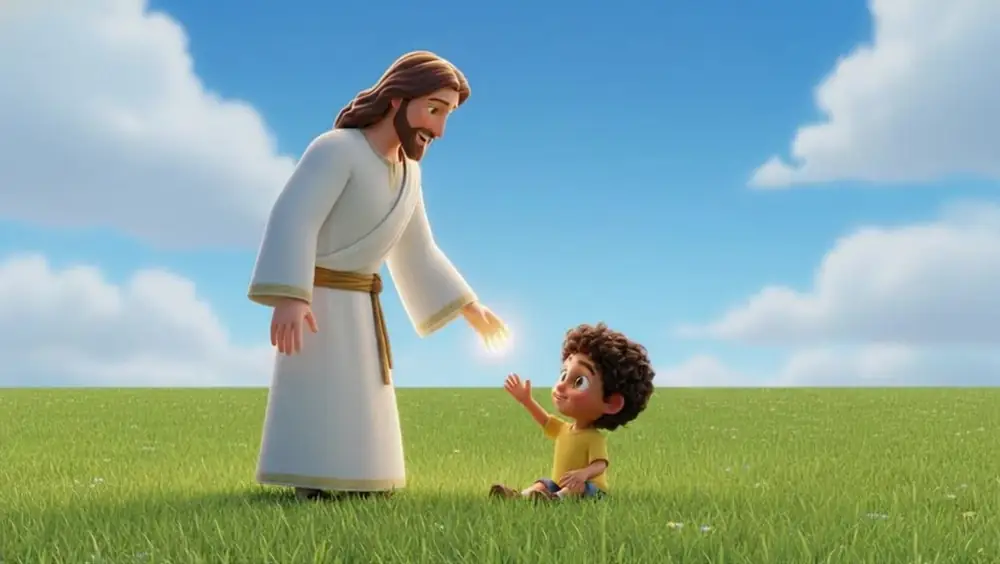
No new prompt here. This 1.2-second scene is a trimmed section of an earlier clip of the same shot, so Atlabs stores no prompt for it. Trimming an existing clip is a quick way to fit a short lyric without generating anything new.
Scene 13 (3.8s): “loves me,”
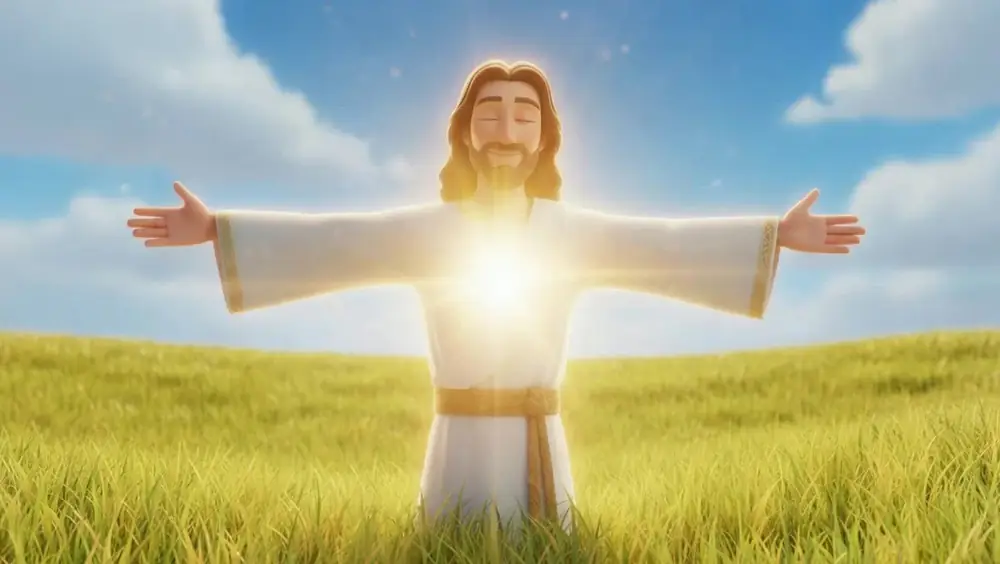
Scene 14 (2.9s): “and you.”
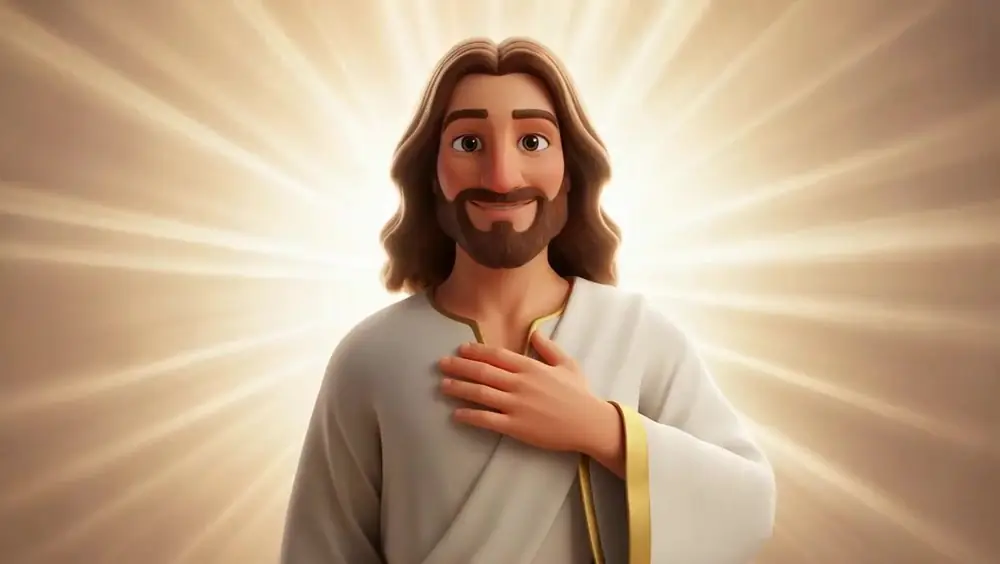
No prompt. This clip is an existing video played in reverse and trimmed to fit the line. Reversing a clip gives you a new movement out of footage you already have, with no new generation.
Scene 15 (1.9s): instrumental beat

Scene 16 (3.8s): “When you're scared of the dark,”

Scene 17 (3.1s): “Jesus lives inside your heart. When you”

Scene 18 (2.3s): “fall and hurt your knee, He says,”
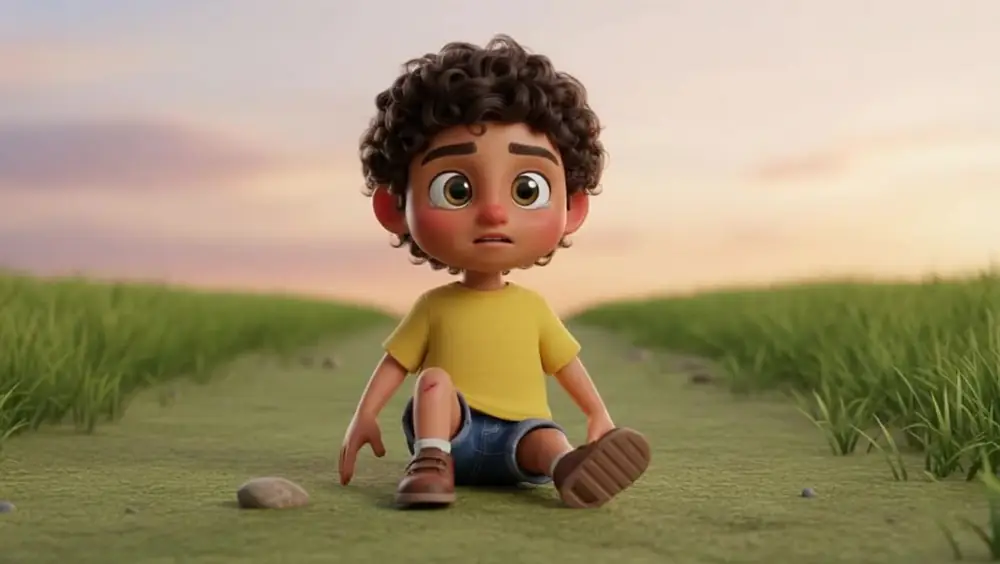
Scene 19 (2.6s): “‘Come and run to me.’ Share a hug,”
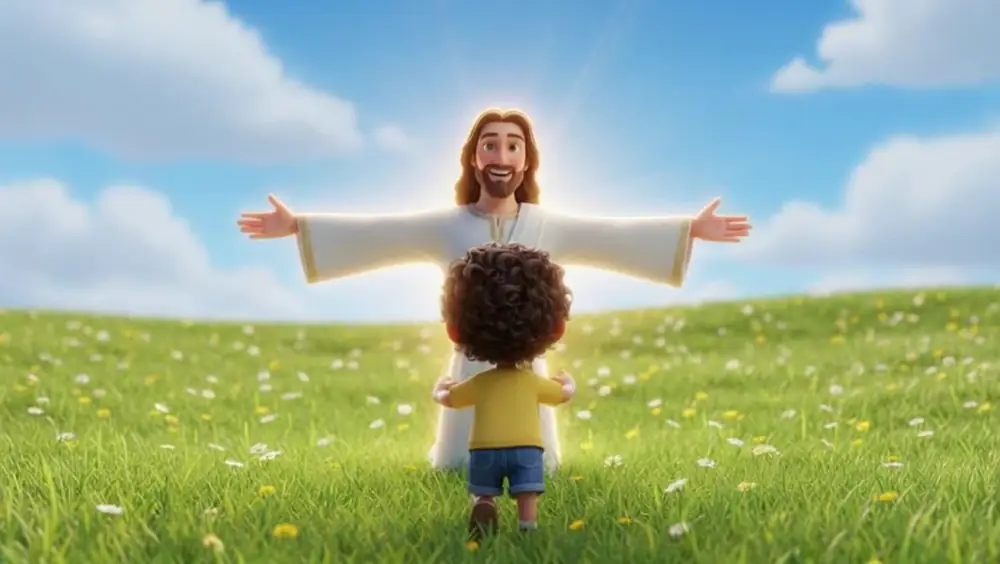
Scene 20 (1.0s): instrumental beat
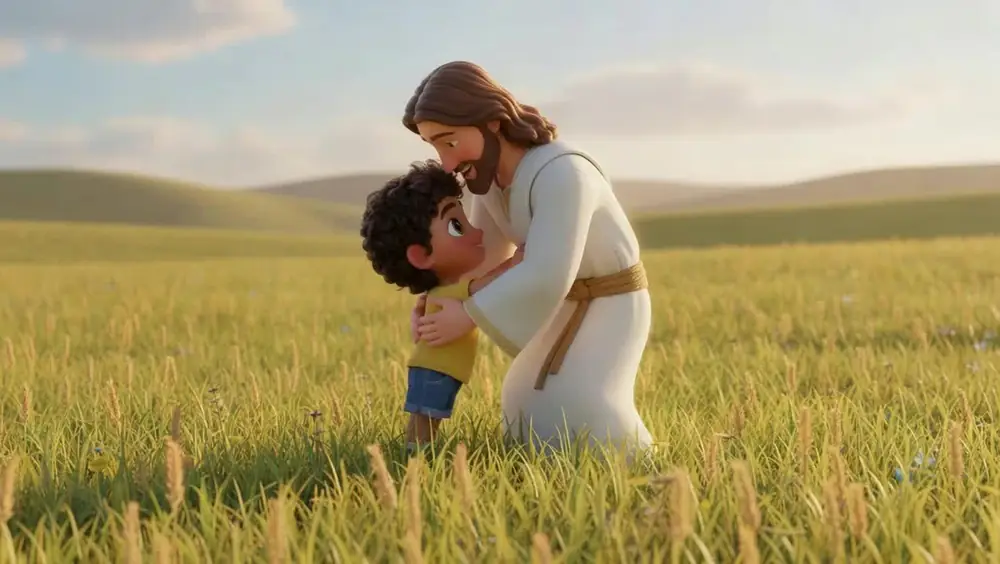
Scene 21 (1.3s): “share a smile.”
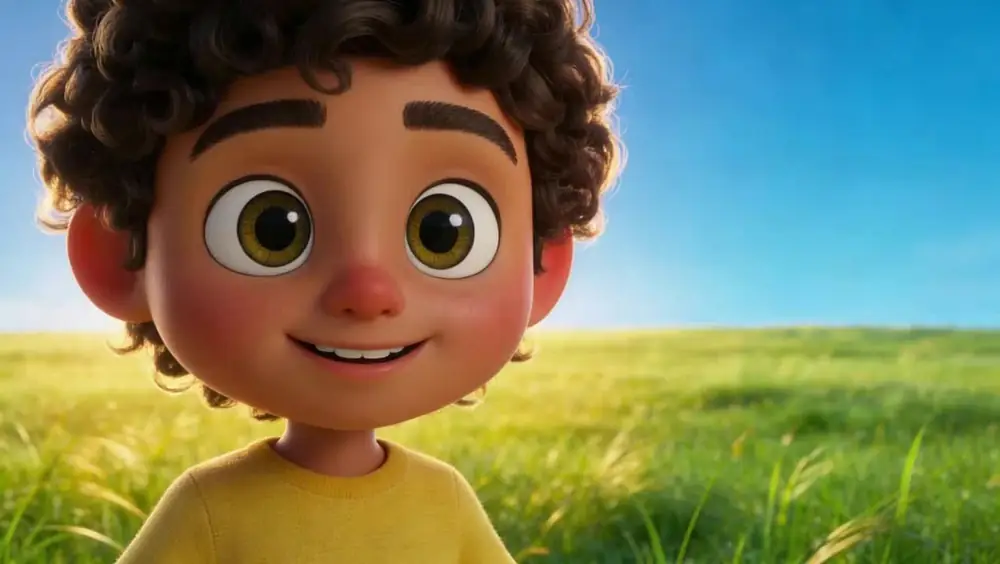
Scene 22 (3.1s): “Walk with Jesus every mile. And”

Scene 23 (2.9s): “whenever you feel alone, He says, ‘Baby,”
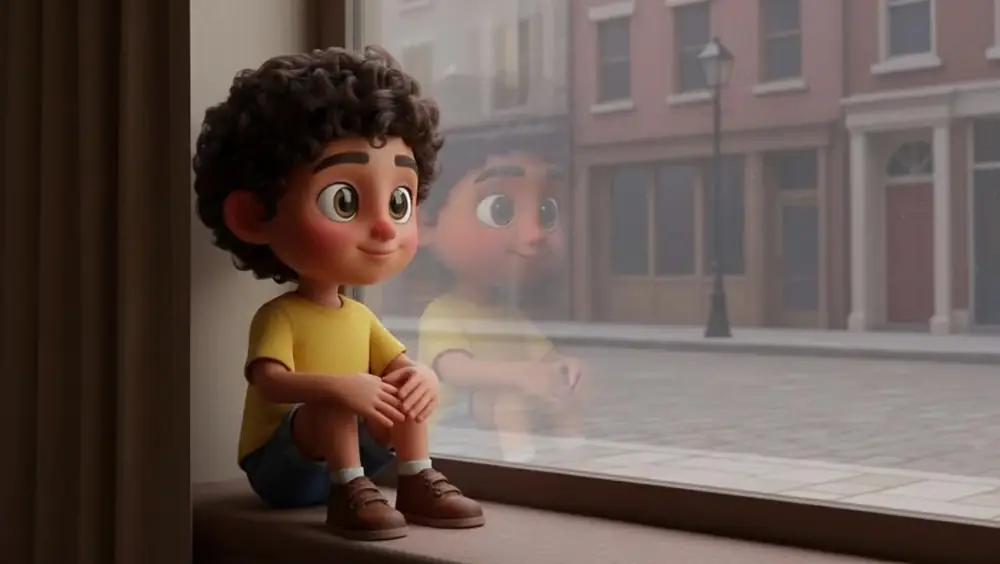
Scene 24 (4.2s): “you're never on your own.’ Jesus loves”
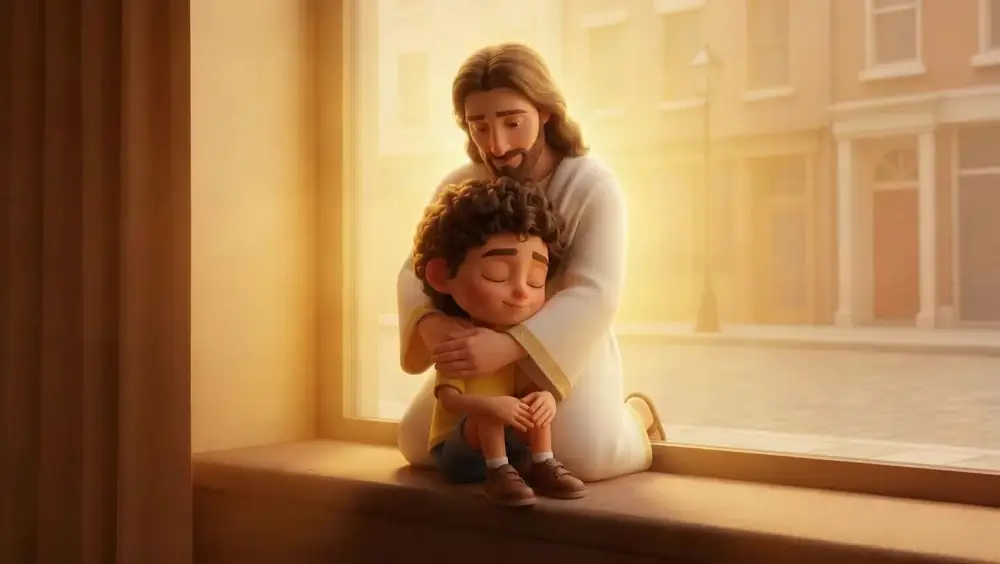
Scene 25 (1.7s): “me, yes He does. Clap your”
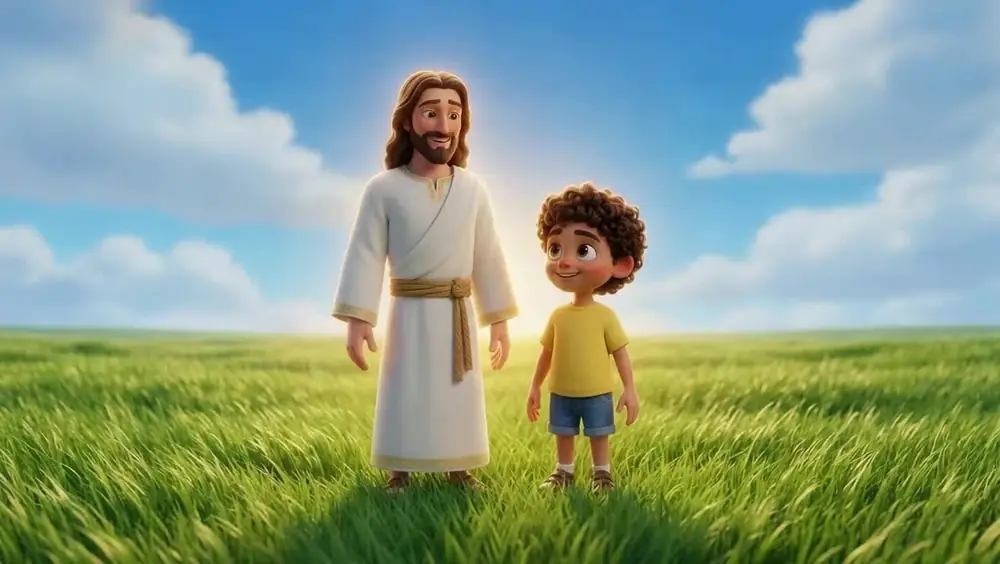
Scene 26 (2.1s): “hands because He”
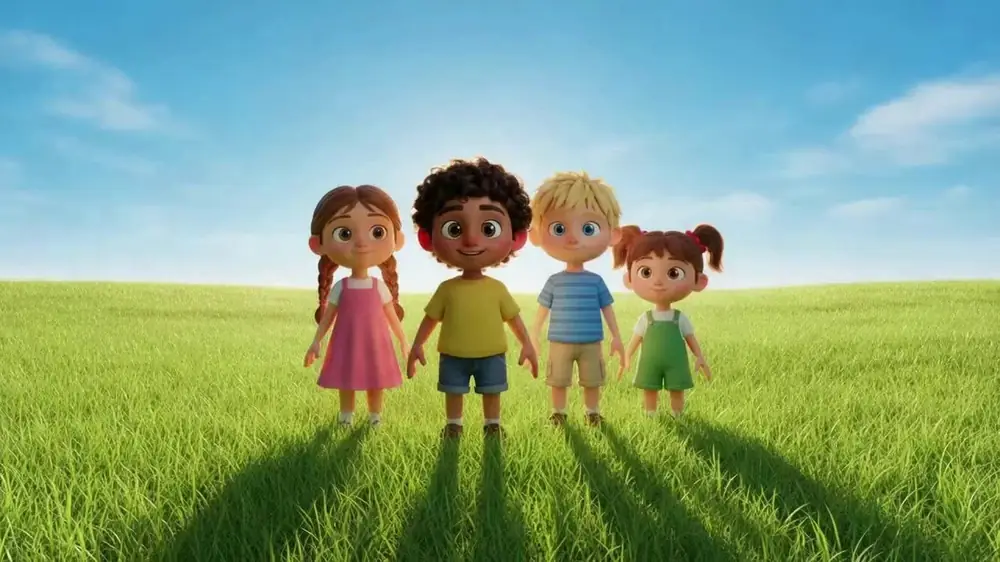
Scene 27 (5.1s): “does. When I'm happy, when I cry, Jesus”
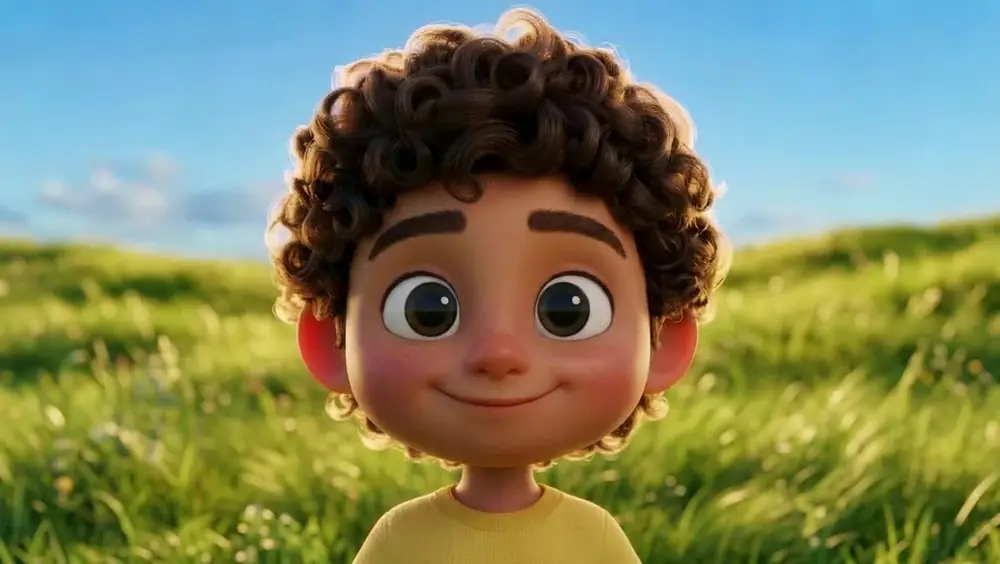
Scene 28 (6.3s): “never says goodbye. He is kind. He is true.”
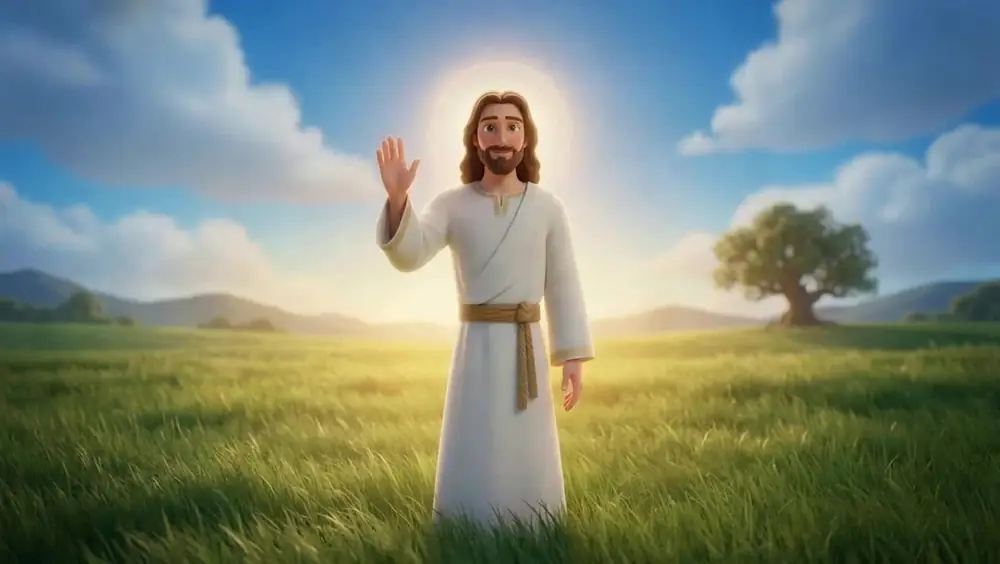
The ending is written into the prompt: the camera keeps pulling back while the contrast drops into a warm fade to black.
What makes these prompts work
Use Shot Switch for energy. Writing “Shot 1 ... Shot Switch ... Shot 2” gets two camera setups into one clip. Scenes 2, 7, 9, 13, 16, 17, 19, 20, 21, 25, 27 and 28 all use it, which is how a 79-second song carries so many cuts.
Name your characters. Saving Yeshua Nazer and Samir Nader as cast, then naming them in prompts or tagging @YeshuaNazer, keeps faces and outfits consistent across all 28 scenes.
Keep prompts short when the frame does the work. When the start frame already sets the scene, one plain action is enough, as in Scene 26: “The kids are jumping and clapping cheerfully with happiness.”
Always say what the camera does. “Slow zoom in on his face”, “camera tracking them rapidly from behind” and “slight zoom out to show the embrace” each give the shot a clear movement.
Match the picture to the lyric. Stars and butterflies land on “He made stars and butterflies”, a scraped knee on “hurt your knee”, and a split screen on “when I'm happy, when I cry”. Young viewers follow a song more easily when what they see matches what they hear.
Reuse footage. Scenes 12 and 14 needed no new generation. One is a trimmed piece of an earlier clip, the other an existing clip played in reverse.
FAQ
Can I make a kids' worship music video from my own song?
Yes. Upload the track in the Music step of the Atlabs Kids Music Video workflow, pick a style in Set Style, write your concept in Concepts and save your characters in Finalise. Atlabs then splits the song into scenes tied to the lyrics.
What is Shot Switch?
Shot Switch is a way of writing one motion prompt that describes two shots. The clip cuts from the first shot to the second, so a short scene gets a cut inside it.
How do I keep the same characters in every scene?
Save them as cast in Finalise and refer to them by name or tag in your prompts. That is how Yeshua Nazer and Samir Nader stayed consistent across all 28 scenes of “Jesus Smiles”.
Do I need a new prompt for every scene?
No. Scene 12 is a trimmed piece of an earlier clip and Scene 14 is an existing clip played in reverse, so neither needed a new prompt.
Final verdict
“Jesus Smiles” shows how far a simple setup goes for a kids' song. Four steps in Atlabs did the groundwork: uploading the song in Music, choosing 3D Style and 16:9 in Set Style, writing a section-by-section concept in Concepts and saving two characters as cast in Finalise. From there, short prompts, Shot Switch for quick cuts, lyric-matched pictures and a couple of reused clips turned 28 lyric lines into a bright, consistent 79-second video. Start with these prompts as templates, swap in your own characters and lyrics, and lean on Shot Switch whenever a fast song needs more energy.