The Problem: Why is AI Video Motion So Hard to Control?
If you have ever tried to generate a specific action using text-to-video AI, you know the struggle. You type "A man waves hello," but the AI generates a man waving with three hands, or worse, his arm melts into a tree.
For creators, this is the biggest bottleneck. Text prompts are great for describing what should be in the scene (a cat, a cyberpunk city, a coffee cup), but they are terrible at describing how things should move.
Common Pain Points:
The "Jelly" Effect: Limbs morphing or disappearing during movement.
Loss of Character: The face changes completely as soon as the subject moves.
Randomness: You want a specific dance move, but the AI gives you a generic shuffle.
The solution isn't writing longer prompts. It’s changing the input entirely.
The Solution: What is "Reference to Video"?
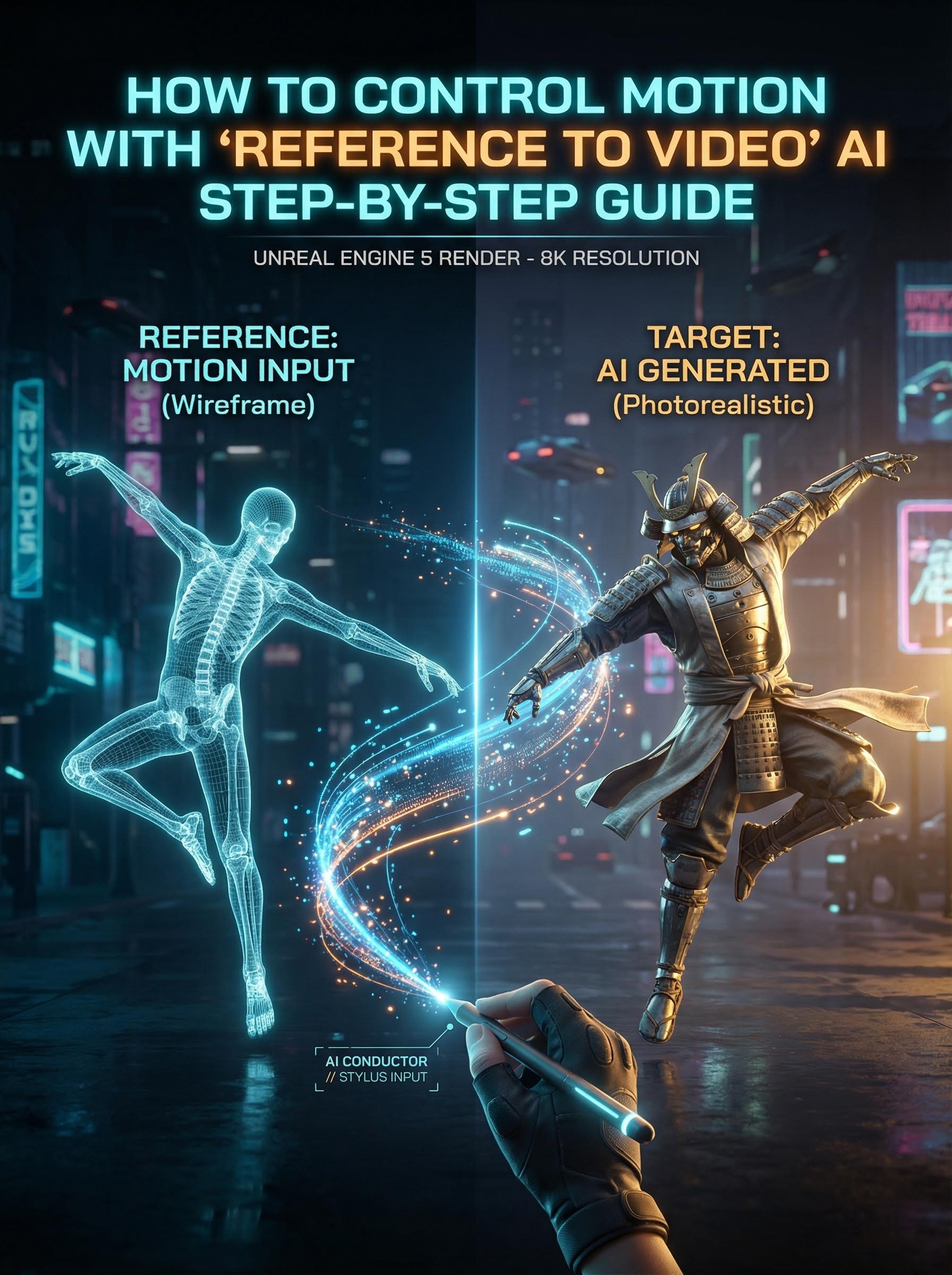
"Reference to Video" (often found in Motion Control settings) is a technique where you don't just tell the AI what to do, you show it.
Instead of relying on text, you upload a Driving Video (a reference clip of the movement you want) and a Target Image (the character you want to animate).The AI acts as a "digital puppeteer," extracting the skeletal motion from your video and applying it to your image.
Why this changes everything:
Precise Control: If you upload a video of yourself jumping, your AI character will jump at the exact same second.
Consistent Style: Since the visual data comes from a static image, the character’s face and clothes remain consistent.
No Animation Skills Needed: You don't need to know keyframes or rigging. You just need a webcam video.
Tutorial: How to Use Reference to Video on Atlabs AI
Atlabs AI has simplified this workflow into a dedicated Motion Control feature. You can take a simple photo of a mascot, a historical figure, or a product, and make it move exactly how you want.
Here is the easy-to-follow guide to getting perfect motion every time.
Step 1: Go to the Motion Control Tab
Log in to your Atlabs dashboard. Navigate to the Motion Control tab (or look for the "Motion" feature in the sidebar). This is where the specialized "Reference to Video" engine lives.
Direct Link: https://app.atlabs.ai/motion-control
Step 2: Upload Your "Driving Video"
This is the video that dictates the movement.
What to use: A video of yourself performing an action, a stock clip of a specific dance, or a hand gesture.
Pro Tip: Keep the background of this video simple. The clearer the movement, the better the AI can track it.
Step 3: Upload Your "Target Image"
This is the subject of your final video.
What to use: An AI-generated character, a product photo, or a portrait.
Pro Tip: Ensure the aspect ratio of your image matches your video. If your driving video is a vertical TikTok (9:16), use a vertical image to prevent weird stretching.
Step 4: Enter a Text Prompt
Even though the video controls the motion, the prompt helps the AI understand the context.
Keep it simple: Describe the subject and the setting.
Example: "A futuristic robot dancing in a neon city, 4k, cinematic lighting."
Step 5: Generate and Download
Hit generate. The AI will map the motion from your video onto your image. In minutes, you’ll have a professional animation that follows your exact direction.
FAQ: Best Practices for Reference to Video
Q: Can I use any video as a reference?
A: Yes, but videos with clear, distinct movements work best. Avoid videos with heavy motion blur or multiple people overlapping each other.
Q: Does the character generally look like the image?
A: Yes. Unlike standard video generation where the face often distorts, Reference to Video on Atlabs is designed to "lock" onto the appearance of your uploaded image.
Q: What is the best aspect ratio to use?
A: Match your inputs. If you want a YouTube video (16:9), ensure both your driving video and target image are horizontal. Mixing vertical and horizontal inputs can confuse the AI.
Ready to try it?
Stop fighting with text prompts. Go to the Atlabs Motion Control tab and start directing with precision today.