AI videos look fake for seven fixable reasons: the wrong model for the look you want, a video style that plays like a slideshow, characters whose faces change between shots, vague prompts that produce generic scenes, motion that moves like a puppet, lips that ignore the audio, and soft low resolution output. None of these need reshoots, editing skills, or animation software. This beginner guide walks through each fix inside Atlabs, a multi model AI video platform, so your clips stop looking plastic and start looking like something a viewer watches all the way through.
Why Do AI Videos Look Fake? A Beginner Guide to the Real Causes
Viewers run an instinctive authenticity check within the first two seconds of any video. They are reacting to pattern breaks human brains are wired to catch: skin without pores, shadows that fall in two directions, a jacket that changes color between shots, a hand with the wrong weight. Stack up enough of these micro signals and the brain files the video as artificial, which is why a technically impressive AI video can still perform terribly.
The tells cluster into seven repeatable patterns. Waxy skin points to the wrong model. A clip that feels like stills with camera pans points to the wrong video style setting. A face that morphs between cuts points to a missing character reference. Stock footage staging points to a vague prompt. Weightless movement points to invented physics. A mouth that ignores the dialogue points to missing lip sync. A blurry or awkwardly cropped export points to skipped finishing passes. Every single one maps to a setting or a tool, and you can correct all seven in one session on the Atlabs dashboard.
What You Need to Start (Beginner Guide)
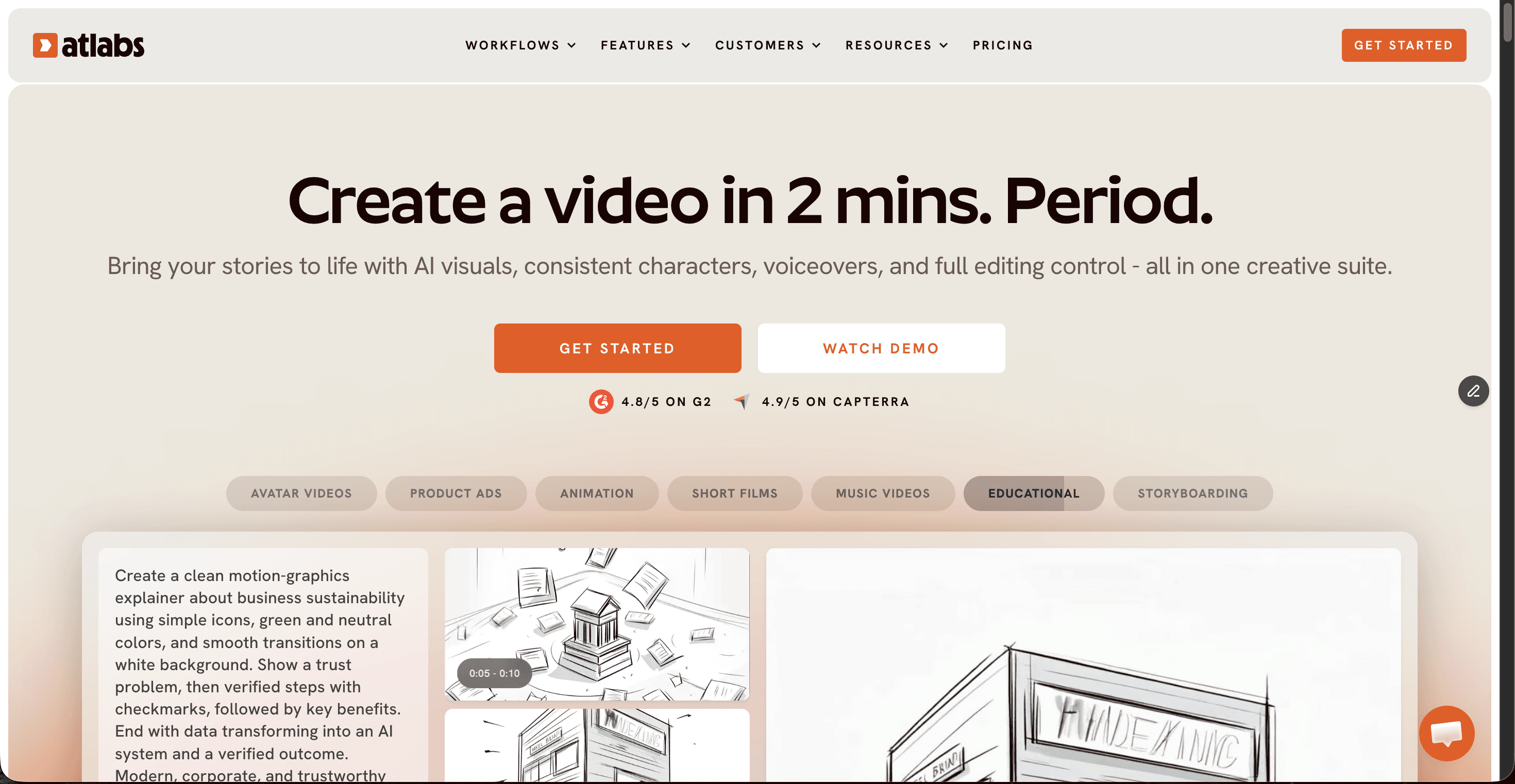
You need three things: an Atlabs account, your input asset, and about fifteen minutes. The input asset depends on what you are making. A music video starts with an mp3 up to 200MB or a Suno music URL. An animated story starts with a script, or just an idea, since the AI Script Writer can draft one for you. A single scene can start from nothing more than a still image. No timeline editing, no keyframes, and no rendering queue on your own machine.
Fix Fake Looking AI Videos Step-by-Step
Fix 1: Match the Model to the Look, Step-by-Step
Plastic skin usually means you asked a stylized model for realism, or a realistic model for animation. Atlabs runs multiple AI video models inside one interface, and each has a lane where it wins. Kling 3.0 and Kling 2.6 handle cinematic motion, realism, and smooth movement, which makes them the workhorses for live action style sequences. Google Veo 3.1 is the photorealism pick, especially for wide shots and establishing shots where fake environments collapse fastest. Seedance 2.0 is built for stylized content, anime, and character closeups, so it carries dialogue driven stylized scenes. Hailuo 2.3 brings high motion fluidity for anime adjacent visuals, and Wan 2.6 delivers open source cinematic quality.
The rule is simple. Decide the look first, then pick the model that owns that look, and only then start writing prompts. Realistic music video: Kling. Photoreal landscape opener: Veo 3.1. Stylized character piece: Seedance 2.0. A model mismatch is the single most common reason an AI video reads as fake, and it is also the cheapest fix on this list.
Fix 2: Set the Style Right in 10 Minutes
The second tell is the slideshow effect: a video that is really a sequence of still images with slow pans. Viewers clock it immediately. In both the Music Video workflow and the Animated Video workflow, the Set Style step offers two paths. AI Video, marked as recommended, generates unique video stories with true motion. AI Storyboard generates images with effects. If your goal is a believable final video, AI Video is the setting that keeps scenes alive.
The same screen holds the Visual Style library, and consistency here matters as much as quality. Pick one style, whether that is Realistic, 3D Cartoon, Claymation, Cozy Plush, Flat 2D Modern, Anime, Paper Cutout, or Soft Pastel 2D, and hold it for the entire video. A clip that jumps from realistic to cartoon rendering between scenes reads as broken, not creative. The Custom Styles toggle opens the full library, and aspect ratio lives on this screen too, so choose it now rather than cropping later.
Fix 3: Lock Your Characters (Beginner Guide)
Nothing screams AI louder than a lead character whose face redraws itself every cut. Viewers are face specialists, and even a small drift in eye spacing or jawline registers as wrong before they can say why. The fix is a locked reference, built into the Cast step of every narrative workflow.
In the Music Video workflow, Step 5 presents Cast, where every character card shows a generated reference sheet with multiple angles plus a portrait. That sheet, not a text description, is what keeps the character identical across every scene. The Click to edit overlay opens the character editor, so you refine the design once, approve it, and reuse it everywhere. Empty slots let you add more characters, and the Objects section at the bottom does the same job for recurring props, so the guitar in scene one is the same guitar in scene six. The Animated Video workflow closes with the same Cast step and adds voice casting: a Country Accent dropdown and a Narrator Voice dropdown, because a consistent voice sells realism just as hard as a consistent face.
Fix 4: The Ultimate Guide to Prompts That Read as Real
Vague prompts produce vague videos. Ask for a person walking in a city and the model averages every city walk it has ever seen, which is what stock footage looks like. Real footage has specifics: a lens, a light source, a time of day, a texture. Write like a director and the model renders like a cinematographer.
Atlabs gives you a head start here. In the Music Video workflow, the Concepts step generates six scene concepts based on your track tempo, mood, and genre, each displayed as a card with an edit pencil. The selected card shows a green tick. Editing one of these is usually faster than writing from zero. For full control, click the DESCRIBE YOUR CONCEPT option and write your own direction. Here is the difference specificity makes.
Golden hour rooftop, 35mm lens, handheld drift, a singer in a rust colored jacket walking toward camera, soft flare, shallow depth of field, city haze behind the skyline.
Every element in that prompt is a decision a camera department would make, which is why the output feels shot rather than generated. The same rule holds when you animate a still image. Give the model one clear camera move and one physical detail it can render, like dust, steam, fabric, or hair, because visible physics is what convinces the eye.
Closeup of hands kneading dough on a wooden table, morning window light, flour dust drifting in the air, slow push in, warm film grain.
Avoid stacking five ideas into one scene. One subject, one action, one camera move per shot is how real productions work, and prompts that respect that limit come back looking real.
Fix 5: Get Natural Motion Without Animation Skills
Uncanny movement happens when the model invents physics. Limbs float, steps land without weight, and dance moves resolve into shapes no spine allows. The reliable fix: stop asking the model to imagine motion and hand it real motion instead.
Motion Control transfers movement from a reference video onto your character image. Film yourself performing the move on a phone, upload the clip alongside your character, and the output inherits genuine human timing, balance, and weight. Choreography, a walk cycle, a hand gesture during a spoken line, a drummer hitting a fill, anything a camera can capture becomes motion your AI character performs believably. This one tool closes most of the uncanny valley on its own.
Fix 6: Sync the Lips Without Animation Software
A talking character with a wandering mouth breaks the illusion instantly, because audiences lip read unconsciously and feel dubbed footage even when they cannot name the problem. The Lip Sync tool solves this by synchronising lip movement to any audio file. Upload an image or a video plus an audio track between 2 and 120 seconds, and the mouth follows the voice, including the tight timing on plosives and consonants where fakes usually fall apart.
The underrated part: it works on footage you already generated. Old clips with dead dialogue do not need regeneration. Run them through Lip Sync with the original audio and publish the repaired cut. For singers, pairing Lip Sync with the Performance video type in the Music Video workflow produces a lip synced performance video without a single studio hour.
Fix 7: Sharpen and Reframe in 10 Minutes
A believable scene still looks fake when it lands on a feed blurry or awkwardly cropped,. Two finishing passes solve it. Run Upscale to lift the resolution so skin texture, fabric weave, and background detail survive a large screen. Detail is credibility.
Then run Reframe to recompose the shot for its destination rather than center cropping it. Post at 9:16 for TikTok and Instagram, 16:9 for YouTube, and 1:1 for LinkedIn, Twitter, and Facebook. A sharp, correctly framed video signals production care, and production care is exactly what reads as real.
Watch the Free Atlabs Tutorial We Think That You Might be Interested In
Run This Checklist in 10 Minutes Before You Publish
Before you export anything, give the video this seven point pass. It walks the fixes in the order viewers notice them, and it takes less time than one regeneration.
Confirm the model matches the style: Kling 3.0 or Veo 3.1 for realism, Seedance 2.0 or Hailuo 2.3 for stylized looks.
Check Video Style is set to AI Video, not AI Storyboard, unless a storyboard is truly the deliverable.
Verify one Visual Style holds across every scene, with no rendering jumps between cuts.
Open the Cast step and confirm the character reference sheet is applied to every scene, including props in the Objects section.
Reread each scene prompt for one lens, one light source, and one texture detail, then cut any prompt carrying more than one action.
Play every dialogue scene muted and watch only the mouth. If it drifts from the audio, run Lip Sync before anything else.
Upscale the final cut, then Reframe it for the exact platform it will live on.
FAQ: Beginner Guide Questions Answered
Why do my AI videos look fake even with detailed prompts?
A detailed prompt cannot rescue a mismatched model or a drifting character. Check that the model fits the style first, then lock a character reference sheet in the Cast step. Those two settings decide realism before the prompt is even read.
Which AI model is best for realistic video?
On Atlabs, Kling 3.0 and Kling 2.6 are the strongest picks for cinematic realism and smooth movement, while Google Veo 3.1 excels at photorealistic wide shots and establishing shots. For stylized or anime looks, Seedance 2.0 and Hailuo 2.3 are the better fits.
Can I fix an AI video I already generated?
Yes. Lip Sync, Upscale, and Reframe all accept existing footage, so you can repair mouth movement, lift resolution, and recompose the frame without regenerating a single scene. Modify Video can also rework existing clips.
How do I stop my AI characters from changing between shots?
Use the Cast step. Each character card generates a reference sheet with multiple angles and a portrait, and that sheet anchors the character across every scene. Edit the design once through the Click to edit overlay, approve it, and the face, outfit, and proportions stay locked for the whole video.
How long does it take to make an AI video look real?
Most of the fixes are choices, not labor. Picking the right model, setting AI Video mode, locking a character, and tightening a prompt all happen before generation, and the finishing passes run in minutes. Expect about 10 minutes of active work on top of your normal creation flow.
Make Your Next Video Look Real in 10 Minutes
The gap between a fake looking AI video and a believable one is seven decisions, not a bigger budget. Pick the right model, choose true video over a slideshow, lock your cast, direct with specifics, borrow real motion, sync the lips, and finish sharp at the right frame.