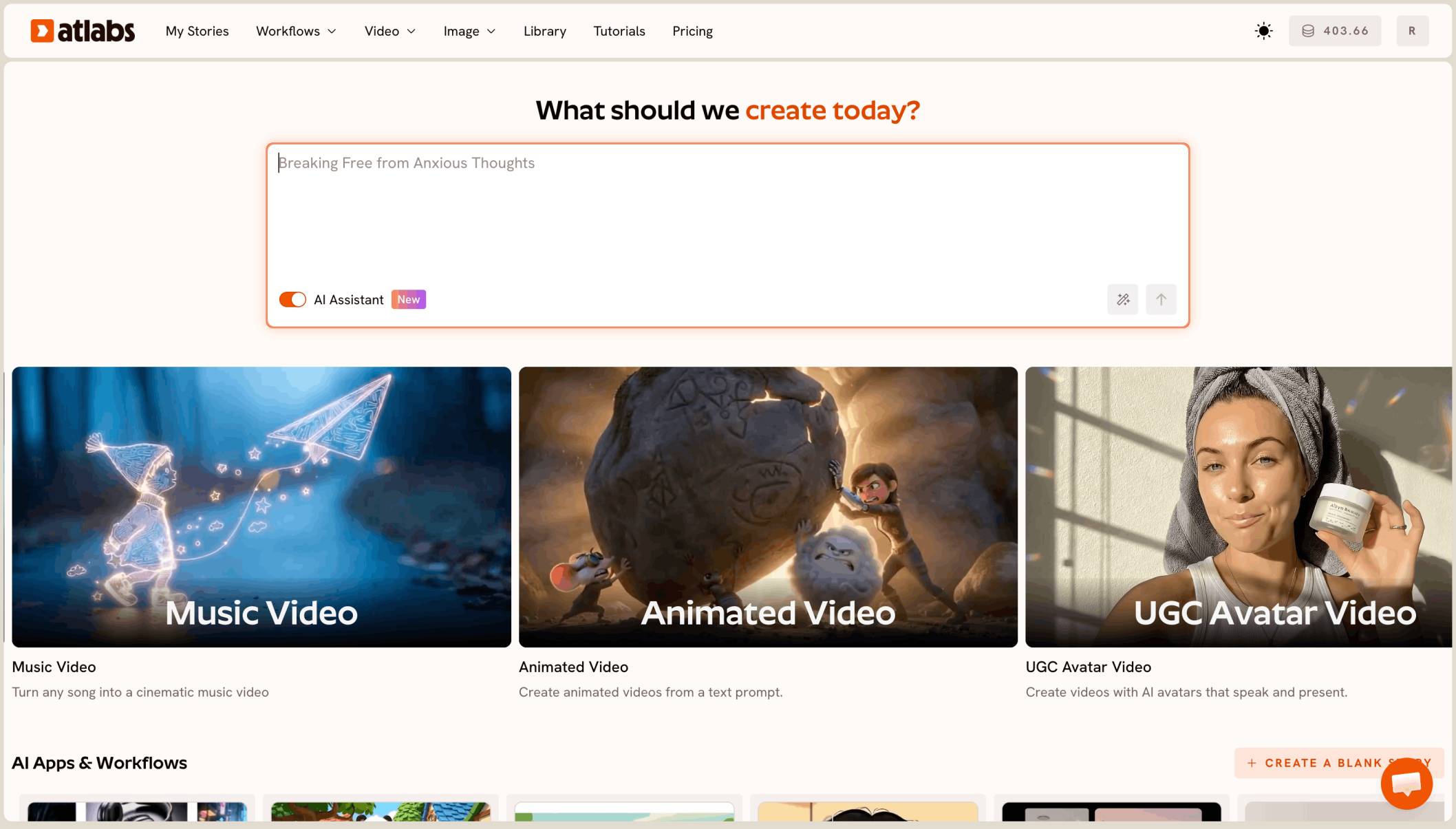
Add your Suno track to the Atlabs Music Video workflow, choose the Narrative video type and the Realistic style, and write one concept that names a place, a light and a change. Add your artist in Finalise Cast and render. Then give each scene one action and one camera move, and save lip sync for the lines that matter.
A Suno track can sound like a finished single. The video is what decides whether it looks like one. "Cinematic" is not a filter you switch on. It comes from a few choices: a realistic look, one strong location idea, steady camera moves and shots that change with the song. This guide shows where each of those choices sits in Atlabs, plus two motion prompts taken from a real music video made in Atlabs.
What you'll need
You need the final take of your Suno song, as a downloaded audio file or as the song's link. You need one sentence about the world of the video, such as a misty sea cliff at sunrise or a rainy neon street at night. And if you want yourself or a set character on screen, have a clear portrait ready to upload, so the same face appears in every shot.
How to make it cinematic, step by step
Step 1: Add the track and choose Narrative in Add Music
Open the Music Video workflow and add your Suno track in Add Music, by uploading the file or pasting the link. Set the song's language.
Then choose the video type. Narrative builds scenes that tell a story, which is the closest to a film. Performance puts your artist on screen singing with lip sync. For a cinematic cut, start with Narrative, even for a vocal track. You can still lip sync a few chorus lines later. Use the Storyline box if you already have a story in mind, or leave it blank and Atlabs writes one from the song.

The Add Music step in the Atlabs Music Video workflow
Step 2: Pick Realistic and a wide frame in Set Style
In Set Style, choose Realistic for a filmed, live action look. Pick 16:9 for YouTube, the natural shape for a cinematic video, and keep the output on video.
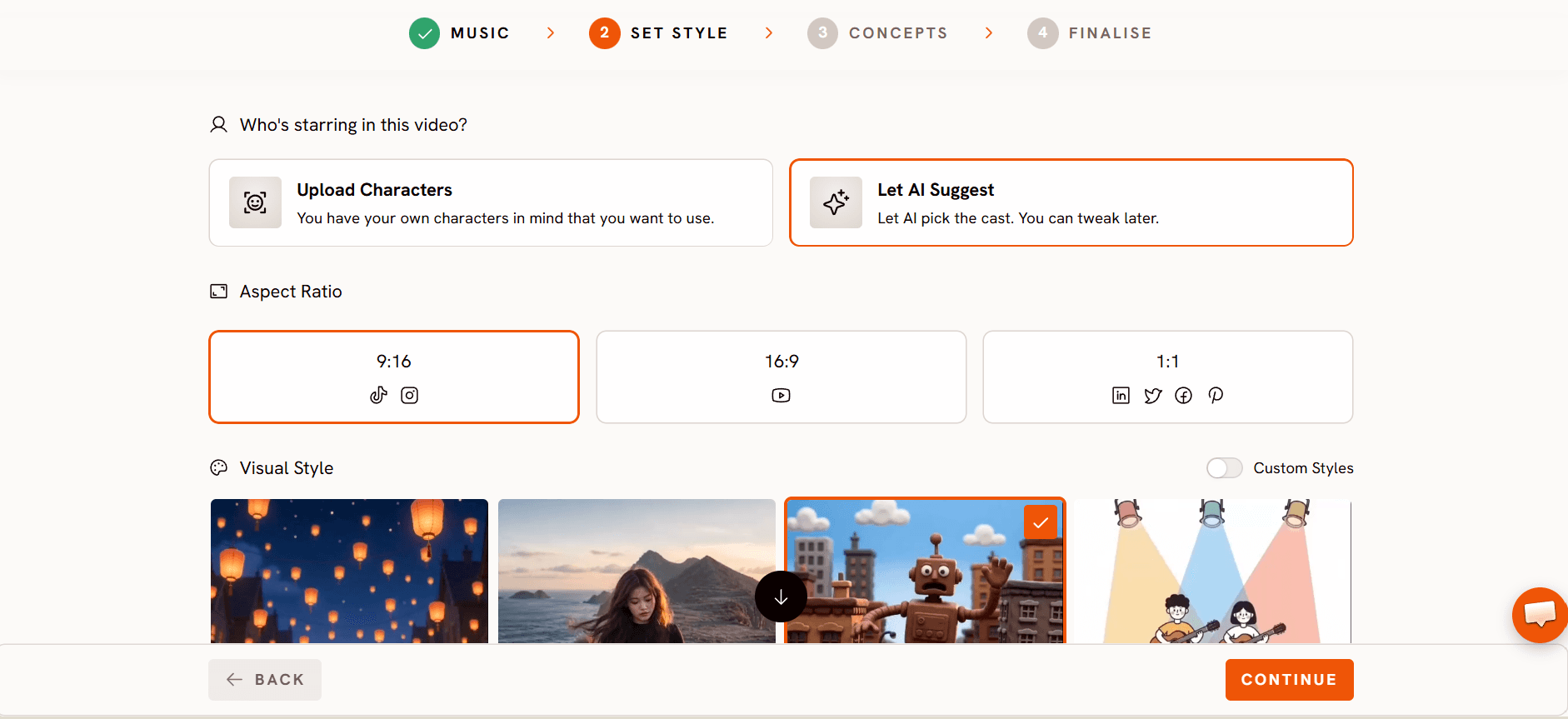
The Set Style step showing the visual style library
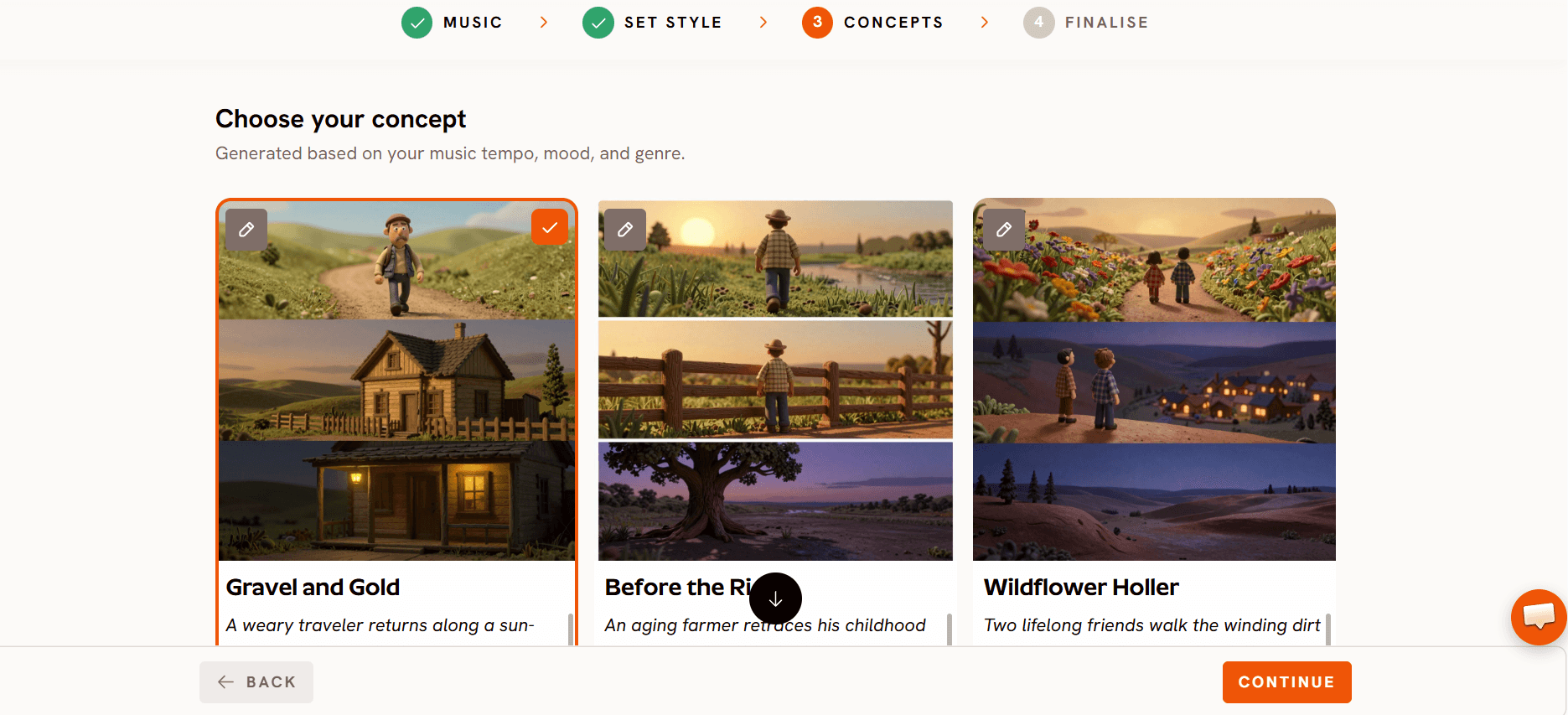
Step 3: Write a concept with a place, a light and a turn in Creative Direction
In Creative Direction, write one short paragraph. A cinematic concept has three parts: a place ("a narrow sea cliff above the ocean"), a light ("golden sunrise, mist on the cliff edges") and a turn that follows the song ("the verse stays quiet and close, the chorus opens wide as the crowd lifts their hands"). Every scene is built from this paragraph, so the more exact it is, the more the shots feel like one film.
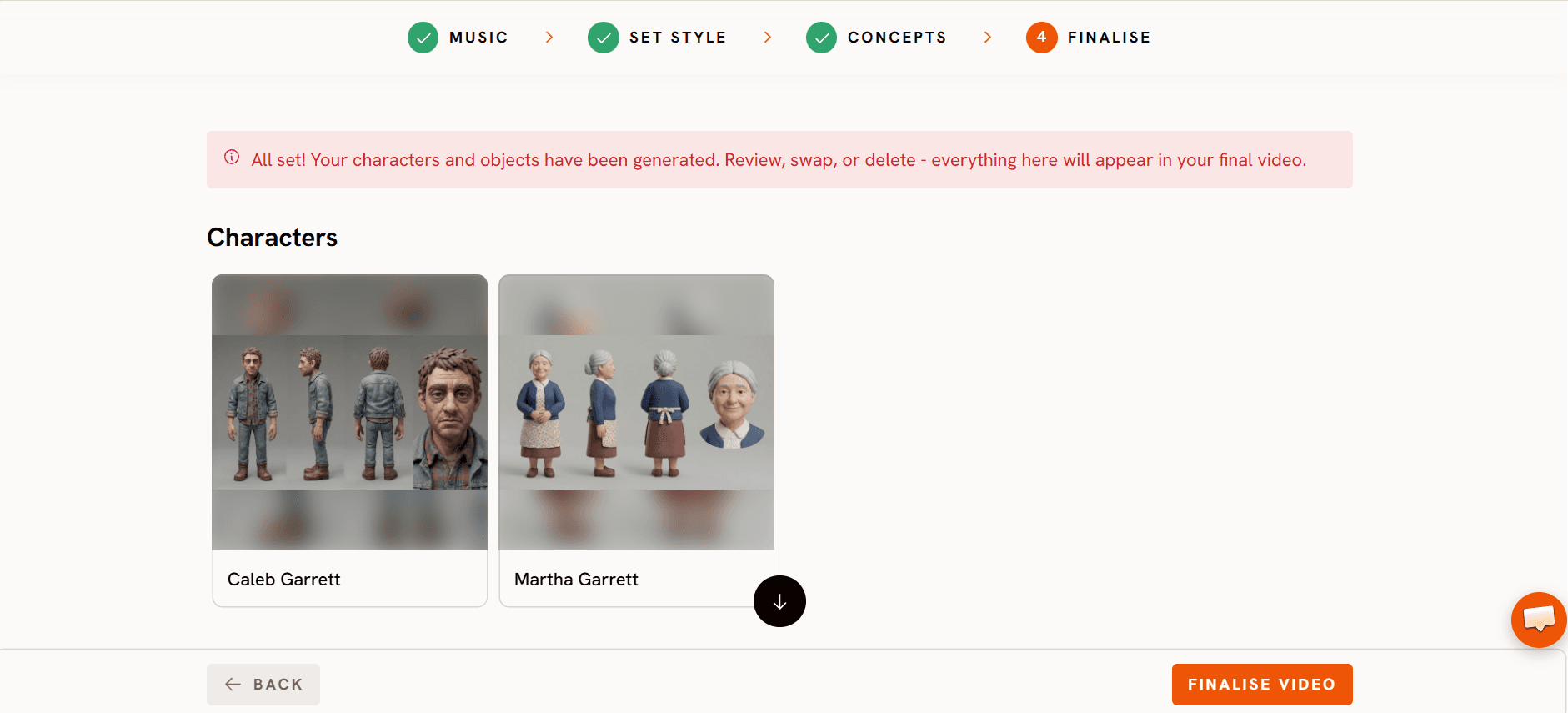
Step 4: Lock your artist in Finalise Cast
In Finalise Cast, upload a portrait of your artist or save a character. Atlabs keeps that face, hair and outfit the same from shot to shot, which is what makes a set of AI clips read as one video. Tag the character by name in scene prompts, like @YourArtist.
Step 5: Preview, render and direct each scene
Click Finalise. Check a Storyboard or a short preview first, then render the full song.
Now direct scene by scene. Open a scene and use the Motion tab to set what moves and how the camera moves. Give each scene one action and one camera move: a slow push in, a drone pull back, a low tracking shot. On the chorus lines where your artist should sing, open Lip Sync for that scene. Add captions if you want lyrics on screen, then Export
Two motion prompts from a real Atlabs music video
These two prompts were used in "Glass", a 66 second music video made in Atlabs on a sea cliff at sunrise. Each one animates a start frame that already shows the place and the light, so the prompt only describes motion and camera.
A slow close up that keeps the background alive:
It produced a close up of the DJ with her eyes closed, hair moving in the wind, the ocean and crowd soft behind her. "Preserving exact spatial continuity" tells the model this shot sits in the same place as the wide shots.
A camera move that follows the subject:
It produced one person kneeling in the middle of the crowd as the camera lowers with them. Moving the camera with the subject makes the moment feel directed, not posed. See every scene and prompt in the Glass music video tutorial.
Tips for a cinematic look
One camera move per scene. A push in, an orbit and a crane in one short clip looks shaky. Pick one.
Mention the background in close ups. A line like "the crowd keeps moving to the beat" stops the background from freezing.
Save the big shot for the chorus. Keep the verse close and quiet, then open to wide shots when the chorus hits.
Lip sync a few lines, not all of them. Three or four sung chorus lines feel like a real music video. Lip sync on every scene feels like a karaoke clip.
Finish for every platform. Use Reframe to make a 9:16 version for Shorts and Reels, and Upscale for a sharper YouTube upload.
FAQ
What makes an AI music video look cinematic?
A realistic style, one clear location idea, one camera move per scene and shots that change with the song. Write these into your concept and scene prompts.
Should I pick Narrative or Performance?
Narrative for a story driven, film like video. Performance when your artist should sing on screen. You can pick Narrative and still lip sync a few lines later.
Which aspect ratio should I use?
16:9 for YouTube and a cinematic look. 9:16 if the video is mainly for Shorts, Reels and TikTok.
Can I make a vertical version for Shorts and Reels?
Yes. Make the main video in 16:9, then use Reframe to turn it into a 9:16 version.
Final verdict
A cinematic music video comes from choices, not from a filter. Add your Suno track and choose Narrative in Add Music, pick Realistic and 16:9 in Set Style, write a concept with a place, a light and a turn in Creative Direction, and lock your artist in Finalise Cast. Then direct each scene with one action and one camera move, and lip sync only the lines that matter. Do that, and your Suno track gets a video that looks like a real release.