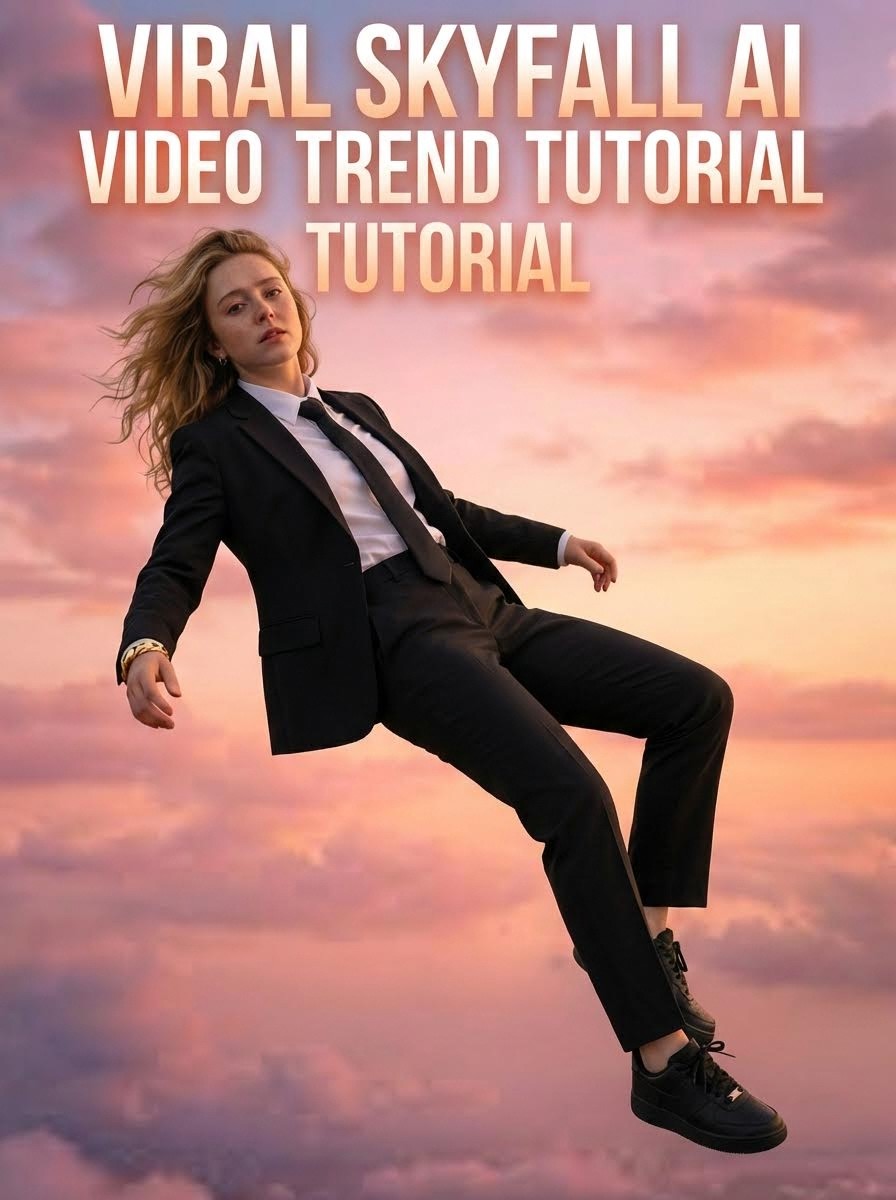
TL;DR
Create the viral Skyfall falling-through-clouds trend in minutes using Atlabs AI. No green screen, no plane, no expensive equipment—just your phone and AI.
What you'll create: Cinematic video of yourself falling through clouds with luxury close-ups
Time: 15-20 minutes
Start Creating Your Skyfall Video on Atlabs AI
What Is the Skyfall Trend?
You've seen it all over Instagram and TikTok: a cinematic video of someone falling through clouds, zooming into luxury details like a watch, shoes, or jewelry.
Why it's viral:
Dramatic, movie-quality visuals
Easy to personalize
Works with trending audio
High engagement (500K+ views common)
The best part? You can create this entirely with Atlabs AI, no green screen, no skydiving required.
Tools You Need
✓ Atlabs Text to Image (Nano Banana Pro) – For creating images
✓ Atlabs Image to Video (Veo3) – For animating
✓ Atlabs Video Editor – For final assembly
Required equipment: Your phone + clear selfie photo
The 3-Step Workflow
Step 1: Generate Your Photos (3 Images Required)
You need three types of images for the complete effect.
Navigate to: Atlabs AI → Text to Image → Nano Banana Pro
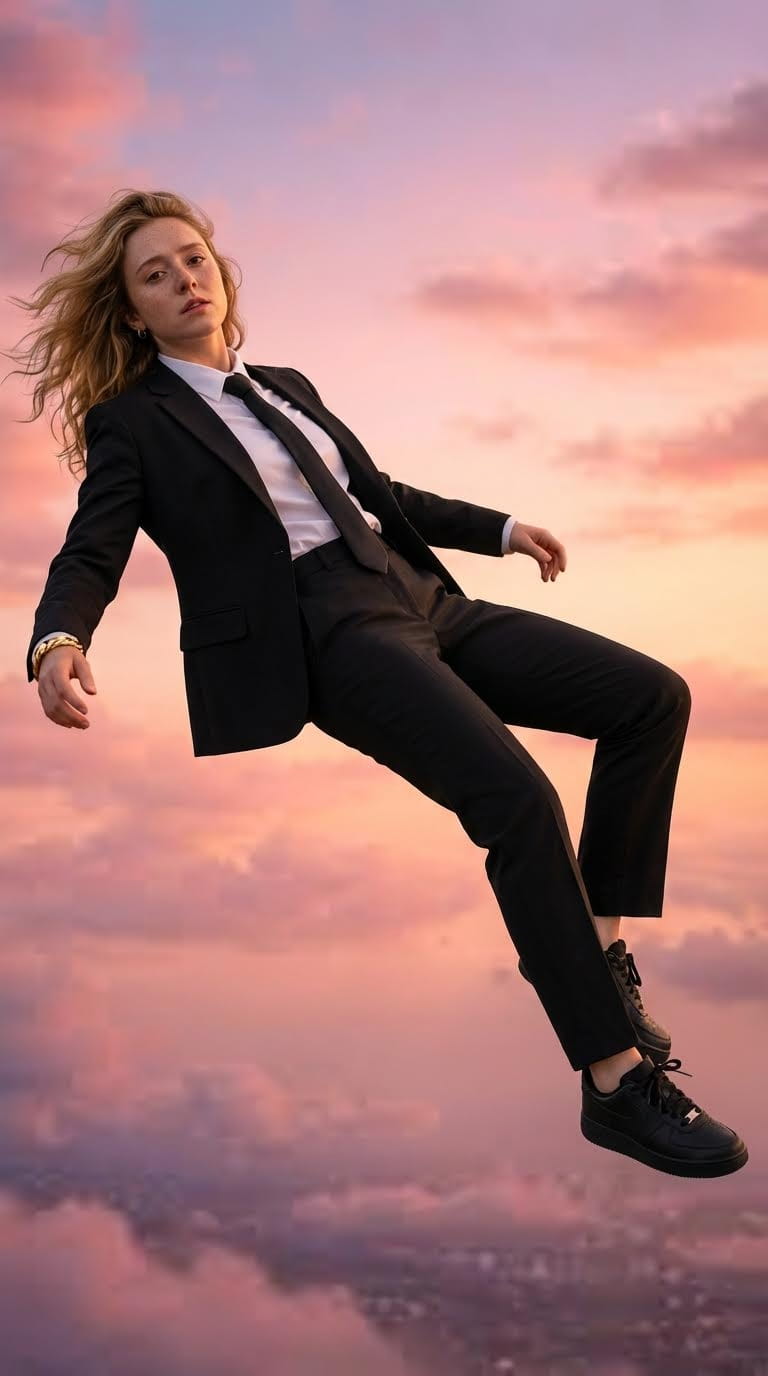
A. The Main Falling Shot
This is your hero image, you falling through clouds with emotional expression.
Requirements:
Upload a clear selfie photo (front-facing, good lighting)
High resolution (1000x1000px minimum)
Customize:
Change "young man" to "young woman" or your description
Modify outfit: "black formal suit" → your preferred clothing
Adjust accessories: "gold bracelet" → "silver watch" or "diamond necklace"
Hair description: Match your actual hairstyle
Settings:
Aspect Ratio: 9:16 (vertical for Instagram/TikTok)
Batch Size: 4
Generate and save the best result.
Generate Your Falling Shot on Atlabs AI
B. The Wide Angle Shot
This shows you small in the vast sky—creates dramatic scale.
Upload: The Main Falling Shot you just created
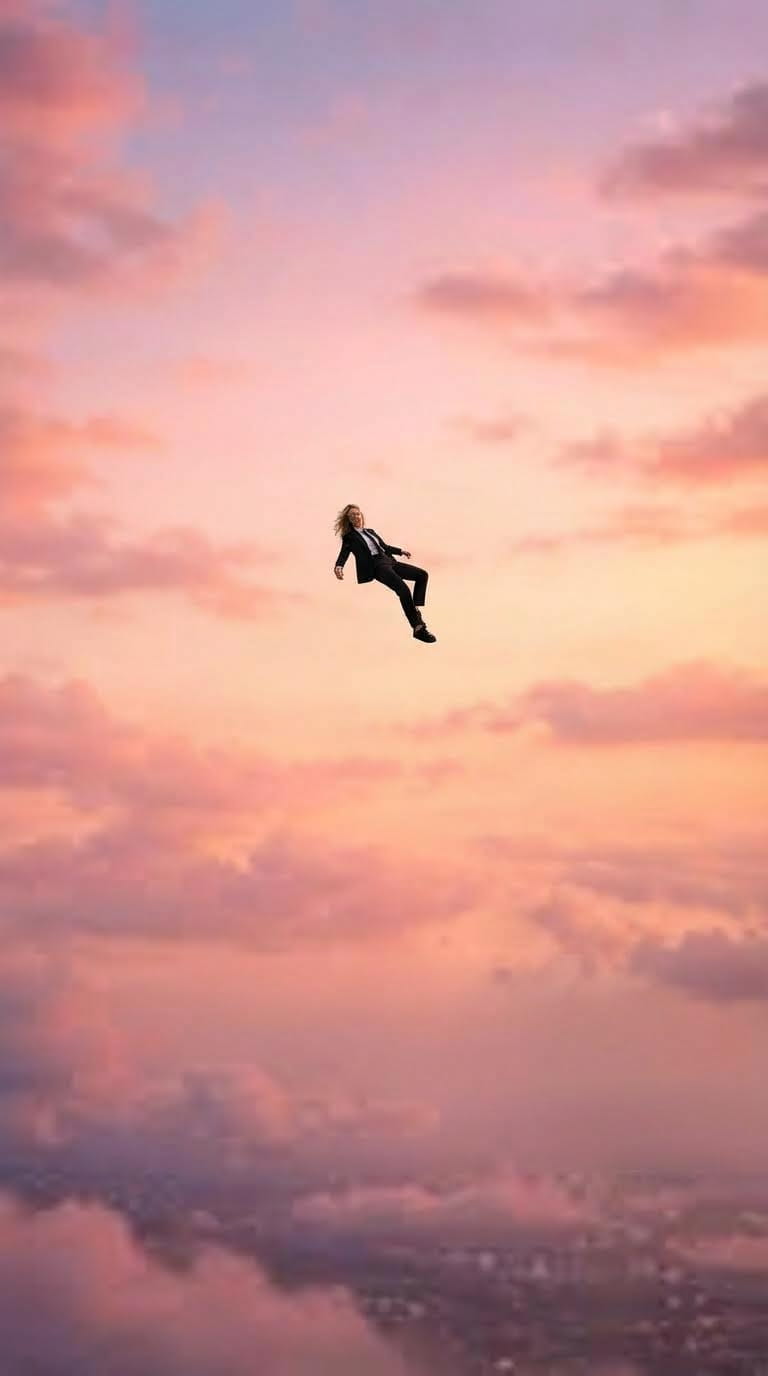
What this does:
Zooms out to show full sky
Makes you appear tiny against clouds
Sets up dramatic zoom-in effect
Generate and save.
Generate Your Falling Shot on Atlabs AI
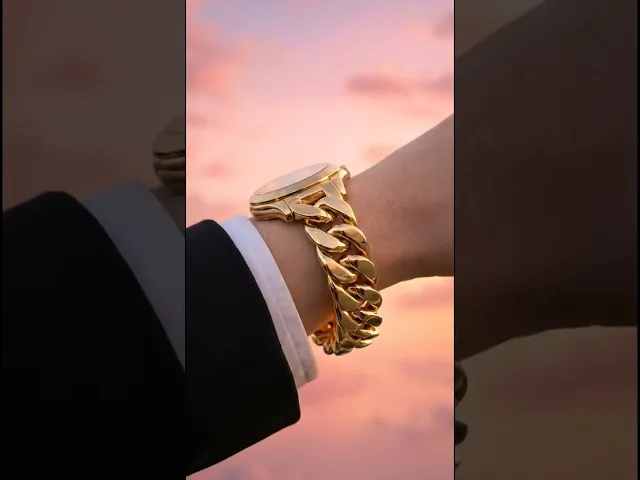
C. The Close-Up Details (Watch/Shoes/Jewelry)
This is the luxury detail shot that makes the trend pop.
Upload: The Main Falling Shot again
I need a close-up shot of this photo right now. The hand bracelet. A close-up shot. It's sparkling.


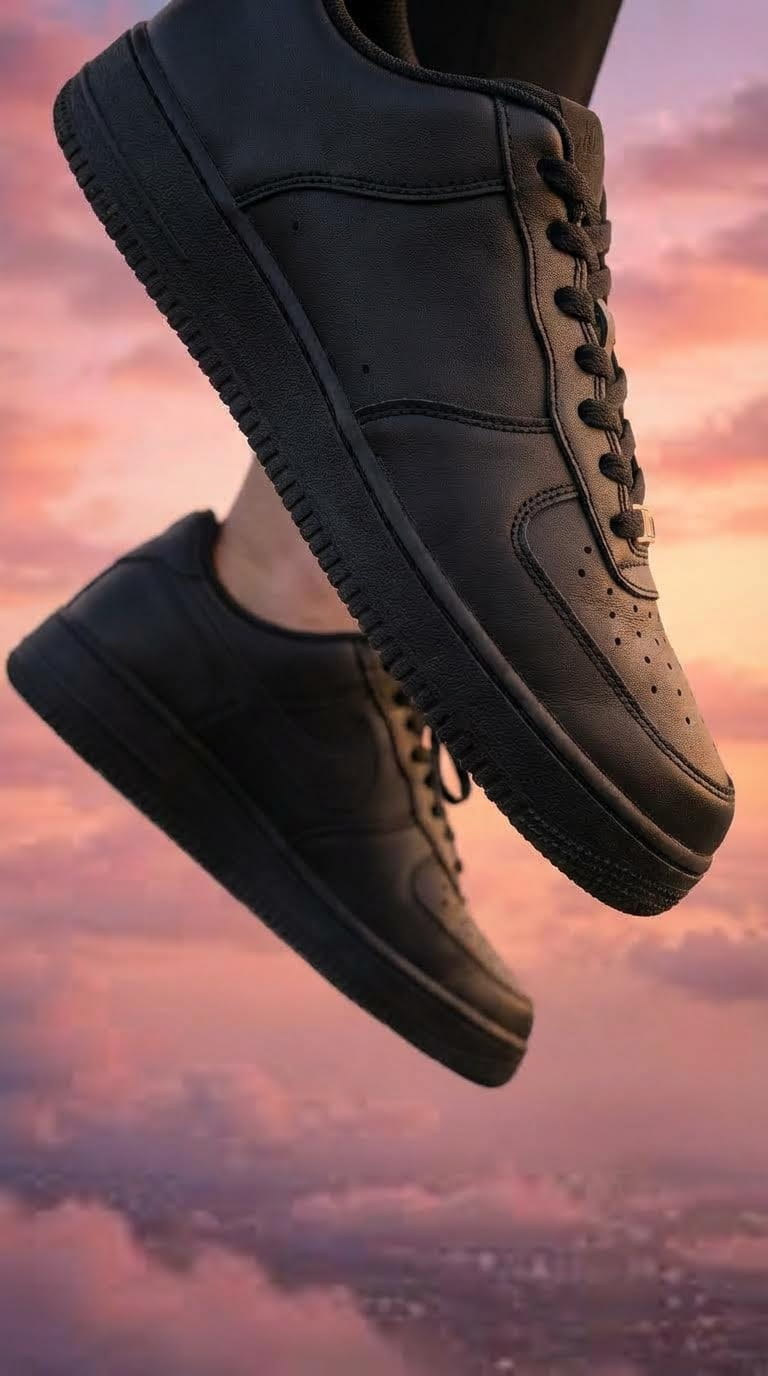
Pro Tip: Generate close-ups of 2-3 different details (watch + shoes + jewelry) for more dynamic editing options.
Generate Your Falling Shot on Atlabs AI
Step 2: Animate the Videos
Now turn static images into cinematic slow-motion clips.
Navigate to: Atlabs AI → Image to Video → Veo3.1
A. Create the Main Falling Clip
This is your primary falling-through-clouds sequence.
Select: Frames to Video (not Image to Video)
Upload Two Photos (in this order):
First: Wide Angle Shot
Second: Main Falling Shot
Why this order? Creates natural zoom from wide to close-up.
Copy This Video Prompt:
Customize:
Adjust clothing description to match your outfit
Change "aeroplane" to "helicopter" or "hot air balloon" or remove entirely
Modify sky: "Golden sunset" → "Blue sky" or "Dramatic storm clouds"
Settings:
Duration: 4 seconds
Generate and download "Original Size" video.
Animate Your Falling Scene on Atlabs AI
B. Create the Close-Up Clips
Animate each luxury detail shot.
Select: Frames to Video
Upload: ONE close-up photo (watch, shoes, or jewelry)
For Bracelet/Jewelry Close-Up:
Settings:
Duration: 4 seconds
Step 3: Edit & Export
Assemble your clips into the final viral-worthy video.
Navigate to: Atlabs AI → Video Editor → New Project
The Editing Sequence
Import All Clips:
Main Falling Clip (5 seconds)
Close-Up Clip 1 (3-4 seconds)
Close-Up Clip 2 (3-4 seconds)
Close-Up Clip 3 (3-4 seconds) [optional]
Arrangement:
Total Duration: 15-19 seconds (perfect for Reels/TikTok)
Syncing to Music
The viral secret: Match cuts to beat drops
How to sync:
Import trending audio from Instagram/TikTok
Place beat markers on timeline
Align each clip transition to beat
Close-ups should hit on snare/kick drums
Recommended Audio Types:
Emotional piano builds
Dramatic orchestral swells
Trending sad/romantic songs
Optional Enhancements
Transitions:
Simple cuts (most effective)
Quick zoom transitions between close-ups
Avoid heavy effects (distracts from visuals)
Sound Effects:
Whooshing wind (subtle)
Cinematic boom on beat drops
Layer under music, keep quiet
Export and post!
Edit Your Skyfall Video in Atlabs AI
Pro Tips for Maximum Virality
Tip 1: Emotional Expression Matters
Your facial expression makes or breaks the trend.
Best expressions:
Contemplative, looking into distance
Slight smile with dreamy eyes
Intense, focused determination
Vulnerable, emotional
Avoid:
Stiff, awkward poses
Forced smiles
Looking directly at camera (breaks immersion)
Tip 2: Outfit Choice
High-performing outfits:
Black formal suit (classic, elegant)
All-white outfit (angelic, clean)
Street style (hoodie + designer sneakers)
Athletic wear (Nike, Adidas, luxury sportswear)
Accessories that pop:
Gold/silver watches
Chain necklaces
Designer sneakers
Sunglasses (optional for variation)
Tip 3: Multiple Variations
Create 3-4 different versions with:
Different outfits
Different sky colors (sunset, blue sky, storm)
Different close-ups (watch, shoes, ring)
Different audio tracks
Post one per day for sustained engagement.
Tip 4: Hashtag Strategy
Essential hashtags:
#SkyfallTrend #AIVideo #CinematicVideo #AIEdit #ViralTrend #ReelsVideo #TikTokTrend #AIArt #SkyAesthetic
Platform-specific:
Instagram: Add #Reels #InstagramReels
TikTok: Add #FYP #ForYou #Viral
Optimal count: 10-15 hashtags
Tip 5: Hook in First 2 Seconds
Opening frame matters:
✓ Start with wide sky shot (builds anticipation)
✓ Or start with dramatic close-up (immediate impact)
✗ Don't start with black screen or slow fade
Caption hook:
"POV: You're falling but it's cinematic 🎬"
Common Mistakes to Avoid
❌ Low-quality selfie → ✅ Clear, well-lit face photo
❌ Wrong aspect ratio → ✅ Always use 9:16 vertical
❌ Too many effects → ✅ Keep it simple and cinematic
❌ Ignoring music sync → ✅ Match cuts to beat
❌ Static close-ups → ✅ Ensure all clips have slow motion
Troubleshooting
Problem: Face doesn't look like me
Solution: Use clearer reference photo, specify "preserve exact facial features from reference image"
Problem: Clothes look unrealistic
Solution: Be very specific in prompt about fabric type, fit, wrinkles
Problem: Sky looks fake
Solution: Add to prompt: "Ultra-realistic volumetric clouds, natural lighting, atmospheric perspective"
Problem: Movement too fast
Solution: Emphasize "extreme slow motion, 10% speed" in video prompts
Variations to Try
Skyfall with Wings
Add to main prompt: "...with large angel wings spread behind him, feathers flowing in wind..."
Skyfall in Space
Change environment: "...falling through cosmos with stars and galaxies, nebula clouds..."
Skyfall with Fire
Dramatic effect: "...surrounded by flowing flames and embers, phoenix rising aesthetic..."
Skyfall in Rain
Moody vibe: "...falling through heavy rain, water droplets floating around, stormy clouds..."
Ready to Go Viral?
You now have the complete workflow to create the Skyfall trend that's dominating Instagram and TikTok.
No green screen. No skydiving. Just Atlabs AI.
What You Get with Atlabs AI
✓ Nano Banana Pro for photorealistic falling images
✓ Kling Image to Video for cinematic slow motion
✓ Built-in Video Editor for seamless assembly
✓ 9:16 vertical format optimized for social media
✓ Unlimited iterations to perfect your look








