How do I create an animated series with AI?
Creating an animated series with AI is a realistic goal for independent creators today. With Atlabs, the entire process runs through the Animated Video workflow: write a script, pick a visual style, cast your characters, and generate episode footage in minutes. No animation software, no rigging, no frame-by-frame work required. The same characters and world you build in episode one carry across every episode that follows, so the series develops a consistent visual identity from the start.
What You Will Need
Three things get you started: an Atlabs account, a story concept or script outline for your first episode, and 15 to 30 minutes per episode. Atlabs includes an AI Script Writer inside the workflow if you have a premise but no written script yet. For a series, it helps to decide your genre and tone before opening the workflow. Children's adventure, sci-fi short, animated biography, or comedic slice-of-life are all strong formats, because the visual style you pick in Step 2 should match that tone and stay locked across every episode.
Watch full video on YouTube
Step 1: Write Your Episode Script
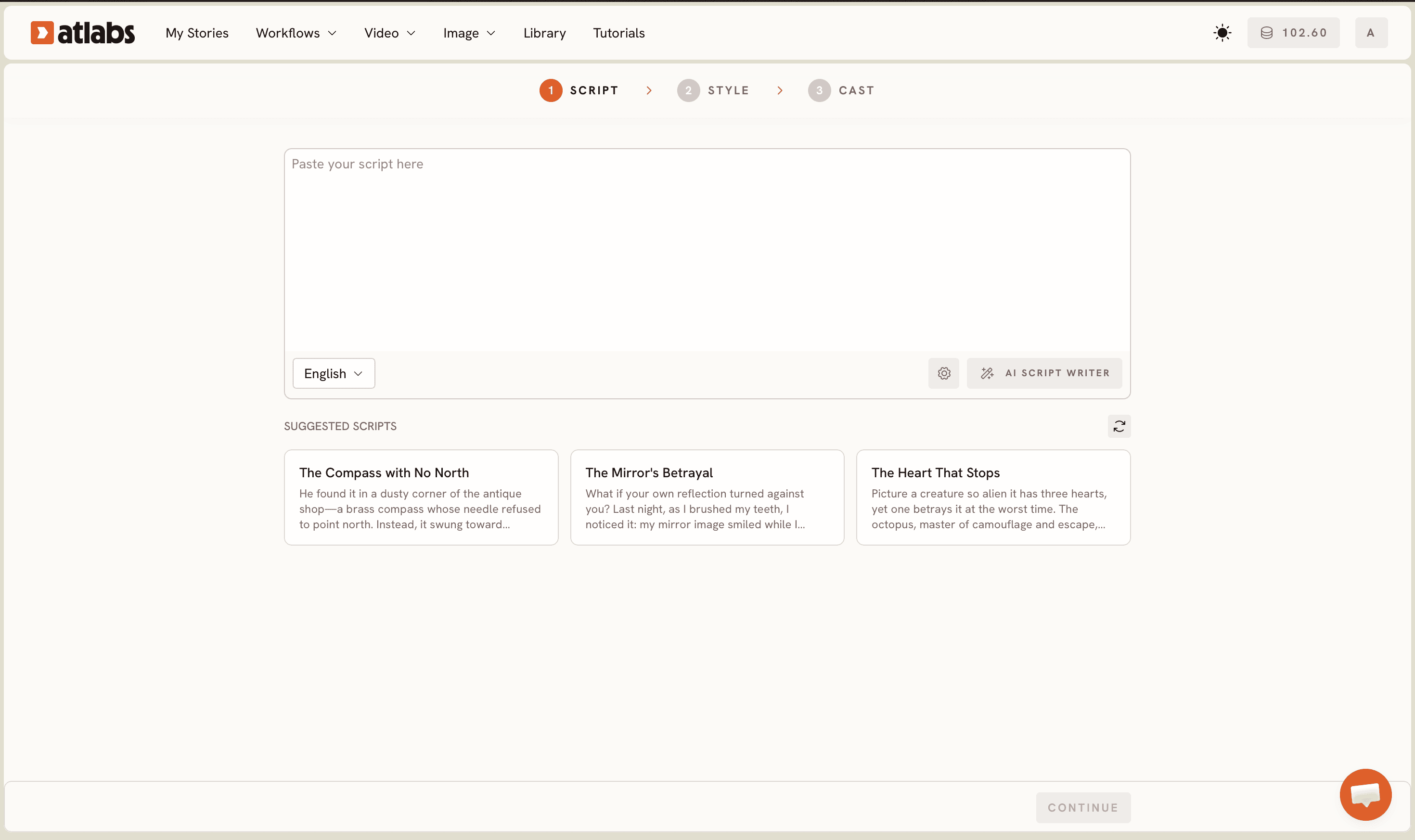
Open the Animated Video workflow at app.atlabs.ai. The screen header shows the progress bar with three stages: SCRIPT, SET STYLE, and CAST. Two tabs sit at the top of the script area. The first is Add your script, which accepts free-form text you type or paste directly. The second is Add your screenplay, which accepts structured screenplay formatting for creators who prefer to work in that format. If you have episode one written, paste it into the editor and read it through once before moving on. If you are starting from an idea rather than a finished script, click the AI Script Writer button in the lower right of the editor. Type a one-sentence premise for your episode and let the writer generate a full draft. For a series, treat each episode premise as its own input to the AI Script Writer, keeping character names and the world details identical across episodes so the workflow recognizes the same cast when you reach Step 3. The Language selector at the bottom left of the editor sets the narration language for the episode, which matters when the series targets a regional audience. Once the script reads the way you want it, move to Set Style.
Step 2: Set Your Visual Style
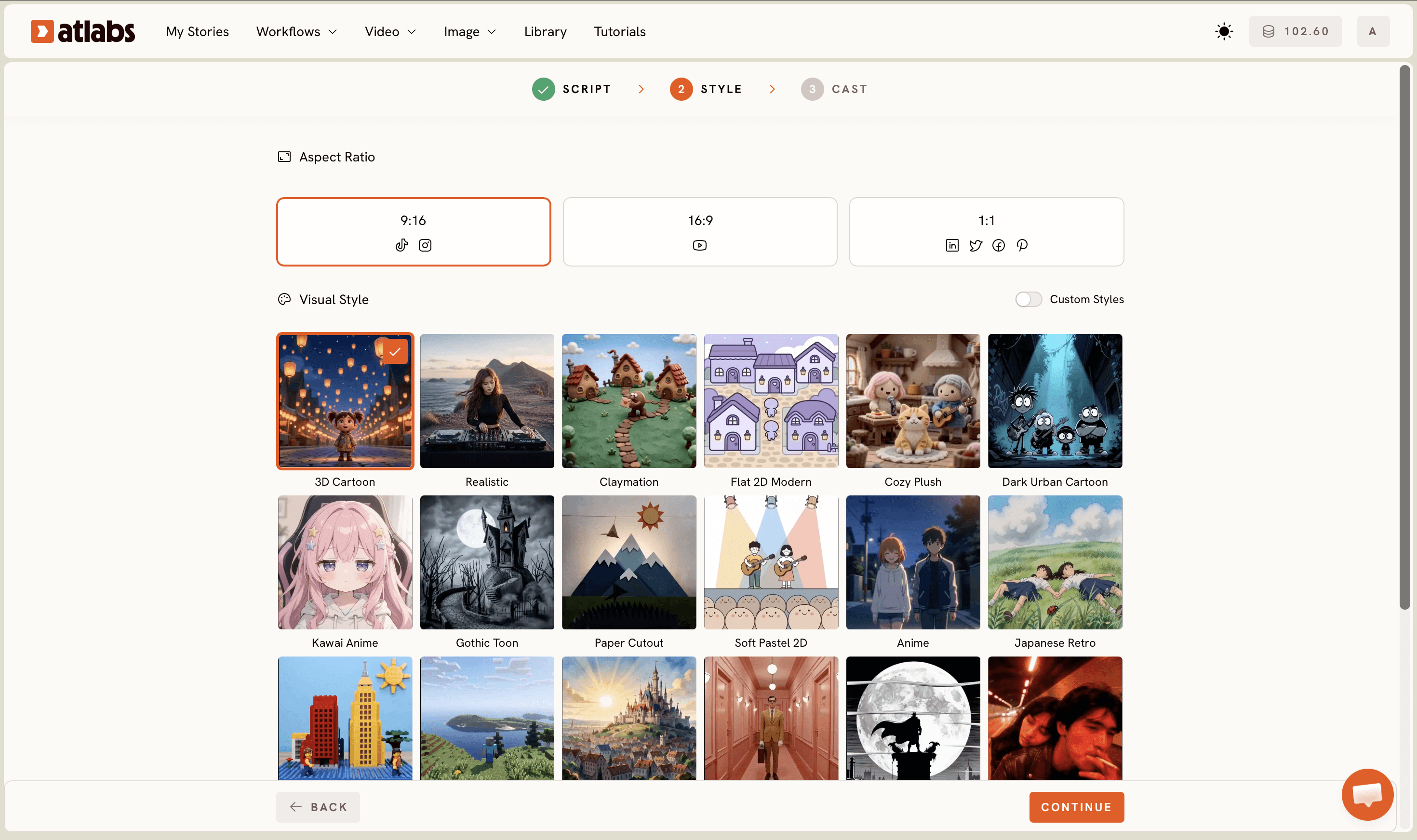
The Set Style screen gives you three decisions that define the look of your series. The first is Aspect Ratio. For a YouTube animated series, select 16:9. For an Instagram or TikTok vertical series, select 9:16. Pick the ratio that matches your distribution platform and keep that choice consistent across every episode. The second decision is Video Style. Select AI Video, which generates unique scene-by-scene footage from your script rather than producing a slideshow of stills. AI Storyboard works well for pitch decks or episode animatics, but for a finished series episode, AI Video is the right choice. The third decision is Visual Style. The library includes 3D Cartoon, Realistic, Claymation, Cozy Plush, Flat 2D Modern, Dark Urban Cartoon, Kawai Anime, Gothic Toon, Paper Cutout, Soft Pastel 2D, Anime, and Japanese Retro, with additional options available under the Custom Styles toggle. Pick the style that fits your series concept and commit to it. Using the same Visual Style setting across all episodes is what gives the series its visual identity. A 3D Cartoon style for episode one and a Flat 2D Modern style for episode two will look like two separate shows to the viewer.
Step 3: Cast Your Characters
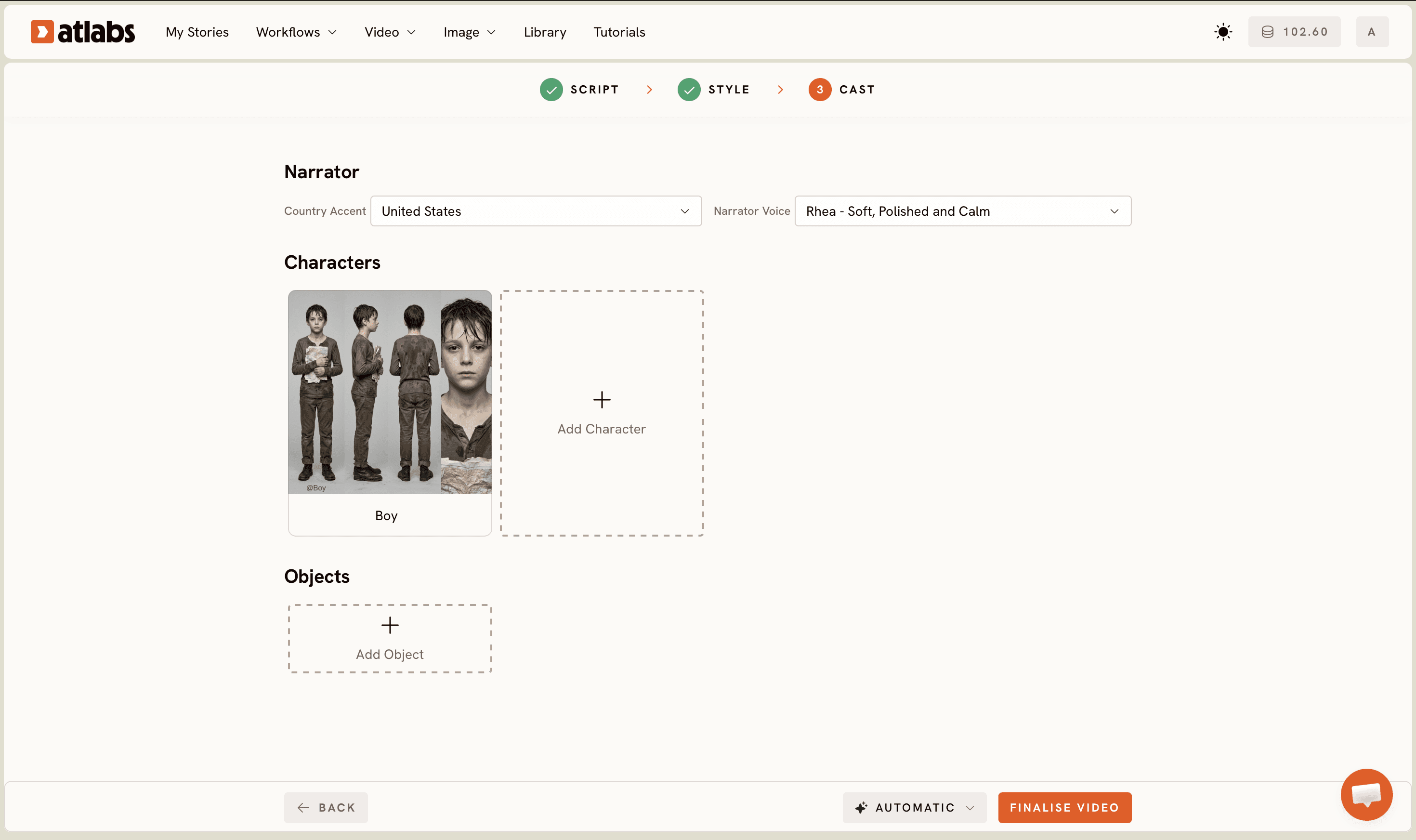
The Cast screen is where the series identity gets locked in. It has three sections: Narrator, Characters, and Objects. Start with the Narrator section. Select the Country Accent for the narration voice and choose a Narrator Voice from the dropdown, for example David or another available option. Pick a voice that suits the tone of your series and note the exact settings so you can replicate them in every future episode. In the Characters section, Atlabs auto-generates character cards based on the names and descriptions in your script. Each card shows a reference sheet with multiple angles and a portrait view. Click the Click to edit overlay on any character card to open the character editor and adjust appearance, clothing, or expression. For a series, this step is critical. The reference sheet Atlabs generates becomes the visual anchor for that character across all episodes. Save your character settings and keep an exported copy of each reference sheet outside the platform so you can verify consistency between episodes. The Objects section at the bottom lets you add recurring props or set pieces that appear across episodes. Once the Cast step is complete, Atlabs generates the episode footage. Export it, review the output, and use the same Cast configuration when opening the workflow for episode two.
Tips for a Better Animated Series
Four practices improve output quality across a multi-episode series. Keep character names identical between episodes. The Animated Video workflow reads names from the script to generate character cards, so a name change between episodes creates a new visual character rather than continuing the existing one. Use the Seedance 2.0 model when your series relies on character closeups or dialogue-driven scenes, as it handles stylized character animation and facial consistency with more precision than broader-motion models. Use the Reframe workflow after episode generation if you want to repurpose the same episode for a different platform ratio without re-generating the footage. And run Caption Video on each finished episode before publishing. Captions improve watch time on platforms where autoplay is muted and make the series accessible to a wider audience from the first episode. The same practices apply to song-based shows, as covered on the kids song series page.
Two Episode Scripts to Get You Started
A young inventor named Zara discovers a hidden workshop beneath her school library. The workshop holds half-finished machines from a previous inventor. In this episode, Zara repairs her first machine: a small copper bird that carries messages across the city. Visual style: 3D Cartoon. Aspect ratio: 16:9.
Try this in Atlabs Animated Video
An elderly map-maker named Orion lives in a city that has forgotten how to read maps. Each episode, a different child comes to his shop with a mystery to solve. In this episode, a girl named Mira needs to find a lost garden that appears only on century-old city maps. Visual style: Flat 2D Modern. Aspect ratio: 9:16.
Try this in Atlabs Animated Video
FAQ
Do I need animation skills to create an animated series with AI?
No prior animation experience is required to use the Animated Video workflow on Atlabs. The workflow handles scene generation, character rendering, and motion output from a script input. Creators with only a written story and no software background can produce a finished episode without any technical training.
How long does it take to generate one episode with Atlabs?
Most episodes take between 15 and 30 minutes from script input to generated footage, depending on episode length and the number of characters in the Cast step. Review and export typically add another 5 to 10 minutes per episode, so a complete episode can be ready within under an hour from a blank script.
What visual styles work best for an animated series?
3D Cartoon and Flat 2D Modern are the most popular choices for serialized animated content because both styles maintain character recognizability across scene changes. Kawai Anime works well for shorter-form series on TikTok or Instagram Reels. The most important rule for any series is to use the same Visual Style setting across all episodes.
Can I keep the same characters across multiple episodes?
Yes. The character reference sheets generated during the Cast step in the Animated Video workflow serve as the visual anchor for each recurring character. Save those reference sheets and reuse the same character names and Cast settings when opening the workflow for each new episode. Keeping character names consistent in the script across episodes also helps the workflow recognize returning characters correctly.
Get started
The Animated Video workflow on Atlabs gives independent animation creators the infrastructure to build and ship a consistent series without a studio. Open the workflow, write episode one, cast your characters, and start building.
Open Atlabs








