Making a hip-hop music video used to mean booking a location, hiring a videographer, and spending a weekend you didn't have. In 2026, the same result, a full music video with a distinct visual identity, takes about twenty minutes and a browser tab. This guide walks through the entire process from scratch: you'll create a hip-hop track in Suno AI using the exact settings that work for the genre, export it, and feed it into Atlabs to generate a complete music video. No production experience required.
Part 1: Create Your Hip-Hop Track in Suno AI
Suno (suno.com/create) generates complete, production-ready songs from a description or style tags. It handles the beat, the instrumentation, the vocals, and the arrangement in a single generation. The free plan gives you 50 credits per day, which is five generations (each generation produces two song variants and costs 10 credits). That is enough to get a usable hip-hop track on your first session.
Step 1: Go to suno.com/create
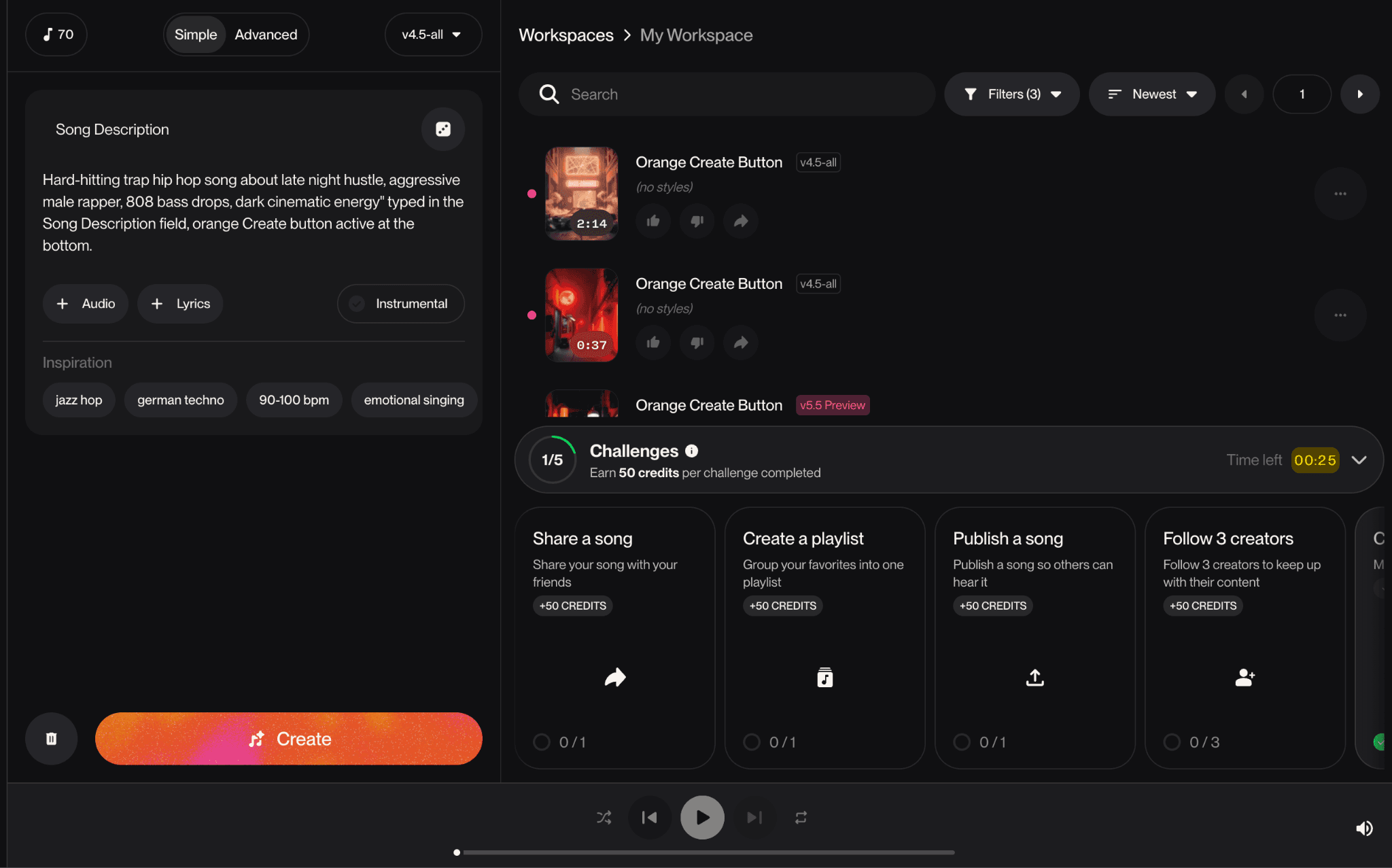
Navigate to suno.com/create. You will see the create panel on the left side of the screen with two tabs at the top: Simple and Advanced. The right side shows your Workspace, where generated tracks appear. The model selector at the top defaults to v4.5-all, which is Suno's current best model and the one to use for hip-hop.
📸 Screenshot: Suno create page in Simple mode showing "Song Description" input, + Audio, + Lyrics, Instrumental toggle, Inspiration style chips, and the orange Create button. Right panel shows Workspace with existing tracks. |
Step 2: Choose Simple or Advanced Mode
Simple mode gives you a single "Song Description" text box. You describe what you want in one or two sentences and Suno handles everything else. This is the fastest path to a first draft. Advanced mode separates this into two distinct fields: a Lyrics field and a Styles field. This separation gives you precise control over both what the song says and what it sounds like, which matters a lot for hip-hop where the production style is as important as the lyrics.
For a first attempt, start with Simple mode to get a feel for what Suno produces. Once you have heard a generation and know what adjustments you want, switch to Advanced for the next round.
Using Simple Mode: What to Type in the Song Description
The Song Description box accepts plain English. Describe the type of hip-hop you want, the energy, the subject matter, and the voice. Suno reads all of it and generates a song that fits the description. Here are three proven descriptions for different hip-hop styles:
Dark Trap: Hard-hitting trap hip hop song about late night hustle, aggressive male rapper, 808 bass drops, dark cinematic energy |
Boom-Bap: Old school boom bap hip hop, East Coast style, lyrical male rapper, jazzy samples, vinyl crackle, storytelling about growing up in the city |
Melodic Hip-Hop: Melodic hip hop with emotional piano, smooth auto-tuned vocals, introspective lyrics about ambition and loneliness, lo-fi beats |
Type one of these descriptions (or write your own) in the Song Description box and click the orange Create button. Suno will generate two song variants, which appear in your Workspace panel on the right within about 30 seconds.
Using Advanced Mode: Lyrics Field and Styles Field
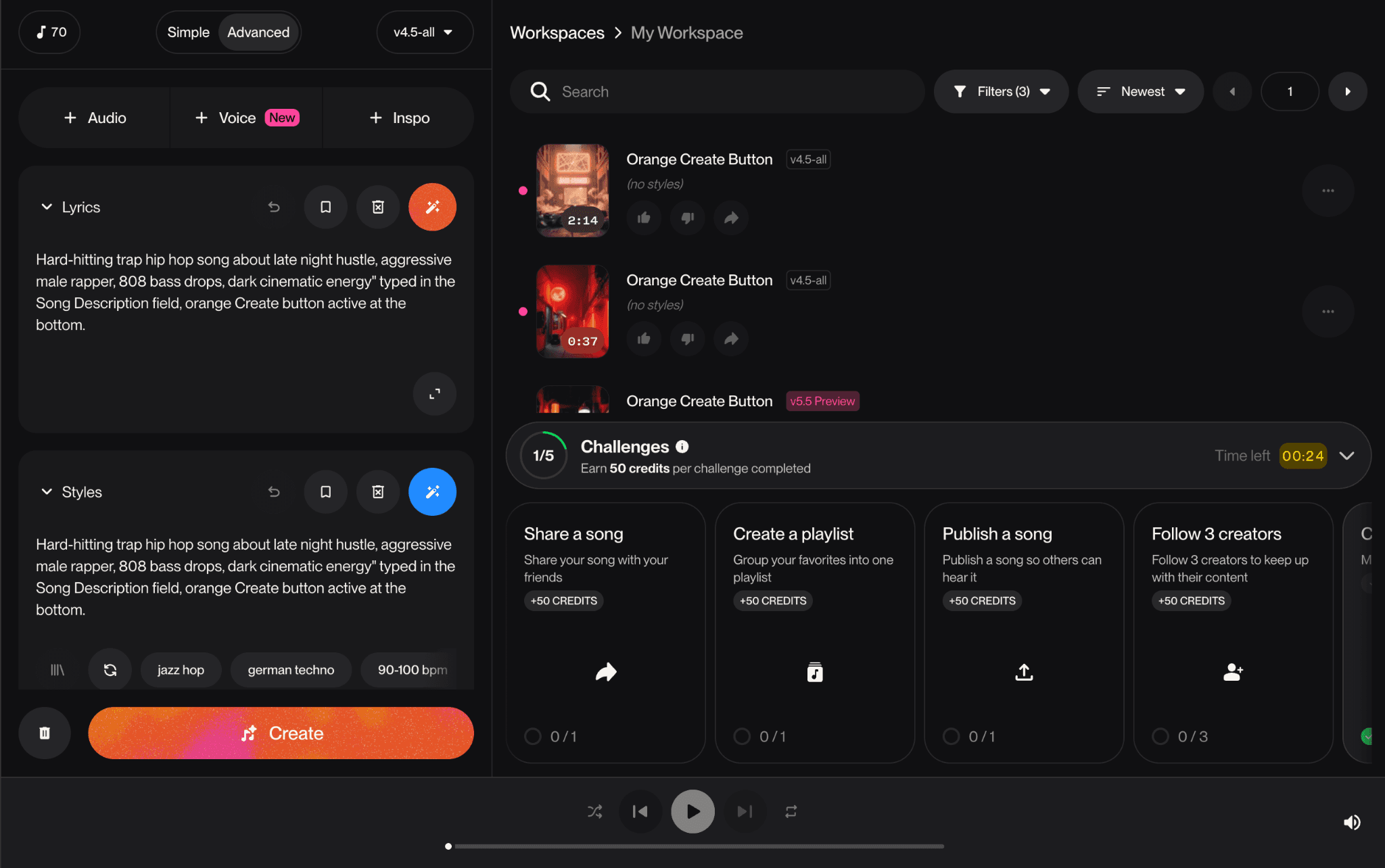
Click the Advanced tab at the top of the create panel. The interface changes to show three sections: a row of add buttons (+ Audio, + Voice, + Inspo) at the top, a Lyrics field, and a Styles field. These two fields give you independent control over what the rapper says and what the production sounds like.
The Lyrics Field
The Lyrics field is where you write the actual words the AI will rap. It accepts up to 1,250 characters. Suno understands structural tags in brackets, which you use to tell it which part of the song each block of text belongs to. The tags it recognises include [Verse], [Verse 1], [Verse 2], [Hook], [Chorus], [Bridge], [Pre-Chorus], [Outro], and [Instrumental Break]. Use them to structure your lyrics the same way you would write a song on paper.
Here is an example lyrics block you can paste directly into the field:
|
If you leave the Lyrics field blank and want Suno to write its own words, that is fine too. Leave it empty and Suno will generate lyrics based on your Styles tags. This is called automatic lyrics mode and it works well when you care more about the sound than the specific words.
The Styles Field
The Styles field is where you define the sound. It accepts comma-separated descriptors, up to 200 characters. Each tag describes one element of the production: the genre, the instruments, the energy, the vocal style, or the tempo feel. Suno combines them all into a single sonic identity. For hip-hop, the Styles field is the most important input you will write because it tells Suno what kind of beat to build.
Here are ready-to-use Styles strings for four hip-hop subgenres. Copy and paste whichever matches your track:
Trap / Dark Hip-Hop: trap, 808 bass, dark, hi-hat rolls, aggressive rap, male vocals, distorted synths, cinematic, fast tempo |
Boom-Bap / East Coast: boom bap, east coast hip hop, sampled breaks, vinyl crackle, brass stabs, jazz piano, lyrical rap, mid tempo, male vocals |
Melodic / Emotional Hip-Hop: melodic hip hop, lo-fi beats, sad piano, smooth rap, auto-tune vocals, introspective, emotional, mid tempo, nostalgic |
West Coast / G-Funk: west coast hip hop, g-funk, slow synth bass, smooth, sunny, laid-back rap, uplifting, funk drums, mid tempo, male vocals |
Once you have pasted your Styles string, scroll down in the Advanced panel to find the More Options section. Click to expand it. Inside you will find four controls that are worth knowing:
Vocal Gender (Male / Female): Sets whether the vocalist sounds male or female. For most hip-hop, leave this on Male unless you are producing a female-fronted track.
Lyrics Mode (Manual / Auto): Manual means Suno uses the lyrics you typed exactly as written. Auto means it generates its own lyrics from your Styles tags, ignoring the Lyrics field. If you typed your own lyrics, make sure this is set to Manual.
Weirdness (slider, default 50%): Controls how experimental the arrangement is. Keep this between 30% and 50% for hip-hop. Higher values introduce strange harmonic choices that sound off-genre.
Style Influence (slider, default 50%): Controls how closely Suno follows your Styles tags. At 60% to 70%, the output stays tight to the genre you specified. Lower values give Suno more creative freedom, which is usually not what you want when targeting a specific hip-hop sound.
Step 3: Click Create and Review the Two Variants
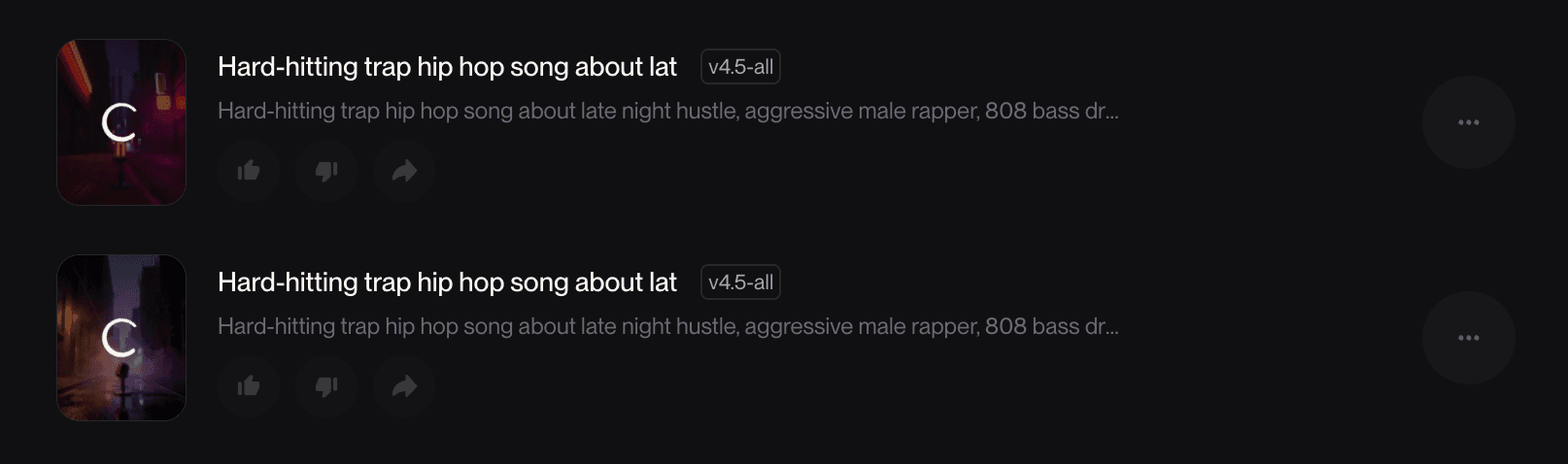
With your Lyrics and Styles filled in, click the orange Create button at the bottom of the panel. Suno generates two song variants simultaneously. They appear in your Workspace panel on the right side of the screen within 30 to 60 seconds. Each variant is labelled with the same title but will have a slightly different duration and sonic interpretation of your Styles tags. Play both variants before deciding which one to use.
The style description shown beneath each track title in the Workspace panel shows you what Suno actually built from your prompt. For a trap-focused Styles input you might see something like "West Coast hip hop with laid-back swung drums, smoky jazz chords, upright bass slides" which tells you what sonic elements Suno weighted most heavily from your tags. If the description does not match your intended sound, that is a signal to adjust your Styles string and generate again.
Step 4: Download the Track as an MP3
Once you have chosen the better of the two variants, hover over the track in the Workspace panel. A three-dot menu icon appears on the right side of the track row. Click it. A dropdown menu opens with several options. Look for Download near the bottom of the list. Hover over it to open a sub-menu showing three options: MP3 Audio, WAV Audio (Pro), and Video (Pro).
Select MP3 Audio. This is available on the free plan and produces a full-quality audio file that Atlabs can read. The file downloads immediately to your computer's default downloads folder. The filename will match the track title Suno assigned. Remember where it saves because you will need to locate this file in the next step.
Free vs Pro download formats: MP3 Audio is free on all plans. WAV Audio and Video download require a Suno Pro subscription. For the Atlabs workflow, MP3 is all you need. Atlabs accepts MP3 files up to 200 MB without any quality loss in the video generation. |
Part 2: Turn Your Track Into a Music Video in Atlabs
With your MP3 saved, open app.atlabs.ai/new-music in a new browser tab. This is Atlabs' dedicated music video workflow. It is designed specifically to take an audio file and build a full visual story around it. The four-step progress bar at the top of the page shows you the full process: 1. Add Music, 2. Set Style, 3. Direction, 4. Cast.
Step 1: Upload Your Suno Track
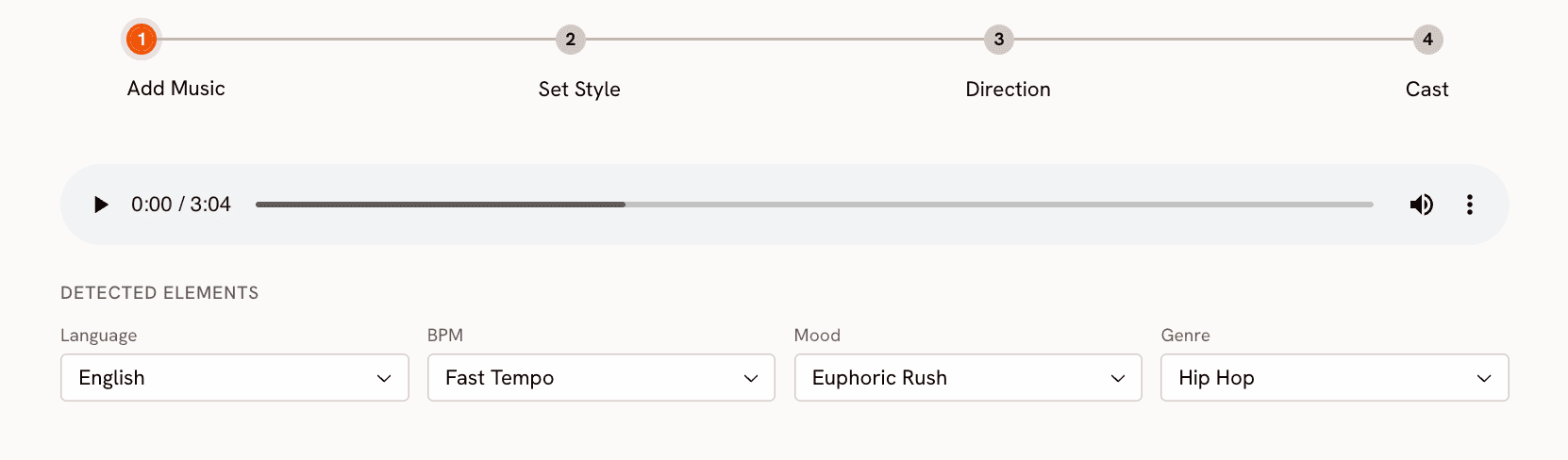
Click "Upload Music File" or drag your downloaded MP3 directly onto the upload area in the centre of the screen. Atlabs accepts MP3 and WAV files up to 200 MB. Your Suno export will be well within this limit. Once the file uploads, Atlabs analyses the audio and auto-detects four attributes: Genre, BPM, Mood, and Language.
For a track built with hip-hop style tags in Suno, Atlabs will typically detect Genre as Hip Hop, BPM as Fast Tempo or Mid Tempo depending on the pace of your beat, and a Mood from its library. For a dark trap track, expect Aggressive, Dark, or Powerful. For a melodic or lo-fi hip-hop track, expect Nostalgic, Chill, or Uplifting. Every detected field is editable. If the auto-detection is off, click the field and change it before moving to the next step. These values directly shape the Creative Direction concepts you will see in Step 3.
Click Next.
Step 2: Choose Your Visual Style
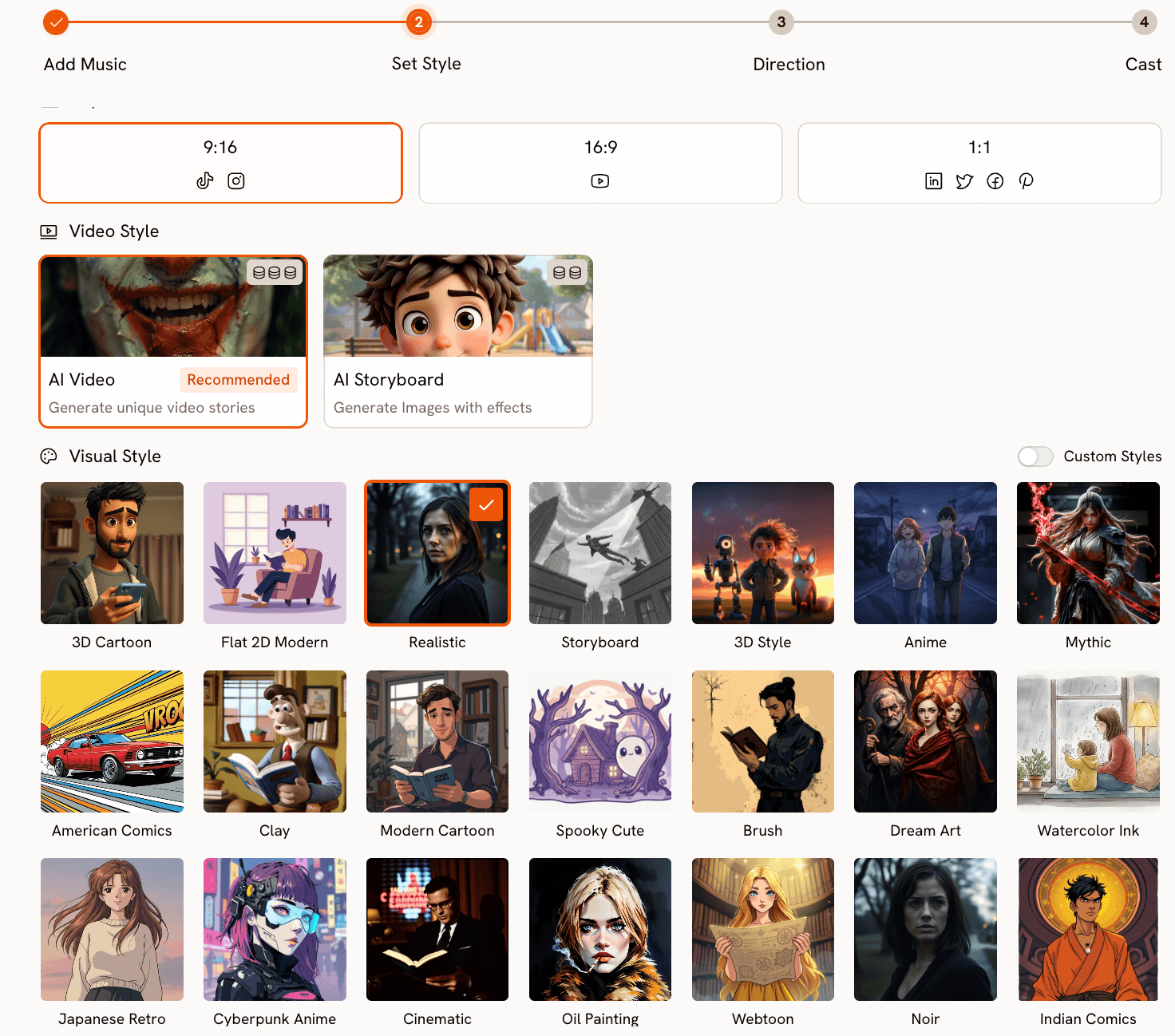
The Set Style step has three decisions: aspect ratio, video type, and visual style.
Aspect Ratio: Choose 9:16 for TikTok, Instagram Reels, and YouTube Shorts. Choose 16:9 for a standard YouTube video. Choose 1:1 for Twitter, LinkedIn, or Facebook.
Video Type: Select AI Video (Recommended). This generates a full moving visual narrative. AI Storyboard generates static AI images with motion effects, which works better for lyric video formats but lacks the visual storytelling quality of AI Video for a full music video.
Visual Style: The style library has 20-plus options. For hip-hop, five styles consistently produce strong results:
Cyberpunk Anime produces neon-lit, futuristic, high-energy visuals. Best for trap, drill, and any dark or aggressive hip-hop.
Cinematic produces high-contrast, narrative-driven visuals with natural-feeling lighting. Best for boom-bap, storytelling, and West Coast tracks.
Noir produces dark, shadowed, monochrome visuals. Best for introspective, dark lyrical content and moody trap tracks.
American Comics produces bold linework and heavy shadow. Good for street-level energy and East Coast hip-hop.
Ink produces raw, expressive brushwork visuals. Works well for conscious rap and more abstract lyrical context
Click Next.
Step 3: Pick Your Creative Direction
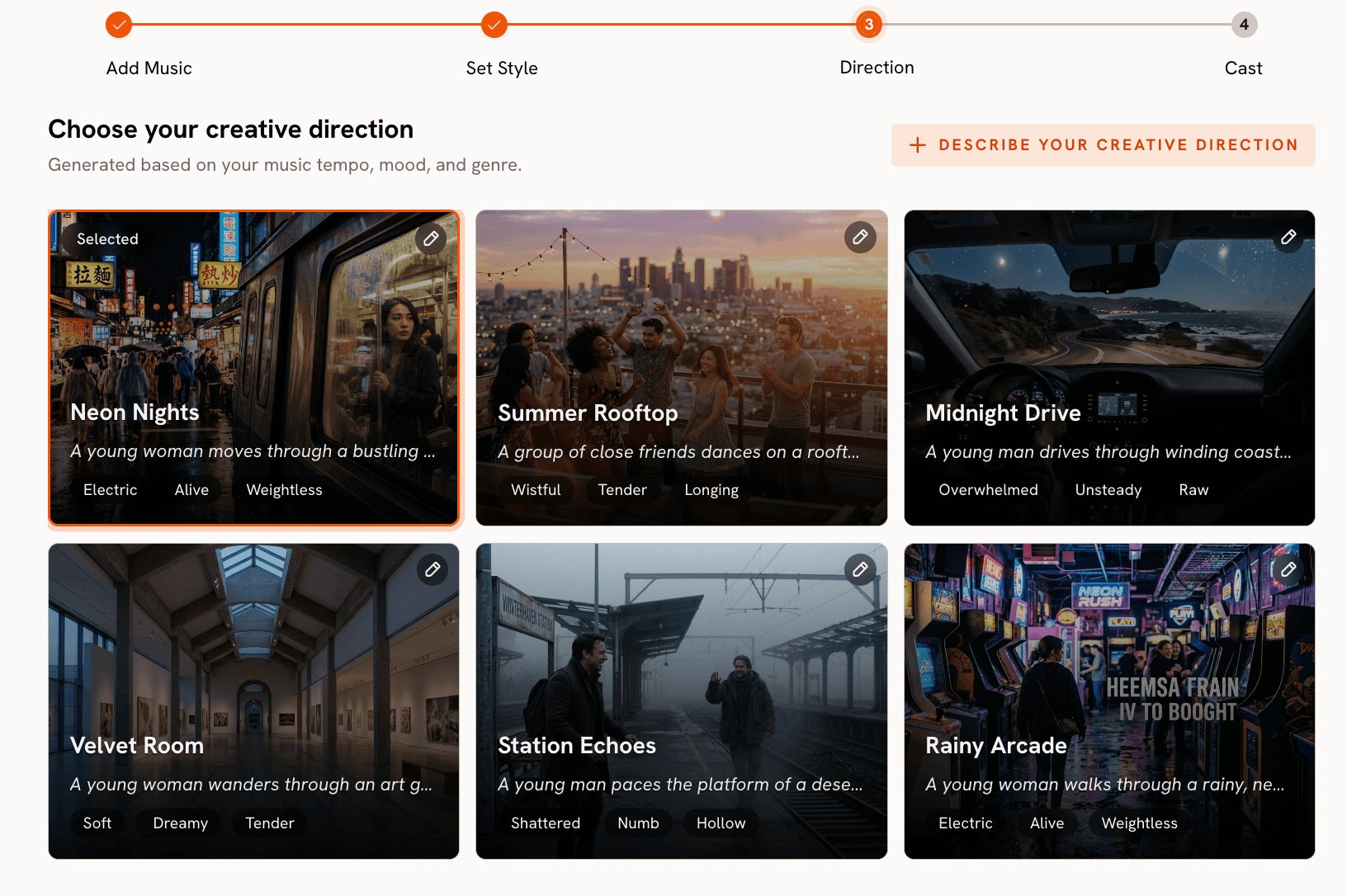
This is the step that makes Atlabs different from every other AI video tool. Based on the Genre, BPM, and Mood it detected from your Suno track, Atlabs generates six original Creative Direction concepts. Each concept has a title, a short narrative description, and three emotional mood tags. These are not generic video prompts. They are story concepts built specifically around the musical characteristics of the track you uploaded.
For a fast-tempo, Aggressive hip-hop track, you will likely see concepts covering a street-level pursuit narrative, a rise-from-struggle arc, a tension-and-release sequence built around the beat's drop, or an urban atmosphere piece with no central conflict. For a Mid Tempo, Nostalgic track, the concepts will lean toward memory and reflection, slower-burn character arcs, and warmer visual environments.
Read all six concepts before selecting. They are generated across a range of emotional angles and the best fit for your track is often not the first one that sounds right. Pay attention to the mood tags on each concept. Tags like "Electric" and "Neon" produce kinetic, high-energy scenes. Tags like "Still" and "Wistful" produce slower, more contemplative sequences.
If none of the six concepts fit your vision, click "Describe your Creative Direction" at the bottom of the panel. This opens a custom form with fields for a title, a narrative description, optional mood tags, and an Enhance toggle. When you turn Enhance on, Atlabs expands and refines your concept before generating, which often produces a more specific and visually detailed output than your raw description alone.
Select the concept that matches the energy of your track and click Next.
Step 4: Define Your Cast
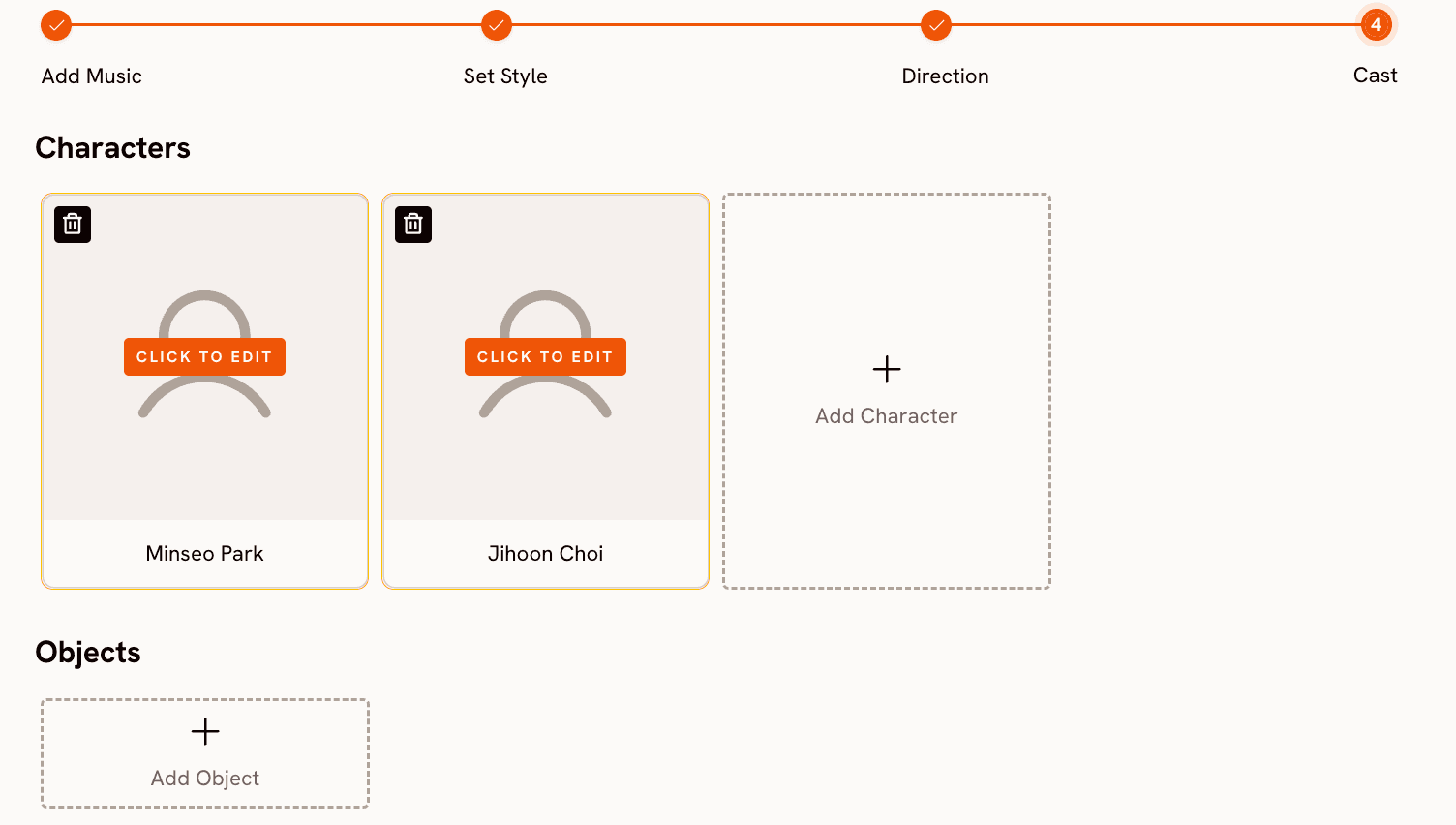
The Cast step lets you define the characters who appear in the video. Click "Add Character", give them a name, and write a visual description. The description is what Atlabs uses to generate the character's appearance throughout the video. Be specific about what the character looks like, not about who they are. Describe clothing, physical features, posture, and any distinctive visual detail.
A description like "A young man in a black hoodie and joggers, hood up, lean build, early twenties, walking with purpose through an urban environment" produces a consistent, well-defined character across scenes. A description like "a rapper from the streets" produces a generic result that varies widely between scenes.
You can add multiple characters and also add Objects that should appear in the video, such as a car, a specific prop, or an item that matters to the narrative. For most hip-hop music videos, one or two clearly described characters is enough to anchor the visual story.
Once your cast is set, click Generate. Atlabs builds the full video from your audio file, visual style, creative direction, and cast. Generation typically takes two to four minutes. The completed video appears in your Library when it is ready.
Why This Combination Produces Better Results Than Using Either Tool Alone
Most AI video tools are text-to-video systems. You write a prompt, they generate a clip, and you attach music afterward. The visual and the music are created independently and forced together at the end. The result is a video that has a song playing over it, not a music video. Atlabs inverts this. It reads your audio file first and generates the Creative Direction concepts from the music's actual characteristics. The video it produces is a direct response to the sound of your track, not a separate creation that happens to match.
Suno's strength in this pipeline is the specificity of its style tag system. Because you can write "boom bap, east coast hip hop, sampled breaks, vinyl crackle, brass stabs, jazz piano" as separate descriptors, the track Suno generates carries a clear, identifiable sonic identity. When Atlabs reads that track, it detects a coherent set of characteristics (Genre: Hip Hop, BPM: Mid Tempo, Mood: Nostalgic) and generates Direction concepts that are specific to that sound. The more precise your Suno Styles input, the more genre-accurate and visually coherent the Atlabs output will be.
Going Further: Add Motion and Lip Sync
Once you have a generated video, two additional Atlabs tools let you build on it. The Motion Control tool transfers movement from a reference video onto a character image. Upload a 3 to 30 second clip of any motion you want (a dancer, a performer, any movement that fits your video's energy), upload a character image, and describe the background scene. Atlabs maps the motion onto the character and places them in the environment you described. This is particularly effective for hip-hop videos where the physical energy of a performance is part of the visual identity.
The Lip Sync tool synchronises lip movement on a character image to any audio file, including the vocal track from your Suno generation. Upload the character image and your audio file (the tool accepts audio from 2 to 120 seconds and images up to 20 MB), and Atlabs produces a clip where the character's lips match the vocals. You can use this for close-up performance shots within the broader music video.
Example Suno Styles + Atlabs Direction Pairs
Use these pairs as starting points. Paste the Styles string into Suno's Advanced mode Styles field, generate and download the track, then use the matching Creative Direction as a custom concept in Atlabs' Step 3 if the auto-generated concepts do not land exactly right.
Dark Trap
Suno Styles field: trap, 808 bass, dark, menacing, hi-hat rolls, male rap vocals, distorted synths, minor key, fast tempo Atlabs Creative Direction (custom): A lone figure in a black hoodie moves through an industrial cityscape at 3 AM. Neon light reflects in standing puddles. Camera tracks low and close, cutting tight on the hi-hat pattern. The city is threatening but the protagonist is completely calm. Mood: Dark, Powerful, Cinematic. Visual style: Cyberpunk Anime. |
Boom-Bap Storytelling
Suno Styles field: boom bap, east coast hip hop, sampled breaks, vinyl crackle, brass stabs, jazz piano, lyrical rap, mid tempo, male vocals Atlabs Creative Direction (custom): A man walks through a neighbourhood he grew up in. Each scene shifts between a memory of how the block looked in childhood and how it looks now. The narrative is about returning after a long absence. Warm amber light on the past, desaturated tones on the present. Mood: Nostalgic, Reflective, Powerful. Visual style: Cinematic. |
Melodic Introspective Hip-Hop
Suno Styles field: melodic hip hop, lo-fi beats, sad piano, smooth rap, auto-tune vocals, introspective, emotional, mid tempo, nostalgic Atlabs Creative Direction (custom): A single figure sits at a window as rain falls outside, watching an empty street below. The visual texture is soft and slightly overexposed, like a photograph that has faded at the edges. The scene does not change. The character does not move. The rain does and the light slowly shifts. Mood: Melancholic, Still, Dreamy. Visual style: Watercolor Ink. |
Motion Control: Add a Performance
After generating your base music video in Atlabs, open the Motion Control tool. Upload a 3-30 second reference video of a dancer or performer doing movement that fits the energy of your track. Upload a character image from your music video. Prompt for the background scene: "Rain-soaked rooftop at night, single overhead floodlight, fog at ground level, concrete walls." Atlabs transfers the performer's movement onto your character, placing them in the scene you described. |
Pro Tips
Generate two Suno variants and listen to both on speakers before downloading. Suno always produces two versions per generation. The second version often has a meaningfully different energy, even with identical settings. The one that sounds better on speakers will also give Atlabs more to work with when it analyses the audio.
Match your Suno Styles tags to your Atlabs visual style choice. A dark, menacing trap Styles string produces a track Atlabs will read as Aggressive and Dark, which in turn generates Direction concepts suited to a Cyberpunk Anime or Noir visual. If you feed a sunny West Coast beat into a Noir visual style, the output will be technically fine but tonally confusing. Let the sound choose the visual.
Keep your Cast descriptions visual, not biographical. Atlabs uses cast descriptions to generate imagery, not to write a character's story. "A lean figure in an all-black tracksuit, hood pulled up, late twenties, moving through shadow" tells the AI exactly what to draw. "A rapper from the streets who grew up hard" tells it nothing useful.
If Atlabs' six auto-generated Direction concepts miss the mark, edit the Mood field first. The Direction concepts are generated from Genre, BPM, and Mood. If you change the Mood field in Step 1 (even after upload) and proceed again, you will get a completely different set of six concepts without losing your other settings.
Frequently Asked Questions
Do I need a paid plan on either Suno or Atlabs to follow this guide?
No. Suno's free plan gives you 50 credits per day (five generations) and MP3 download access. Atlabs has its own credit system and a free tier you can use for a first generation. The full workflow described in this guide is accessible on free plans on both platforms.
How do I write lyrics in Suno if I have never written rap lyrics before?
Start by describing a situation or feeling in plain sentences, then break those sentences into shorter lines with similar syllable counts. Suno does not require technically perfect meter. Lines between 6 and 12 syllables work well. Use the structural tags [Verse 1], [Hook], and [Verse 2] to separate the sections. If the result sounds off, leave the Lyrics field blank, set Lyrics Mode to Auto, and let Suno write its own. You can always edit and re-generate once you have heard what the AI produces.
Can I use my own beat instead of a Suno-generated one?
Yes. Atlabs accepts any MP3 or WAV file up to 200 MB in the Add Music step. If you produce beats in a DAW or have a purchased instrumental, export it as an MP3 and upload it directly to Atlabs. The same four-step workflow applies regardless of where the audio came from.
What if the Atlabs-generated video does not match the energy of my track?
Go back to Step 1 and check the auto-detected Mood and BPM. These two values are the primary drivers of the Direction concepts. If your trap track was detected as Chill or Slow Tempo, correct both fields before proceeding to Set Style. The Direction concepts you see in Step 3 will be completely different after those corrections, and much more likely to match the actual energy of the track.
Can I monetise the finished video on YouTube?
Atlabs-generated videos can be used commercially. For the Suno track, commercial use depends on your Suno subscription. The free plan restricts tracks to personal and non-commercial use. Paid plan tracks can be used commercially, including on monetised YouTube channels. Check Suno's current terms before distributing publicly, as their licensing terms have been updated over time.
Final Thoughts
The Suno and Atlabs pipeline solves the two biggest barriers that keep independent hip-hop artists from having a visual presence: making a track and making a video. Suno handles the music in under a minute if you write the right Styles input. Atlabs turns that track into a complete visual story that reflects the sonic identity of what you uploaded. The quality of the output scales directly with the specificity of your inputs at both ends.
Start at suno.com/create with one of the Styles strings in this guide. Download the MP3. Open app.atlabs.ai/new-music, upload the file, and run through the four steps. The first generation will teach you more than any written description can. Adjust from there.








