Here is the short answer: open the Animated Video workflow on Atlabs, paste or generate a script, pick the 3D Cartoon visual style, cast your characters and narrator, and hit generate. That is the entire process. What used to take a studio team months of modeling, rigging, and rendering now takes one person about 10 minutes and zero animation experience. This guide walks you through every click.
Quick note before we start. "Pixar style" here means the look: warm lighting, expressive big-eyed characters, soft 3D shading, and that storybook glow. You are creating original characters and stories in that visual language, not copying actual Pixar films or characters. You can also skip the setup with the Pixar style AI video generator, which applies this look from the first scene.
What You Need Before You Start (Beginner Guide Checklist)
You need three things: an Atlabs account, a story idea (a full script is great, a one-line idea is enough), and about 10 minutes. That is it. No drawing tablet, no 3D software, no editing timeline. If you do not have a story yet, do not worry, the workflow includes an AI Script Writer that can draft one for you in seconds.
Step-by-Step: Make Your Pixar Style Video in 10 Minutes
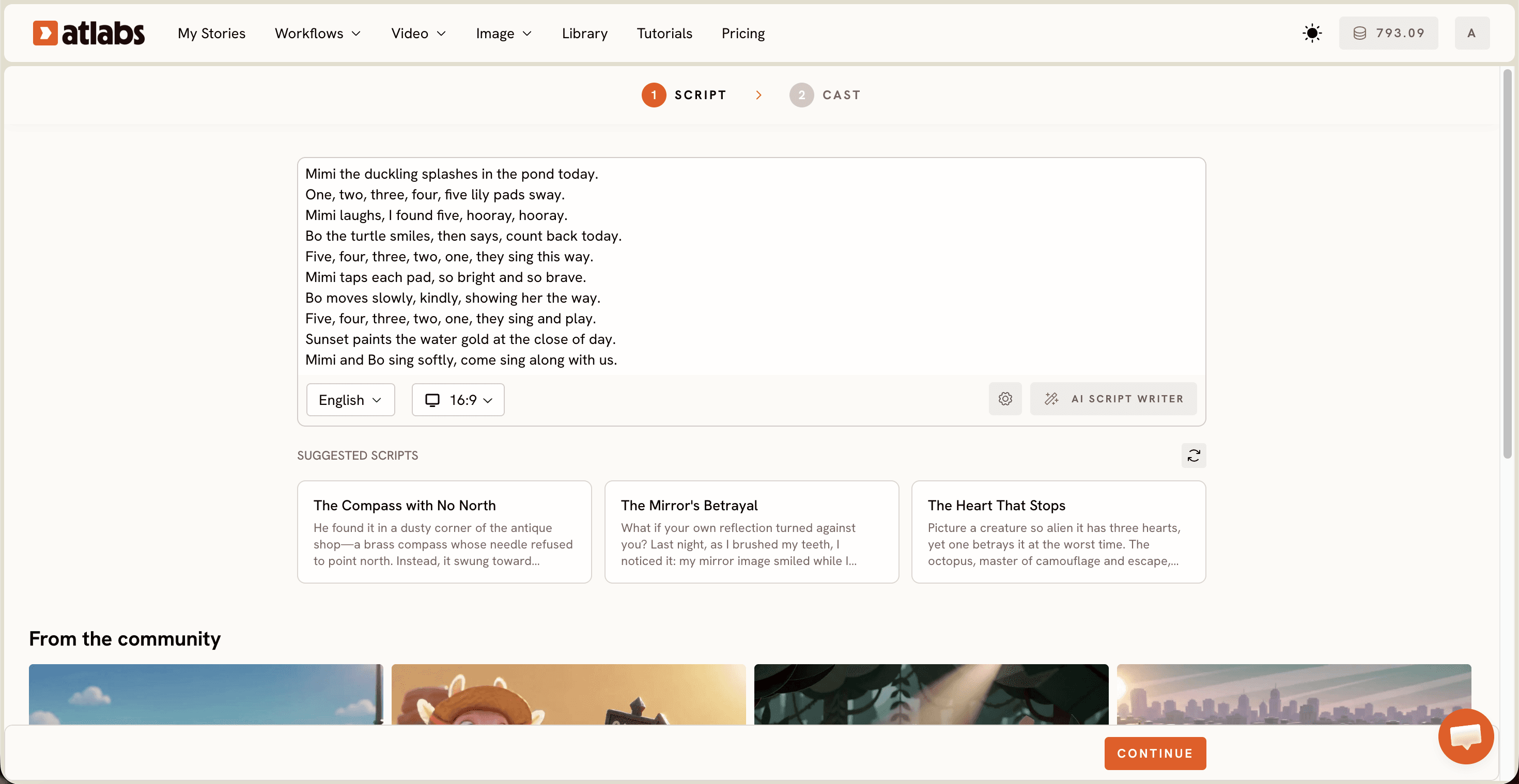
The Animated Video workflow on Atlabs runs in three steps. The progress bar at the top reads SCRIPT, SET STYLE, CAST. Here is exactly what happens in each one.
Step 1: Add Your Script
Open the Animated Video workflow and you land on the Script screen. Two tabs sit at the top: "Add your script" for free-form text and "Add your screenplay" for structured screenplay mode. Paste your story into the editor, or click the AI Script Writer button in the bottom right and describe your idea in one line. The bottom left has a Language selector (English is the default), so you can write your Pixar style video in the language your audience speaks.
Stuck for ideas? Scroll down to the SUGGESTED SCRIPTS section, where three ready-made example cards like "The Compass with No North" give you a starting point you can edit.
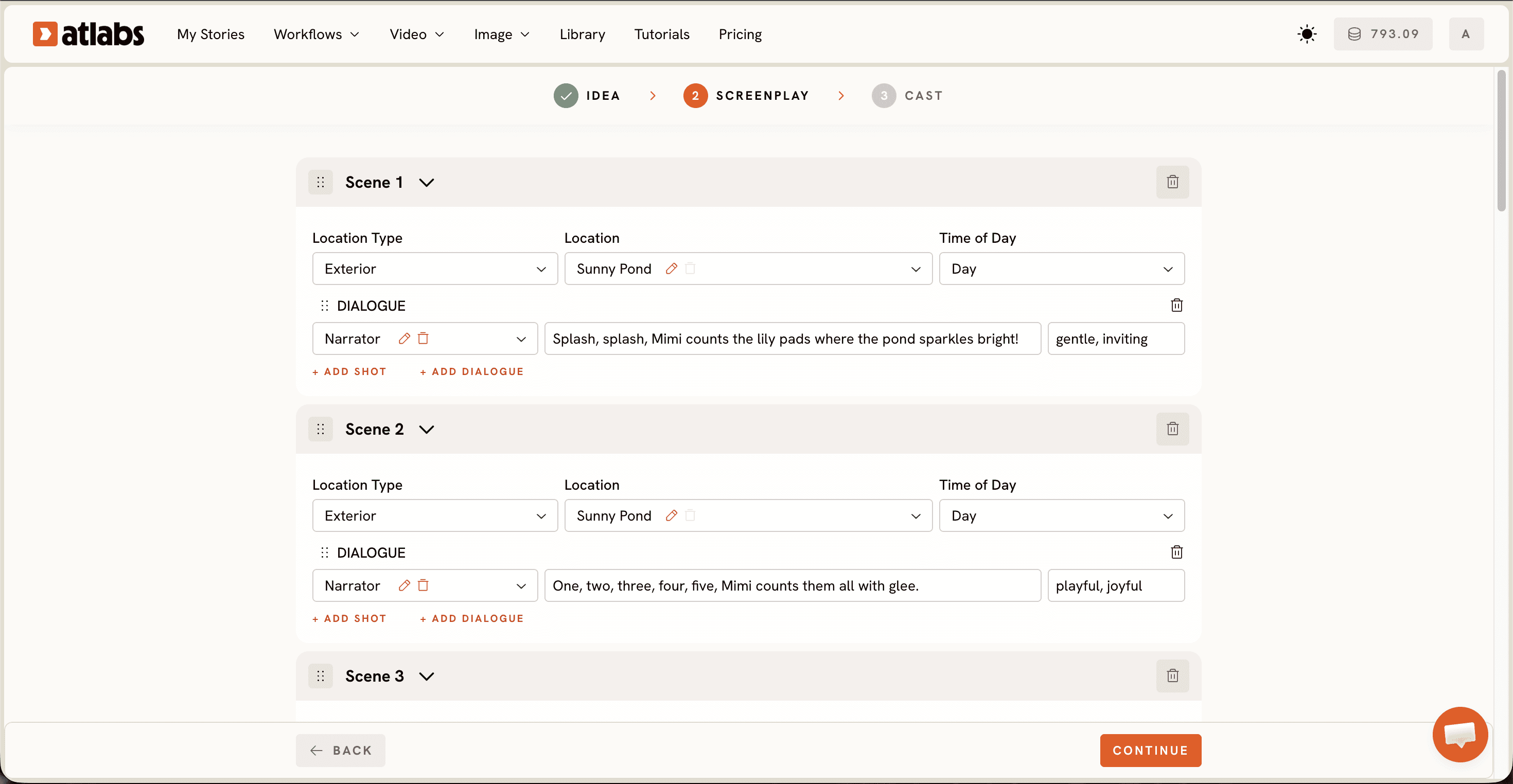
Step 2: Set Style (This Is Where the Pixar Magic Happens)
Pick your Aspect Ratio first: 9:16 for TikTok and Instagram, 16:9 for YouTube, or 1:1 for feeds like LinkedIn and Facebook. Then choose your Video Style. Select AI Video, the recommended option, which generates unique video scenes rather than static images.
Now the most important click of this whole tutorial: the Visual Style library. Choose 3D Cartoon. This is the style that delivers the Pixar look, with rounded expressive characters, warm rim lighting, and soft cinematic shading. The library also holds styles like Claymation, Cozy Plush, and Soft Pastel 2D if you ever want to experiment, but for this guide, 3D Cartoon is your pick.
Step 3: Cast Your Characters and Narrator
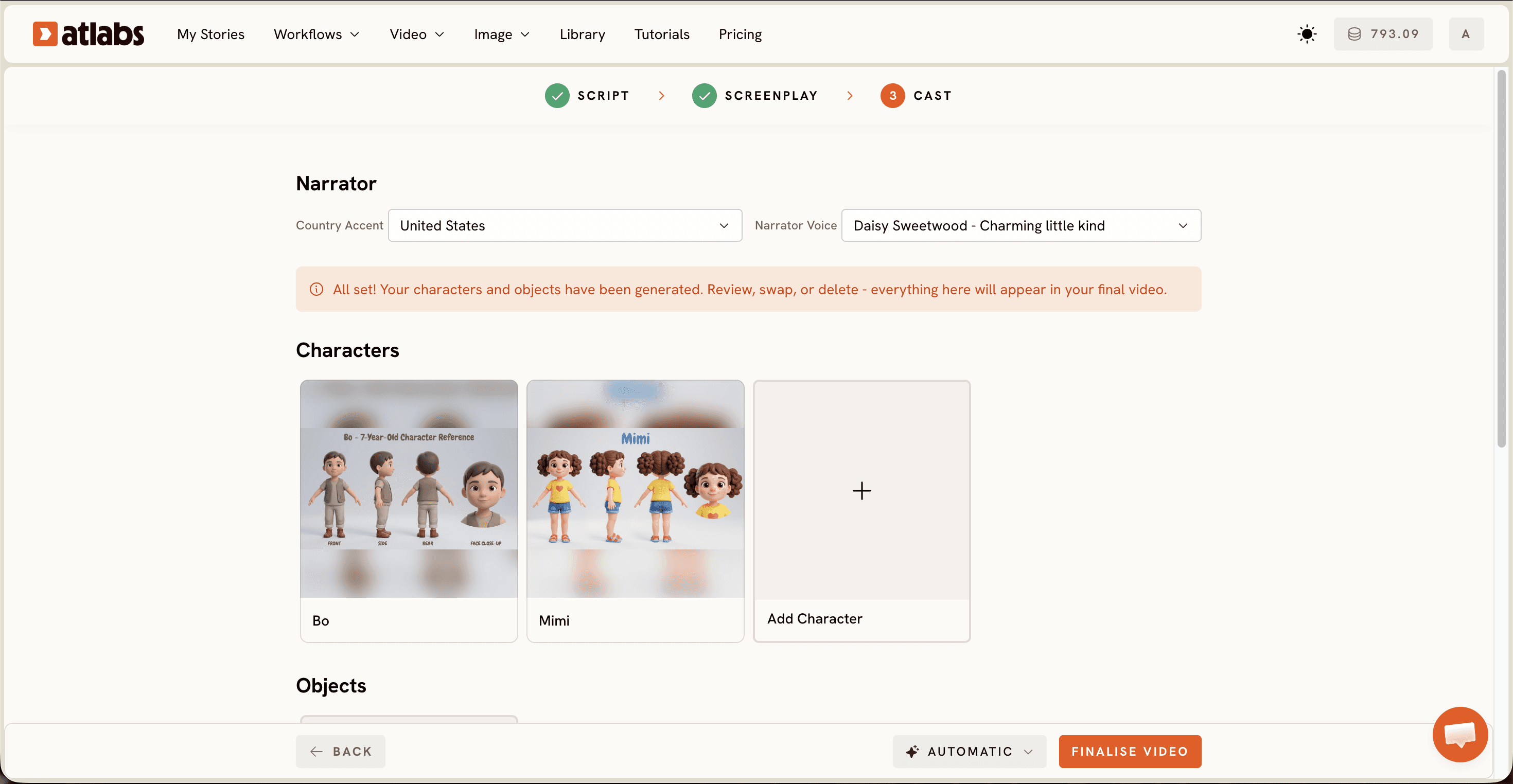
The Cast screen is where your video comes alive. At the top sits the Narrator section with two dropdowns: Country Accent (United States by default) and Narrator Voice, where you can pick a voice like David that matches the tone of your story. Below that, the Characters section shows generated character cards, each with a name tag. Click any card to edit how a character looks, or add new ones. At the bottom, an optional Objects section lets you define recurring props like a magic lantern or a red bicycle so they stay consistent across scenes.
Once your cast looks right, generate. Atlabs builds your scenes, animates your characters, and syncs the narration into a finished Pixar style video.
Watch the Free Atlabs Video Tutorial
Prefer to watch someone do it live before you try it yourself? The Atlabs team recorded a full walkthrough of the Animated Video workflow from blank script to finished render.
The Ultimate Guide to Nailing the True Pixar Look (4 Pro Tips)
Write emotion into your script, not just action. Pixar stories work because characters want something. A line like "Milo stares at the empty jar, shoulders sinking" gives the AI far more to animate than "Milo looks at the jar."
Keep your cast small. Two or three characters with strong visual identities beat six forgettable ones. The character reference cards in Step 3 stay most consistent when the cast is tight.
Match the aspect ratio to the destination before you generate. A 16:9 YouTube short and a 9:16 Reel are framed differently from the first scene. Pick the right one in Step 2 rather than cropping later. If you need a second format afterwards, run the finished video through Reframe.
Finish with an upscale. For big-screen sharpness on a TV or projector, pass your final render through Upscale before publishing.
Free Prompt Ideas You Can Copy Right Now
Paste either of these into the script editor or the AI Script Writer and watch what comes back.
A shy little cloud named Nimbo is the only cloud in the sky who cannot rain. Every day the flowers below wilt a little more. Nimbo travels to the Thunder Mountains to ask the oldest storm for help, and discovers the rain was inside him all along, waiting for one brave tear.
Grandpa Ori, a round cheerful lighthouse keeper, finds a tiny glowing fish stranded in a tide pool. He promises to return it to the deep sea before sunrise. One old rowboat, one grumpy seagull, and one unforgettable night on the waves.
FAQ: Pixar Style AI Video Beginner Guide
How long does it take to make a Pixar style AI video?
About 10 minutes of your time. Writing or generating the script takes a couple of minutes, style and casting take a few clicks, and Atlabs handles the rendering while you grab a coffee.
Do I need any animation or editing skills?
No. The three-step workflow replaces modeling, rigging, animating, and editing. If you can write a paragraph and click a style card, you can make a Pixar style video.
Can I make the video in a language other than English?
Yes. The Language selector on the Script screen supports multiple languages, and the Narrator section lets you pick the accent and voice, so your video can speak naturally to your audience.
Is this legal? Am I copying Pixar?
You are creating original characters and stories in a 3D cartoon visual style, which is a look, not protected property. Never recreate actual Pixar characters, names, or scenes. Original stories in the style are yours to publish.
Your First Pixar Style Video Is 10 Minutes Away
You now know the full recipe: script, 3D Cartoon style, cast, generate. The gap between the idea in your head and a finished animated video has never been this small. Open the workflow, paste one of the free prompts above, and see your first render today.