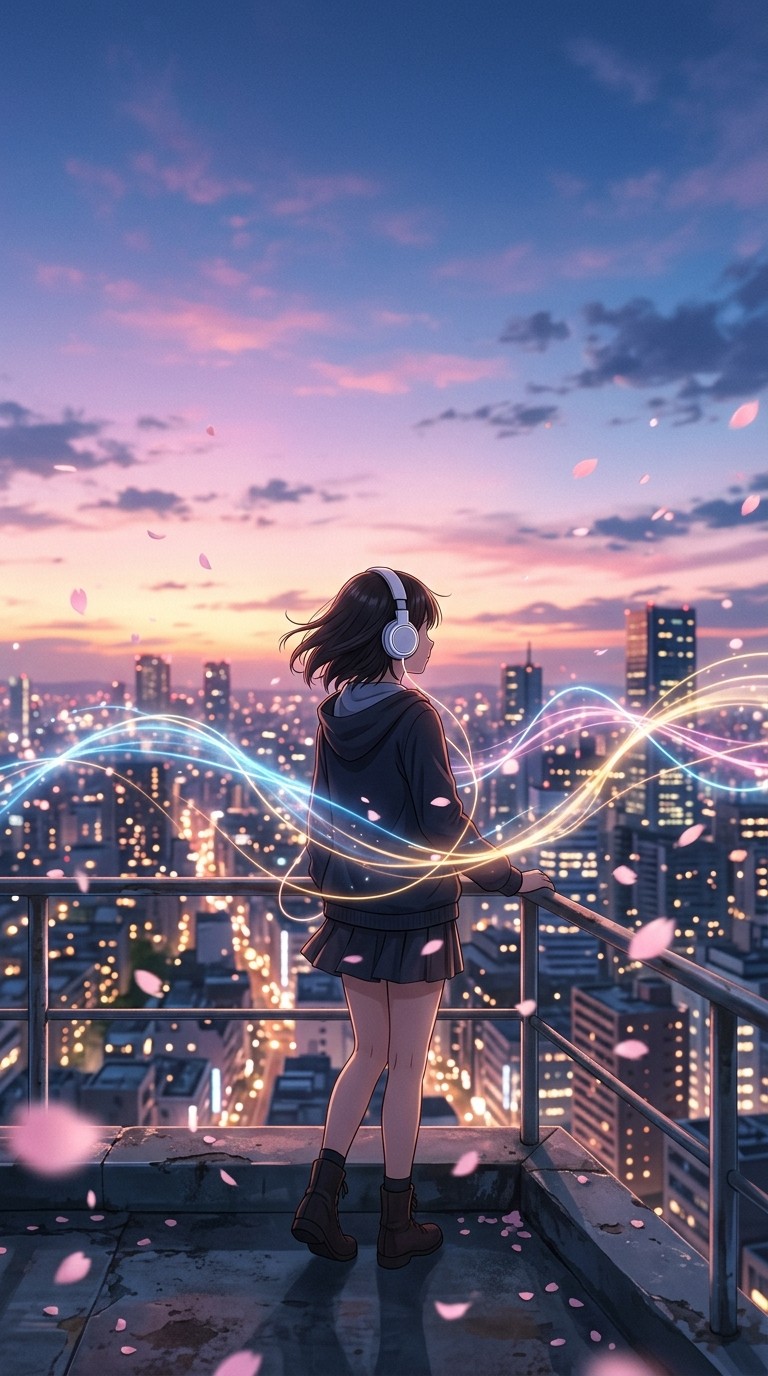
You typed a prompt into Suno AI, hit generate, and out came a full track with vocals, instruments, a chorus you did not expect to love this much. The problem is that a song without visuals is half a piece of content in 2026. You want to post it, but a static thumbnail on a Suno embed is not going to cut through on TikTok or YouTube. What you actually want is a visual that matches the energy of the track: sweeping anime aesthetics, saturated colour palettes, characters that move with the music. The good news is that you do not need any animation experience, any video editing software, or any design skills to make that happen. Atlabs takes your audio and handles the rest.
Why Anime Is the Right Visual Style for AI-Generated Music
Suno songs have a specific sonic texture. The production is clean and emotionally direct, which makes them work well under visual styles that are equally expressive and unambiguous. Anime, as a visual language, is built around emotional clarity: colour signals mood, movement amplifies feeling, and compositions are designed to be read quickly. When you pair an Atlabs anime-style music video with a Suno track, the visual grammar reinforces what the music is already doing rather than competing with it.
There is also a practical reason. Anime-style AI video generation has matured faster than realistic styles because the aesthetic has a forgiving quality: small inconsistencies read as stylistic choices rather than errors. For a first music video, that forgiveness is valuable. You get something that looks intentional from the first generation, without needing to iterate through dozens of takes to reach a usable result.
The communities where Suno songs circulate, particularly short-form video platforms and music-adjacent subreddits, respond well to anime aesthetics. The visual style signals effort and creativity even when the production is automated, which means your video is more likely to be shared, saved, and commented on than a plain audio waveform post.
The Atlabs Workflow for This
The tool you need is Atlabs Music Video. It is a four-step workflow that takes an uploaded audio file and produces a fully generated video with a visual style of your choice. You upload your Suno export, configure the mood and genre settings to match what the track is doing, pick a creative direction, and Atlabs renders a complete video synced to the music. The Anime visual style produces stylised cel-shaded scenes with the colour depth and compositional language you would associate with modern anime productions.
Step-by-Step Walkthrough
Step 1: Export Your Track from Suno
Open your song on Suno and download the audio file as an MP3. Suno gives you a full-quality export from the song page. Save the file somewhere you can find it easily because you will be uploading it in the next step. If your song has lyrics, note the language because you will set that in Atlabs. If it is purely instrumental, note that too.
Step 2: Add Music in Atlabs
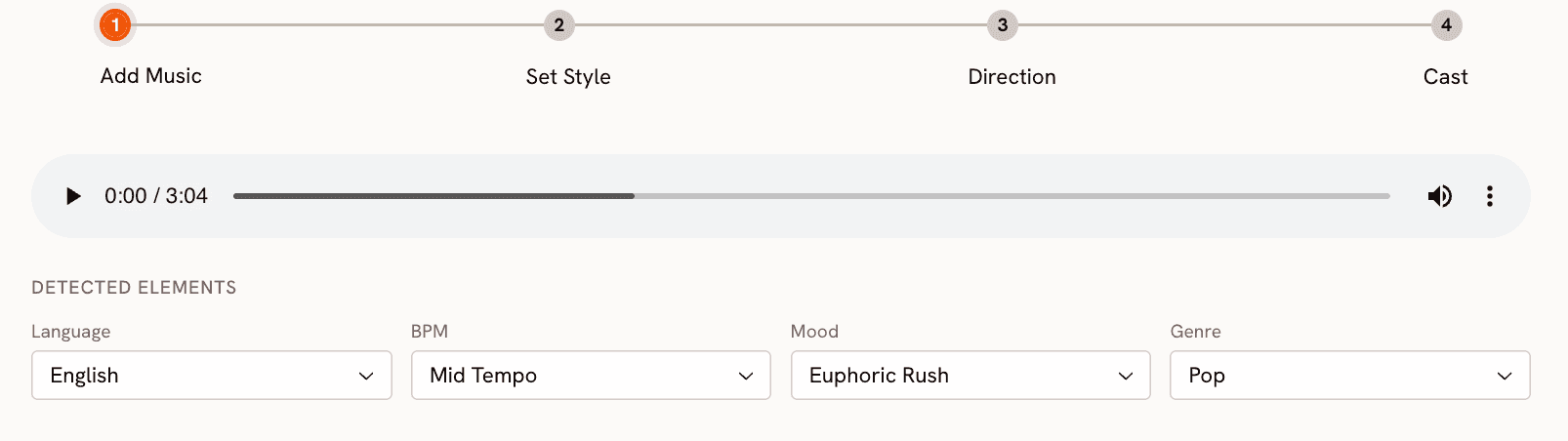
Go to app.atlabs.ai/new-music and upload your Suno export. Atlabs analyses the file immediately and auto-detects the BPM range, mood, and genre. You will see the detected values appear as selectable options. Review them against what you know about the track and adjust if needed.
For Language, select Instrumental if your Suno track has no vocals, or the spoken language if it does. For BPM and Mood, trust your ear rather than what Atlabs auto-detects: if the track feels melancholic but the platform reads it as uplifting, correct it. The Creative Direction concepts Atlabs generates in the next step are built from these settings, so accuracy here pays off immediately. For Genre, pick whatever feels closest to the production style of the track.
Step 3: Set Style
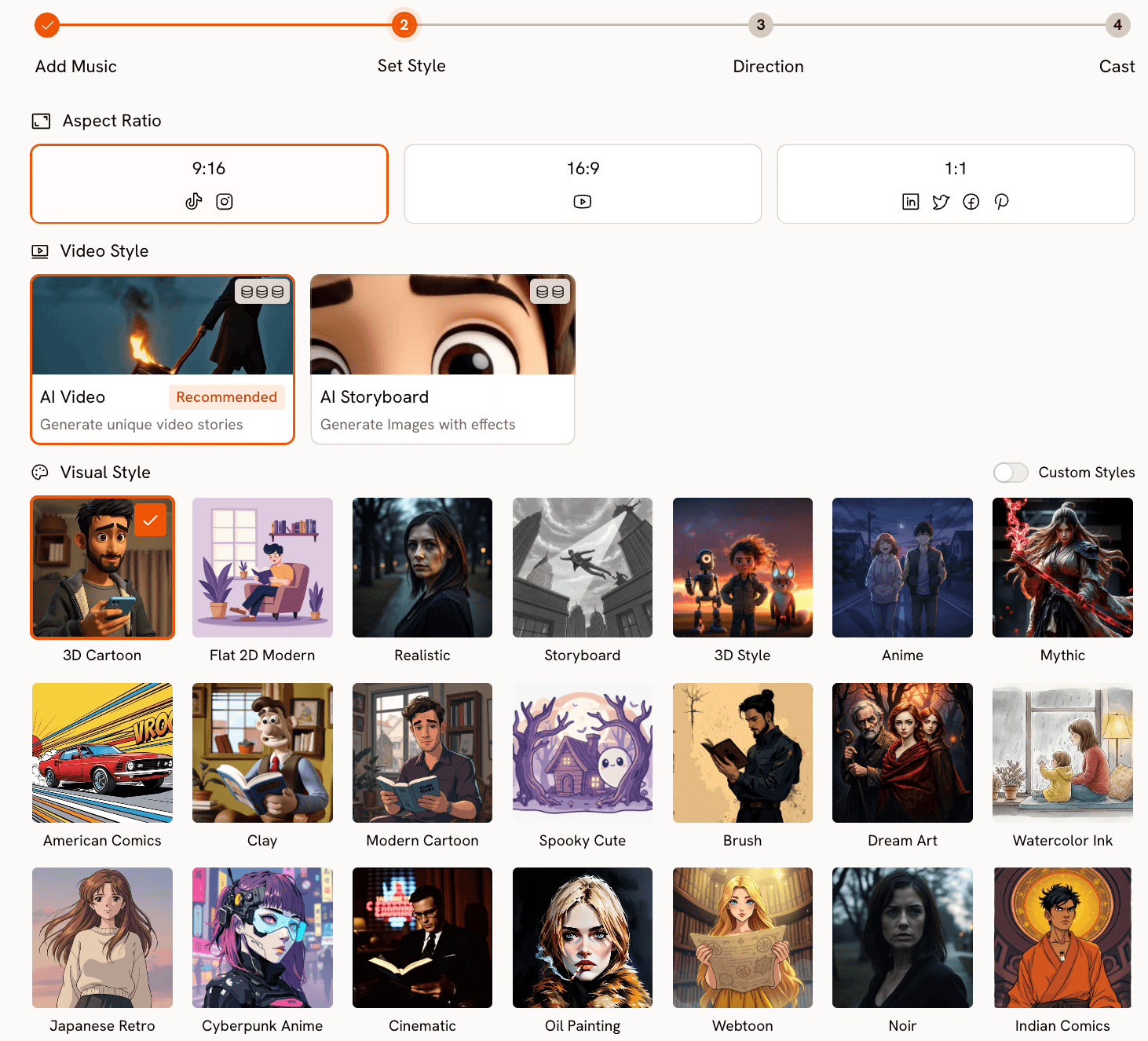
In Step 2 of the Atlabs workflow, you set the visual parameters for your video. First, choose an Aspect Ratio. For TikTok or Instagram Reels, select 9:16. For YouTube, select 16:9. For a square post on Twitter or LinkedIn, select 1:1.
For Video Style, select AI Video. This is the recommended mode and the one that generates unique scene sequences rather than static images with effects.
For Visual Style, scroll through the library and select Anime. If you want a specific sub-aesthetic, Atlabs also offers Cyberpunk Anime for neon-lit futuristic scenes, Webtoon for a Korean digital comics look, Japanese Retro for a late 80s OVA feel, and Fantasy Horror for darker atmospheric anime aesthetics. Each produces a noticeably different result within the anime family, so consider which one fits your track's energy before committing.
Ready to try it? Start your anime music video in Atlabs
Step 4: Choose a Creative Direction
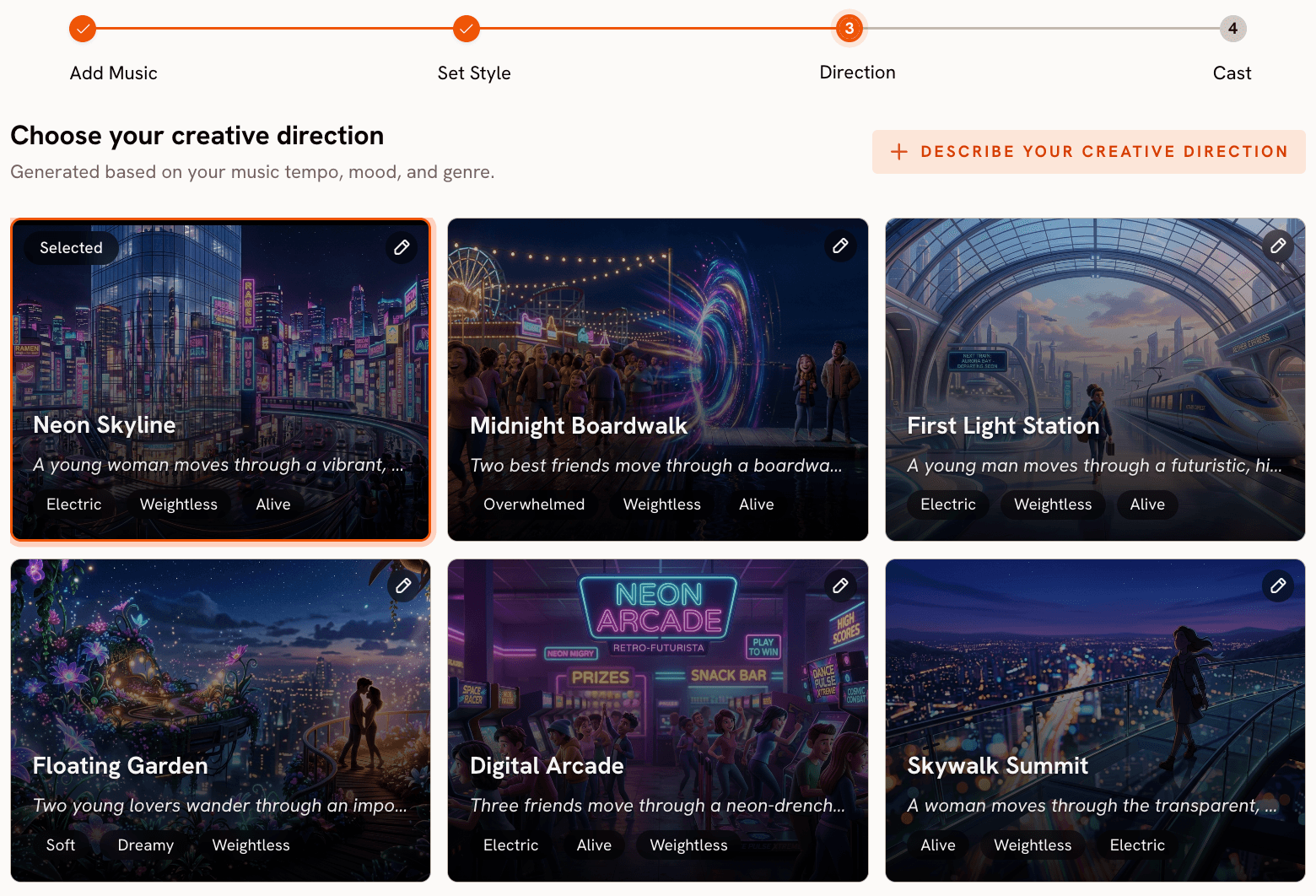
This is where Atlabs goes beyond a simple style picker. In Step 3, the platform generates six scene concepts automatically based on the tempo, mood, and genre you set in Step 1. Each concept has a title, a description of the visual narrative, and mood tags. A concept for a Dreamy Electronic track might be titled something like 'Quiet Winter Window' with tags like Still, Tender, and Wistful. A Fast Tempo K-Pop track might generate concepts with high-energy crowd scenes and fast-cut choreography framing.
Read through all six before selecting. The difference between them is not cosmetic, it changes the pacing and narrative arc of the generated video. If none of the six fit, click 'Describe your Creative Direction' to write a fully custom concept. You can set a title, description, mood tags, and use the Enhance toggle to let Atlabs improve your description before generation.
Step 5: Finalise Cast
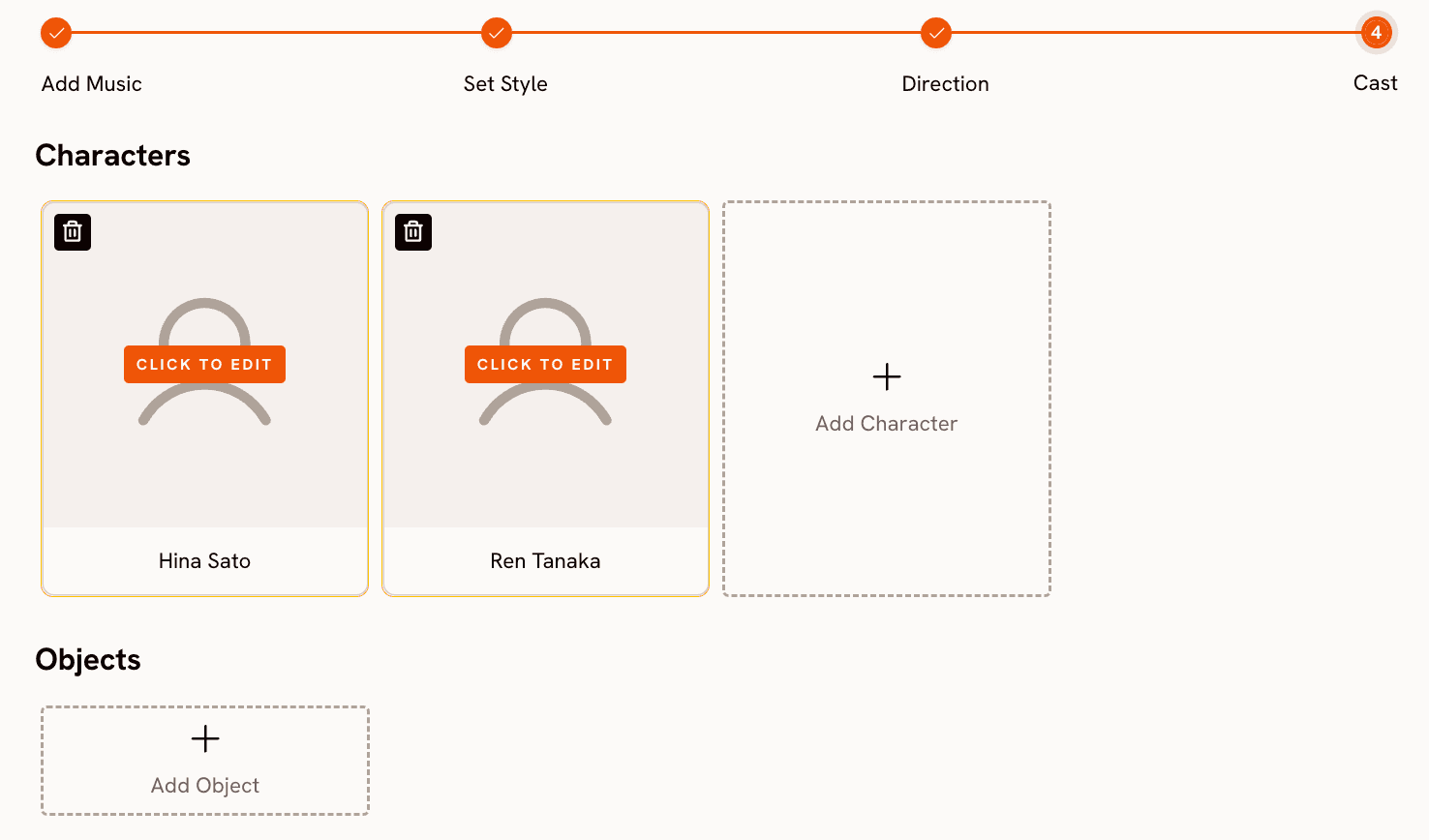
In Step 4, you name and describe any characters who appear in the video. This step is optional for abstract or scenery-driven anime styles but essential if you want consistent character representation across scenes. Add as many characters as you need, give each a name and description, and Atlabs uses them as reference points throughout the video.
Step 6: Generate and Review
Submit your configuration and Atlabs renders the video. Review the output against your original track. If the pacing feels off or the visual direction does not match the song's energy, go back to Step 3 and try a different concept or write a custom direction. Most creators find a usable result within two or three generations.
Why Atlabs Works Well for Suno Creators
The most common workflow problem for Suno creators is the handoff between audio generation and visual production. Most AI video tools are designed for text prompts or script-based content, which means you have to translate a music track into a written prompt and hope the tool interprets it correctly. Atlabs inverts this: you upload the audio directly and the platform reads the musical data to inform the visual output. The BPM detection shapes the cut rhythm of the video. The Mood setting influences the colour grading and scene composition. The Genre drives the visual reference library the model draws from.
The Anime visual style in Atlabs is particularly well-suited to the full range of Suno output. Whether your track is a sweeping orchestral piece, a 90s-influenced J-Pop song, a lo-fi instrumental, or an aggressive metal track, the anime aesthetic library has a corresponding style. The Dreamy and Reflective Calm mood settings work naturally with Ambient and Indie tracks to produce slow-panning landscapes and introspective character moments. Aggressive and Euphoric mood settings paired with Electronic or K-Pop genres generate high-energy scene sequences with dynamic compositions.
The Creative Direction step is the feature that separates Atlabs from simpler text-to-video tools for this use case. The six auto-generated concepts are not generic templates: they are derived from the specific audio analysis of your track. A creator who has never written a video prompt in their life can select one of the six, read what the video will look like before generating, and commit with confidence. That removes the trial-and-error loop that makes most AI video tools frustrating for music-first creators.
Custom Creative Vibes to Try in Atlabs
Use these in the custom Creative Direction field in Step 3 of the Music Video workflow. Each is written to be specific enough to guide the visual output without over-constraining the generation.
Title: Cherry Blossom Chase. A lone anime protagonist runs through a tunnel of falling cherry blossoms at dusk. Petals drift in slow motion across the frame as the background shifts from warm pink to deep violet. The character's expression moves from determined to peaceful as they reach an open hillside overlooking a glowing city. Mood: Nostalgic, Tender, Dreamy. Style: Anime. Try this prompt in Atlabs Music Video |
Title: Neon Rooftop. Two anime characters stand on a rain-soaked rooftop in a dense cyberpunk cityscape. Holographic advertisements reflect off puddles below. The camera slowly pulls back to reveal the scale of the city as lightning illuminates the skyline. The mood is electric and melancholic simultaneously. Mood: Euphoric, Mysterious. Style: Cyberpunk Anime. Try this prompt in Atlabs Music Video |
Title: Quiet Library. An anime student sits alone in a vast, sun-lit library. Dust particles drift through beams of light. Pages turn slowly. The camera drifts across shelves of books before settling on the character's face as they look up toward a window. Mood: Reflective Calm, Wistful. Style: Anime. Try this prompt in Atlabs Music Video |
Title: Festival Fireworks. A crowd of anime characters watches a summer festival fireworks display from a riverbank. The reflections in the water mirror the burst patterns overhead. Cut between close-up expressions of wonder and wide shots of the full sky. Mood: Uplifting, Nostalgic, Euphoric. Style: Japanese Retro. Try this prompt in Atlabs Music Video |
Title: Ancient Forest Spirit. A cloaked anime figure walks through an ancient cedar forest at dawn. Bioluminescent moss lines the roots of massive trees. A spirit creature composed of light and leaves drifts alongside the figure. The colour palette shifts from deep green to gold as sunlight breaks through the canopy. Mood: Mysterious, Dreamy, Powerful. Style: Fantasy Horror. Try this prompt in Atlabs Music Video |
Title: Midnight Train. An anime protagonist sits alone in a moving train carriage at night. City lights blur past the window. Reflections of the character overlap with the passing streetlights. The scene cuts between close-ups of hands, the window, and the character's face as they stare outward. Mood: Melancholic, Nostalgic. Style: Anime. Try this prompt in Atlabs Music Video |
Pro Tips for Better Results
Get the mood setting right before anything else. The six auto-generated creative concepts in Step 3 are built from the mood and genre you selected in Step 1, so a mismatched mood will produce concepts that do not fit the track. If the concepts feel generic, go back to Step 1 and try a different mood combination. A track that Atlabs reads as Uplifting but you know is actually Melancholic will generate very different concepts once you correct the setting.
Use the custom Creative Direction for tracks with specific narratives. If your Suno song has clear lyrical themes or a specific story arc, the custom direction input lets you set a title, describe the narrative arc scene by scene, add mood tags, and use the Enhance toggle. The Enhance toggle rewrites your description to be more specific and generation-friendly without changing the core idea. This is useful when you have a clear vision but are not experienced at writing video prompts.
Try multiple visual styles within the anime family before settling. Anime, Cyberpunk Anime, Japanese Retro, Webtoon, and Fantasy Horror all produce meaningfully different results. A quick test generation with each for a fifteen-second sample will show you which visual language fits your track's energy before you commit to a full render. The Visual Style picker in Step 2 makes switching trivial.
Frequently Asked Questions
Can I use any Suno song, including ones with vocals?
Yes. Atlabs accepts any audio file export from Suno regardless of whether it has vocals, instrumentals, or a mix of both. If your track has vocals, set the Language field in Step 1 to match the language sung in the track. This helps Atlabs calibrate the mood analysis correctly. The visual output does not attempt to animate lip sync by default, so the distinction between vocal and instrumental tracks does not affect the visual generation.
Do I need to credit Suno in the video?
Attribution for AI-generated music is an evolving area. Suno's current terms allow users to use generated songs for personal and commercial purposes depending on their subscription tier. Check your Suno plan terms for the specific usage rights that apply to your account. Atlabs does not add any attribution requirements of its own to the video output.
What is the best aspect ratio for posting an anime music video?
It depends on the platform. For TikTok, Instagram Reels, or YouTube Shorts, select 9:16. For a standard YouTube upload, select 16:9. For a Twitter or Instagram square post, select 1:1. You can generate the same song with different aspect ratios in separate Atlabs sessions, which lets you produce platform-specific versions from the same track without any manual resizing.
What if I want a specific character to appear consistently across all scenes?
Use the Finalise Cast step in Step 4 of the Music Video workflow. Name your character and provide a description of their appearance, clothing, and key visual traits. Atlabs uses this as a reference point across the generated scenes. The more specific your character description, the more consistent the representation will be. For highly detailed character consistency, you can also experiment with the Motion Control workflow to transfer the movement from a reference video onto a specific character image, giving you additional control over how the character moves within the scene.
Start Making Your Anime Music Video
Suno gives you the song. Atlabs gives it a world. The Music Video workflow is designed for exactly this handoff: you bring the audio and the platform handles the visual production from mood analysis through scene generation to final render. If you have a Suno track sitting in your downloads folder with no visual to go with it, the Anime visual style in Atlabs is the fastest path from audio file to a shareable, watchable music video.
The whole process takes around ten minutes for a first attempt and gets faster as you learn which mood and creative direction settings work best for the kind of music you make. Every Suno creator has a different sound, and the Creative Direction step is flexible enough to match that range whether your track is a quiet lo-fi instrumental, a high-energy pop song, or an orchestral piece with dramatic swells.
Make your anime music video today at atlabs.ai








