The fastest way to put one music video on YouTube, Instagram, and X is to make a single master cut in Atlabs, then use Reframe to change its aspect ratio in one click. You build the video once at 16:9, and Reframe outputs a 9:16 vertical for Reels and a 1:1 square for X without re-rendering the whole project. For an indie artist shipping a single, that means three platform ready cuts from one session, not three separate edits.
For an indie artist, the slow way is to re-edit the same single three times, once per platform, fighting subjects that drift out of frame every time the canvas changes shape. The fast way treats your 16:9 cut as the master and lets Reframe do the reshaping. You keep one creative decision, one render, and one consistent look, then let the tool fit that look to each feed. That is the difference between an afternoon of exporting and a ten minute session that ends with a YouTube upload, a Reel, and a square post all ready to go.
What you'll need
An Atlabs account and your finished track as an mp3, or a Suno link to the song.
The mood or story you want the video to tell, even one line of direction is enough.
About ten to fifteen minutes for the first render of your master.
Make your master cut once in the Music Video workflow
Open the Music Video workflow to build your master at 16:9, the format YouTube treats as home. Once that version is ready, Reframe handles the other two platforms. Here is the full path for an indie single.
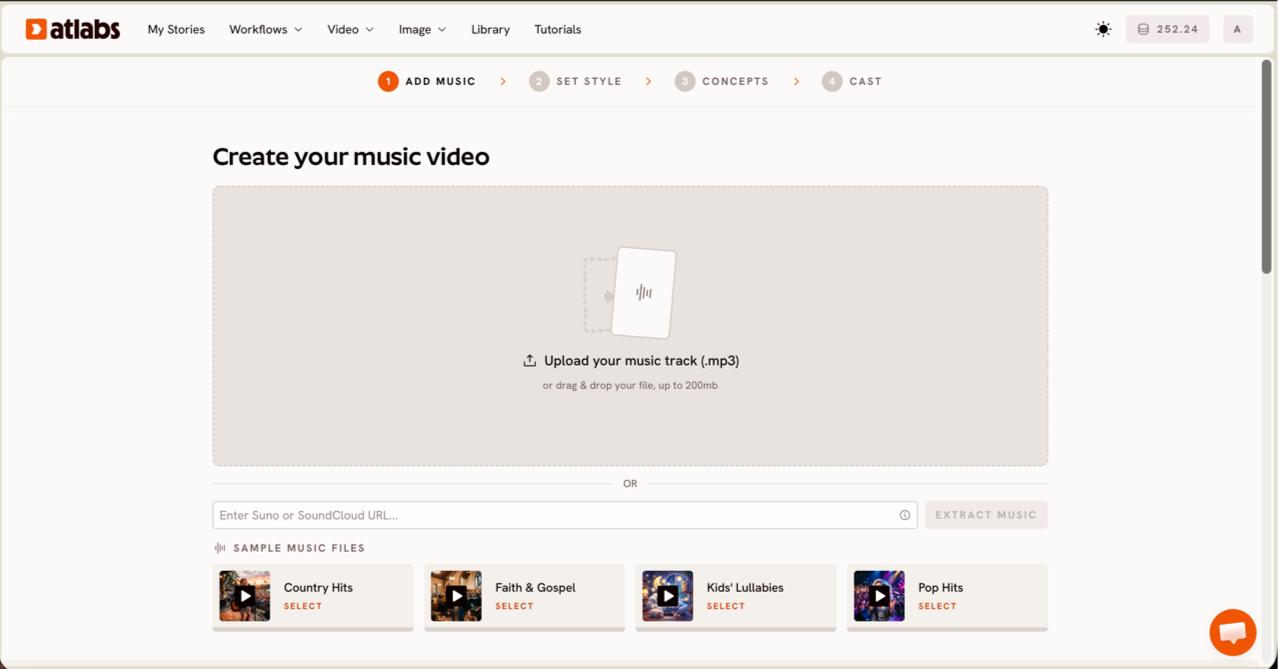
Step 1, Add Music. Upload an mp3 up to 200MB or paste a Suno music URL, then click EXTRACT MUSIC. Atlabs reads the track properties so the visuals follow your tempo and mood. The screen header reads Create your music video.
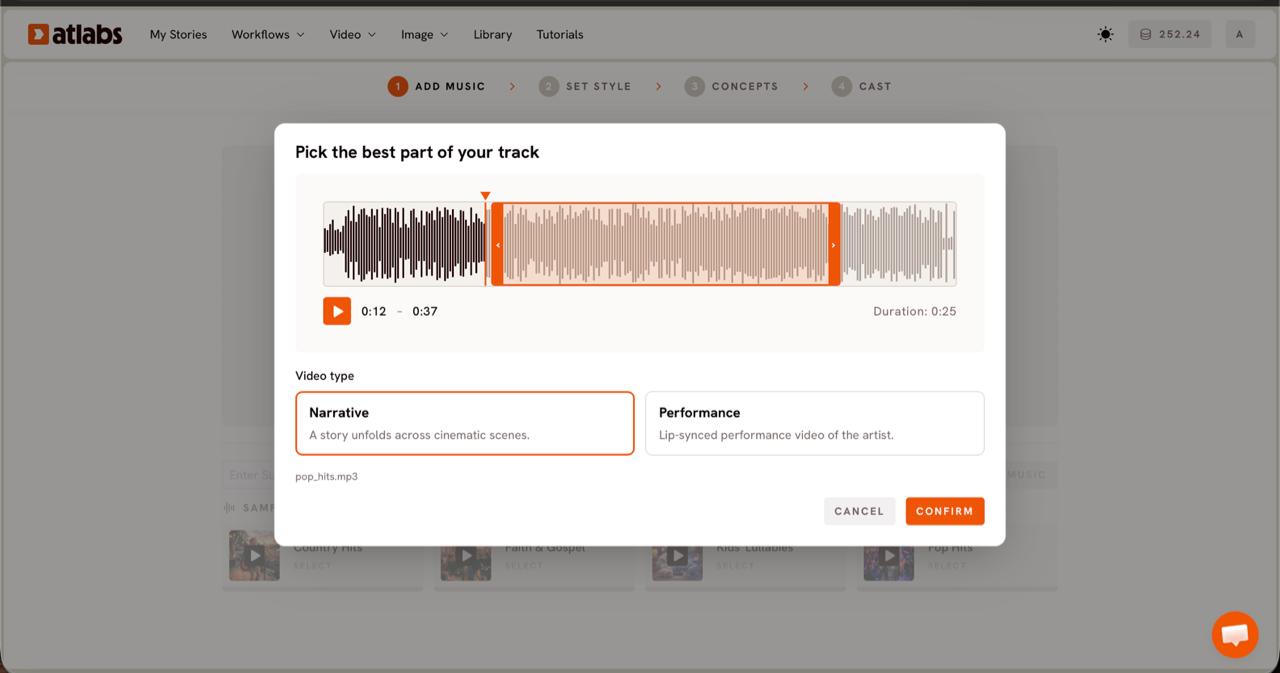
Step 2, Video Type. In the Pick the best part of your track modal, drag the orange selection window across the waveform to choose your segment, usually up to around 25 seconds. Pick Narrative for an atmospheric story across scenes, or Performance for a lip synced artist video when your single has vocals.
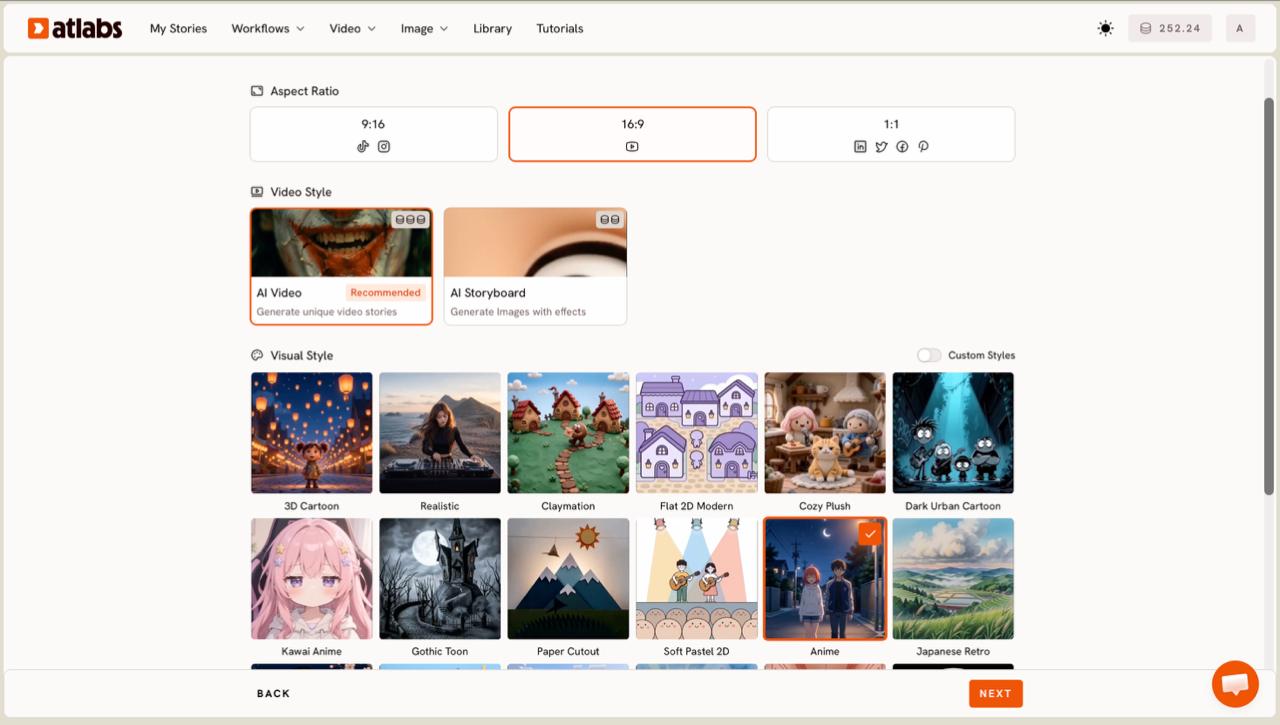
Step 3, Set Style. Set the Aspect Ratio to 16:9 for your YouTube master. Choose AI Video for unique generated scenes, then pick a Visual Style. Indie artists often reach for Realistic or a cinematic look that reads like live action, though the full library sits one toggle away under Custom Styles.
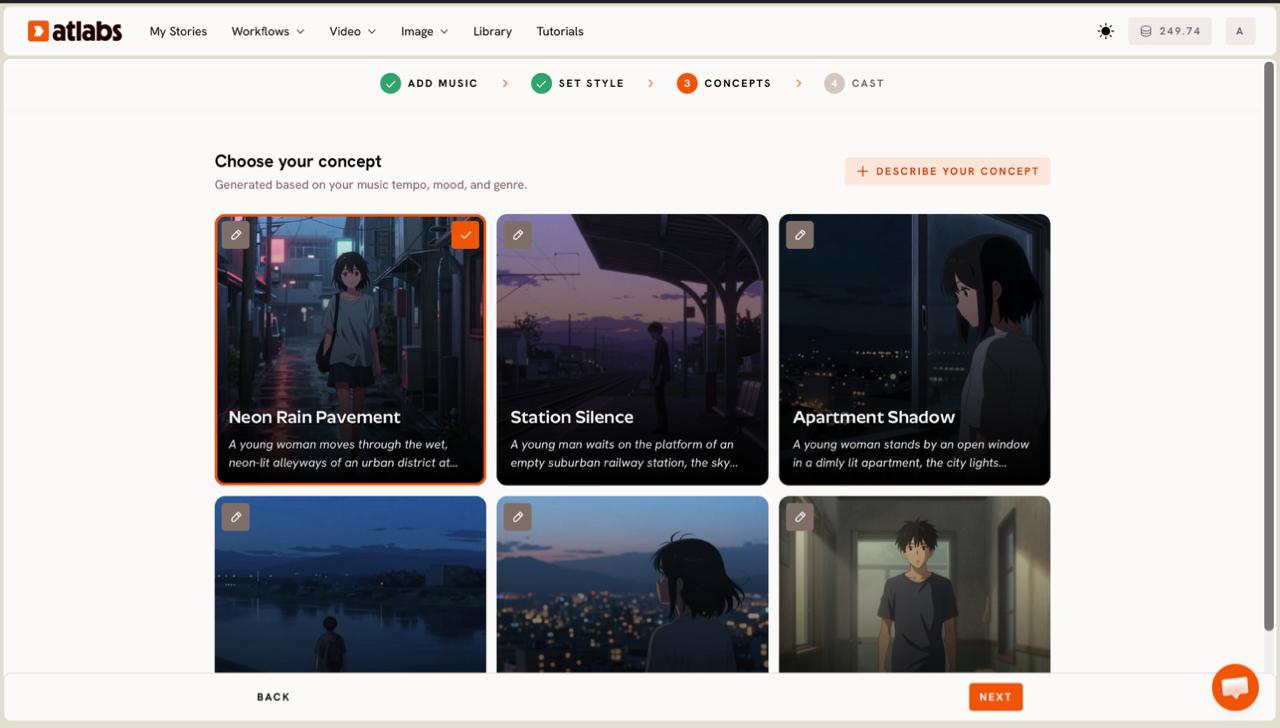
Step 4, Concepts. Atlabs shows six scene concepts generated from your track tempo, mood, and genre. Tap a card to select it, use its edit pencil to adjust the direction, or click + DESCRIBE YOUR CONCEPT to write your own vision for the single.
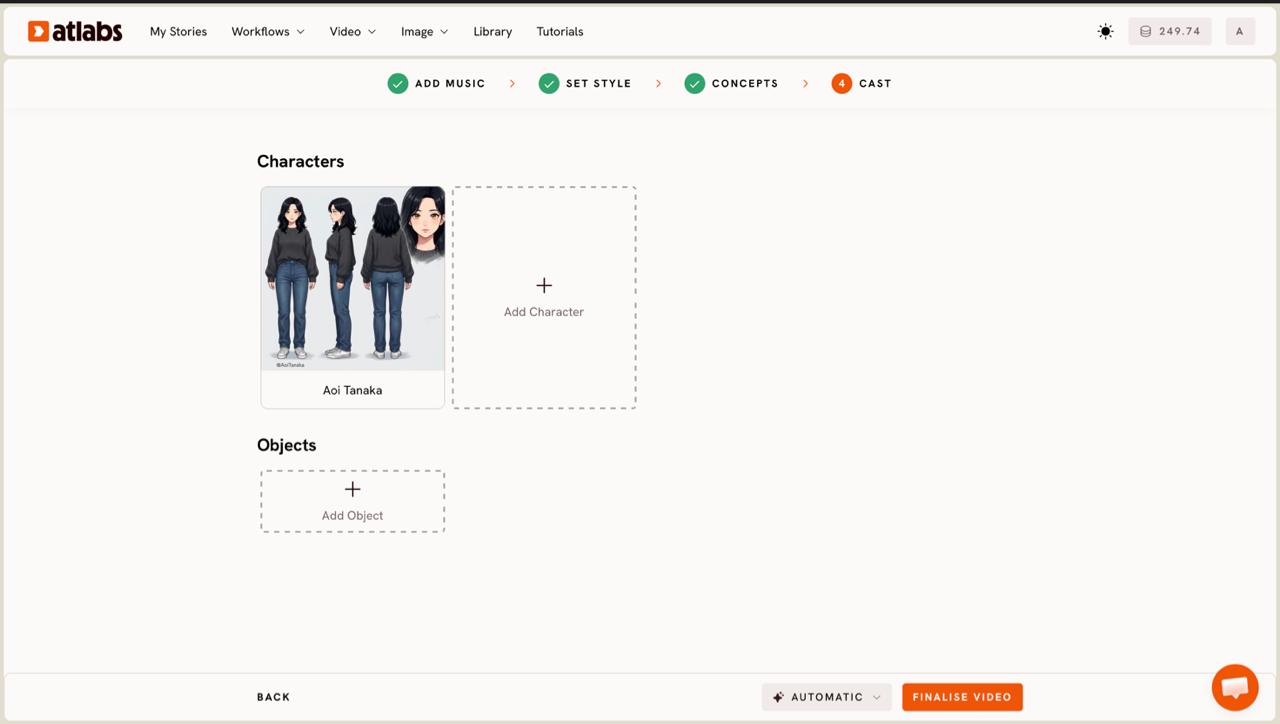
Step 5, Cast. Define the Characters and Objects that appear across your scenes. Each character card shows a reference sheet so the same face stays consistent from shot to shot, which matters when your video cuts between sections of the song. Render to get your 16:9 master.
Reframe for every platform in one click
Open the Reframe workflow and load the 16:9 master you just made. Set the target aspect ratio, 9:16 for Instagram Reels and 1:1 for X, then run it. Reframe re-composes the frame so your subject stays centered as the shape changes, rather than chopping the sides off a horizontal video. Export each version and you have three platform ready cuts from one render.
[Screenshot placeholder: Reframe workflow with target aspect ratio set to 9:16 and 1:1, subject kept centered]
Order matters here. Reframe always reads from the master, so finish the 16:9 cut you are happy with before you branch out. Once it exists, the vertical and square versions are recompositions of that same footage, which keeps color, pacing, and characters identical across all three feeds. A common rhythm for a single release is the 16:9 master as the YouTube home video, the 9:16 cut as a Reel teaser pointing back to it, and the 1:1 square as the post that announces the drop on X. Same video, three jobs, one render.
Tips for better results
Build the master at 16:9 first, then reframe down. Starting wide gives Reframe the most picture to work with when it crops to 9:16 and 1:1, so your subject stays in frame. Keep the main action near the centre of each scene, since every platform shares that middle strip. For vocal singles, the Performance video type and a lip synced artist read better vertically on Reels, where faces fill the screen. Add captions before you post, because most Instagram and X viewers watch on mute, and the Caption Video app burns readable text onto each cut. If a reframed version feels soft after cropping, run it through Upscale to bring the resolution back up for full screen mobile playback. One more habit worth keeping: name your exports by platform as you save them, so the 9:16 Reel cut and the 1:1 X cut never get mixed up at upload time.
Concept prompts to set the tone
Concept direction shapes the look of your single more than any other choice. Paste one of these into + DESCRIBE YOUR CONCEPT to set the mood before you render the master, then reframe the result for each platform.
Moody lo fi night drive. A lone figure rides through a rain slicked city, neon signs smearing across the wet windshield, warm streetlight pooling on the dashboard. Slow handheld drift, shallow focus, the rhythm of the wipers matching the track.
Try this in Atlabs Music Video
Sunlit folk performance. The artist plays on a wooden porch at golden hour, dust catching the light, open fields stretching behind. The camera circles slowly and lingers on hands and strings as the chorus lifts.
Try this in Atlabs Music Video
FAQ
How long does it take to make one video for all platforms?
Most indie artists get a first 16:9 master in about ten to fifteen minutes, depending on length and style. Reframing that master to 9:16 and 1:1 takes a single click each, so the extra platform cuts add only a few minutes.
Do I need video editing skills to reframe a music video?
No. Reframe handles the recomposition for you, keeping the subject centered as the aspect ratio changes. You pick the target shape and export, with no timeline editing or key framing required.
What aspect ratio should I use for YouTube, Instagram, and X?
Use 16:9 for YouTube, 9:16 for Instagram Reels and Stories, and 1:1 for X. Build your master at 16:9 first, then reframe down to the vertical and square versions.
Can I reframe a video I did not make in Atlabs?
Reframe works on the video you load into the workflow, so the cleanest path is to build the master in the Music Video workflow and reframe from there. That keeps subject framing and quality consistent across all three cuts.
Get started
Make your master cut once, reframe it for YouTube, Instagram, and X, and ship your single everywhere from one session. Open Atlabs