

The fastest way to make an anime music video for a Suno song is the Atlabs Music Video workflow. You paste your Suno track, pick an anime visual style, choose a scene concept Atlabs generates from your music, and the platform renders an animated video synced to your audio. No drawing, no After Effects, no animator on a retainer. This beginner guide walks through every step, from dropping in your Suno URL to exporting an anime music video ready for YouTube, TikTok, or Reels.
What you'll need before you start
You need three things. A finished Suno song, either as an mp3 export or a shareable Suno track URL. A free Atlabs account so you can open the Music Video workflow. And about ten minutes for your first anime music video, less once you know the flow. You do not need any animation experience, a drawing tablet, or editing software. Atlabs handles the animation, the scene building, and the audio sync, so your only job is creative direction.
Watch the full video on YouTube
The full walkthrough: 5 steps
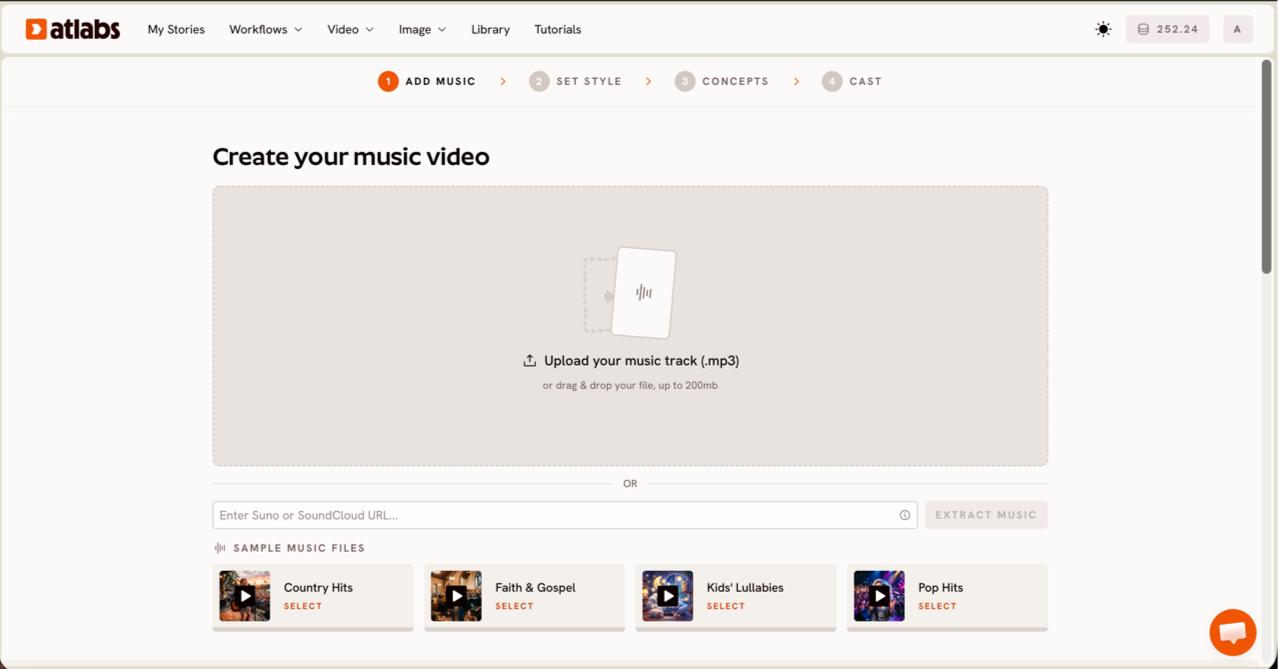
Step 1: Add your Suno track. Open the Music Video workflow, where the header reads Create your music video. Paste your Suno music URL into the field, or upload an mp3 up to 200MB, then click EXTRACT MUSIC. Atlabs reads the track and auto detects its properties, so the tempo and mood of your Suno song shape everything that follows.
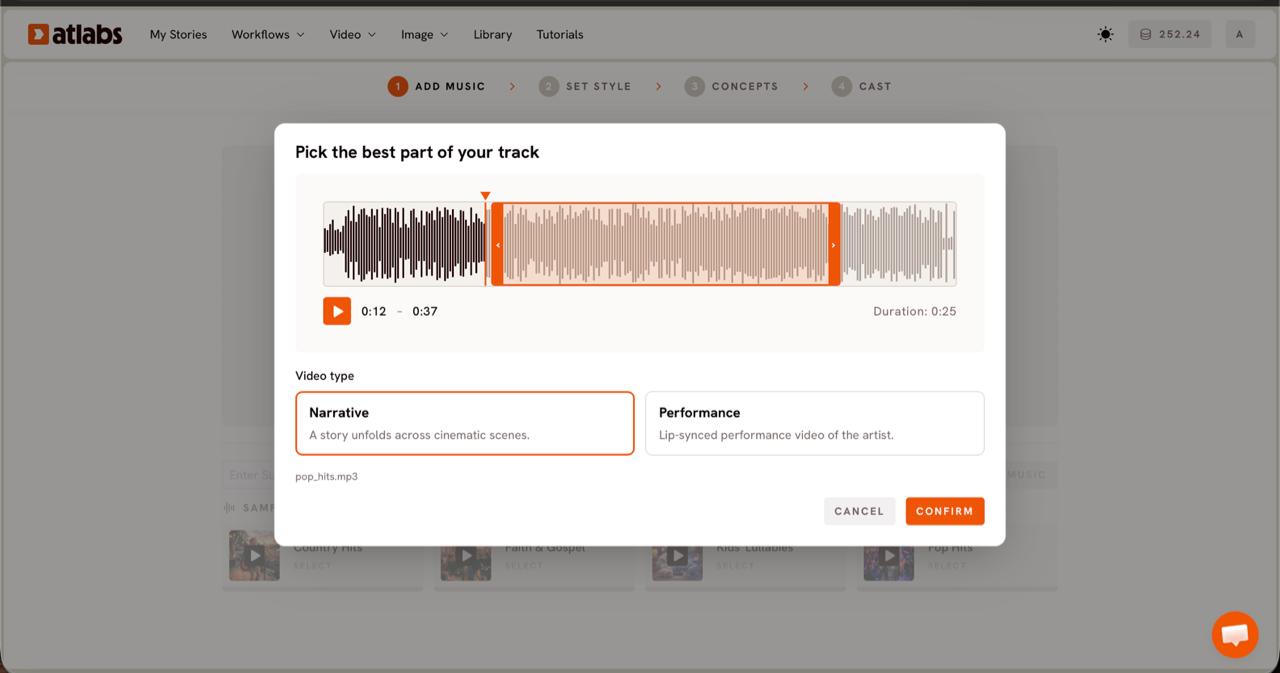
Step 2: Pick the best part of your track and a video type. The Pick the best part of your track modal opens over the waveform. Drag the green selection window to the segment you want to animate, usually up to around 25 seconds, ideally the hook or the most emotional bar of your Suno song. Then pick a video type. Choose Narrative for a story that unfolds across cinematic anime scenes, or Performance for a lip synced anime artist performing the vocals.
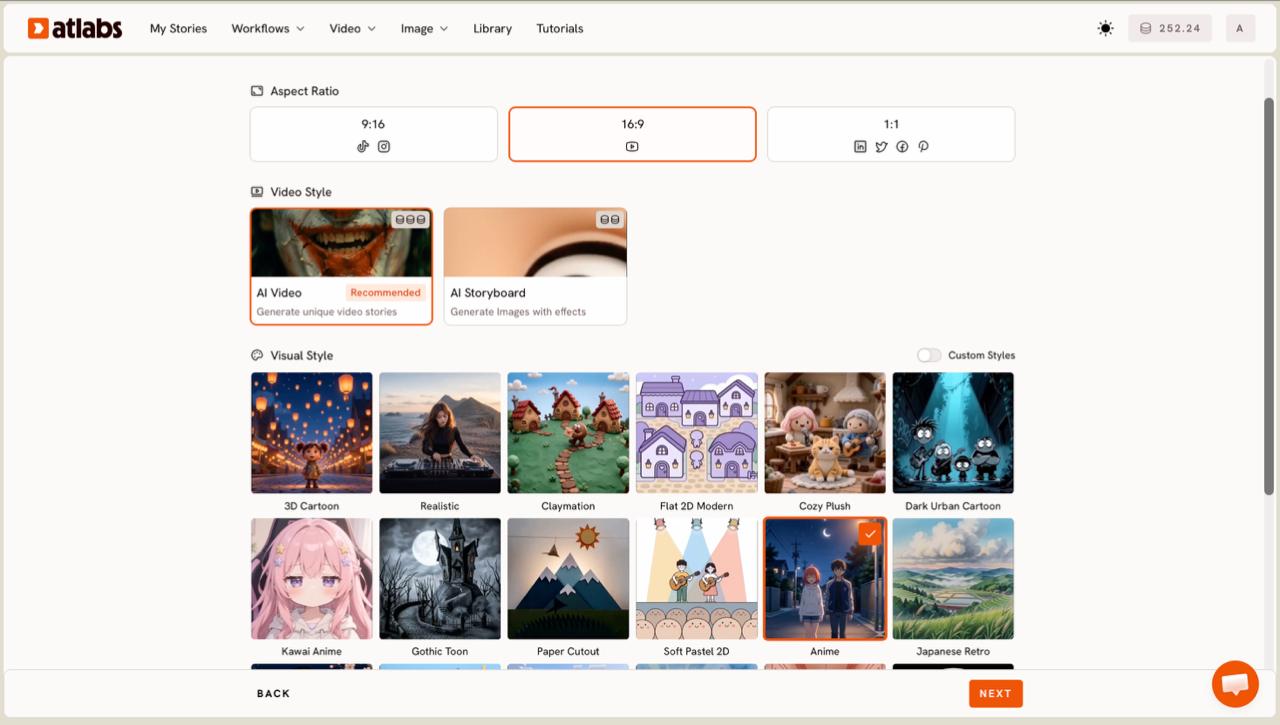
Step 3: Set your anime style. In Set Style, choose your Aspect Ratio first: 9:16 for TikTok and Instagram, 16:9 for YouTube, or 1:1 for square posts. Leave Video Style on AI Video, the recommended option that generates unique video stories. Then open the Visual Style library and pick the anime look you want. Anime gives you a classic animated frame, Kawai Anime leans bright and cute, and Japanese Retro gives that grainy retro cel feel. Toggle Custom Styles to see the full library.
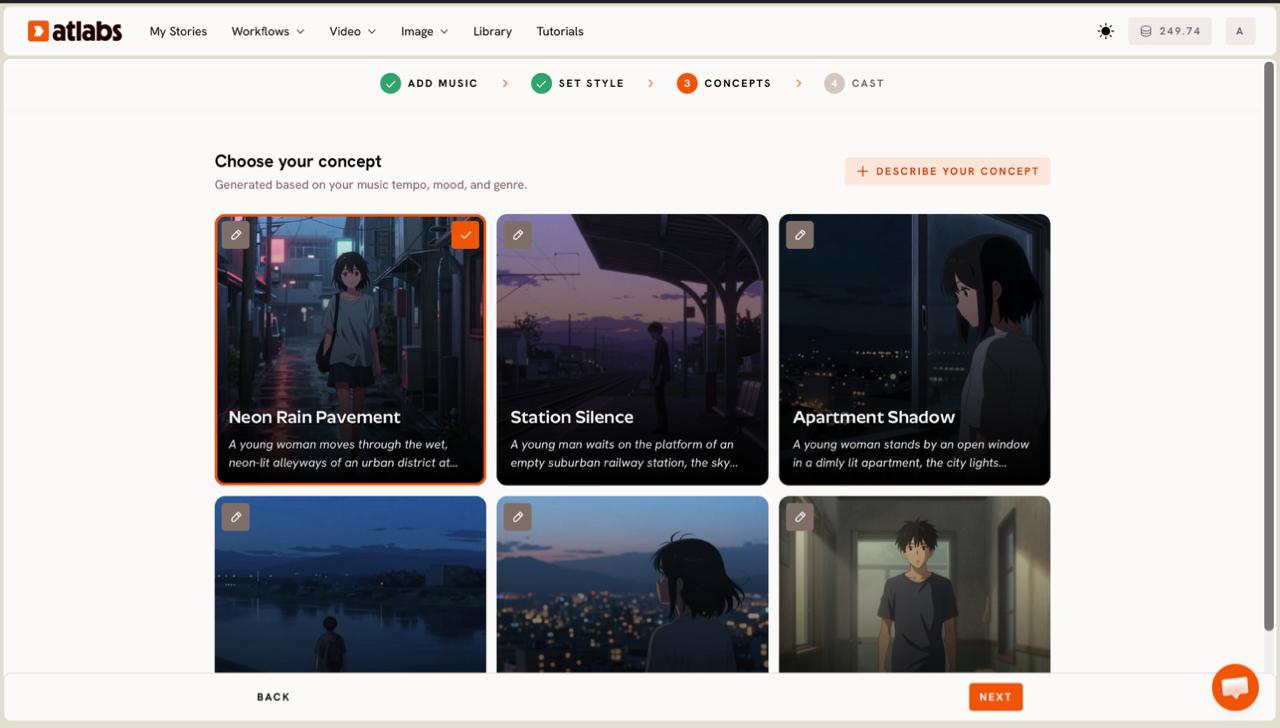
Step 4: Choose your concept. Atlabs shows six scene concepts under Choose your concept, generated based on your music tempo, mood, and genre. Each concept is a card with a short scene description and an edit pencil. Click the one that matches your Suno song and it shows a green tick. Want something specific to your lyrics? Click DESCRIBE YOUR CONCEPT and write your own anime direction in plain language.
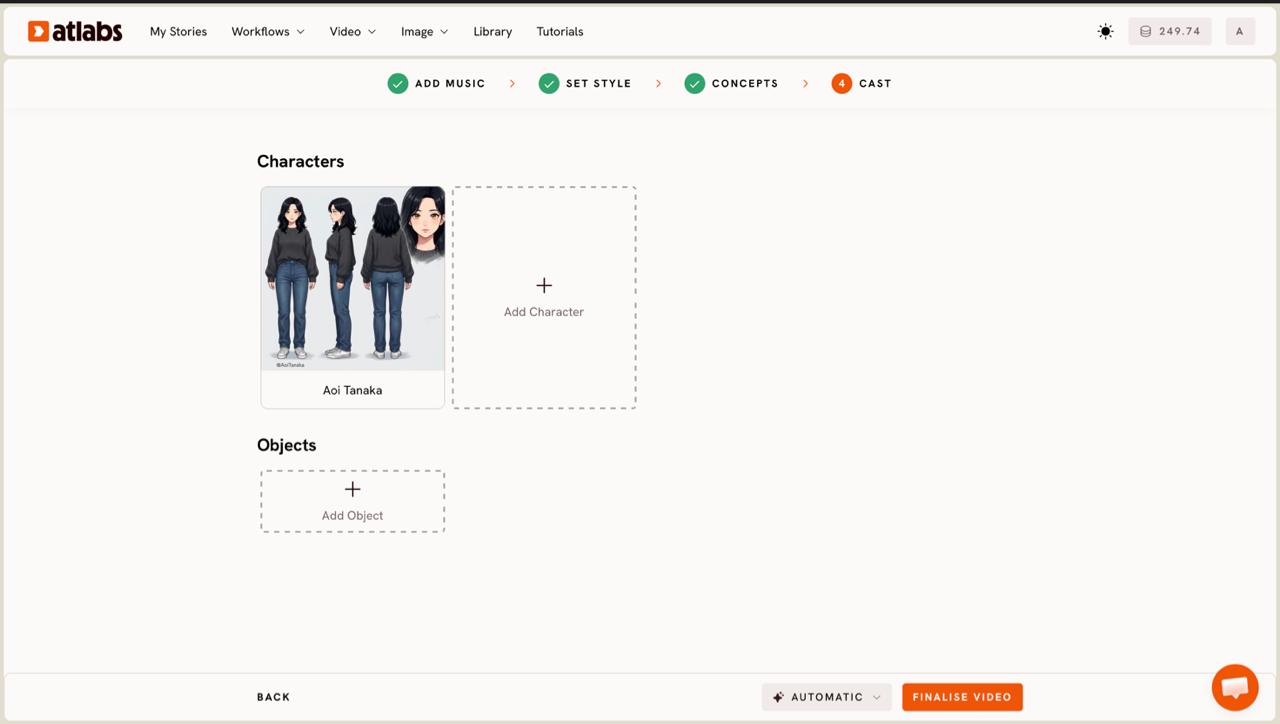
Step 5: Cast your characters, then generate. In Cast you define your Characters and Objects. Each character card shows a generated reference sheet with multiple angles and a portrait, so your anime lead stays consistent across every scene. Click any empty slot to Add Character, or use the Click to edit overlay to refine a face, outfit, or hair color. Add props in the Objects section if your scene needs them, then generate. Atlabs builds the anime music video synced to your Suno track.
Tips for a better anime music video
A few choices make a noticeable difference for anime. For style heavy, dialogue free anime scenes, Seedance 2.0 is strong on stylized content and character closeups, which keeps faces sharp during slow vocal sections. If your Suno song is high energy, Hailuo 2.3 handles fast motion fluidly, so dance beats and action cuts feel smooth instead of stuttery. Match your selected segment to the most distinctive ten to twenty seconds of the track, since a strong hook animates into a stronger video. Keep your character description specific in Cast, because a clear hair color, outfit, and age give the model a consistent anime lead to follow across scenes. Finally, set the aspect ratio to where the video lives before you generate, vertical for Reels and Shorts, wide for YouTube, so you are not cropping a finished anime music video later.
Example concepts to try
If you skip the generated cards and write your own under DESCRIBE YOUR CONCEPT, here are two anime directions to copy and adapt to your Suno song.
A lone anime protagonist walks a neon Tokyo street at night under falling rain, reflections shimmering on wet pavement, cuts to a rooftop as the chorus hits and the sky opens into color. Mood: bittersweet, cinematic, lo fi.
Try this in Atlabs Music Video
A retro anime band performs on a small stage, warm cel shaded lighting, crowd silhouettes swaying, intercut with dreamy sunset skies on the instrumental break. Style: Japanese Retro, grainy and nostalgic.
Try this in Atlabs Music Video
FAQ
How long does it take to make an anime music video?
Your first one takes about ten minutes end to end, since most of the time is spent picking a style and a concept. After that, repeat tracks go faster because you already know the flow. Generation itself runs in the background while you set up the next scene.
Do I need animation or editing skills?
No. You never draw a frame or open editing software. Atlabs animates the scenes, casts the characters, and syncs everything to your audio, so the only skill you bring is choosing a style and writing a short concept if you want custom direction.
Can I use a Suno song directly?
Yes. In the first step you can paste a Suno music URL and click EXTRACT MUSIC, or upload the exported mp3 up to 200MB. Atlabs reads the tempo, mood, and genre of the Suno track to generate matching scene concepts.
What aspect ratio should I pick for an anime music video?
Pick 9:16 for TikTok, Reels, and Shorts, 16:9 for YouTube, and 1:1 for square feed posts. Set this in the Set Style step before generating so your anime music video is framed correctly for its platform from the start.
Get started
Ready to turn your Suno track into an anime music video? Add your song, pick an anime style, and generate your first scene in the Music Video workflow.
Open Atlabs