The fastest way to make a music video with AI is to upload your track to the Atlabs Music Video workflow, pick the strongest segment, choose a cinematic visual style, and let it generate scenes that match your tempo and mood. For an indie artist sitting on a finished song with no budget for a director or a film crew, that turns a single audio file into a watchable, shareable video in about ten minutes. No camera, no shoot day, no editor. Here is the full step by step walkthrough.
What you'll need
You need three things to make a music video with AI as an indie artist. First, an Atlabs account, which gives you access to the Music Video workflow and the model lineup behind it, including Kling for cinematic motion and Google Veo for photoreal wide shots. Second, your input asset, an mp3 of your track up to 200MB, or a Suno music URL if your song already lives there. Third, about ten to fifteen minutes and a rough sense of the mood you want, whether that is a neon hip hop night drive or a washed out folk daydream.
Watch the full tutorial on YouTube
How to make a music video with AI, step by step
The Music Video workflow runs in five screens. Each one asks you a single question, so an indie artist with no production background can move through it without guessing. You upload, you choose, you review, and the model lineup behind the scenes does the heavy work of generating motion and keeping your characters consistent. Follow the screens in order and you will have a finished cut on the other side.
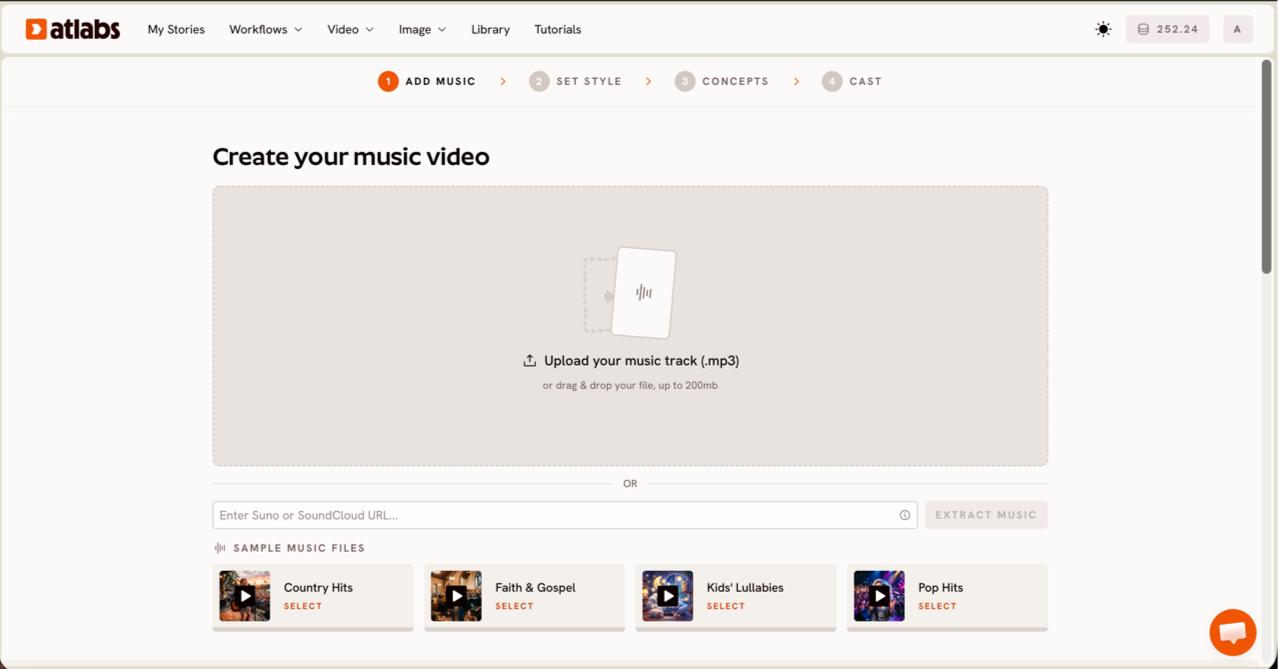
Step 1: Add your music. Open the Music Video workflow and upload your track on the Add Music screen. Drop in an mp3 up to 200MB or paste a Suno music URL, then click EXTRACT MUSIC. Atlabs auto-detects your track properties so the scenes you build later move with the song instead of fighting it. The screen header reads Create your music video, which is where every artist starts.
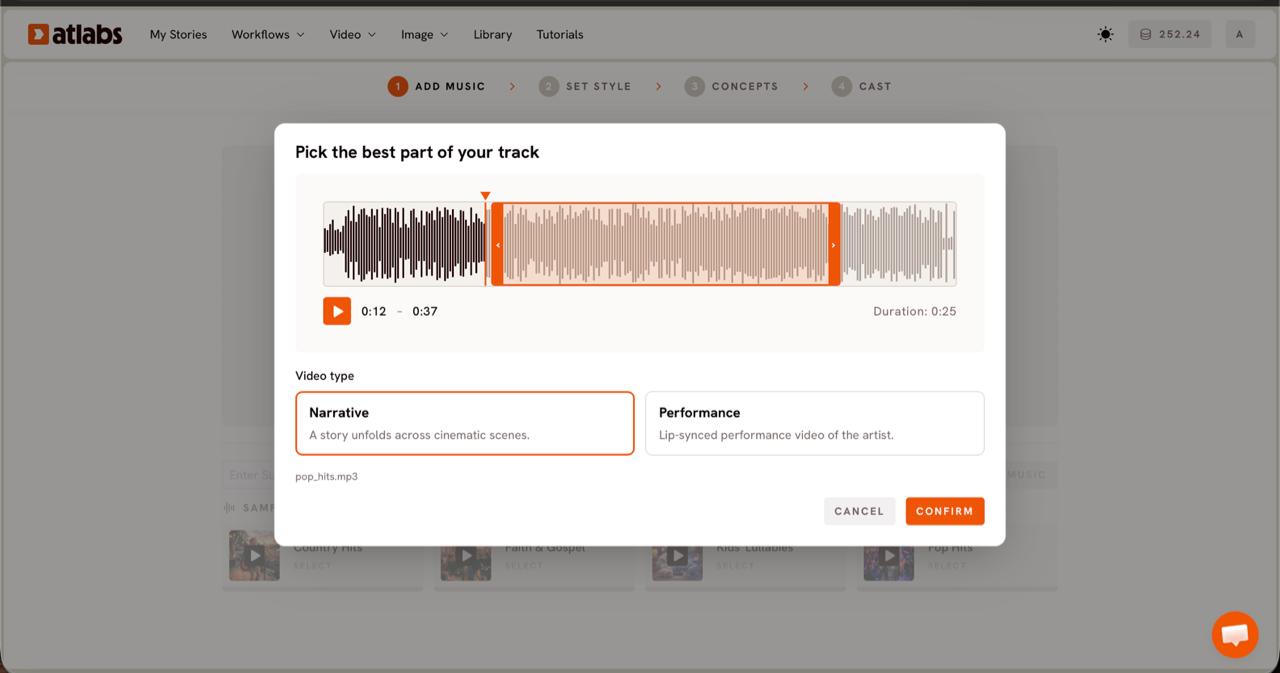
Step 2: Pick your segment and video type. The Pick the best part of your track modal opens with your waveform. Drag the orange selection window across the section that carries the video, usually up to around 25 seconds, which for most genres is the hook or the drop. Then choose a Video Type. Narrative builds a story across cinematic scenes, which suits atmospheric or instrumental tracks. Performance creates a lip synced performance video, which fits a vocal song where you want an artist on screen.
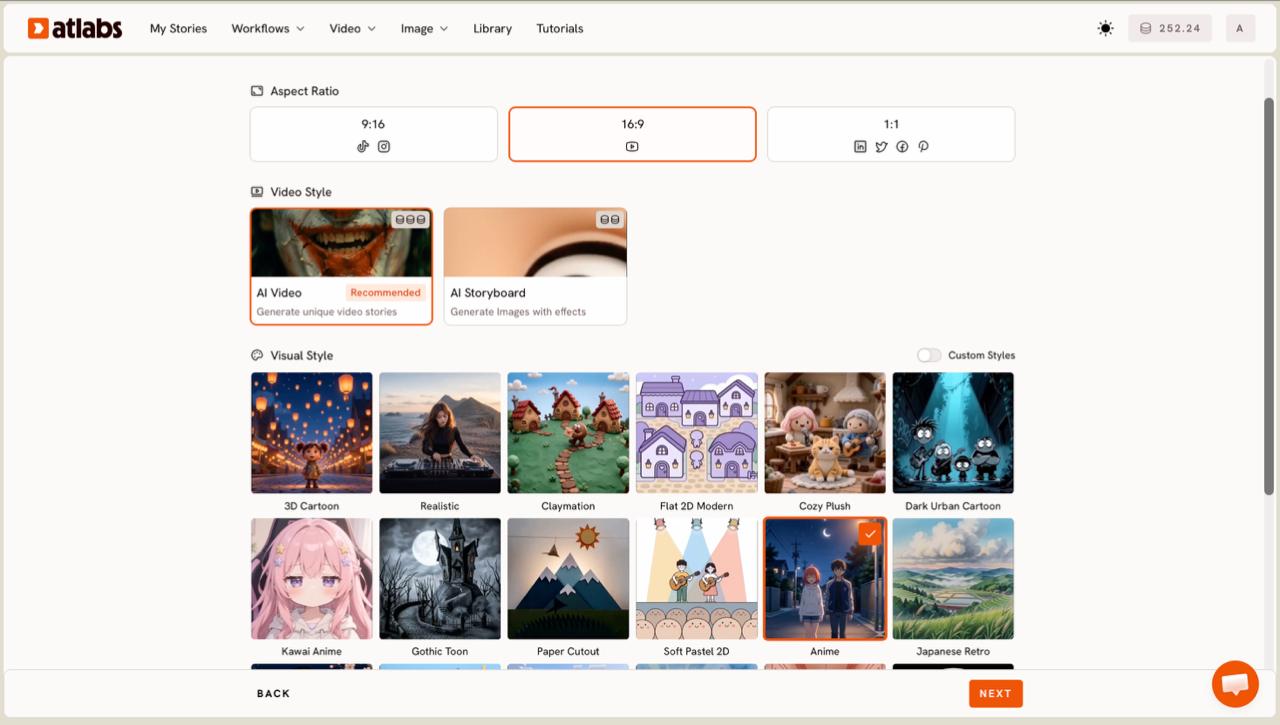
Step 3: Set the style. On the Set Style screen, choose your Aspect Ratio first, 9:16 for TikTok and Instagram, 16:9 for YouTube, 1:1 for square posts. Keep Video Style on AI Video for unique generated scenes, or switch to AI Storyboard for an image driven sequence with effects. Then open the Visual Style library and pick the look that matches your genre. Realistic gives you the cinematic live action feel most indie, hip hop, and rock tracks want, while the library also covers Anime, Claymation, and more if your sound calls for something stylized. Toggle Custom Styles for the full set.
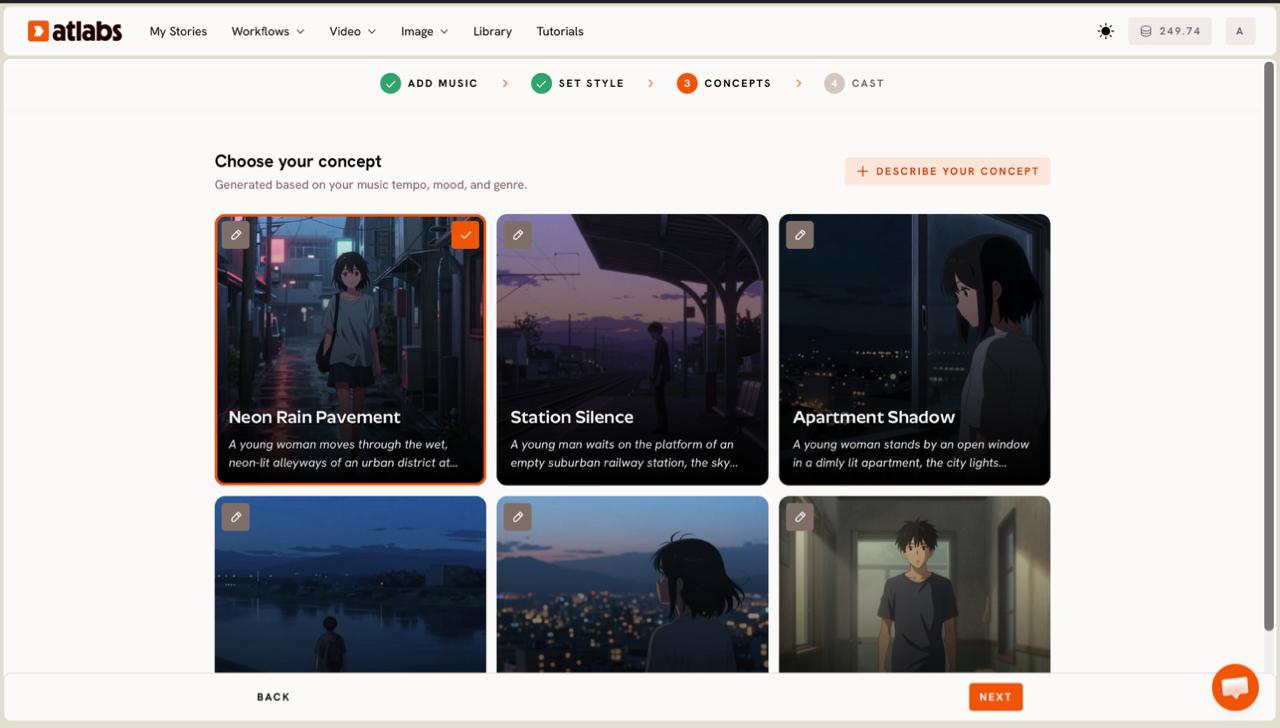
Step 4: Choose your concept. Atlabs shows six scene concepts generated from your music tempo, mood, and genre. Each concept card carries a short description and an edit pencil, and the one you pick shows a green tick. If none of the six match the story in your head, click + DESCRIBE YOUR CONCEPT and write your own direction in plain language. This is where an indie artist sets the narrative without storyboarding a single frame by hand.
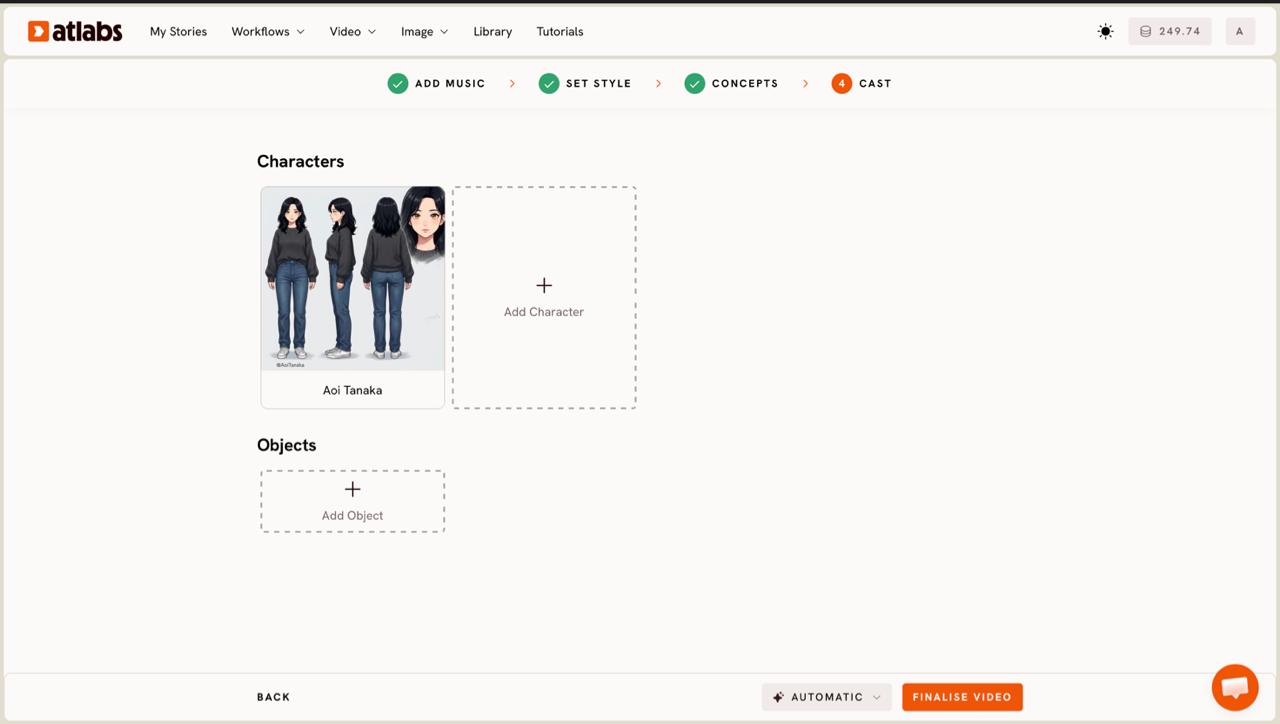
Step 5: Cast your characters. Each character card shows a generated reference sheet with multiple angles and a portrait, which keeps the same face across every scene instead of a new person on every cut. Click any empty slot to Add Character, then use the Click to edit overlay to adjust the look until it fits your artist or story. Add any recurring props in the Objects section at the bottom. Once your cast is set, generate the video and review the scenes.
Tips for better results
A few choices separate a flat AI music video from one that looks directed. Match the Visual Style to your genre rather than defaulting, since Realistic carries a hip hop or rock track while a softer style suits folk or ambient. Pick your segment around the strongest 20 to 25 seconds of the song, because the video reads best when it rides the hook. Keep your Aspect Ratio aligned to where the video will live, 9:16 for Reels and Shorts, 16:9 for a YouTube premiere. When you want a specific face to recur, lock it in the Cast step so the character stays consistent scene to scene. For a finishing pass, run the result through the Reframe workflow to repackage one video for several platforms at once.
Example concepts to try
Drop either of these into the + DESCRIBE YOUR CONCEPT box on the Concepts screen, then adjust the details to your own song.
Concept for a moody indie track: a lone artist walks through a rain slicked city at night, neon signs reflecting in puddles, slow cinematic push ins on the face during the chorus, warm streetlight glow set against cool blue shadows.
Try this in Atlabs Music Video
Concept for a hip hop track: a night drive through downtown, low angle shots of the car, passing headlights streaking across the frame, cuts timed to the beat, high contrast amber and black color grade.
Try this in Atlabs Music Video
FAQ
How long does it take to make a music video with AI?
Most indie artists go from an uploaded track to a finished music video in about ten to fifteen minutes inside the Music Video workflow. The generation step runs on its own once your concept and cast are set, so the hands on time is mostly choosing a segment and a style.
Do I need any video editing or filming skills?
No. The Music Video workflow handles scene generation, character consistency, and timing, so you never open a traditional editor or shoot footage. You upload a track, pick a style, choose a concept, and review the scenes.
What file types and lengths are supported?
You can upload an mp3 up to 200MB, or paste a Suno music URL. On the Video Type step you select a segment from your track, usually up to around 25 seconds, to anchor the video.
Can I keep the same character across every scene?
Yes. On the Cast step each character gets a generated reference sheet with multiple angles, which keeps the same face consistent across scenes instead of a different person on every cut.
Get started
Upload your track, pick your segment, and let the Music Video workflow build the scenes around your song. Open Atlabs








