
The fastest way to put one video on YouTube, Instagram, and X is the Atlabs Reframe Video tool. You upload the it once, choose the aspect ratio you need, and the AI expands the scene to fill the new shape, with no cropping and no black bars. Your artist stays full size while the tool paints in the extra background around them. For an indie musician, that means one clip becomes a widescreen YouTube version, a vertical Reel, and a square post in a few clicks, with no re-editing and no reshoots.
Every artist hits the same wall on release day. You make one video, then you have to fit it to three feeds that each want a different shape. The usual fixes are bad. Cropping a widescreen video to vertical can cut your artist out of their own shot, and dropping a horizontal clip onto Reels with black bars above and below makes the post look like an afterthought. Reframe Video takes a different path, and it changes how you ship a single across platforms.
What Atlabs Reframe Video actually does
Reframe Video is one of Atlabs' AI Tools, a focused mini app that does one job well. Instead of cropping your footage to a new aspect ratio, which throws away the sides of the frame, it uses scene aware expansion to generate fresh background that blends with your original video. The headline on the tool says it plainly: reframe videos with AI without cropping.
Most resizing tools give you two poor options. They crop, which can cut your artist out of the shot, or they add black bars, which shrink the video into a small strip with dead space around it. Reframe takes a third path. It keeps your subject, motion, and core content untouched and only generates the extra background needed to reach the target shape. The result fills the screen on every platform while staying true to the original. It works on any short video, including animated and cartoon styles, and supports clips up to 30 seconds.
What kind of videos can you reframe
Reframe Video is not limited to one style of clip, which makes it a fit for almost any indie release. A live action performance cut, where the artist sings to camera, expands cleanly because the AI keeps the figure centered and builds out the room or stage around them. A narrative scene, like a walk through a city at night, gains believable street and sky on the sides when you widen it. A lyric video or a moody atmospheric piece works too, since the AI continues textures, gradients, and light rather than guessing at faces. Animated and cartoon videos are supported as well, with the expansion matching the line work and color of the original art. Whatever the look of your single, the same upload, choose, preview, and download flow applies, so you are not learning a new tool for each kind of video.
What you'll need
A finished video clip up to 30 seconds long. Longer cuts can be trimmed before you upload.
The aspect ratios you are targeting, usually 16:9 for YouTube, 9:16 for Reels, and 1:1 for X.
An Atlabs account. New accounts come with free credits to try a few reframes.
Optional: one line describing the background, if you want to guide how the AI fills the new space.
How to reframe one video for every platform, step by step
Open the Reframe Video tool to start. The flow is four steps from upload to download, with an optional prompt in between if you want to steer how the new background looks.
Step 1, Upload your video. Open the Reframe Video tool, then drag and drop your clip, select it from your files, or paste a URL. This is the master you will reshape for each platform, so use the cleanest version you have.
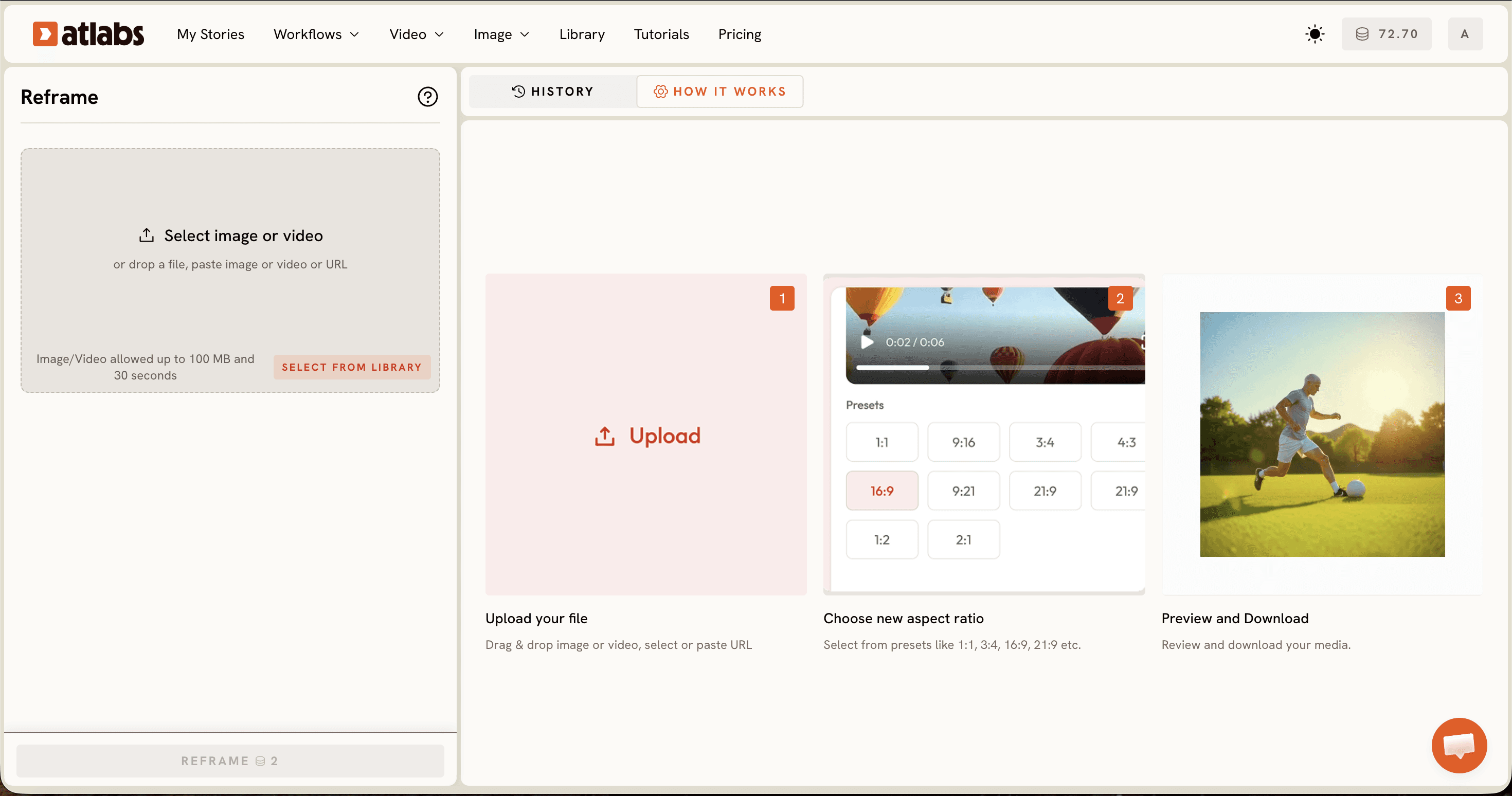
Step 2, Choose your aspect ratio. Pick the target shape from the presets: 1:1, 4:3, 3:4, 16:9, 9:16, 21:9, or 9:21. For an indie single you will usually run 16:9 for YouTube, 9:16 for Reels and Stories, and 1:1 for X, one export each. Because Reframe expands instead of cropping, you can go in any direction, from a vertical clip up to widescreen or from a widescreen master down to vertical.
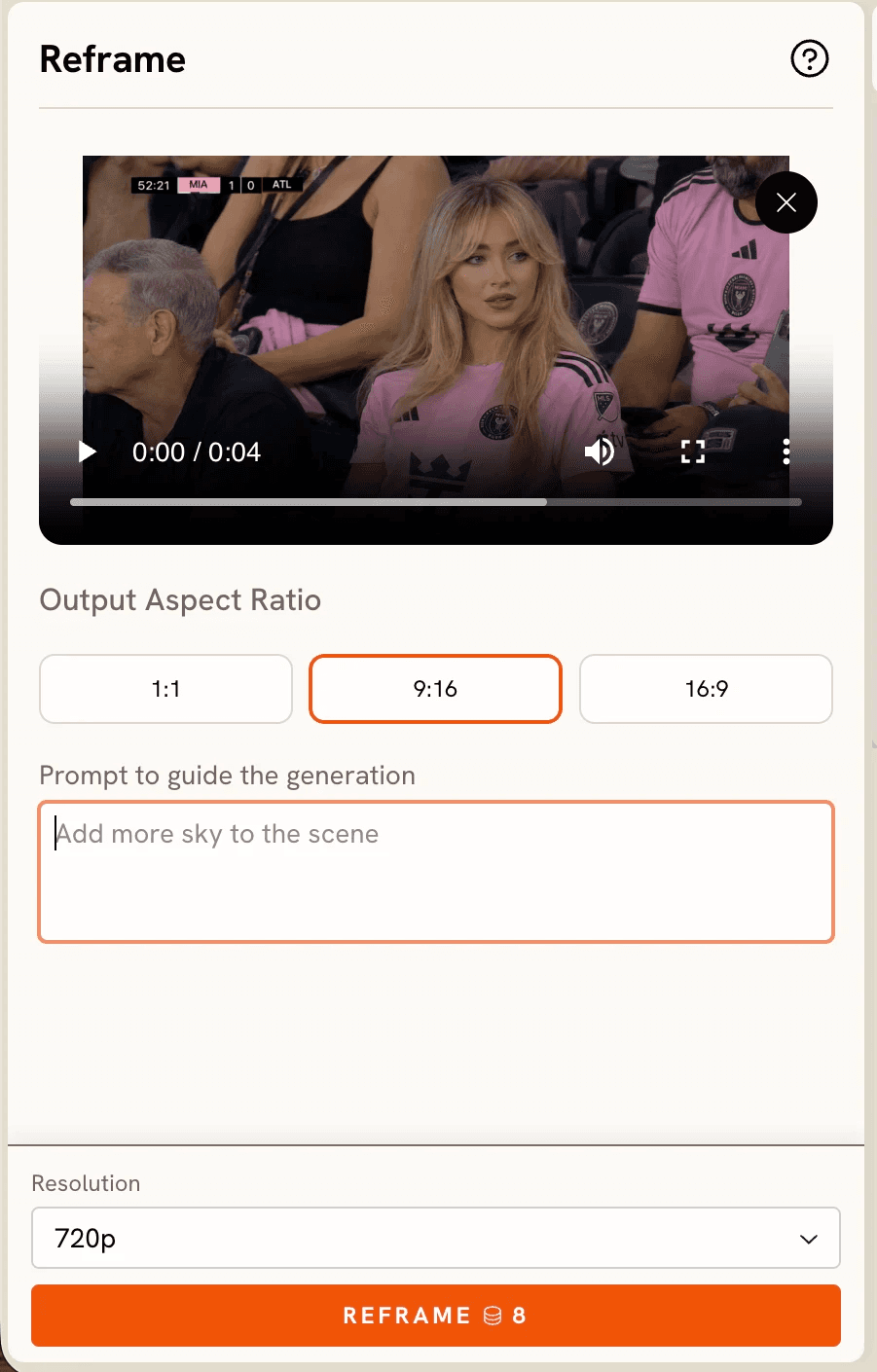
Step 3, Add a prompt to guide the background. This step is optional. Open Advanced Settings and type a short prompt describing the style, colors, or mood you want in the expanded area. If your video is a neon night scene, a line like extend the wet city street and neon glow keeps the new background on theme. Leave it blank and the AI matches the scene on its own.
Step 4, Preview the before and after. The tool shows a live before and after so you can see how the expansion sits against your original. Check that the new background blends cleanly and that the framing feels right for the platform before you commit. Each expansion is generated fresh, so if the first pass is not quite right, run it again.
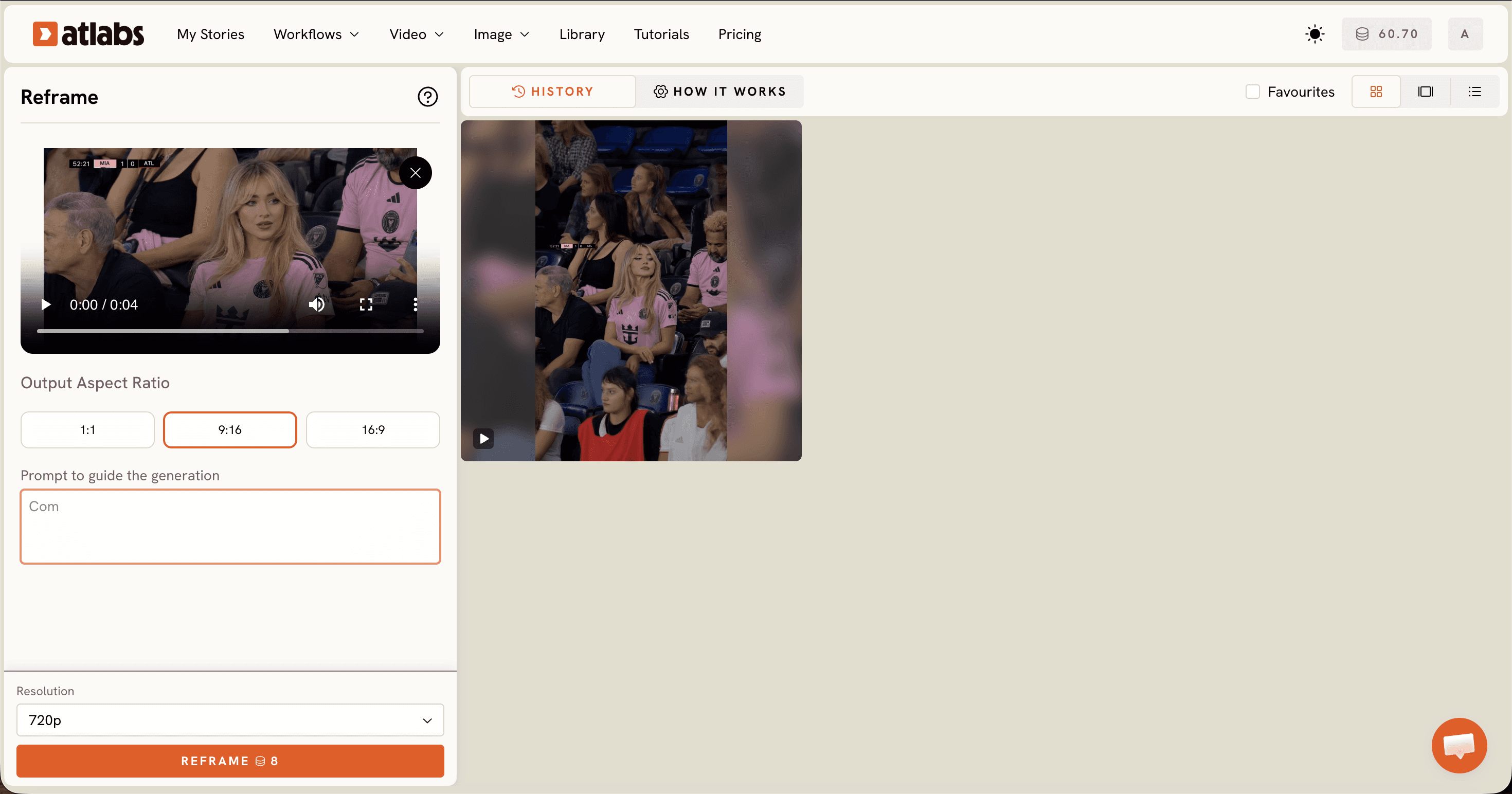
Step 5, Download your reframed video. When the preview looks right, download the finished cut. Repeat the choose, preview, and download steps for each aspect ratio, and you have a full set of platform ready versions from the one upload.
Which aspect ratio for YouTube, Instagram, and X
Each platform expects a different shape, and Reframe covers all of them. Use 16:9 for YouTube, where widescreen is the home format for a full music video. Use 9:16 for Instagram Reels and Stories, the vertical shape that fills a phone screen, which is also the shape TikTok and YouTube Shorts use, so one vertical reframe covers all three short form feeds. Use 1:1 for X, where a square holds its size in a busy timeline. Since Reframe expands rather than crops, you can turn a vertical clip into widescreen for YouTube or a widescreen master into a vertical for Reels, and the AI fills whatever space the new shape opens up.
Why expanding beats cropping
The reason this matters comes down to what happens at the edges of the frame. When you crop a widescreen video to vertical, the tool keeps a tall slice down the middle and discards everything on the sides. If your artist is standing off center, or the shot has movement across the frame, cropping can cut the most important part of the scene out of the post. Black bars avoid the cropping problem but create a new one, shrinking your video into a small strip with dead space above and below, which reads as low effort in a feed built for full screen video.
Reframe sidesteps both. It treats your original footage as the center of a larger canvas and generates new background to fill the rest, so the artist stays full size and nothing important is lost. On a vertical Reel, that means the performance fills the screen. On a widescreen YouTube cut, it means the frame feels complete rather than padded. The same single looks made for each platform instead of squeezed into it, and you never have to reshoot to recover framing you would otherwise have cropped away.
Picture a performance shot framed wide, with your artist on the left and a guitarist on the right. Cropping that to a vertical Reel would force you to keep one of them and lose the other. Reframe keeps the full shot and grows the scene above and below to reach the vertical, so both stay in the post. That is the practical difference between losing half your shot and keeping all of it.
Tips for better results
Keep your clips under 30 seconds so they upload cleanly, and trim longer videos to the section you want before you start. Use the optional prompt in Advanced Settings when your scene has a strong look, since a short description helps the AI match colors and mood in the expanded area rather than guessing. Preview every reframe before downloading, because each expansion is generated fresh and results can vary slightly even with the same settings, so it is worth running it again if the first pass is not quite right. After reframing, add captions with the Caption Video tool so your cuts read on mute, where most Reel and X viewers watch. If a finished version looks soft on a phone, run it through Upscale Video to bring the resolution back up. Name each export by platform as you save it, so the vertical and square cuts never get mixed up at upload time.
Guide the AI background with a prompt
When your video has a distinct setting, a short prompt in Advanced Settings keeps the expanded background on theme. Paste one of these into the prompt field, matched to your scene, before you preview the reframe.
Extend the rain slicked city street to the sides, matching the neon signs, wet asphalt reflections, and warm streetlight glow of the original shot.
→ Try this in Atlabs Reframe Video
Continue the golden hour field and soft sky beyond the frame, keeping the same warm sunlight, depth of focus, and dust in the air as the original.
→ Try this in Atlabs Reframe Video
Fill the new space with the same dark concert haze and colored stage lights, blending the beams and crowd into the edges so the expansion matches the performance.
→ Try this in Atlabs Reframe Video
Putting it together on release day
Here is the whole flow in one pass. Open the Reframe Video tool and upload your music video. Choose 16:9 and download the widescreen version for YouTube. Choose 9:16 and download the vertical for Reels, Stories, TikTok, and Shorts. Choose 1:1 and download the square for X. Add a background prompt on any cut that needs it, preview each one, and run Caption Video and Upscale Video where they help. Then post the widescreen video as the home for the single, the vertical as the teaser that points back to it, and the square as the release day announcement. One upload, every platform, no cropping and no reshoots.
The payoff for an indie artist is time. Instead of opening an editor three times and fighting the framing on each export, you upload once and let the tool produce the shapes. The look stays identical across YouTube, Instagram, and X because every cut comes from the same source, and your single arrives on each feed looking like it was made for that screen. When the next release comes around, the same few clicks turn one new video into a full set again.
FAQ
What does reframing a video mean?
Reframing changes your video's aspect ratio to fit different platforms without cutting out important parts. Instead of cropping, Atlabs Reframe expands the scene by generating realistic background that blends with the original footage, so nothing important gets lost.
How is Reframe different from normal resizing?
Traditional resizing crops the frame or adds black bars, which can hide your subject or make the post look unfinished. Reframe uses scene aware expansion to keep everything visible and fill the extra space naturally, so the video looks made for each platform.
What aspect ratios can I choose?
Reframe Video supports popular presets including 1:1, 4:3, 3:4, 16:9, 9:16, 21:9, and 9:21. For YouTube, Instagram, and X you will mostly use 16:9, 9:16, and 1:1.
Is there a length limit for Reframe Video?
Yes. Reframe Video supports clips up to 30 seconds. Longer videos can be trimmed to the section you want before uploading.
Will Reframe change my subject?
No. Your subject, motion, and core content stay untouched. The AI only generates the extra background needed to reach the new aspect ratio.
Can I reframe animated or cartoon music videos?
Yes. Reframe works on any short video, including animated and cartoon styles, expanding the scene to match the new shape while keeping the original art intact.
Get started
Upload your music video to the Reframe Video tool, expand it to every aspect ratio without cropping, and ship your single to YouTube, Instagram, and X from one file. Open Atlabs








