
Here is the rewritten blog with a dedicated step-by-step Reels section built around the Atlabs animated video workflow, with the features and repurposing sections kept intact.
You can turn one AI-generated kids video into Shorts, Reels, and TikToks because Atlabs is built as a full kids animation studio, not a single-clip generator. Cast your characters, lock your story world, and pick your visual style once inside the Atlabs kids workflow, then export the same finished video in 16:9 for YouTube, 9:16 for TikTok and Reels, or 1:1 for Instagram, straight out of the same project. One story, one cast, three platforms, no re-animating and no separate short-form production.
How to Create a Reel with Atlabs (Step by Step)
If Instagram Reels is where you want your kids content to land first, you do not need a separate tool or a different production process. Open the Atlabs kids animation workflow and build your Reel directly:
Step 1: Drop in your idea, story, or script. Type a one or two line concept, paste a written story with narration and scene descriptions, or upload a formatted script. Atlabs reads it and breaks it into scenes automatically, so your Reel starts from whatever you already have.
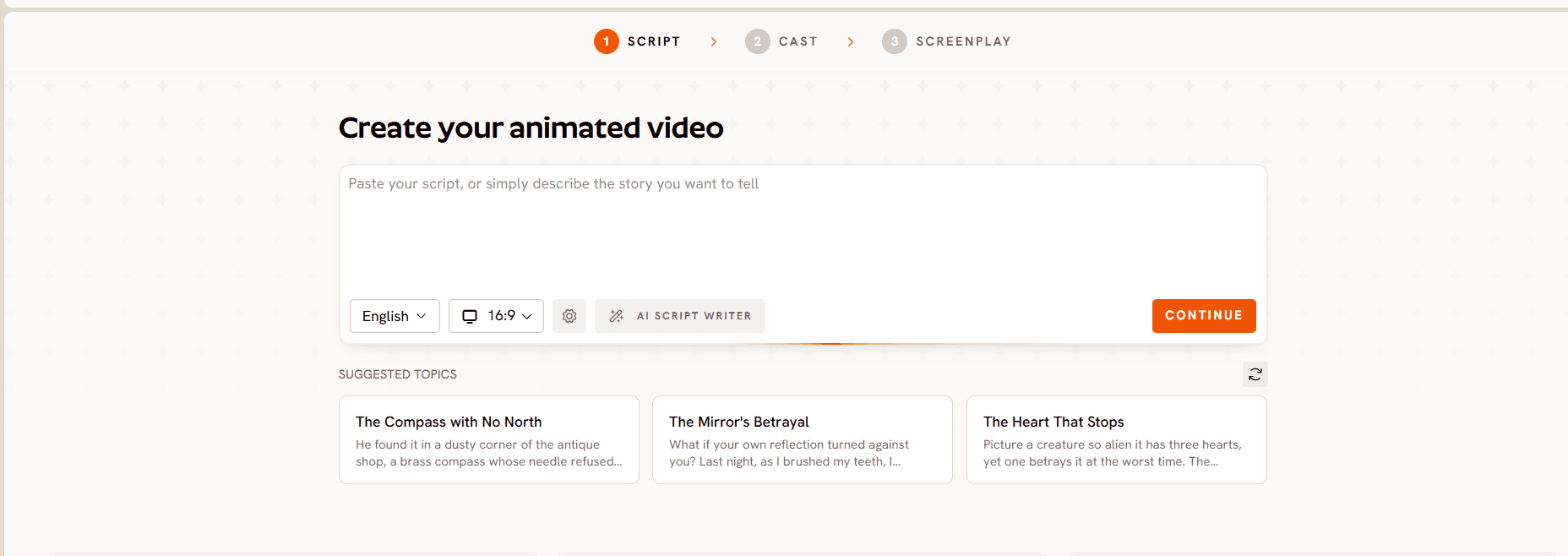
Step 2: Set your aspect ratio to 9:16. In the same workflow, select the 9:16 vertical frame at 1080x1920 before generation starts. This is the native Reels format, so there is no cropping or reframing needed later, the video is built vertical from the first scene.

Step 3: Cast your characters, lock the world, and pick a style built for small screens. Choose your protagonist, set the location, and lock any recurring props so they stay identical across the whole Reel. Pick a visual style like 3D Cartoon or Claymation that reads clearly at phone size, since a Reel is watched while someone scrolls fast.
Step 4: Generate, trim to your strongest moment, and caption it. Let the scenes generate, then use scene-level editing to cut the video down to your best 15 to 45 seconds, a character's choice, a punchline, or the lesson landing. Add narration and captions with Trendy Captions, keeping the text out of the bottom area where Instagram's own buttons sit.
Step 5: Export and publish. Export at 1080p directly from the project and publish to Instagram. Because the cast, world, and props are locked the same way they are for your long-form video, the Reel carries the same recognizable characters your audience has already seen.
What You Need Before You Start (Checklist)
The setup here is short because Atlabs is designed to carry one story across formats. You need an idea, a written story, or a full script, whatever you already have works, an Atlabs account, and a few minutes to pick a style and aspect ratio for wherever the video is headed first. No camera, no crew, no editing timeline, and no separate vertical-only production. The same project that becomes your YouTube upload can export again for TikTok and Instagram without rebuilding anything.
Open the Atlabs kids animation workflow
Meet the Atlabs Kids Animation Studio
Atlabs starts wherever your story already is. Type a rough idea in a sentence or two, paste a written story with scene descriptions and dialogue, or upload a fully formatted script with scene headings, and Atlabs reads it, breaks it into scenes, and prepares a visual plan. That flexibility matters for a kids channel producing on a schedule, since not every episode starts as a polished script.
You can start with:
A rough idea, a sentence or two describing the story you want to tell
A written story, narration, dialogue, and scene descriptions pasted in as is
A full script, a formatted script with scene headings and character dialogue
What makes the studio worth building a series on is what it locks down once you set it. Most AI video tools generate each scene somewhat independently, so faces and worlds drift clip to clip. Atlabs treats character, location, and object consistency as the core problem to solve, which is exactly what separates a channel with a recognizable cast from a pile of unrelated clips.
Character consistency, cast a protagonist once and their face, outfit, and style stay identical whether it is episode one or episode twenty
Location consistency, set a location, a cottage, a meadow, a candy kingdom, and Atlabs holds its look, lighting, and atmosphere across every scene set there
Object and prop consistency, lock a recurring prop, a favorite toy, a magic wand, a storybook, and it appears the same way every time it shows up
Beyond consistency, the studio handles the rest of production in the same flow:
Built-in AI story writer, expands a rough idea into a full scene-by-scene script
Auto lip-sync, matches speaking characters' mouths to the narration
Ultra-realistic narration, voices in 40+ languages
One-click translation, narration, dialogue, and captions into any of those languages
Mood-matched background music, playful for an adventure, gentle for a bedtime story, selected and layered automatically
Full scene-level editing, swap any clip, regenerate a single shot, adjust timing, change narration tone, or swap the visual style on a specific scene after generation, so you are never stuck with the first draft
50+ visual styles, including 3D cartoon, storybook, claymation, anime, and watercolor, plus the option to train a custom style so every video matches your own look
Step-by-Step: Build Your Kids Video in Atlabs
Step 1: Add Your Idea, Story, or Script. Drop in whatever you have, a one-line concept, a written story, or a formatted script. Atlabs reads it, identifies each scene, and prepares a visual plan ready for production.
Step 2: Choose a Kid-Friendly Style and Aspect Ratio. Pick from 50+ styles and set your aspect ratio for wherever the video is going first, 16:9 for a YouTube upload, 9:16 if you are building for TikTok or Reels from the start, or 1:1 for Instagram's feed. This choice also decides how the video reads later on a phone screen, which matters once it is competing for attention in a short-form feed.
Step 3: Lock Characters, Worlds, and Props. Choose who appears, where the story takes place, and which objects recur, and Atlabs locks each one so your hero, their world, and their favorite prop stay consistent scene to scene and episode to episode.
Step 4: Generate, Refine, and Publish. Your video generates scene by scene. Swap clips, regenerate shots you are not happy with, add narration and captions, then export at 1080p.
Making Your Kids Video Work on Instagram and TikTok
Building the video is only half the job. Instagram and TikTok reward specific things that a kids channel needs to plan for, not just export for.
Aspect ratio and resolution. Both platforms run on a 9:16 vertical frame at 1080x1920, which you can set directly in Step 2 of the Atlabs workflow if you know a video is headed there first. If you already have a finished 16:9 upload and want a fast vertical cut without rebuilding it, Atlabs' Reframe tool converts an existing video to 9:16 by extending the background instead of cropping in, so your characters stay fully in frame.
Style choice affects legibility on a small screen. A bright, high-contrast style like 3D Cartoon or Claymation reads clearly at phone size and while scrolling fast, where a busier or more detailed style can lose clarity. For a channel building specifically for TikTok and Reels, it is worth picking a style that stays readably small, not just one that looks good on a full-size preview.
Consistent characters matter even more in a fast-scroll feed. On Instagram and TikTok, a viewer decides whether to stop scrolling in the first second. A character kids already recognize, from a locked cast they have seen before, earns that stop faster than a new-looking face every time. This is the same locked character, location, and prop system used for your main channel, doing double duty as a short-form hook.
Length matters more than the platform's cap. TikTok allows uploads up to 10 minutes and Instagram Reels allows several minutes in-app, but for kids content, a well under 60 second cut consistently holds attention better than a longer one. Use Atlabs' scene-level editing to trim to the strongest moment, a character's choice, a punchline, or the lesson landing, rather than exporting a full episode at length.
Captions carry more weight than they do on YouTube. Many Instagram and TikTok viewers, including parents scrolling with sound off, watch without audio. Add captions through Atlabs' Trendy Captions, choose a bold, legible template, and keep text out of the bottom area of the frame where each platform's own caption bar and buttons sit.
Reach further with built-in translation. Since Atlabs translates narration, dialogue, and captions into 40+ languages in one click, the same finished kids video can be re-exported for regional Instagram and TikTok audiences without re-animating anything, just a new narration and caption pass on the same locked cast and world.
Tips for Better Performance on Instagram and TikTok
First, pick a style that stays legible at small size before you commit to a whole series, since a detailed style that looks great in a full-screen preview can turn muddy on a phone in a moving feed. Second, trim to your strongest 15 to 45 seconds rather than exporting a full episode, since a shorter, tighter cut consistently outperforms a longer one for young viewers. Third, keep your cast small and load the same saved characters, worlds, and props into every new video, since a locked cast is the fastest way to earn a scroll-stopping second of recognition. Fourth, caption every export, since sound-off viewing is common on both platforms. Fifth, treat the short-form cut as a trailer for the full episode and mention in your caption where the complete story lives.
FAQ: Publishing AI Kids Videos on Instagram and TikTok
Can I export the same video for YouTube, TikTok, Instagram, and Reels?
Yes. Atlabs supports exporting at 16:9 for YouTube, 9:16 for TikTok and Reels, and 1:1 for Instagram's feed, all from the same project.
Do I need to rebuild my video for each platform?
No. Set your aspect ratio when you start a new video, or use the Reframe tool to convert an already-finished 16:9 export to 9:16 without regenerating scenes.
Will my characters stay consistent across a short-form cut?
Yes. Character, location, and prop locking works the same way regardless of aspect ratio or how much of the video you trim for a short-form export.
How long should my Instagram or TikTok cut be?
Well under 60 seconds performs best for kids content on both platforms, even though each technically allows much longer uploads.
Can I reach non-English-speaking audiences with the same video?
Yes. Atlabs translates narration, dialogue, and captions into 40+ languages in one click, so the same locked cast and story can be re-exported for different language audiences on Instagram and TikTok.
Do I need to add captions separately for each platform?
You can add captions once with Trendy Captions and reuse the same captioned file across platforms, as long as you keep the text inside the safe zone that clears every platform's own on-screen buttons and caption bar.
Can I turn one long episode into multiple short-form clips?
Yes. Trim different segments of the same finished episode into separate short-form cuts, then reframe and caption each one, turning a single episode into several pieces of short-form content.
Start Repurposing Tonight
Finish one video in the Animated Video workflow, reframe it to 9:16, trim to your strongest moment, caption it, and export once. The same episode that anchors your channel can be live on Shorts, Reels, and TikTok the same day, without a second production pass.
Open the Animated Video workflow
Start Publishing Everywhere Tonight
Build your story once in the Atlabs kids animation workflow, lock your cast, world, and props, pick a style that reads well at phone size, and export in whichever aspect ratio your first platform needs. From there, a short, captioned cut of the same project is ready for TikTok, Reels, and Instagram without a second production pass.








