
Atlabs is the one platform that routes each shot to the most realistic model available, then keeps your characters, lighting, and motion consistent across the whole video, which is the thing that usually gives AI footage away. We tested and compared the five highest ranking AI video tools on the exact traits that make video read as real: photorealistic rendering, natural motion, character consistency, and frame level control.
Quick pick: the 5 tools side by side
Prices verified July 2026, shown as monthly rates. Annual billing is usually cheaper. Prices change, so confirm at checkout.
Tool | Best for realism | Models you get | Starting price | Free tier |
|---|---|---|---|---|
Atlabs (Top pick) | Realistic and consistent full videos | 100+ in one place (Veo 3.1, Kling 3.0, Seedance 2.0, Hailuo, Runway, more) | Free, paid from about $15/mo, Pro about $29/mo | Yes, no card |
Google Veo 3 | Single photorealistic hero shots | Veo 3.1 only | $19.99/mo (Pro), $249.99/mo (Ultra) | Limited |
Runway | Hands on motion control | Gen 4.5, plus some hosted models | $15/mo (Standard) | 125 one time credits |
Kling | Realistic people on a budget | Kling 3.0 family | About $6.99/mo (Standard) | 66 daily credits |
Hailuo | Natural physics and motion | Hailuo 2.3 family | About $9.99/mo (Standard) | Daily credits |
The 5 tools, in detail
1. Atlabs
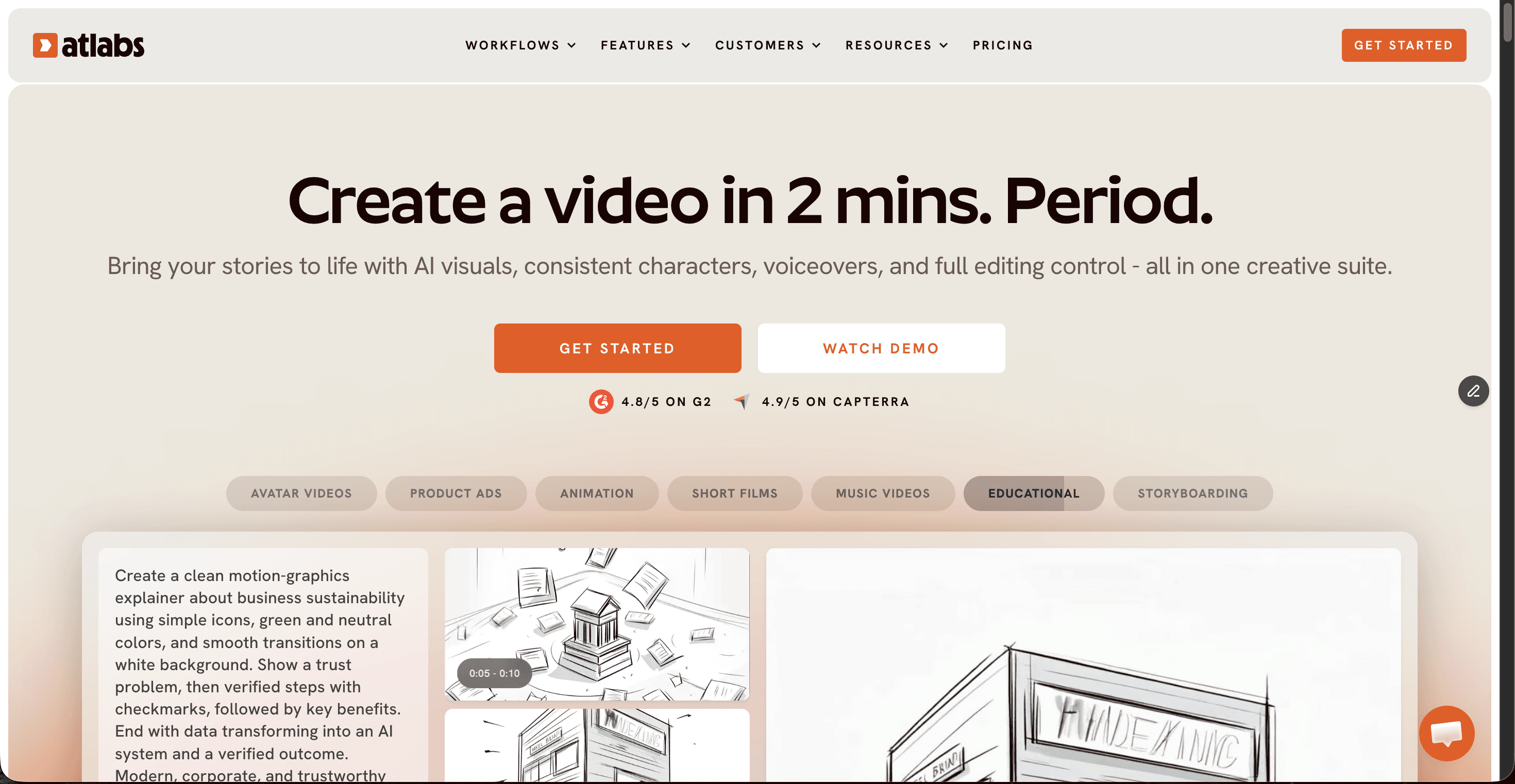
Price: Free plan available with no card. Paid plans start around $15/mo (Lite), Pro is about $29/mo, higher Plus and Max tiers scale up to roughly $189/mo, and Enterprise is custom.
Key points. Most AI video looks fake for one of four reasons: the face changes shape between shots, the motion is stiff, the skin and lighting look plastic, or the voice does not match the mouth. Atlabs attacks all four. It is a multi model platform, so instead of being stuck with one engine you route each shot to whichever model looks most real, Veo 3.1 for photorealistic lighting, Kling for human movement, Seedance for character close ups, Hailuo for physics. A reusable character library keeps the same face, outfit, and world across every scene, which removes the single biggest giveaway in long AI videos. You then get frame level editing and clean voices with accurate lip sync, and you can export the whole project to Adobe Premiere Pro for a final polish.
Pros
Pick the most realistic model for every single shot, no juggling accounts
Character and world consistency across scenes kills the biggest AI tell
Frame level editing plus Premiere Pro export for final polish
Realistic voices, accurate lip sync, and 40+ languages
Genuine free tier and an affordable paid entry point
Cons
Credit based, so heavy generators should watch usage
The depth of features takes a short session to get comfortable with
Verdict: The best overall choice for making AI video look less artificial. Nothing else combines best in class models, cross scene consistency, and true frame level control in one place.
2. Google Veo 3
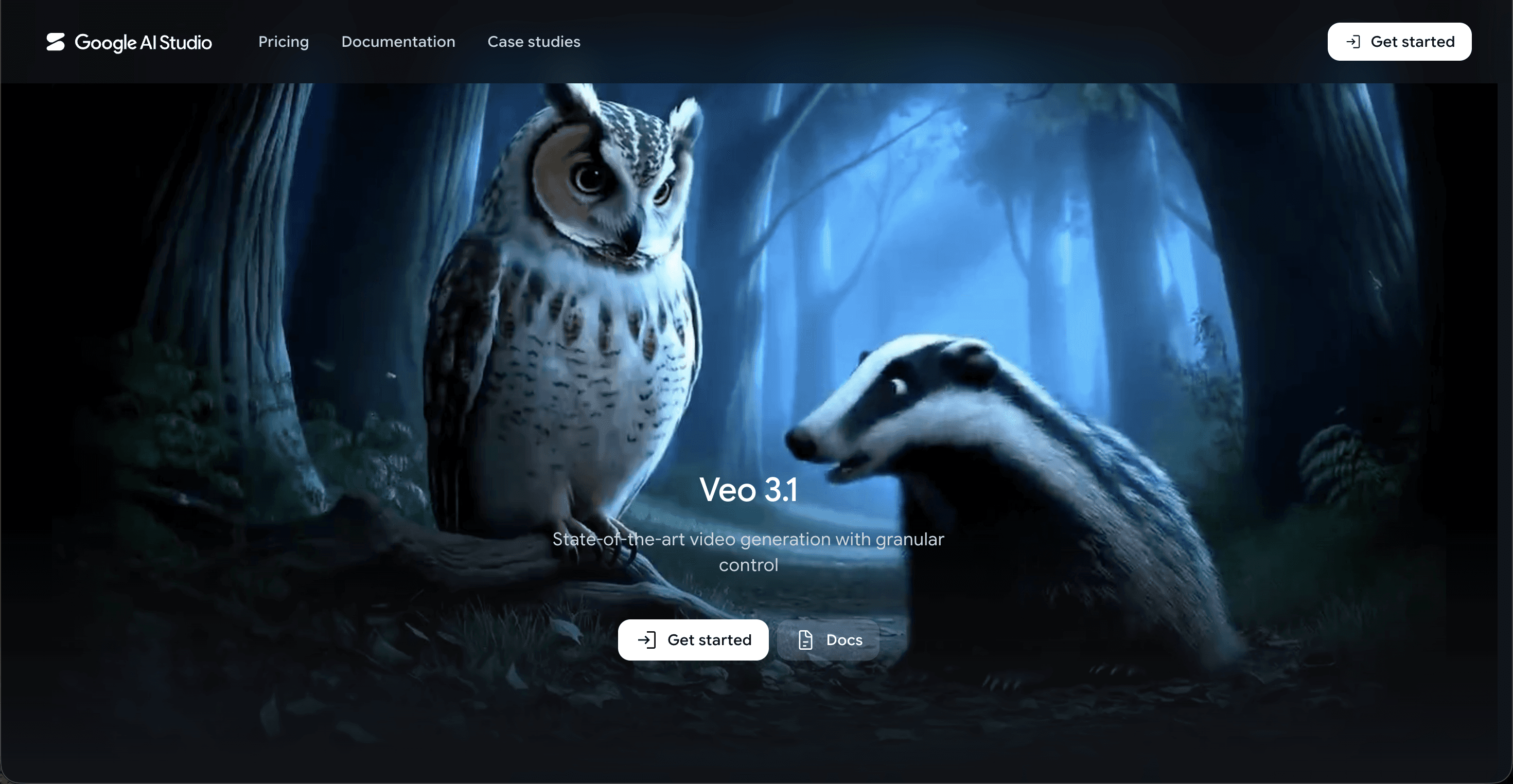
Price: Limited free access through Google Labs and Gemini. Google AI Pro is $19.99/mo (Veo 3.1 Fast) and Google AI Ultra is $249.99/mo for full quality, rolling out in the US first. API pricing is about $0.40 per second. For ads specifically, see the best AI tools to create realistic product ad videos.
Key points. Veo 3.1 sets the bar for pure photorealism. Skin, lighting, and wide establishing shots look convincing, and it generates native synced audio, which few rivals do well. The catch is that the highest fidelity sits behind the $249.99 Ultra plan, access is region limited, and because it is a single model you cannot swap engines when a shot needs different strengths. Holding one character consistent across a longer edit is still manual work.
Pros
Class leading photorealism on single shots
Native synced audio built in
Excellent lighting and clean camera moves
Cons
Full quality gated behind the $249.99 Ultra tier
Region limited availability
One model only, no per shot flexibility or consistency library
Verdict: Reach for Veo when you need one flawless photorealistic hero shot. The Ultra price and single model ceiling make it costly for full videos.
3. Runway
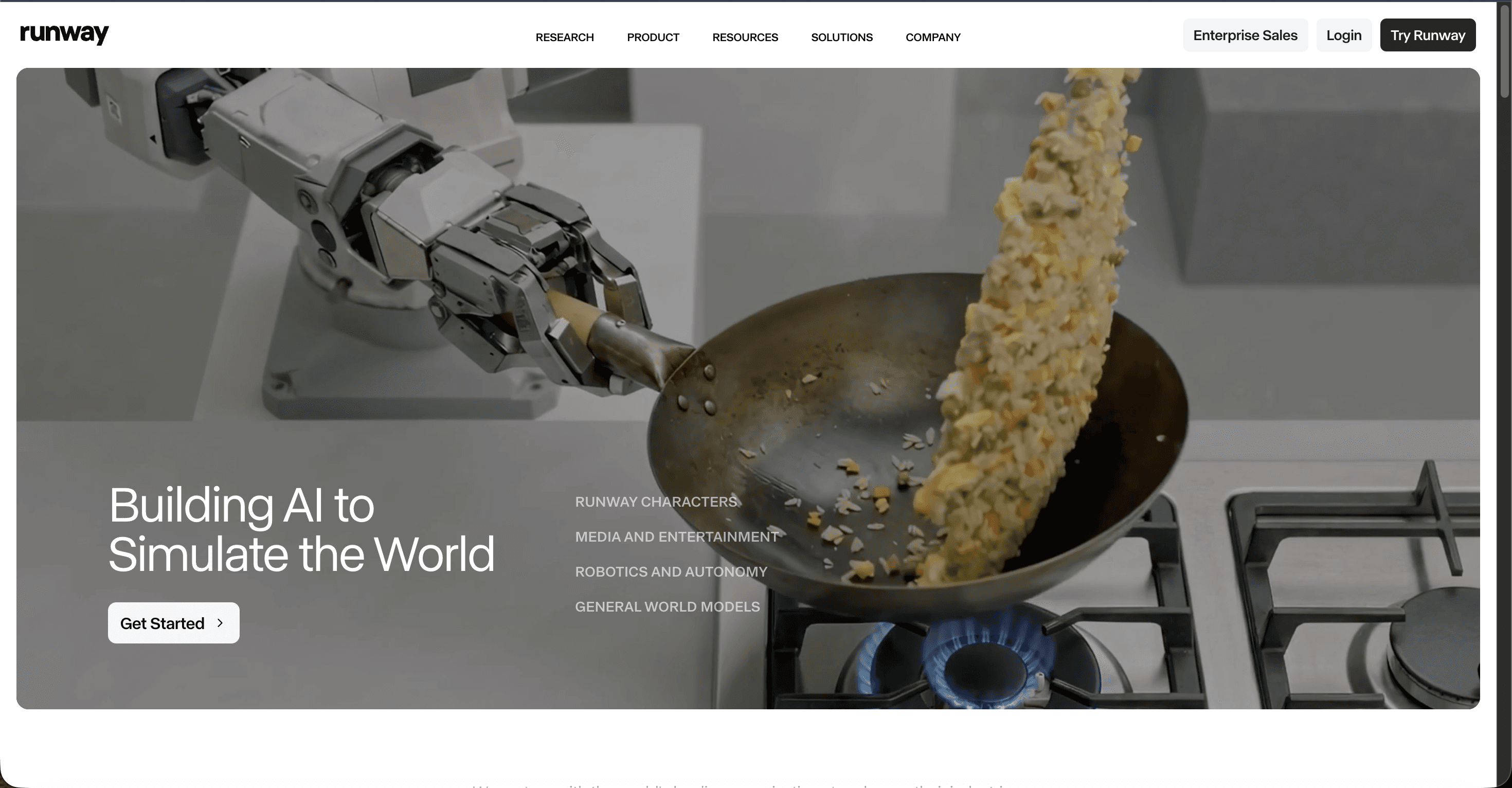
Price: Free plan with 125 one time credits and a watermark. Standard is $15/mo ($12 annual), Pro is $35/mo ($28 annual), Unlimited is $95/mo ($76 annual), and Enterprise is custom.
Key points. Runway (Gen 4.5) is the tool of choice when you want to direct motion by hand. Motion brush, director mode, and frame interpolation give precise control that many professionals prefer, and the interface is clean and fast. Output looks strong, though the credit system moves quickly: 625 Standard credits translate to roughly 25 seconds of Gen 4.5 per month, and regenerated or failed clips still spend credits. Consistency across a long scene is weaker than a dedicated character library.
Pros
Precise, hands on motion control tools
Professional interface creators actually enjoy
Commercial rights on every paid tier
Cons
Credits burn fast at higher quality
Failed or regenerated clips still cost credits
Long scene character consistency is limited
Verdict: Pick Runway when fine manual control over motion matters most. Keep an eye on the credit burn if you iterate a lot.
4. Kling
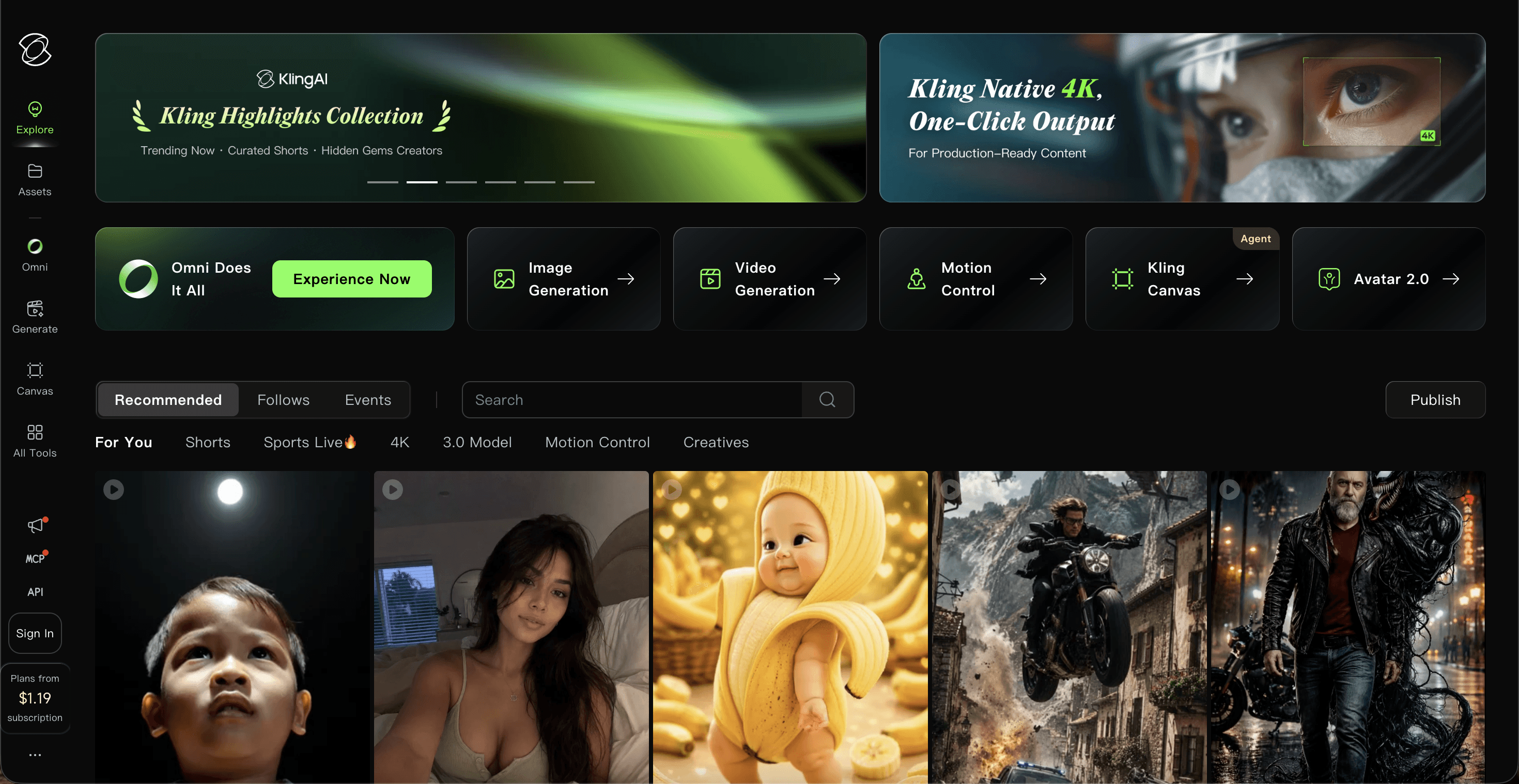
Price: Free tier with 66 daily credits (no commercial use). Standard is about $6.99/mo, Pro about $25.99/mo, Premier about $64.99/mo, and Ultra about $127.99/mo.
Key points. Kling 3.0 produces realistic human subjects and smooth, cinematic movement, and the entry price is one of the lowest here. Paid tiers add 1080p output and commercial rights. The trade off is a credit system that is hard to predict, native audio can cost roughly five times more credits, credits expire monthly, and users report billing and cancellation friction. There is no cross scene character library, so consistency across a full story is manual.
Pros
Realistic human motion and cinematic movement
Very affordable entry tier
1080p and commercial use on paid plans
Cons
Opaque credit costs, especially with audio
Monthly credit expiry and reported billing friction
No character library for cross scene consistency
Verdict: A strong budget option for realistic single clips of people. The credit and billing friction is the price you pay.
5. Hailuo
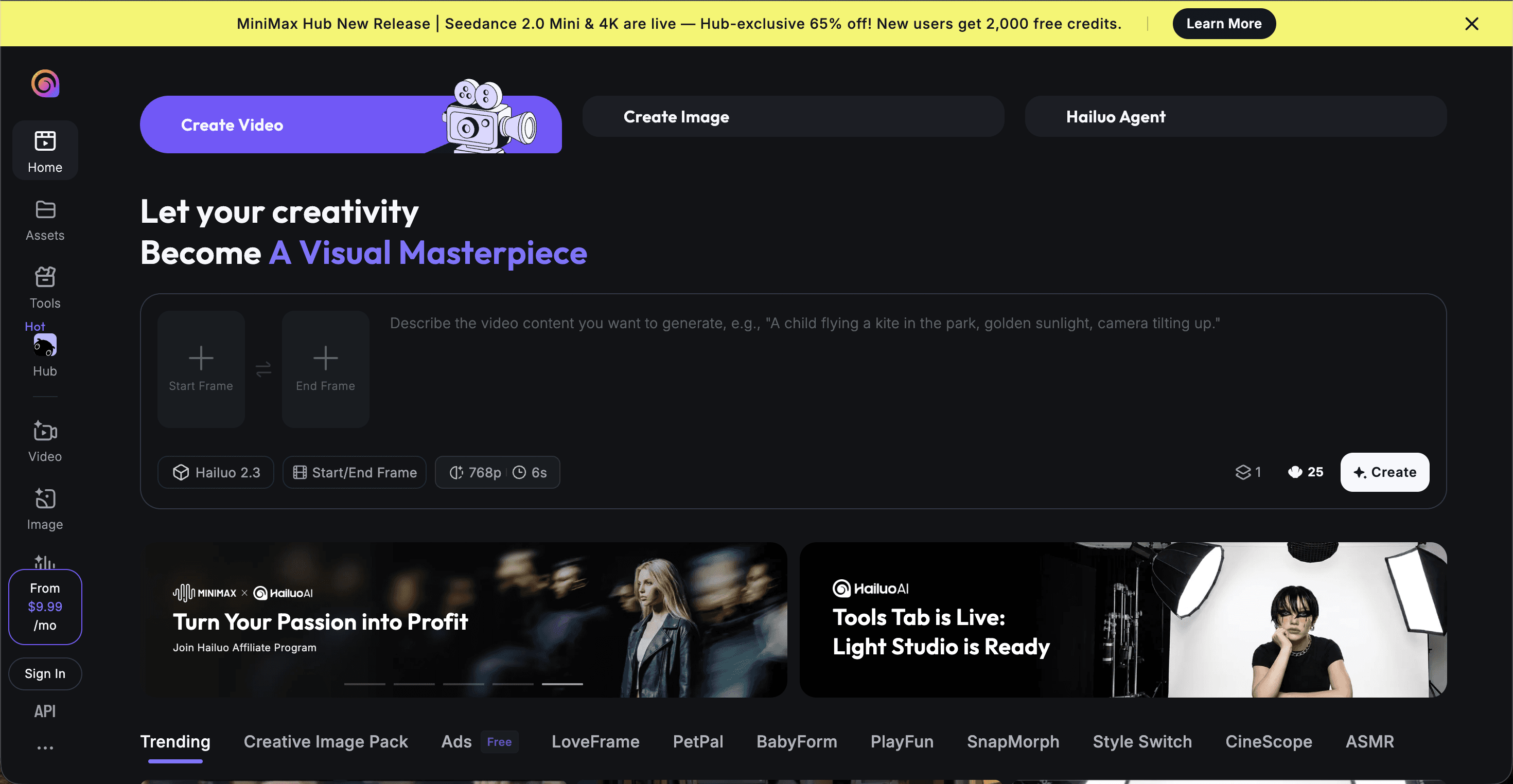
Price: Free daily credits (roughly 3 to 5 videos a day, no commercial use). Standard is about $9.99/mo (promo pricing sometimes $7.99), Pro about $24.99/mo, up to a Max plan at $199.99/mo.
Key points. Hailuo (by MiniMax) ranked first for physics simulation on WorldModelBench, which matters more than it sounds: objects fall, swing, and collide the way real ones do, so motion stops looking cartoonish. The 2.3 model also handles facial micro expressions well, and renders are fast. The limits are clip length (often 6 to 10 seconds), a credit system that punishes experimentation, and no long form or character pipeline, so it suits short realistic moments rather than full narratives.
Pros
Best in class physics and natural motion
Convincing facial micro expressions
Fast generation times
Cons
Short maximum clip lengths
Credits punish heavy experimentation
No long form or character consistency pipeline
Verdict: Ideal for short clips where realistic physics carry the shot. Not built for long, consistent stories.
The realism scorecard
We scored each tool from 1 to 10 on the four traits that decide whether footage looks real, plus value for money. Competitors win individual cells (Veo on pure photorealism, Hailuo on physics), but Atlabs takes the top total because it can use all of them and then fix the tells with real editing.
Tool | Photorealism | Natural motion & physics | Character consistency | Editing control | Value | Total /50 |
|---|---|---|---|---|---|---|
Atlabs | 9 | 9 | 10 | 10 | 9 | 47 |
Google Veo 3 | 9 | 8 | 6 | 5 | 5 | 33 |
Runway | 8 | 8 | 6 | 9 | 6 | 37 |
Kling | 8 | 8 | 5 | 5 | 7 | 33 |
Hailuo | 8 | 9 | 5 | 5 | 7 | 34 |
New to Atlabs? Watch the tutorial first
The fastest way to see how the multi model approach removes AI tells is to follow along. The Atlabs AI Video Academy has free, beginner friendly lessons on characters, image to video, lip sync, and final export. Prefer video? Watch the full step by step Atlabs walkthrough on YouTube.
How we picked
We ranked on the four traits that actually decide whether AI footage reads as real: photorealistic rendering, natural motion and physics, character and world consistency across shots, and frame level control to fix the small tells. We weighed value for money, and we only looked at the highest ranking general purpose tools rather than niche apps, so the list stays useful whatever you are making. The winner is the tool that helps most on all four traits at once, not the one that wins a single benchmark.
FAQ
What makes AI videos look artificial? Four things give it away most often: a face or outfit that shifts between shots, stiff or floaty motion, plastic looking skin and lighting, and audio that does not match the mouth. Fixing consistency and choosing the right model per shot solves most of it.
Which AI tool makes the most realistic AI videos? For full videos, Atlabs, because it uses the most realistic model for each shot and keeps characters consistent throughout. For a single photorealistic shot in isolation, Google Veo 3.1 is the strongest.
Can I make AI videos look real for free? Yes. Atlabs, Kling, and Hailuo all offer free tiers, and Google Veo has limited free access. Free plans usually cap length and add limits, but they are enough to test whether the output looks convincing before you pay.
Do I need editing skills to make AI video look less fake? No. Atlabs includes a simple frame level editor to swap shots and refine details, and you can optionally export to Premiere Pro if you want to fine tune further. The realism mostly comes from consistency and model choice, not manual editing.








