
The fastest way to keep a character consistent across multiple AI-generated kids videos is to build that character once in the Cast step of the Atlabs Animated Video workflow. Atlabs locks a multi-angle reference sheet for every character you cast, then reuses that same identity automatically in every scene, every new video, and every future episode. You never re-describe your character in a text prompt again, and you never get a bunny with a different face in episode two.
5 Steps to Lock In Consistent Characters:
Write your story or script – paste it in or let AI brainstorm one for you
Cast your characters once – design each character and generate its reference sheet
Lock one visual style – pick a style and never switch mid-series
Reuse the same cast in every new video – load your saved characters instead of redescribing them
Direct and export – fine-tune scenes, then export knowing every character matches
Why Character Consistency Matters for Kids Content
Kids notice faces before they notice plots. A toddler watching a counting rhyme or a bedtime story channel recognizes the bunny, the duckling, or the sleepy bear before they recognize the channel name. If that character's face, colors, or proportions shift between videos, the channel feels unfamiliar, and young viewers and their parents click away. For a channel publishing weekly, or a studio building a multi-episode series, character drift is the single biggest thing that breaks the illusion of a real, ongoing show. Consistency is what turns a batch of unrelated animated clips into a recognizable cast that kids ask to see again.
Step 1: Write Your Story or Script
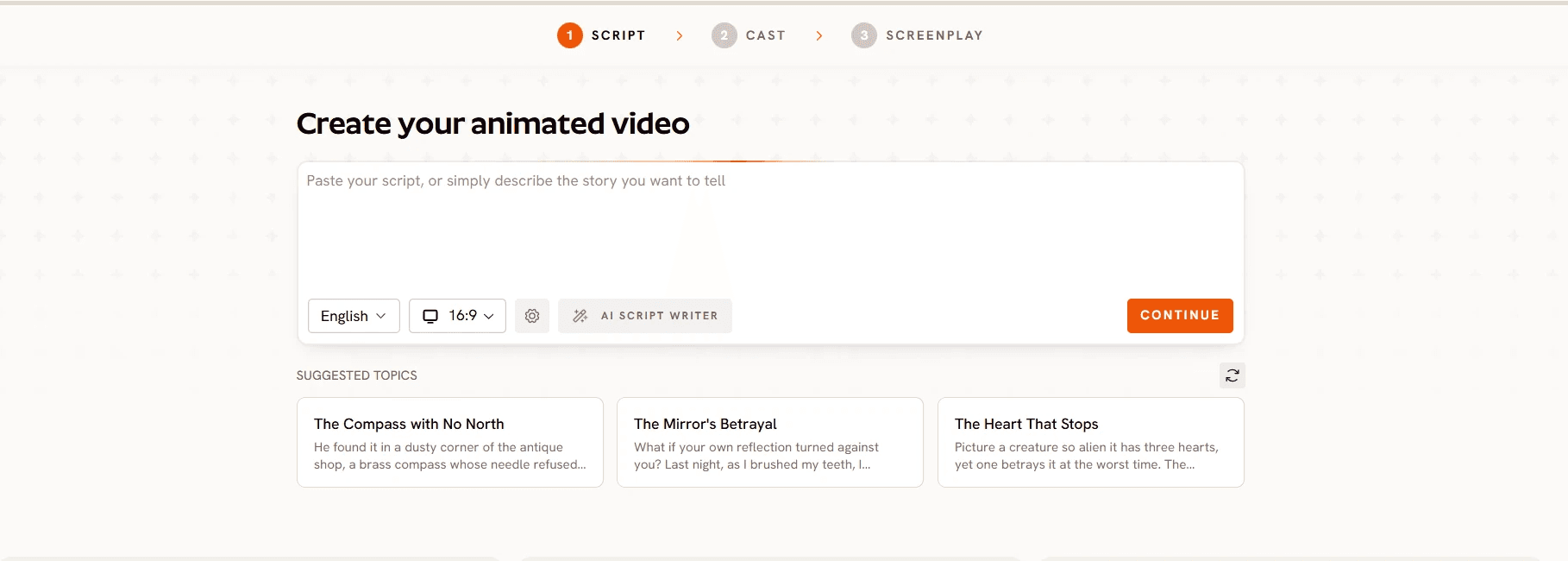
Every animated video starts with a Story Concept. Paste in a full screenplay if you have one, or type a short idea and let the built-in AI Script Writer brainstorm and expand it into a scene-ready story. For a kids series, keep each episode's script built around the same small cast rather than introducing a new character every time, since that is what makes Step 2 pay off across many videos instead of just one.
Best For: Nursery rhyme channels, storybook series, and any kids content published on a recurring schedule.
Step 2: Cast Your Characters Once
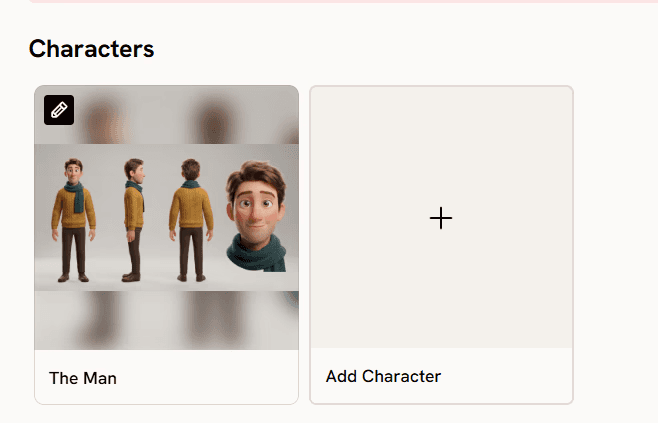
This is the step that actually solves consistency. In the Cast step, define each character's look, from species or body type to clothing and expression. Atlabs generates a full reference sheet with multiple angles and a portrait for that character, and that reference sheet is what every future scene, and every future video, pulls from. A duckling designed here keeps the same yellow feathers, the same eyes, and the same outfit whether it appears in scene one of today's video or scene four of next month's episode.
Key Features
Multi-Angle Reference Sheet – Each cast character is generated with several angles and a clear portrait, so the AI has a full picture of the character rather than a single flat image to guess from.
Locked Identity Across Scenes – Once a character is cast, its face, proportions, and outfit stay identical from scene one to scene one hundred, instead of subtly reshaping with every new generation.
Reusable Across Episodes – A cast character is not tied to a single video. Save it, then load the same cast into your next story to keep a series going with the exact same faces.
Character: A small round duckling with bright yellow feathers, oversized curious eyes, a tiny red bow tied around its neck, and a cheerful open-beak expression. Consistent across every scene: same feather color, same bow, same size relative to the background.
Step 3: Lock One Visual Style
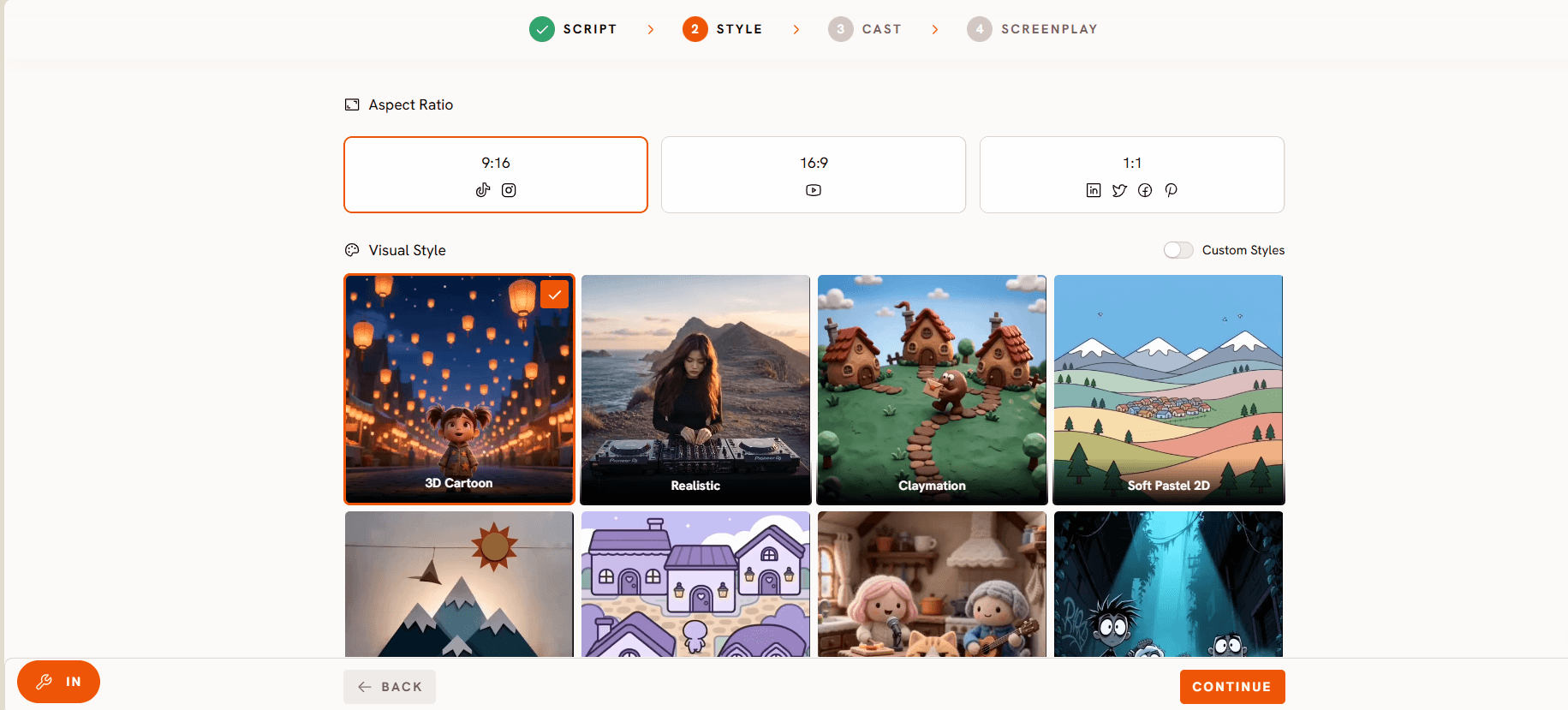
Pick a visual style before you generate your first scene, and keep it fixed for the whole channel or series. Cinematic, 3D Cartoon, and Webtoon are the core style options, and for young audiences a Pixar-style 3D look tends to read as the warmest and most instantly recognizable. Switching styles between videos undoes character consistency even when the same cast is loaded, since a character rendered as 3D Cartoon in one video and Webtoon in the next will not look like the same character to a five-year-old.
Best For: Any creator publishing more than one video with the same characters, from a two-part story to a long-running series.
Step 4: Reuse the Same Cast in Every New Video
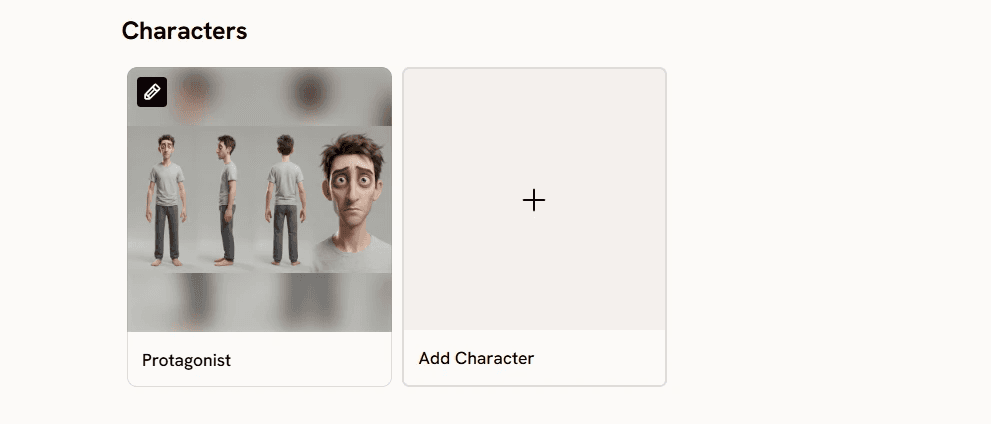
When you start a new story, load your saved cast instead of describing the character again from scratch. This is the habit that separates a channel with a real recurring cast from a channel that happens to reuse similar-sounding prompts. Because the reference sheet already exists, generation is faster too, since Atlabs is matching an established identity rather than interpreting a fresh description.
Best For: Weekly upload schedules, multi-episode series, and any studio producing more than a handful of videos with the same characters.
Step 5: Direct, Tweak, and Export Consistently

Once scenes are generated, use the frame-level editing controls to adjust motion, timing, and framing without touching the character's design. Export in the aspect ratio your platform needs, 9:16, 1:1, or 16:9, and keep that choice consistent across a series the same way you keep the cast and style consistent. If a scene ever looks slightly off from the reference sheet, fix it here rather than re-describing the character, which keeps the identity locked instead of reopening the door to drift.
Best For: Final polish before publishing, and for creators exporting into Premiere Pro for additional edits.
Common Mistakes That Break Character Consistency
Changing visual style mid-series. Even a locked cast will look like a different character once the rendering style around it changes.
Re-describing the character in text instead of loading the saved cast. Typing a fresh description every video reintroduces the exact drift the Cast feature is built to remove.
Skipping the reference sheet review. Look over the multi-angle sheet before generating scenes. A small fix here saves fixing it across every scene of every future video.
Mixing aspect ratios across a series. Inconsistent framing makes a channel feel unplanned even when the character itself is stable.
Adding new characters without casting them properly. A background character that appears often enough to be recognizable should get its own cast entry, not a text description reused by memory.
Final Verdict
Character drift is the fastest way to make a kids channel feel unfinished, and it is almost always a workflow problem, not a generation-quality problem. The fix is not better prompting, it is not re-describing a character more carefully each time. It is casting the character once, generating a real reference sheet, locking one visual style, and reusing that same cast in every video after. The Atlabs Animated Video workflow builds that habit into the product itself, so a recurring cast is the default outcome of using the tool correctly, not something a creator has to fight for.
Frequently Asked Questions
How do I keep the same cartoon character in every video?
Cast the character once in the Animated Video workflow's Cast step. Atlabs generates a multi-angle reference sheet for that character and reuses it automatically in every scene, so you never need to redescribe it for a new video.
Can I reuse a character across multiple episodes or a full series?
Yes. A cast character is saved and can be loaded into any new story, which is how a multi-episode kids series keeps the same faces from episode one through the finale.
Does changing visual style break character consistency?
Yes. A character cast under 3D Cartoon will not read as the same character if a later video is generated in Webtoon or Cinematic style. Pick one visual style for the whole channel or series and keep it fixed.
How many characters can I cast in one video?
You can cast multiple characters for a single story, which matters for kids content with a recurring group rather than one solo character, such as a small cast of animal friends.
Do I need to redesign my character for each new episode?
No. Once a character is cast and its reference sheet is generated, load that same cast into every new episode instead of rebuilding the design from scratch.








