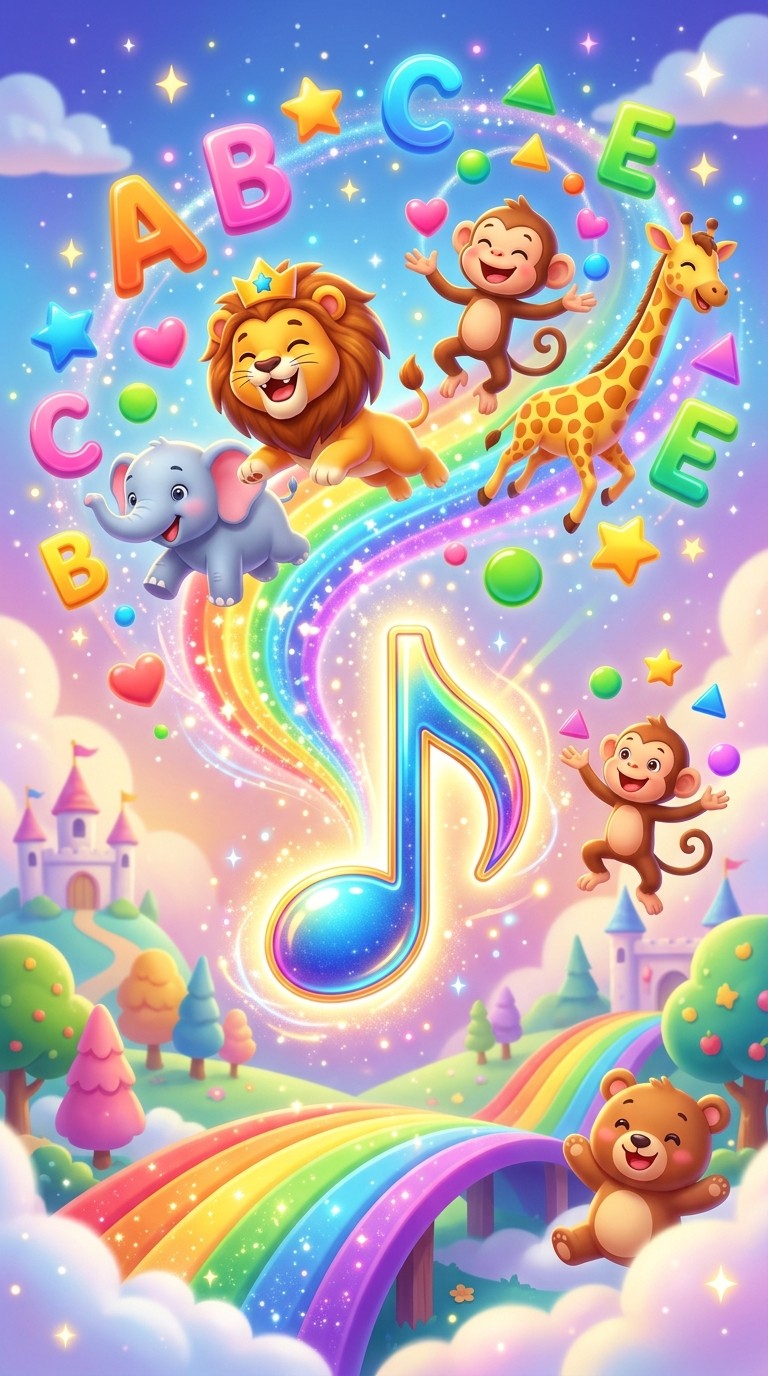
You have a kids jingle. Maybe it is a simple counting song, a phonics track, a nursery rhyme you wrote yourself, or a branded tune for a children's product. The audio exists. What is missing is the video that makes children actually watch it, learn from it, and ask to see it again. Hiring an animator for a two-minute kids video runs into thousands of dollars and several weeks of back-and-forth. Atlabs compresses that into a workflow you complete in a single session, producing a fully animated kids video from your audio with a visual style tailored to young audiences.
Why Animated Jingle Videos Matter for Kids Content Creators
Children do not separate the song from the visual experience. A jingle that plays over a static image holds attention for seconds. The same jingle paired with bright animated characters and a story that moves with the beat holds attention for the full duration and often triggers a replay. This is not a design preference. It is how children actually process audio and visual information together, and every children's content creator working on YouTube, educational apps, or streaming platforms knows it.
The production bottleneck has always been animation. Commissioning frame-by-frame animation for a three-minute jingle video requires a studio, a brief, storyboards, revisions, and a timeline measured in weeks. The tools that existed for independent creators before AI video arrived either produced generic results with no character or required motion graphics skills that most educators and content creators simply do not have.
What Atlabs provides is a workflow where the audio drives everything. You upload the jingle, tell Atlabs the mood and tempo, choose a visual style designed for children, describe the characters and world you want the video to inhabit, and the platform generates original animated scenes that fit the track. The output is not a template with your logo dropped in. It is a unique animated video built around your specific audio.
This matters for children's YouTube channels building a library of educational content, for independent musicians producing nursery rhymes and kids albums, for app developers and EdTech companies who need video content without animation budgets, and for parents and teachers who want original content tied to a specific learning moment or brand.
The Atlabs Workflows for Kids Jingle Videos
The primary workflow is Music Video at app.atlabs.ai/new-music. This four-step workflow takes your audio file from upload to a complete animated video. The visual style library includes options built specifically for young audiences, including 3D Cartoon, Clay, Modern Cartoon, Storybook, Animation, and Flat 2D Modern. The Creative Direction step lets you define the visual world and narrative of the video, and the Finalise Cast step lets you name and describe the characters who appear throughout.
For jingle videos built around a script or educational narrative, the Script to Video workflow, accessible from the app dashboard at app.atlabs.ai/app, lets you build the video scene by scene from a written script. You can add dialogue blocks, define character voices, and structure each scene with a specific location, time of day, and sequence of shots. This works best when the educational content has a story structure rather than a single continuous music track.
Step-by-Step: Creating a Kids Jingle Video in Atlabs
Step 1: Add Your Jingle
Open the Music Video workflow at app.atlabs.ai/new-music and upload your audio file. Atlabs analyses the track immediately and auto-detects four properties: Language, BPM, Mood, and Genre.
For a typical kids jingle, the auto-detected BPM will land on Slow Tempo or Mid Tempo. Most children's songs sit in a deliberate, singable range rather than a fast one, and the tempo detection reflects that. The Mood field will often detect Uplifting or Chill for a standard nursery rhyme, though a more energetic activity song might surface Party Energy or Euphoric. Genre tends toward Pop, Folk, or Classical depending on the instrumentation.
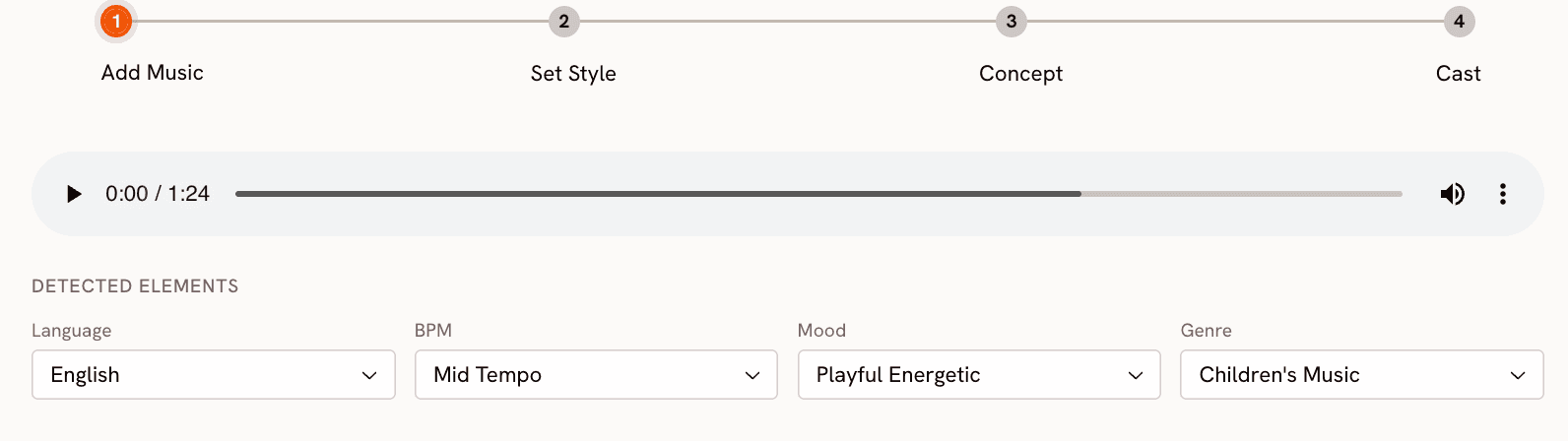
[Screenshot: The Add Music step showing an uploaded kids jingle with Language set to English, BPM set to Mid Tempo, Mood set to Uplifting, and Genre set to Pop]
Step 2: Choose a Kid-Friendly Visual Style
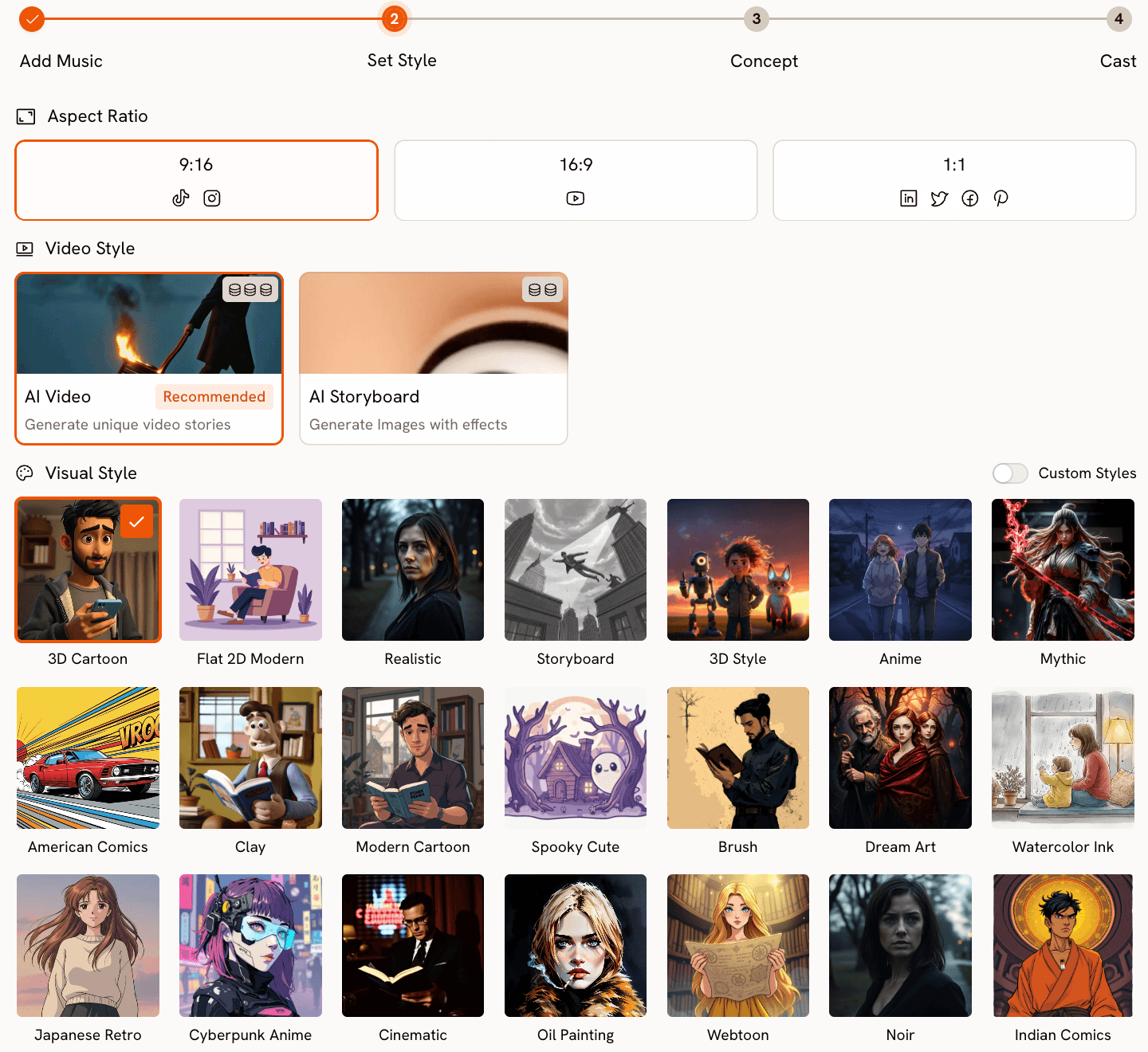
The Set Style step has three decisions: Aspect Ratio, Video Style, and Visual Style.
Set Video Style to AI Video, which is the recommended option and generates animated scenes with real motion and narrative progression rather than static images. This is essential for keeping young viewers engaged across the full duration of the jingle.
The Visual Style choice is where you define the look of your video for a young audience. The options best suited to children's content are 3D Cartoon, which produces bright, rounded characters with a Pixar-adjacent feel; Clay, which gives everything a tactile, handmade quality that children find instantly appealing; Modern Cartoon, which is clean and expressive in a contemporary flat style; Storybook, which produces illustrated scenes that feel like pages from a picture book; and Animation, which delivers a classic hand-drawn quality. Flat 2D Modern works well for educational content that needs to feel clean and approachable rather than playful.
Step 3: Set the Creative Direction
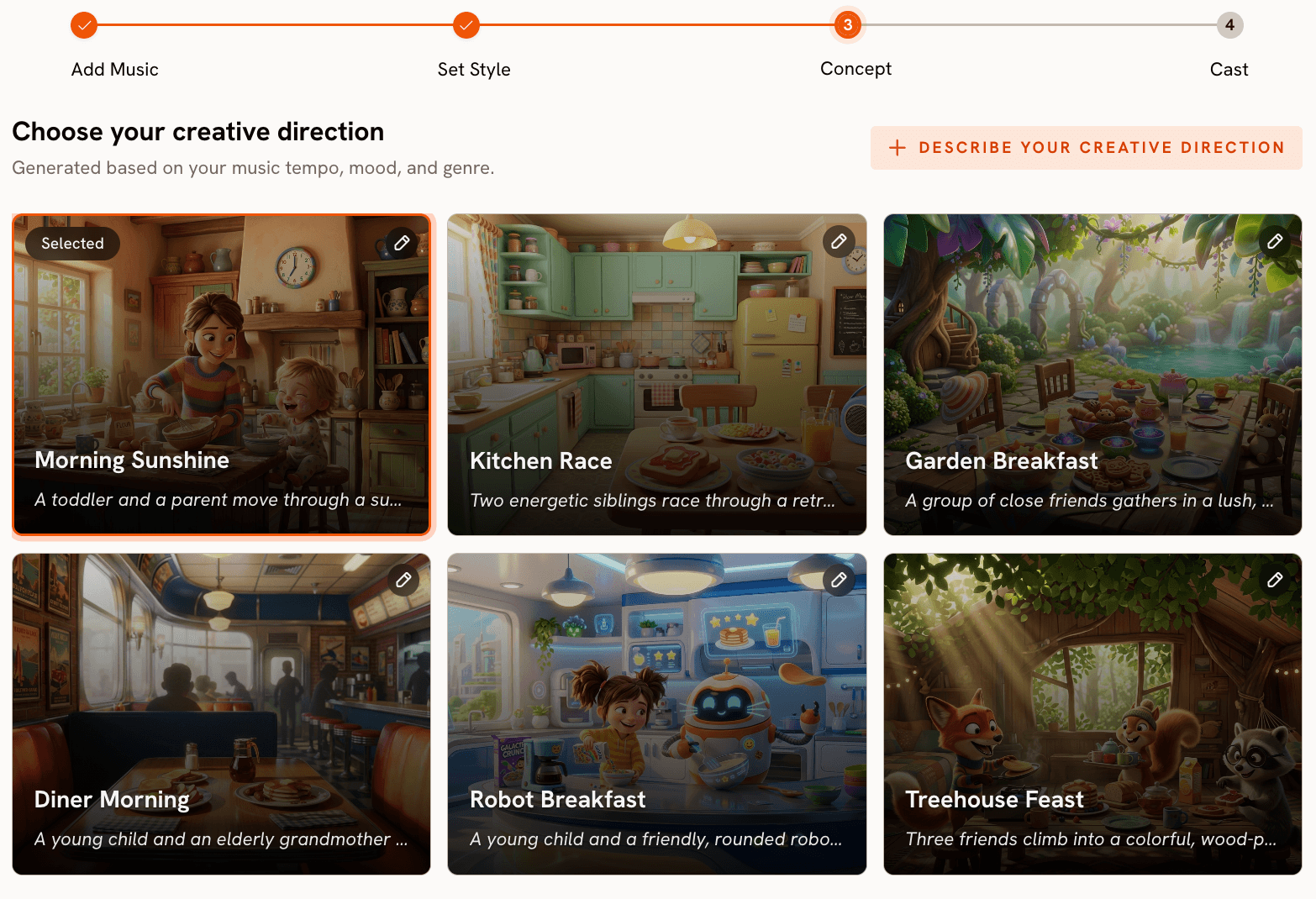
Atlabs generates six scene concepts automatically based on the tempo, mood, and genre you set in Step 1. For an Uplifting Mid Tempo Pop track, you might see concepts like "Sunlit Meadow Adventure" tagged as Bright, Playful, and Warm, or "Colourful Learning Day" tagged as Cheerful, Curious, and Energetic. Browse all six and select the one that fits the visual world you want for your jingle.
If none of the six concepts captures what you have in mind, click "Describe your Creative Direction." The custom concept form gives you a Title field, a Description field, mood tags, and an Enhance toggle. For a kids jingle about counting, you might write a concept like "Number Friends" with a description of bright animated numerals with faces moving through a colourful classroom environment. For a jingle about animals, you might describe a safari scene with illustrated animals performing alongside the track. The Enhance toggle refines your description before generation begins.
Start your kids jingle video at https://app.atlabs.ai/new-music
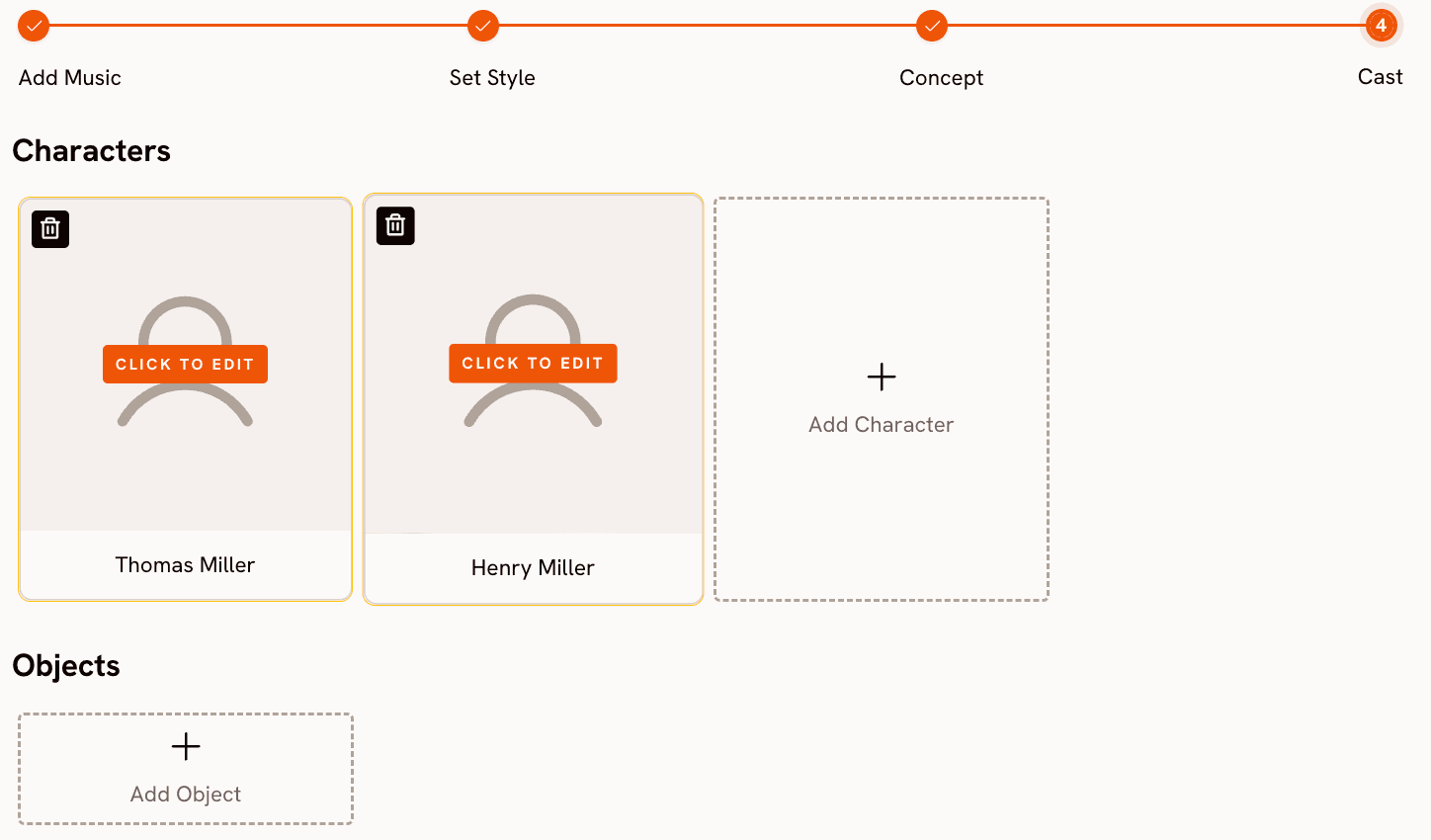
Step 4: Finalise Cast
The Finalise Cast step is where you define the characters who appear throughout the video. For a kids jingle, this might be a single host character, a group of animal friends, or a cast of numbered or lettered characters depending on the educational content of the song.
Name each character and write a description that specifies what they look like in the context of the Visual Style you chose. If you selected 3D Cartoon, describe the character as round, bright-coloured, and expressive. If you selected Clay, describe them as textured and tactile. The description does not need to be long, but it does need to be specific. A character described as "a small blue bear with a round belly and a yellow scarf" will appear more consistently across scenes than one described simply as "a bear."
Step 5: Add Lip Sync for Singing Characters (Optional)
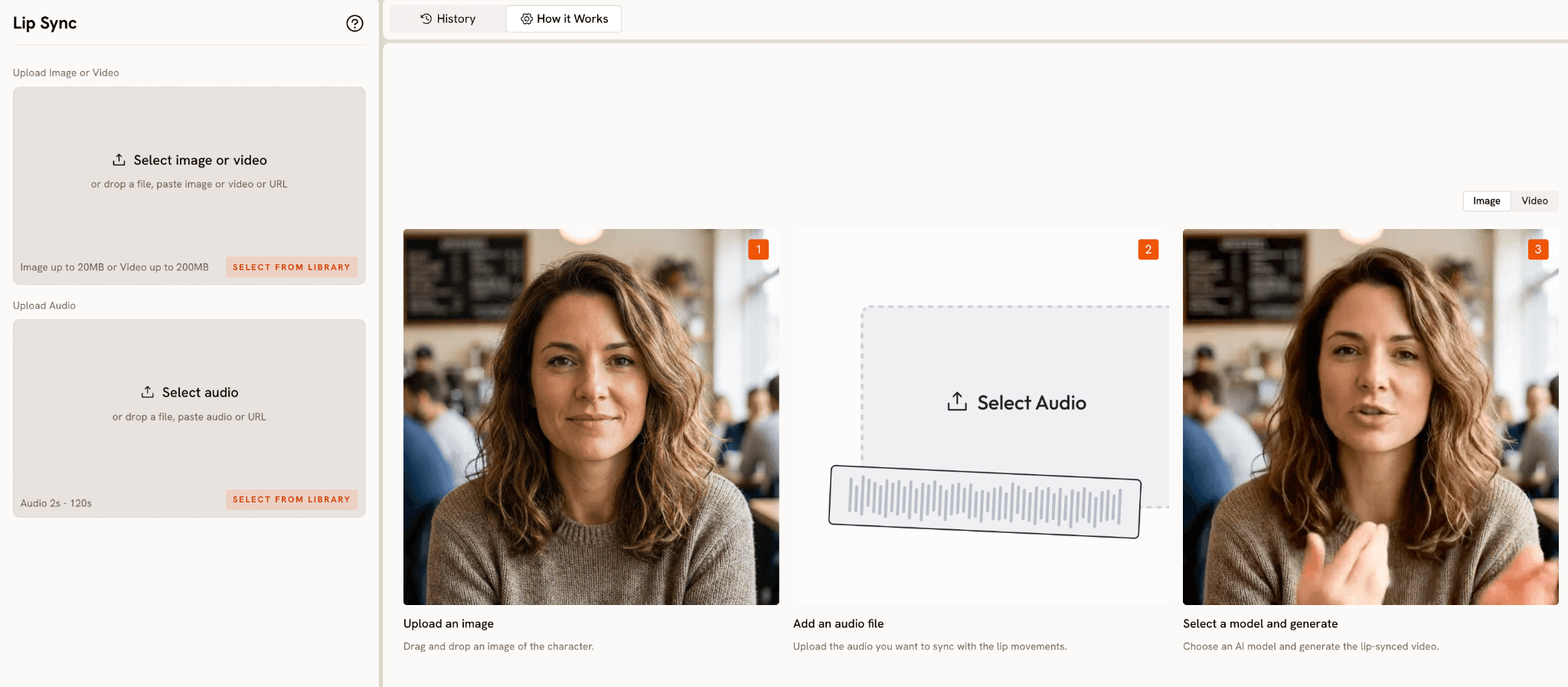
If your jingle features a character who sings or speaks directly to the viewer, take the video output from Music Video into Lip Sync at app.atlabs.ai/lip-sync. Upload the video output as your image or video input, and upload the jingle audio as the audio input. Atlabs accepts audio between 2 and 120 seconds and video up to 200MB.
The tool maps the vocal track to the character's lip movements and produces a synchronised result. For kids content, this is the step that transforms a character from a moving illustration into something that feels genuinely interactive and present. Children respond strongly to characters who appear to be speaking or singing directly to them, and Lip Sync creates exactly that impression without any frame-by-frame animation work.
See it in action: Here is a real kids jingle video generated entirely with Atlabs, a bright and singable Milk Song for young children. Watch the Milk Song on YouTube Shorts.
Why Atlabs Works Well for Kids Jingle Content
The most important reason is the integration between audio detection and scene generation. When you upload a kids jingle, Atlabs reads the tempo, mood, and genre before generating any visuals. A slow lullaby and an energetic counting song produce completely different scene concepts because the platform is responding to what the audio actually sounds like, not applying a generic template. The visual pacing, the energy of the characters, and the feel of the environment are all shaped by the audio properties Atlabs detects in Step 1.
The Visual Style library includes multiple options that are specifically designed for young audiences in ways that general-purpose AI video tools are not. 3D Cartoon, Clay, Storybook, Modern Cartoon, and Animation are not just style filters applied to generic video generation. They define the rendering approach for every character, every background, and every scene transition in the video. A kids channel that needs consistent visual identity across ten different jingle videos can select the same Visual Style for every generation and know the output will feel like a coherent series.
The Finalise Cast step provides character consistency across scenes, which is something parents and educators notice immediately. When a learning video introduces a character in scene one and that character looks different in scene four, young viewers disengage. By defining each character through a detailed description, you give Atlabs a stable reference point to maintain throughout the generation. Combined with the Lip Sync tool, the result is a character who looks the same, moves to the music, and appears to sing along, which is the combination that makes kids ask to watch it again.
Custom Creative Directions to Try in Atlabs
Each of the following prompts is written for the Creative Direction step in the Music Video workflow or as a character description in the Finalise Cast step. They are specific enough to generate strong results immediately.
A cheerful woodland scene where three small animal friends, a rabbit, a fox, and an owl, dance together in a sunlit forest clearing. The trees are round and bright green. The sky is a soft, glowing blue. Each animal moves with the beat, bouncing lightly on each bar. Mood is Uplifting and Playful. Visual style is 3D Cartoon.
Try this in Atlabs Music Video
A brightly lit classroom where animated letters of the alphabet come to life one by one, each letter represented by a small character with a face and arms. The classroom has a chalkboard, colourful desks, and large windows showing a sunny day outside. Mood is Cheerful and Curious. Visual style is Flat 2D Modern.
Try this in Atlabs Music Video
A rolling green hillside with a friendly sun in the top corner and fluffy white clouds floating past. A small child character with curly red hair and a yellow raincoat walks along a winding path, stopping to interact with oversized flowers, butterflies, and a wooden signpost. Mood is Dreamy and Chill. Visual style is Storybook.
Try this in Atlabs Music Video
A cosy kitchen scene where a round, clay-textured bear with a striped apron counts along as fruits and vegetables appear one at a time on a wooden table. Each item pops into frame with a bounce. The lighting is warm and the textures are soft and tactile throughout. Mood is Uplifting and Chill. Visual style is Clay.
Try this in Atlabs Music Video
An underwater world in soft pastel blues and greens where animated fish swim in time to the music. Bubbles rise steadily from the seafloor. A friendly octopus in the centre waves all eight arms in rhythm. Coral formations in pink and orange frame the scene. Mood is Dreamy and Euphoric. Visual style is Modern Cartoon.
Try this in Atlabs Music Video
A small round character with a big expressive face and stubby arms sits on a bright red stool facing the camera directly, singing along to the track. The background is a simple yellow wall with hand-drawn stars. The character sways left and right on every beat. Use Lip Sync to synchronise the mouth movements to the vocal track after generation.
Try this in Atlabs Lip Sync
A cheerful kitchen scene where a dancing glass of milk wearing a tiny bow tie bounces to a simple, upbeat jingle. Colourful milk cartons cheer from the sides of the frame. Each chorus brings a splash of white milk that transforms into stars. A small child character claps along in the foreground. Mood is Uplifting and Party Energy. Visual style is 3D Cartoon. (Inspired by the real Atlabs output seen at youtube.com/shorts/MNLJ86-g3C0)
Try this in Atlabs Music Video
A nighttime sky with animated stars that light up one at a time as the jingle counts from one to ten. Each star has a small sleeping face. A crescent moon in the corner blinks slowly. The scene is soft, dark blue, and quiet. Mood is Reflective Calm and Dreamy. Visual style is Animation.
Try this in Atlabs Music Video
Pro Tips for Better Kids Jingle Videos
Set your Mood field manually rather than relying entirely on auto-detection for shorter tracks. Jingles under 60 seconds can sometimes be detected with a less precise mood because the AI has limited audio to analyse. If your jingle is a lullaby, manually set the mood to Dreamy or Reflective Calm. If it is an action song, set it to Party Energy or Uplifting. The difference in the scene concepts you get back is significant.
Write character descriptions at the level of detail a children's book illustrator would use. Specify the shape of the face, the size of the eyes relative to the head, the colours of the clothing, and any accessories or props the character typically carries. Kids content creators often get the strongest character consistency when they treat the description like a visual brief. For a Clay style video, also describe the texture and material quality you want: "soft, rounded, slightly uneven edges like real clay" signals the rendering approach more precisely than a physical description alone.
For educational jingle content that introduces a concept, like numbers, letters, shapes, or colours, use the Finalise Cast step to define the concept itself as a character. A number seven can be a tall purple character with a pointed hat. The letter B can be a round green character with two bumps on its back. Casting abstract concepts as characters gives the jingle video a teaching device that young viewers find memorable and that parents recognise as effective because it links the visual form of the concept to a personality.
Frequently Asked Questions
What audio formats does Atlabs accept for the jingle upload?
The Music Video workflow accepts standard audio file formats. For best results, upload a clean, finished mix of your jingle rather than a rough demo. The quality of the audio analysis in Step 1 depends on the clarity of the track, and a well-mixed file gives Atlabs more accurate tempo, mood, and genre data to work with.
Can I use Atlabs to create a series of jingle videos with the same characters?
Yes. The Finalise Cast step lets you define characters by name and description, and using the same descriptions across multiple Music Video generations produces consistent results. For a series of ten learning songs with the same mascot character, write a detailed description of that character once and reuse it in every generation. The Visual Style selection should also stay consistent across the series.
Does Lip Sync work with characters generated by the Music Video workflow?
Yes. Take a frame or short clip from your Music Video output and upload it as the image or video input in Lip Sync. Upload the jingle audio as the audio input. Atlabs maps the vocal track to the character's mouth movements. For the cleanest result, use a clip where the character's face is clearly visible and facing forward or at a slight angle.
What aspect ratio should I use for YouTube Kids content?
Use 16:9 for standard YouTube Kids uploads, as this fills the full screen on most devices and matches the platform's native player. If you are also distributing the content through Instagram Reels or TikTok targeting parents, run the 16:9 output through the Reframe tool at app.atlabs.ai/reframe to convert it to 9:16 without cropping the character or key visual elements.
Final Verdict
The barrier to producing a professional-quality animated kids jingle video has always been animation cost and turnaround time. Atlabs removes both. The Music Video workflow takes your audio and generates a complete animated video from it in a single session, with visual styles designed specifically for young audiences and a cast system that keeps your characters consistent across every scene.
For channels and creators who need volume, the workflow is repeatable. Each jingle in a series follows the same four steps, uses the same character descriptions, and outputs in the same format. For creators who need a host character who sings directly to the viewer, Lip Sync adds that in one additional step after the video generates.
Start with one jingle you already have. Upload it, pick a visual style from the kids-friendly options, describe your characters in specific terms, and generate. The first video will show you exactly how far the workflow can take your content.
Try Atlabs free at https://www.atlabs.ai/








