
To generate realistic human motion with AI, you start with a single still image of your character, animate it inside Atlabs using a realistic model like Kling 3.0 or Google Veo 3.1, then refine the movement with Motion Control so the body moves like a real person. This works without animation software, without a motion capture suit, and without rigging. The whole process takes about 10 minutes and needs only one image and a clear prompt describing the motion you want.
Why AI Human Motion Usually Looks Fake
Most AI video looks off for the same few reasons. Hands drift or gain extra fingers, feet slide instead of pushing off the ground, and the walk cycle floats because the model never learned real weight and balance. Faces also morph between frames when the character is not locked to a reference image. The fix is to control the motion instead of hoping the model guesses it. A realistic model like Kling 3.0 gives you believable weight and smooth movement, a specific prompt tells the model exactly how the body should move, and Motion Control lets you copy real human movement from a phone clip, so the timing and physics come from an actual person rather than a guess.
What You Will Need to Start Free
You need three things to begin. First, an Atlabs account, which gives you every video and image model in one place instead of separate tools. Second, a still image of the person or character you want to move. You can upload your own photo or render, or make one inside the Create Image app. Third, about 10 minutes and a clear idea of the motion you want, such as walking, dancing, waving, or turning to speak. No editing skills are required, and you never touch a timeline.
🎥 Prefer to watch? See the full Atlabs tutorial.
How to Generate Realistic Human Motion With AI, Step-by-Step
The full process runs across a few short apps inside Atlabs, and you move through them in one session. Each step below starts with the exact action to take, so you can follow along in your own account while you read. Run them in order the first time, then reuse only the steps you need once your character and motion are dialed in.
Create or upload your still image. Upload a photo or render of your character, or generate one in the Create Image app, which runs on the Nano Banana model. A clean, well-lit image with the full body visible gives the smoothest motion.
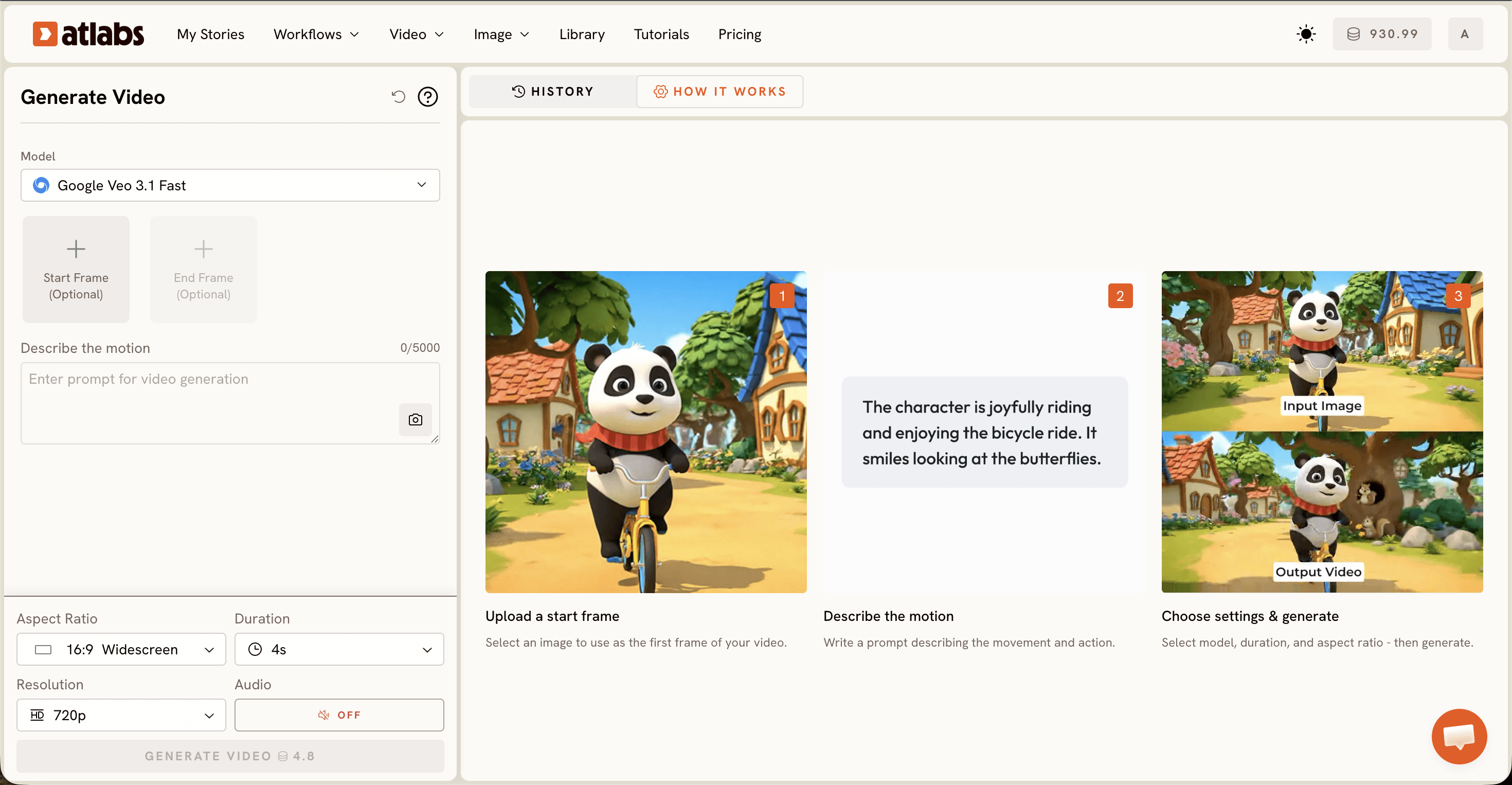
Open Image to Video and add your still. Drop your image into the workflow, then pick a realistic model. Choose Kling 3.0 for cinematic motion, realism, and smooth movement, or Google Veo 3.1 for photorealism and wide establishing shots.
Describe the motion in the prompt box. Write the body action, the pace, and the camera move in one clear line. Specific direction like natural gait, relaxed arm swing, and slow tracking shot produces far more believable movement than a single word.
Generate the clip and review the motion. Watch the hands, feet, and walk cycle first, since these are where AI motion usually breaks. If a limb warps or the gait looks stiff, regenerate with a tighter prompt before moving on.
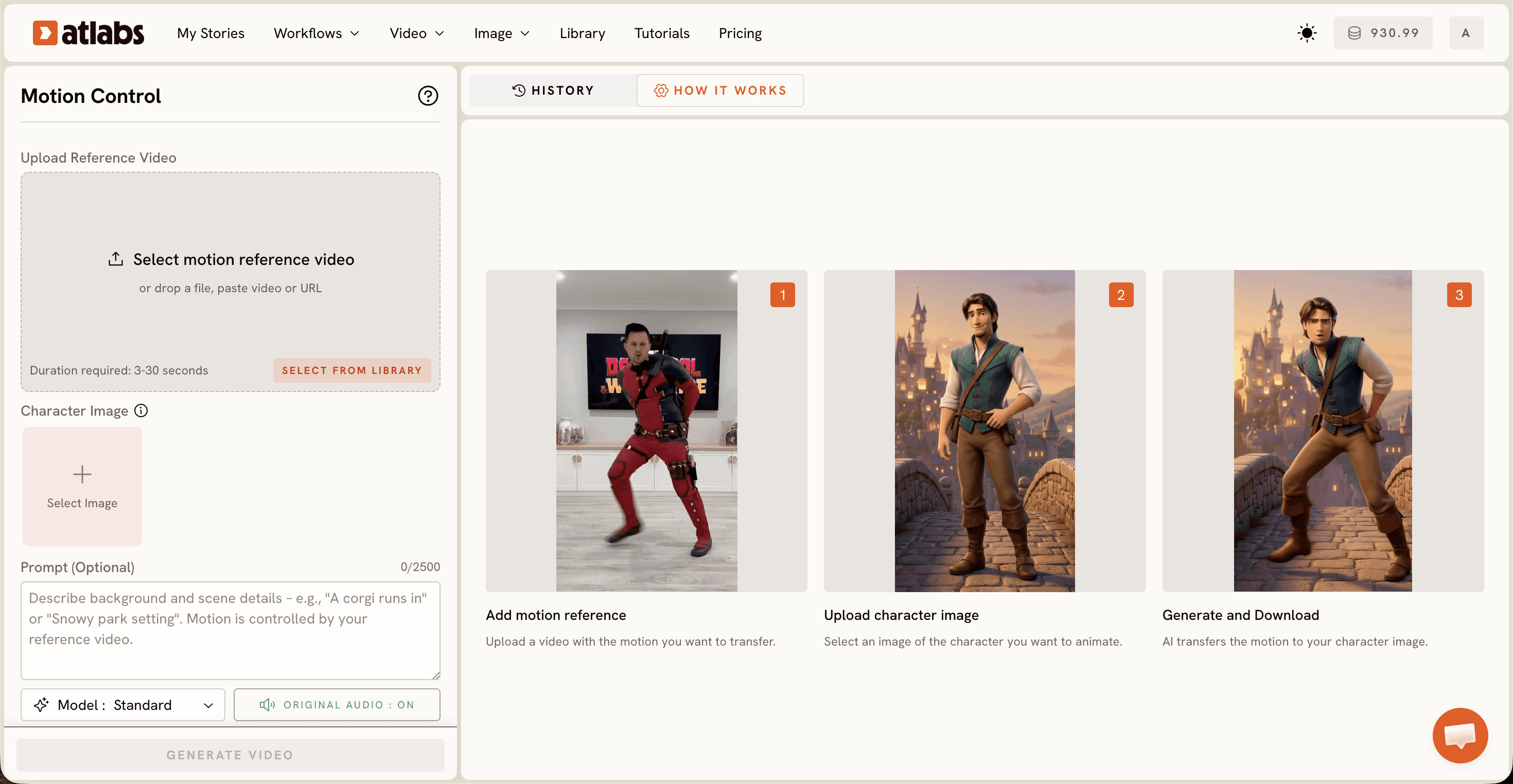
Open Motion Control for exact movement. When a prompt cannot hit the precise action, Motion Control transfers motion from a reference video onto your character image. Film a quick clip on your phone, upload it, and your character copies the same real movement.
Add speech with Lip Sync if your character talks. Upload the image or video plus an audio file from 2 seconds to 120 seconds, and Lip Sync matches the mouth movement to the voice for realistic dialogue.
Finish for delivery. Use Upscale to raise the resolution, Reframe to switch aspect ratio between 9:16, 16:9, and 1:1 for each platform, and Caption Video to add social captions before you post.
Tips for Smoother Motion: Beginner Guide
Match the model to the shot. Kling 3.0 handles cinematic motion, realism, and smooth movement, so it suits walking, running, and full-body action. Google Veo 3.1 is stronger for photorealism and wide shots, while Hailuo 2.3 helps when a scene needs high-motion fluidity. Write your motion prompt like a director, naming the body action, the speed, and the camera in one line, because vague prompts produce floaty, unnatural movement. When a prompt cannot land the exact action, record a short reference clip and use Motion Control to copy that real movement onto your character. Finally, keep your first render short. Generate a few seconds, check the hands, feet, and gait, then extend once the motion reads as clean and natural.
Copy These Prompts to Get Realistic Motion Free
Paste either prompt below, swap in your own character and scene, and run it. The first is for animating a still image, and the second is for copying real movement with Motion Control.
Photorealistic man in a denim jacket walking down a rain-soaked city street at night, natural gait, relaxed arm swing, slow cinematic tracking shot from the side, soft neon reflections, shallow depth of field.
Apply the uploaded phone clip of a slow spin and a friendly wave onto my character image, keeping the face, outfit, and lighting consistent across every frame so the character copies the exact same motion.
FAQ
How long does it take to generate realistic human motion?
Most clips render in a few minutes. Going from a finished still image to a clean, realistic motion clip usually takes about 10 minutes in total, including a regeneration or two to fix the hands and the walk cycle.
Do I need animation or editing skills?
No. The workflow runs on prompts and uploads. You describe the motion in plain language, and Motion Control lets you copy real movement from a phone clip, so there is no rigging, keyframing, or timeline work involved.
What file types can I upload?
You can upload standard image files for your still, standard video files as a Motion Control reference, and audio files for Lip Sync, which accepts clips from 2 seconds to 120 seconds. You can also paste a still generated inside the Create Image app.
Can I do this without animation software or a motion capture suit?
Yes. That is the point of this workflow. Image to Video creates movement from a prompt, and Motion Control transfers real motion from an ordinary phone video, so you never open animation software or wear any capture hardware.
Start Creating Free
You now have a repeatable way to make AI characters move like real people, from a single still image to a finished, realistic clip. Open the workflow and generate your first motion clip in the next 10 minutes.








