
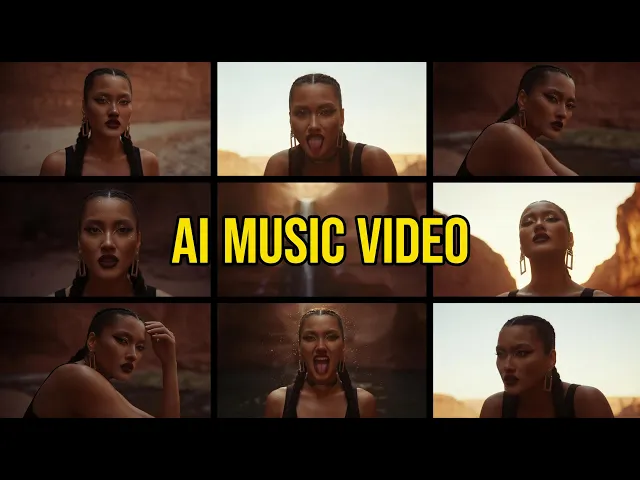
You can make a lyric video with AI in about 10 minutes without filming a single frame. Upload your track to the Atlabs Music Video workflow, pick the part of the song you want on screen, choose a visual style, approve a scene concept, and cast your characters. Atlabs builds the moving visual around your audio. You then run the finished video through Caption Video to place your lyrics on top. No camera, no crew, no motion graphics software.
What You Need Before You Start (Beginner Guide)
Three things, and none of them involve a camera. First, a finished audio file, either an mp3 up to 200MB or a Suno music URL you can paste straight in. Second, your lyrics as plain text, ready to drop in at the captioning stage. Third, roughly 10 minutes and an Atlabs account. You do not need editing software, motion graphics skills, or footage of yourself. If your track is instrumental, skip the lyrics entirely and treat the same workflow as a visualiser.
How to Make a Lyric Video with AI: Full Step-by-Step Walkthrough
The Music Video workflow runs in five steps. Every label below matches what you will see on screen, so you can follow along with the workflow open in a second tab.
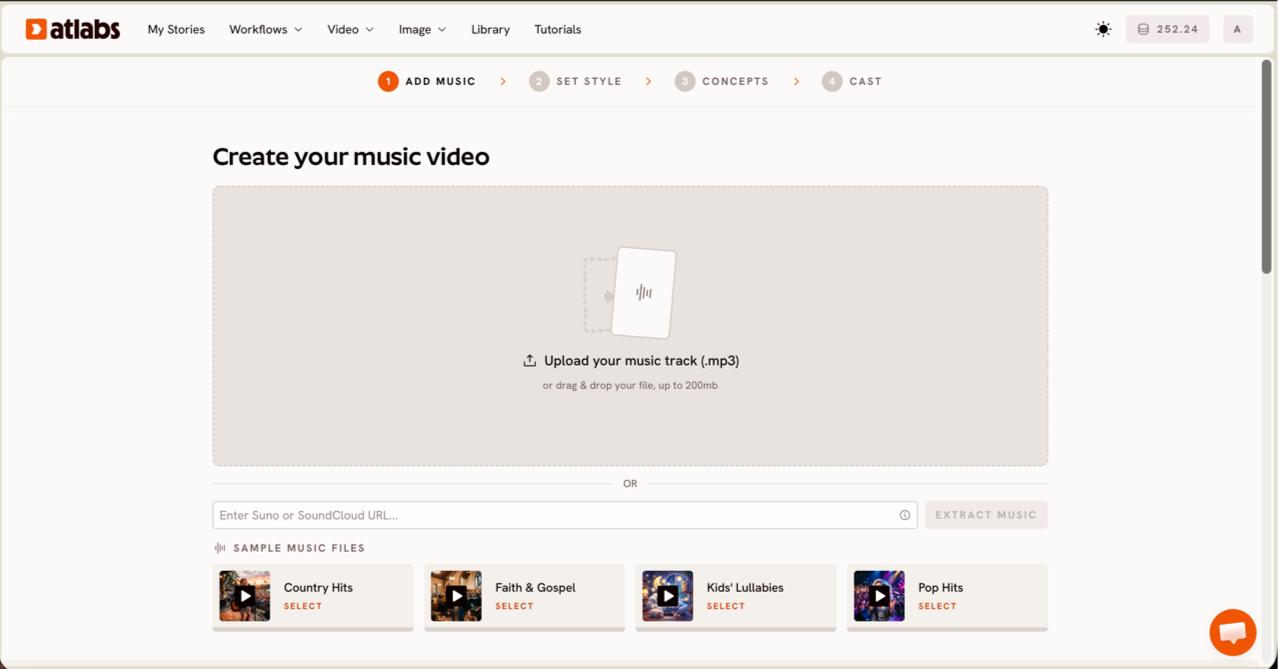
Step 1. Add your music. Open the Music Video workflow. The screen header reads Create your music video. Upload your mp3, up to 200MB, or paste a Suno music URL and click EXTRACT MUSIC. Atlabs auto detects the track properties, so tempo, mood, and genre are read from the audio itself rather than typed in by you. Upload the mastered version you plan to release, because the visuals are generated against the exact audio you give it.
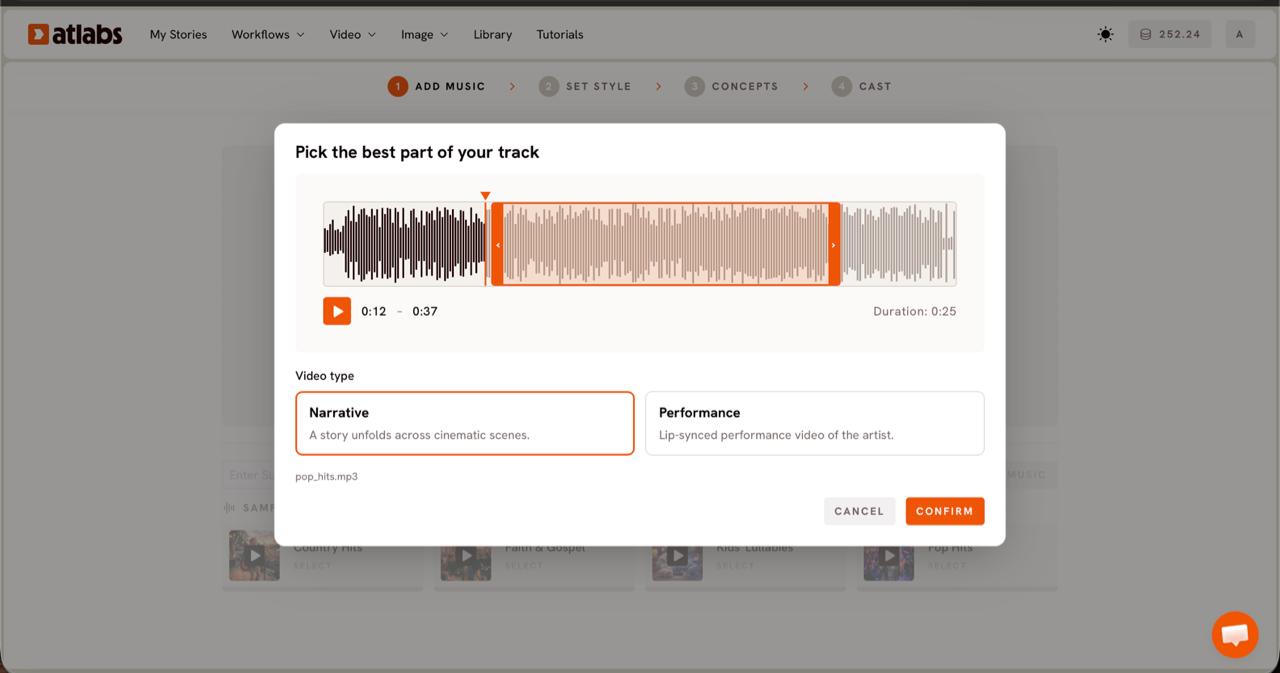
Step 2. Pick your segment and Video Type. The Pick the best part of your track modal opens over the waveform. Drag the green selection window to choose the segment you want, typically up to around 25 seconds. Most indie artists pick the chorus or the strongest lyrical hook, since that is the section that gets cut for Reels and Shorts anyway. Then choose a Video Type. Narrative unfolds a story across cinematic scenes and suits atmospheric or storytelling songs. Performance builds a lip synced performance video and suits vocal tracks where you want an artist figure on screen. For most lyric videos, Narrative leaves more clean space for the words to sit.
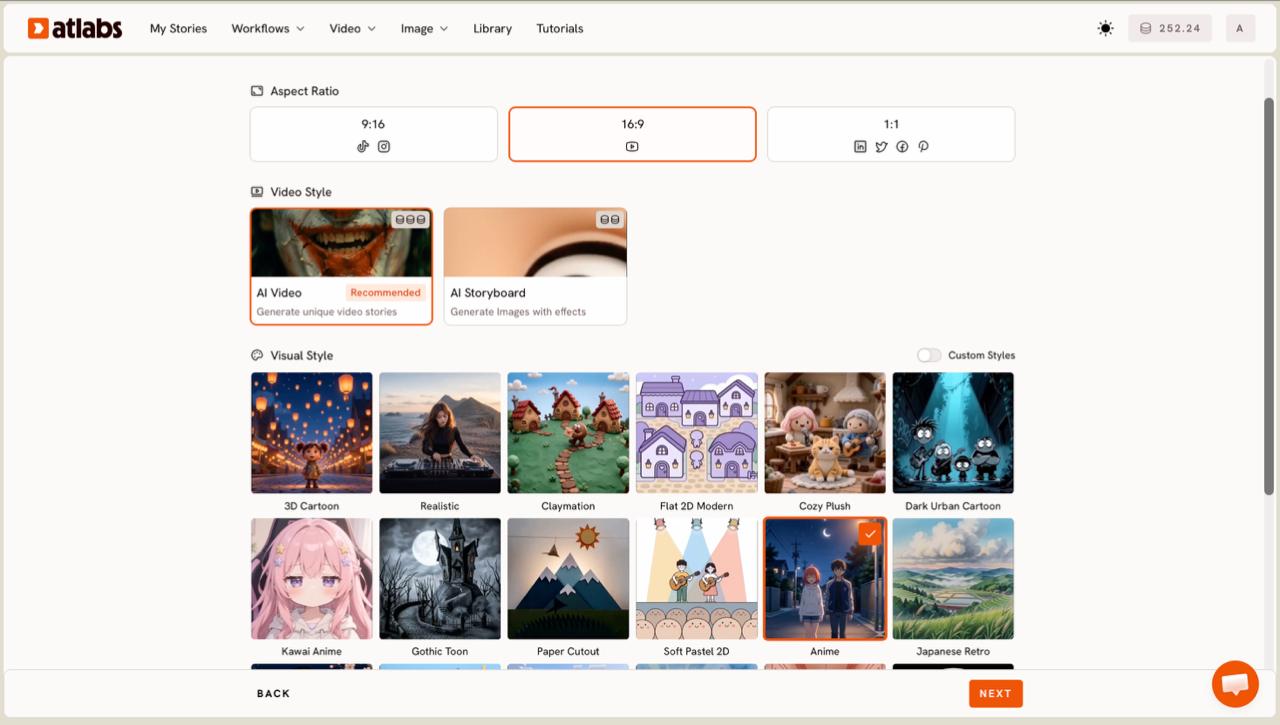
Step 3. Set Style. Choose your Aspect Ratio first. 16:9 for YouTube, 9:16 for TikTok and Instagram, 1:1 for LinkedIn, Twitter, Facebook, and Pinterest. Then pick a Video Style. AI Video is recommended and generates unique video stories. AI Storyboard generates images with effects, which suits slower songs where you want graphic frames sitting behind the text. Finally choose a Visual Style. Realistic gives the live action feeling most indie lyric videos are reaching for. Toggle Custom Styles to open the full library if Realistic is not the mood of the song.
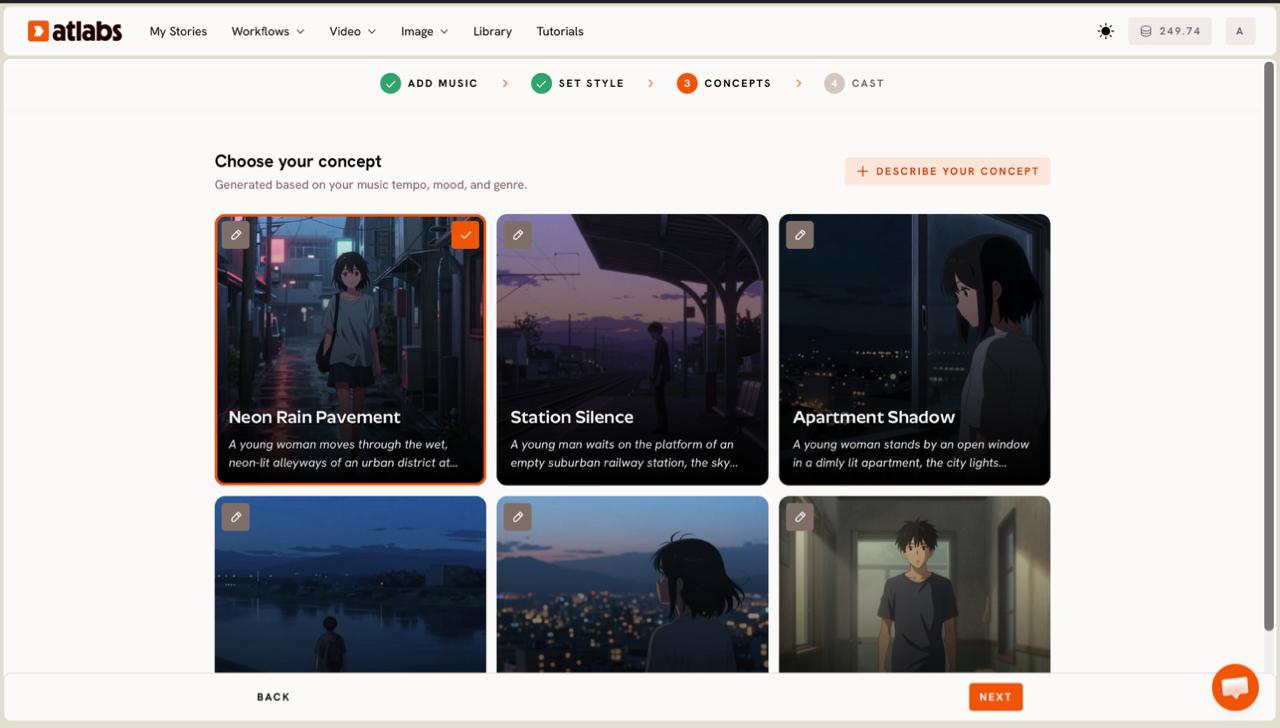
Step 4. Choose your concept. Atlabs shows six generated scene concepts as cards under the line Choose your concept, generated based on your music tempo, mood, and genre. Each card carries a short scene description, and the one you select shows a green tick. Every card has an edit pencil for concepts that are close but not quite the story in your lyrics. If none of the six land, click + DESCRIBE YOUR CONCEPT and write the direction yourself. This is the step where a lyric video stops looking generic, so it earns the two extra minutes.
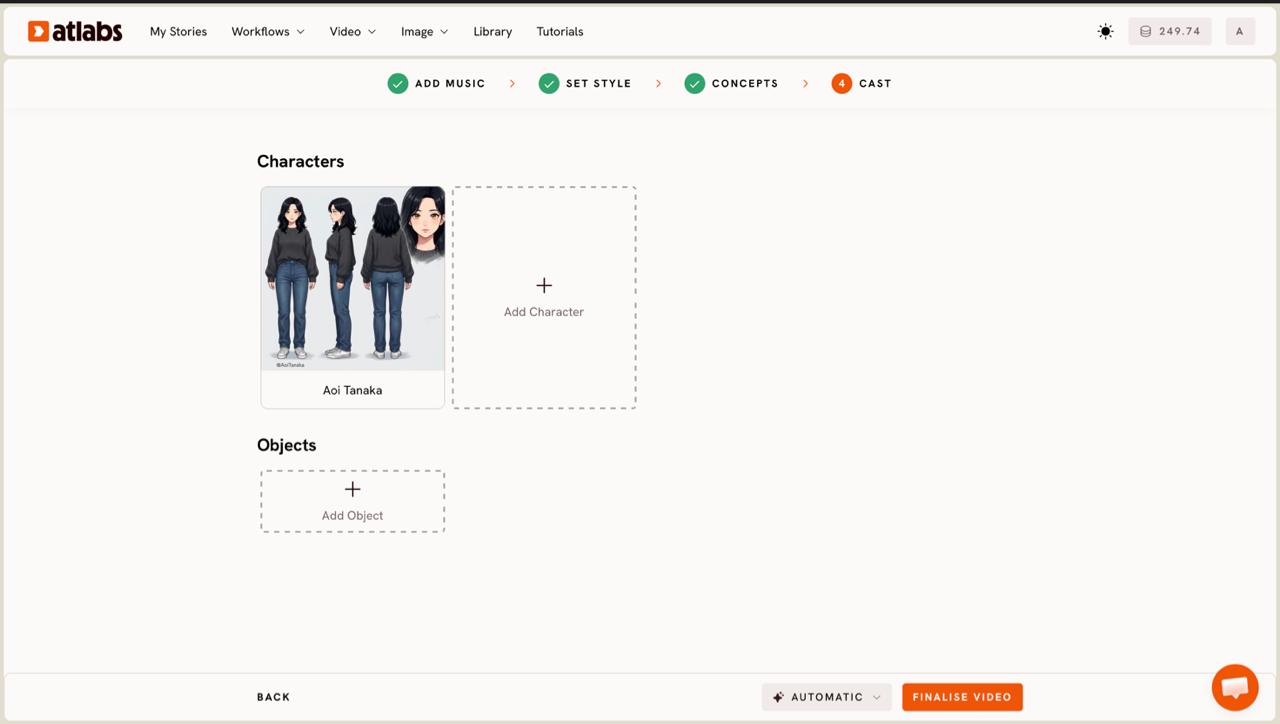
Step 5. Cast your characters. Define Characters and Objects. Each character card shows a generated reference sheet with multiple angles and a portrait, which is what holds the same face steady across every scene of the video. Click any empty slot to Add Character, or click the Click to edit overlay to open the character editor and adjust the look. Use the Objects section at the bottom for anything that recurs in your lyrics, like a car, a payphone, or a guitar case.
Generate, then add the words. Once the video renders, run it through Caption Video to place your lyrics on screen in time with the audio. Reframe gives you a second aspect ratio for Shorts and Reels without a new render, and a pass through Upscale is worth it before you publish to YouTube. Both apps sit in the Atlabs app dashboard alongside the workflow you just used.
Watch the Free Atlabs Lyric Video Tutorial
If you would rather see the five steps happen in real time before you upload anything, the full walkthrough is on the Atlabs YouTube channel. It covers the same track upload, segment selection, and captioning pass described above, recorded end to end.
Tips for a Better Lyric Video in 10 Minutes
Pick the segment for its lyrics, not its production. The 25 second window rewards the clearest line in the song, not the biggest drop. A section where the words carry the moment gives the captions something to land on.
Match the model to the look. Kling 3.0 handles cinematic motion and smooth movement, which suits realistic indie visuals. Google Veo 3.1 is stronger on photorealism and wide establishing shots. Seedance 2.0 leans stylized, with strong character closeups, and fits songs that want an illustrated edge rather than a live action one.
Render 16:9 first, then reframe. A YouTube master gives you the widest frame to crop from. Going the other direction, from 9:16 up to 16:9, costs you image on both sides.
Keep one character across the whole video. A single reference sheet in the Cast step does more for a lyric video's continuity than any amount of prompt detail, because the viewer reads a repeated face as intention rather than randomness.
Two Free Concept Prompts to Copy
Paste either of these into + DESCRIBE YOUR CONCEPT at Step 4 and adjust the details to your song.
A lone singer walking through an empty city at 4am, wet asphalt reflecting neon shopfronts, handheld camera trailing slightly behind, cool blue and amber colour grade, breath visible in the cold, one continuous mood across every scene, cinematic realistic style, shallow depth of field.
Golden hour on a coastal road, a young woman leaning out of a moving car window, film grain, warm ochre light, long lens shots of fields blurring past, cuts between wide landscape and close portrait, nostalgic summer tone, realistic style, natural light only.
Lyric Video FAQ: Step-by-Step Answers
How long does it take to make a lyric video with AI?
The five setup steps take roughly 10 minutes once your audio file is ready, and most of that is spent choosing a concept and adjusting your character. Rendering runs after that, and the captioning pass through Caption Video adds a few minutes on top.
Do I need editing or animation skills to make a lyric video?
No. The workflow replaces the timeline entirely, so there is nothing to keyframe and no motion graphics software involved. If you can upload an mp3 and pick options from a list, you can finish a lyric video without animation experience.
What audio file types can I upload?
You can upload an mp3 file up to 200MB, or paste a Suno music URL and click EXTRACT MUSIC to pull the track in directly. Atlabs reads tempo, mood, and genre from the audio automatically once it is loaded.
Can I make a lyric video without filming and without animation software?
Yes, and that is the whole point of this workflow. Nothing is filmed and nothing is animated by hand. The visuals are generated from your track, and your lyrics are added on top afterwards with Caption Video.
Make Your Lyric Video in 10 Minutes
Your track is already finished. The visual is the only thing standing between it and a release, and it no longer takes a shoot day or a freelance animator to get there. Upload the mp3, pick the strongest 25 seconds, and watch the first version render while you are still deciding on a thumbnail. Open Atlabs








