
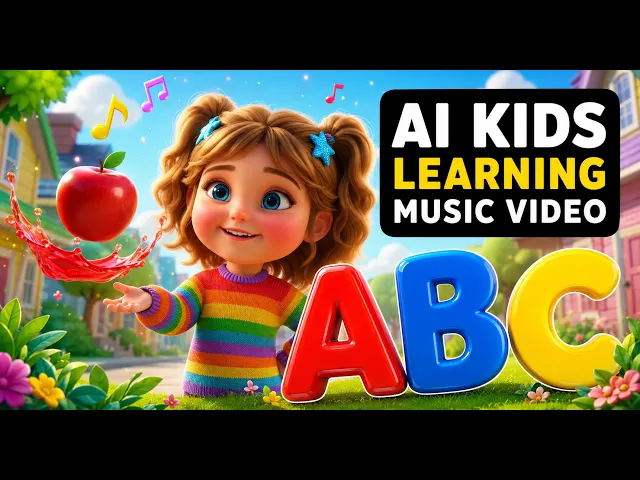
Making an animated alphabet song video for a kids YouTube channel used to mean hiring an animator or spending weeks in After Effects. With AI, a parent, teacher, or kids content creator can go from a finished alphabet track to a polished animated video in under 15 minutes. The Atlabs Music Video workflow handles the animation, the characters, and the scene concepts automatically. The input is the audio file. The output is a frame-by-frame animated kids video ready to publish.
What you will need
1. An Atlabs account - sign up at atlabs.ai
2. An alphabet song audio file (mp3 up to 200MB) or a Suno music URL of your track
3. 10 to 15 minutes - no video editing software required
Watch the full video on YouTube
Step 1 — Open the Music Video workflow and upload your alphabet song
Navigate to the Music Video workflow inside Atlabs. The screen header reads 'Create your music video'. Upload your alphabet song as an mp3 file (up to 200MB). If you created your track with Suno, paste the Suno music URL directly into the field and click EXTRACT MUSIC. Atlabs reads the audio and auto-detects the track tempo, mood, and genre — for a bright children's alphabet song, it will pick up the upbeat, playful character immediately.
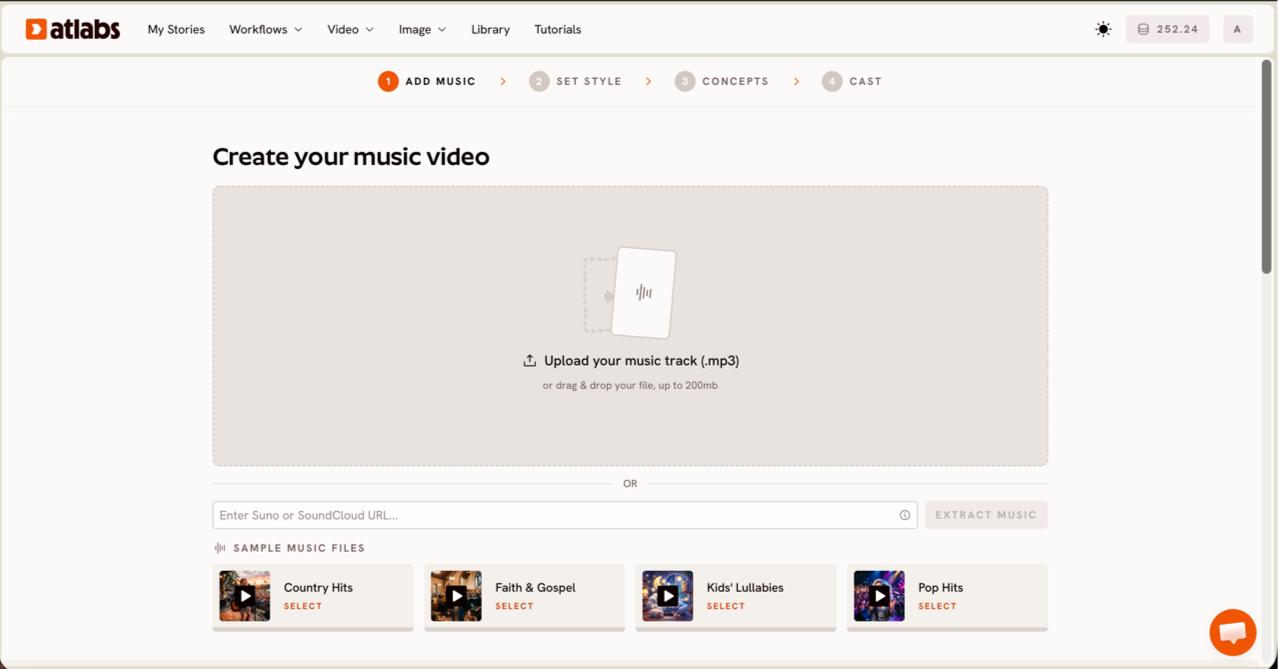
Step 1: Upload your alphabet song mp3 or paste a Suno URL into the Music Video workflow
Step 2 — Pick your segment and set Narrative as the video type
After the track loads, the 'Pick the best part of your track' modal opens. Drag the green selection window across the waveform to choose the segment you want to animate — for an alphabet song, start from the very beginning so the letters unfold in order. For the Video Type, select Narrative. This tells the Music Video workflow to build a story that unfolds across cinematic scenes, which is exactly the format kids alphabet channels use: each scene introduces a new letter with matching characters and objects.
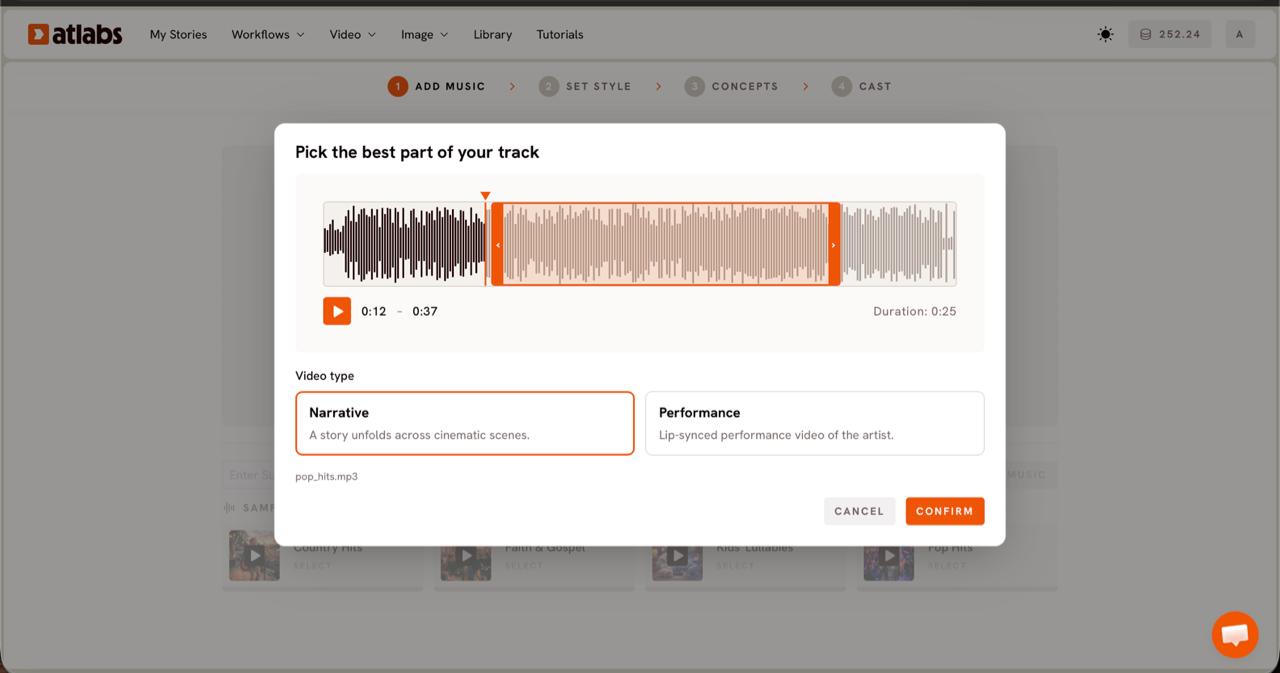
Step 2: Select your audio segment on the waveform and choose Narrative video type
Step 3 — Set the visual style for your alphabet animation
This is where the visual character of your alphabet song video takes shape. For Aspect Ratio, choose 9:16 if you are publishing to YouTube Shorts, Instagram Reels, or TikTok, or 16:9 for a standard YouTube upload. For Video Style, select AI Video — this generates unique animated scene sequences rather than still images with effects. For the Visual Style, two options work exceptionally well for kids alphabet content: 3D Cartoon gives characters a warm, rounded Pixar-adjacent feel that parents trust and children respond to; Soft Pastel 2D gives a gentler storybook feel that works particularly well for lullaby-paced alphabet songs. Toggle Custom Styles to see the full library including Cozy Plush and Kawai Anime for more stylised takes.
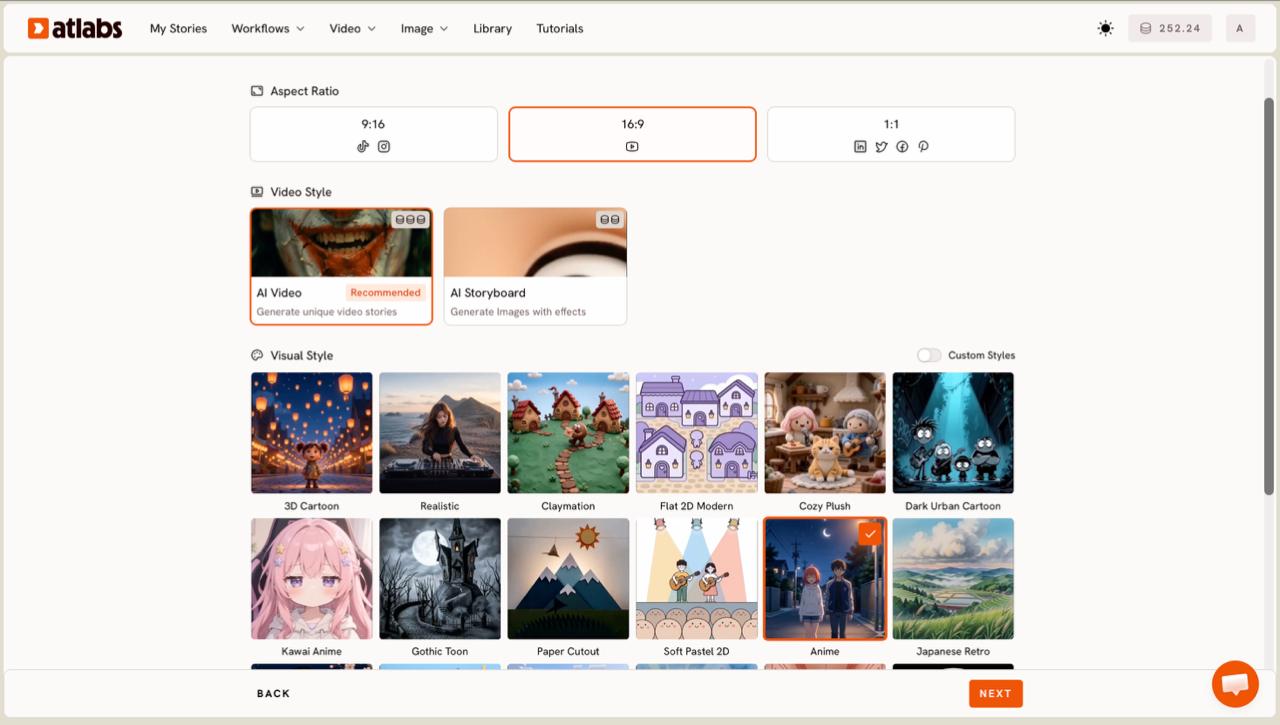
Step 3: Set visual style — 3D Cartoon and Soft Pastel 2D are the top picks for kids alphabet videos
Step 4 — Choose your scene concept
Atlabs generates six scene concept cards based on your track's tempo, mood, and genre. Each card describes a different animated world your alphabet letters will inhabit. For a kids alphabet song, you might see concepts like a sunny meadow classroom, an underwater letter adventure, or a cosy woodland school. Click the concept card that best matches the tone of your channel. If none of the six are quite right, click '+ DESCRIBE YOUR CONCEPT' to write your own direction — for example: 'A cheerful animated world where each letter of the alphabet comes alive as a friendly cartoon character, surrounded by objects that start with that letter.' Each card has an edit pencil if you want to adjust the generated concept before proceeding.
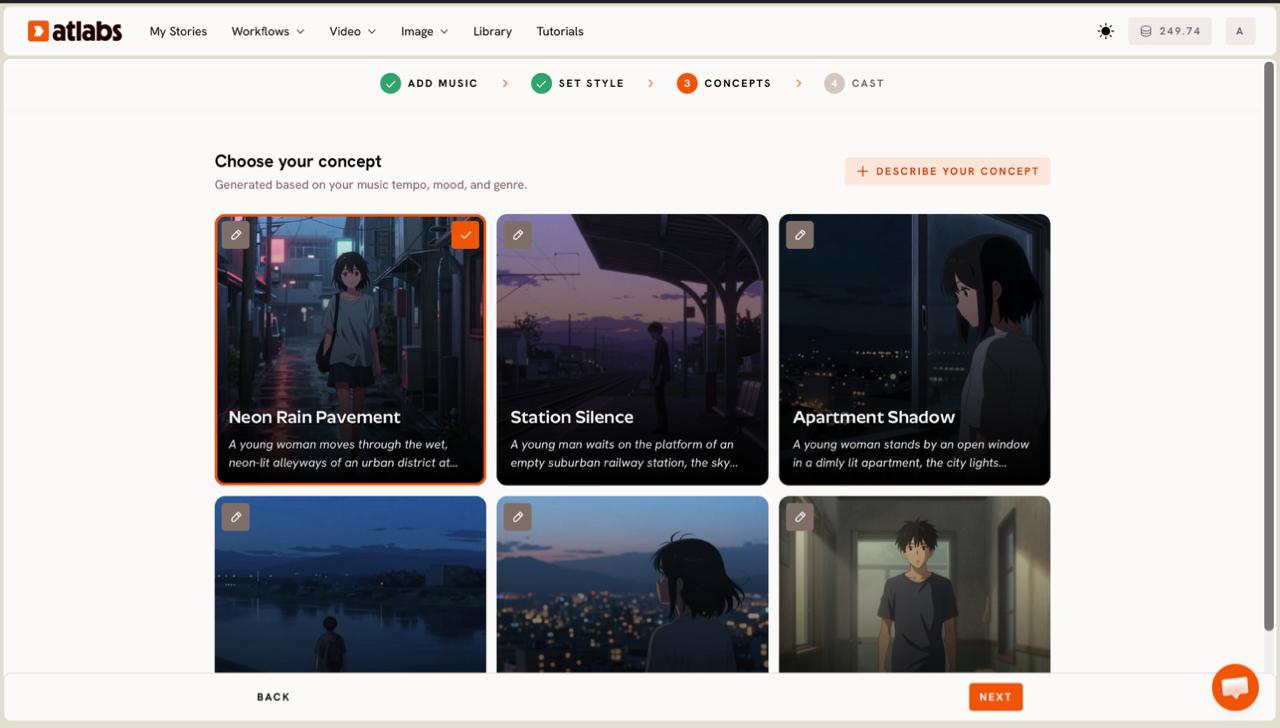
Step 4: Choose from six AI-generated scene concepts or write your own custom direction
Step 5 — Cast your characters
The Cast step is where the animated characters in your alphabet video are defined. For a kids alphabet song, a good starting cast includes one or two recurring child characters (the guides who introduce each letter) plus supporting animal or object characters that change per letter segment. Click any empty character slot to open the character editor. Each character card shows a generated reference sheet with multiple angles and a portrait view so you can confirm the look before generating. For a bright, friendly alphabet series, describe characters with clear, simple traits: 'A cheerful 6-year-old girl with curly red hair, wearing a yellow dress, with a big smile.' The more specific the character description, the more consistent the character appears across scenes.
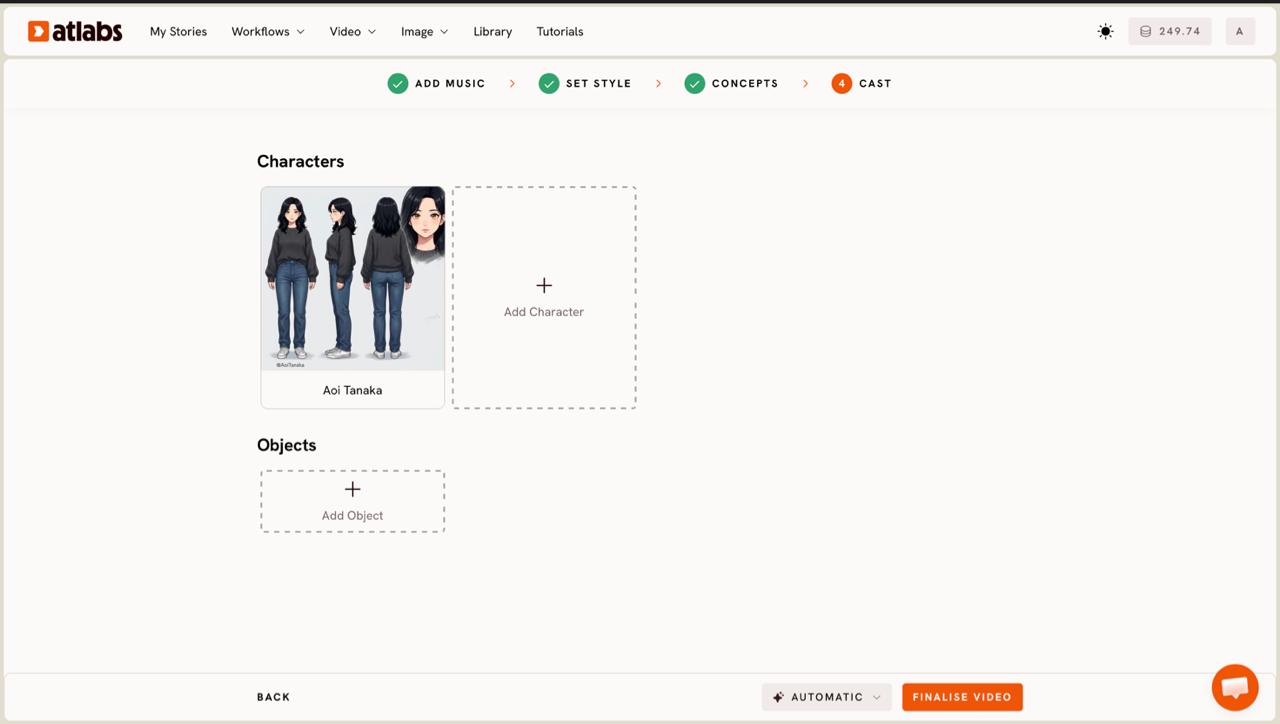
Step 5: Add and define your animated characters — use specific descriptions for visual consistency across scenes
Tips for better alphabet song videos
Choose Seedance 2.0 for character closeups. When the video concept calls for a tight shot of a character holding or pointing at a letter, Seedance 2.0 handles stylized character animation with high detail. It is the model to pick when you want expressive faces and clear letter-object pairings in the same frame.
Use 9:16 for Shorts first. Alphabet song content performs exceptionally well on YouTube Shorts and Instagram Reels because the looping format keeps young viewers watching through the full alphabet. Generate in 9:16 first, then use the Reframe workflow to produce a 16:9 version for your main channel without regenerating.
Write a custom concept for letter-specific scenes. In Step 4, clicking '+ DESCRIBE YOUR CONCEPT' lets you anchor the world specifically to the alphabet format. A custom concept like 'Each scene features one letter of the alphabet as a 3D character in a bright, colorful classroom, with three objects that start with that letter placed around the scene' will produce far more on-theme results than a generic concept card.
Add Caption Video as a finishing step. After the video is generated, run it through the Caption Video workflow to add on-screen letter labels. For an educational alphabet video, visible letter captions reinforce the learning objective and improve watch time because parents can see the educational value immediately.
Ready-to-use concept prompts
A cheerful 3D animated classroom where each letter of the alphabet appears as a friendly cartoon character. The scene opens on a sunny meadow school, and the letter A bounces into frame followed by an apple, an ant, and an alligator. Warm pastel colors, soft rim lighting, and a gentle camera push-in on each letter reveal.
Try this in Atlabs Music Video
Soft pastel 2D animation. A young girl explorer and her white cat guide viewers through a storybook world. Each page turn reveals a new letter, glowing in the center of the scene, with illustrated objects surrounding it. The color palette shifts with each letter — warm yellows for A and B, cool blues for C and D. Gentle zoom and pan camera movement throughout.
Try this in Atlabs Music Video
FAQ
Do I need to create the alphabet song first, or can Atlabs generate the music too?
Atlabs is a video generation platform — it takes an existing audio track and turns it into a video. To create the alphabet song itself, tools like Suno work well for producing kids-friendly musical tracks. Once the track is ready, paste the Suno URL directly into the Music Video workflow's Step 1 field and Atlabs extracts the audio automatically.
How long does it take to make an alphabet song video with AI?
The setup steps (uploading the track, picking the style, selecting the concept, and defining characters) take around 5 to 10 minutes. Video generation time depends on the length of the clip and the model selected — most kids alphabet song segments of 20 to 25 seconds generate in 2 to 5 minutes. The full process from upload to downloadable video is typically under 15 minutes.
Which visual styles work best for kids alphabet videos?
3D Cartoon and Soft Pastel 2D are the most-used styles for kids alphabet content. 3D Cartoon produces rounded, expressive characters with warm lighting that performs well on YouTube Kids. Soft Pastel 2D gives a softer storybook aesthetic that works particularly well for lullaby-paced or bedtime alphabet songs. Cozy Plush is a strong third option for very young audiences.
Can I make a full A-to-Z alphabet video or only short clips?
The Music Video workflow generates clips from a selected audio segment — typically up to 25 seconds per generation. For a full A-to-Z alphabet video, the practical approach is to generate individual letter segments as separate clips and then combine them in a video editor. Many alphabet channels on YouTube use this exact format: short per-letter clips assembled into a longer playlist or compiled video.
Get started
Alphabet song videos are among the most-searched educational content on YouTube Kids and YouTube Shorts. The Atlabs Music Video workflow turns a finished audio track into a frame-by-frame animated kids video without any animation or editing software.
Open Atlabs








