To make an animated music video with AI, upload your track to the Atlabs Music Video workflow, pick the part of the song you want, choose an animated visual style, and let Atlabs build the scenes and characters around your music. The whole process takes minutes, not weeks, and needs no animation software or filming. This guide walks any musician through the exact steps, from adding your music to casting animated characters, so your finished video matches the mood of your track.
What you'll need
You need three things before you start. First, an Atlabs account so you can open the Music Video workflow. Second, your audio file, an mp3 up to 200MB, or a Suno link to your track. Third, about five to fifteen minutes, depending on the length of the segment you animate. You do not need an animator, an editing suite, or any prior motion design experience. If you have a finished song, you have everything required to make the video.
Watch the video on YouTube
How to make an animated music video, step by step
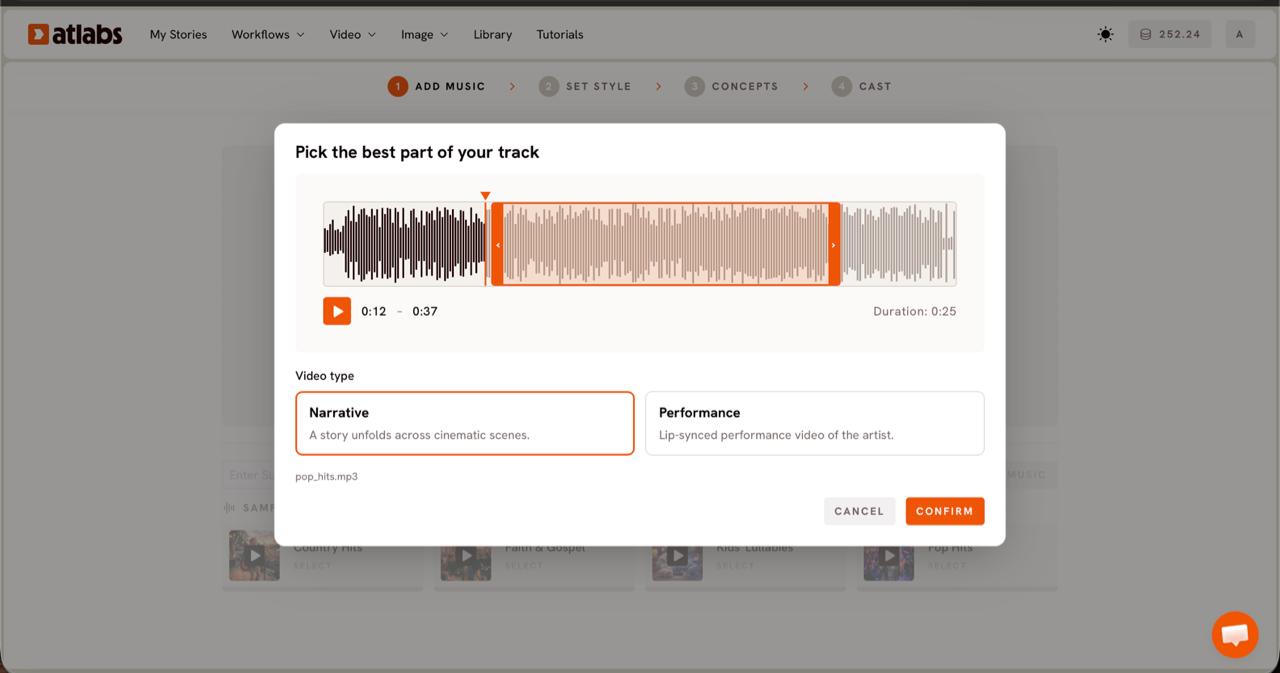
Step 1, Add Music. Open the Music Video workflow inside Atlabs. On the first screen, titled Create your music video, upload an mp3 up to 200MB, or paste a Suno music URL and click EXTRACT MUSIC. Atlabs reads the file and auto-detects the track properties, including tempo and mood, which it later uses to generate scenes that fit your song. This is the only input the workflow needs from you to begin. A folk ballad, a lo-fi loop, a kids singalong, or a devotional track all work the same way. Once the track loads, the workflow advances you to the next step automatically.
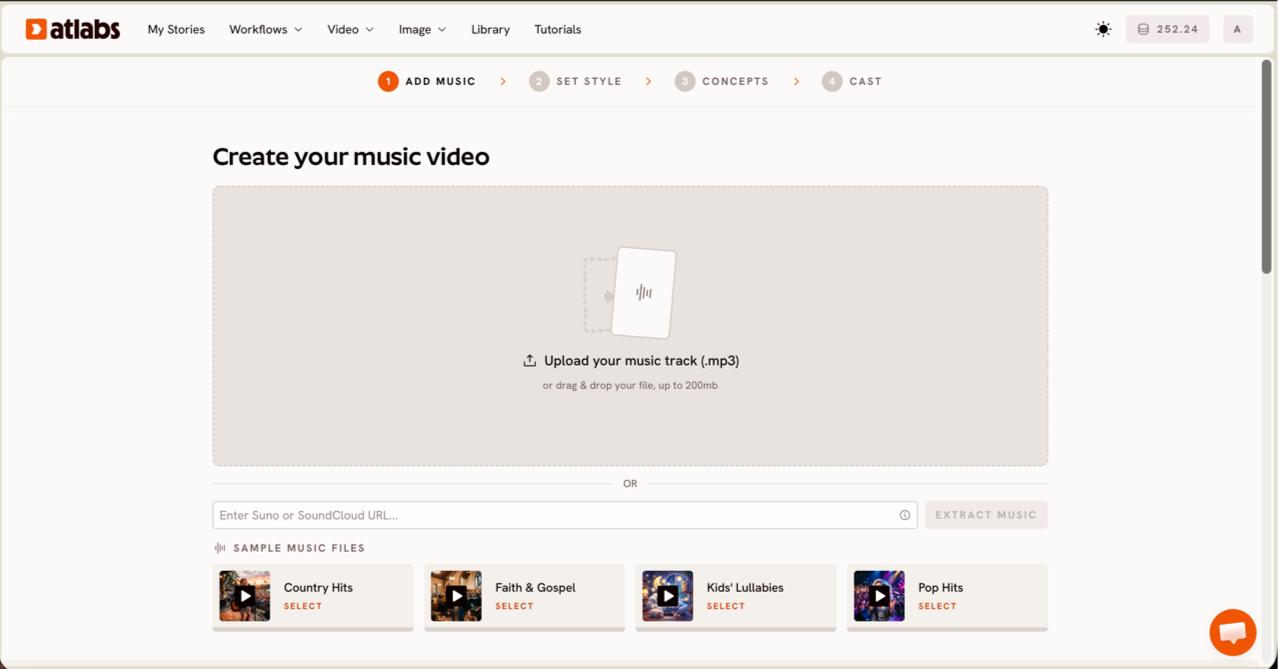
Step 2, Video Type. Pick the part of your song you want to animate. A modal titled Pick the best part of your track opens over the waveform. Drag the green selection window across the waveform to choose your segment, usually up to about twenty-five seconds, which is ideal for a hook or chorus. Then choose a Video Type. Pick Narrative if you want a story to unfold across animated scenes, which suits atmospheric and instrumental tracks. Pick Performance if your song has vocals and you want a lip-synced animated performer. For most animated music videos, Narrative gives the richest visual result.
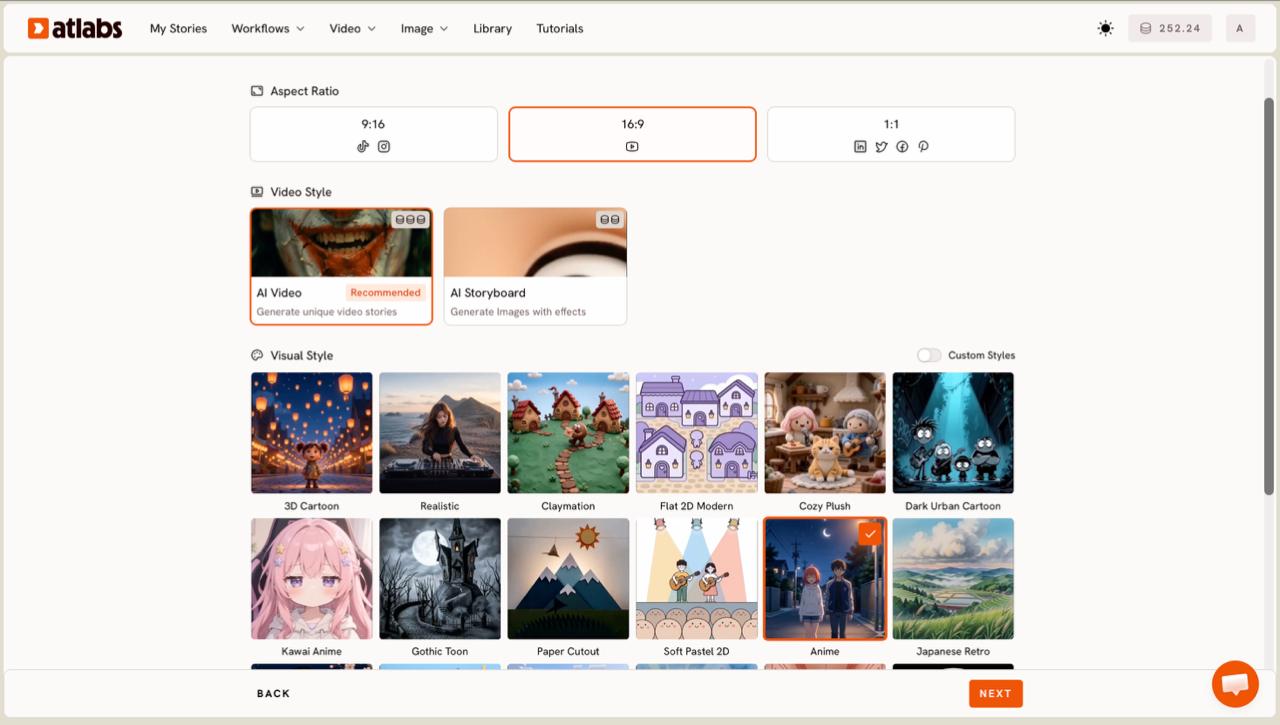
Step 3, Set Style. Set the look of your video. Choose your Aspect Ratio first. Pick 9:16 for TikTok and Instagram, 16:9 for YouTube, or 1:1 for Facebook and Pinterest. Next, set Video Style to AI Video, the recommended option that generates unique animated scenes, or AI Storyboard if you prefer image based sequences with effects. Then open the Visual Style library and choose your animation look. For an animated music video, options like 3D Cartoon, Claymation, Cozy Plush, Soft Pastel 2D, Anime, and Paper Cutout each give a distinct feel. Toggle Custom Styles to see the full library. Match the style to the emotion of your track.
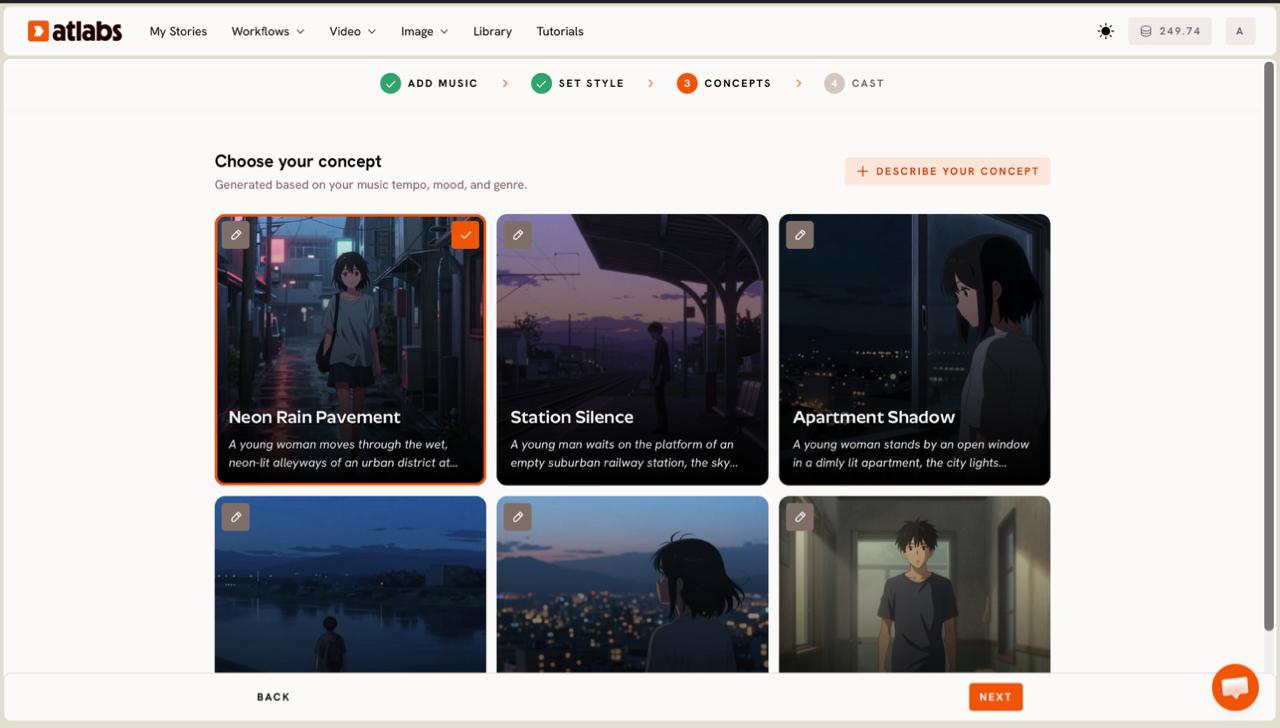
Step 4, Concepts. Choose a scene concept. Atlabs displays six concept cards under the heading Choose your concept, generated based on your music tempo, mood, and genre. Each card describes a short visual idea, such as a dreamlike sky filled with floating shapes, and shows a preview. Click the card that fits your song and a green tick marks your choice. Use the edit pencil on any card to adjust its direction, or click DESCRIBE YOUR CONCEPT to write your own scene idea from scratch. This step is where your animated music video gets its narrative spine, so pick the concept that mirrors the story in your lyrics.
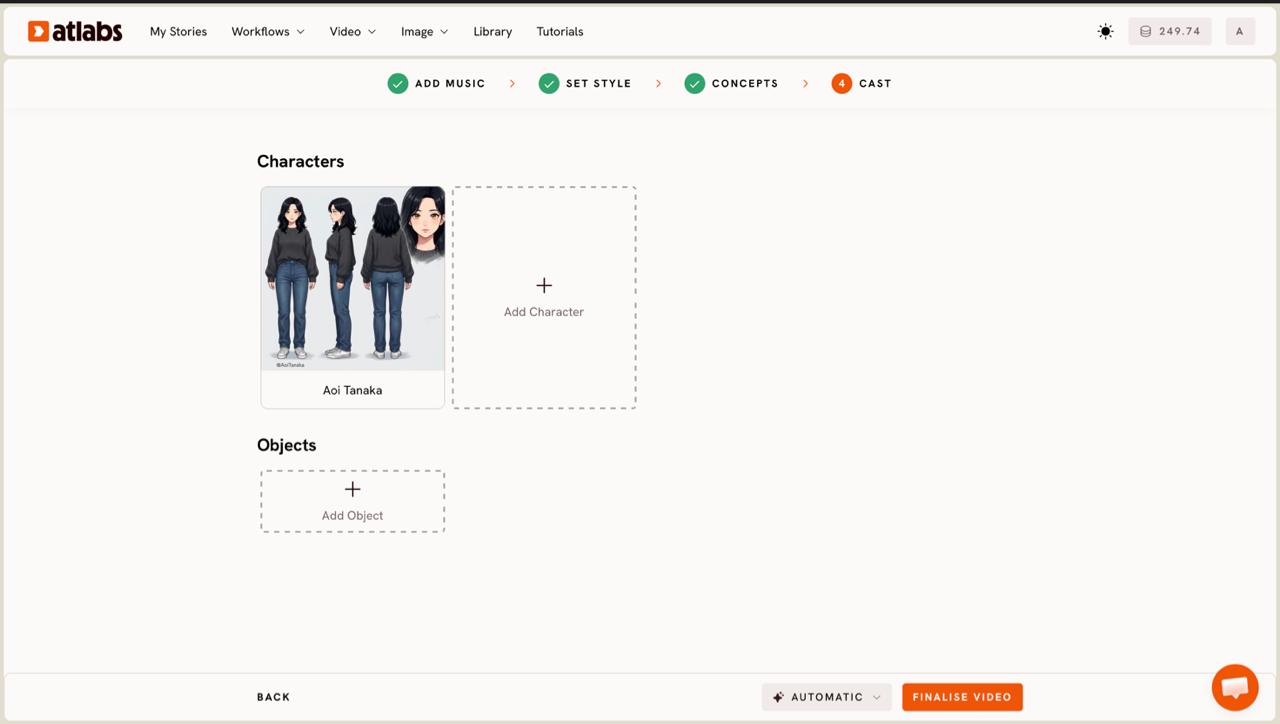
Step 5, Cast. Cast your animated characters. The workflow generates character cards, each with a reference sheet showing multiple angles and a portrait, so the same character stays consistent across every scene. Click any empty slot to Add Character, or use the Click to edit overlay to refine a character's appearance, age, and outfit. Add any recurring props in the optional Objects section at the bottom. Once your cast is set, Atlabs generates the full animated music video. From here you can refine the result, add captions, or change the aspect ratio for another platform before you publish.
Tips for better results
A few choices make a noticeable difference in your finished animated music video. Pick your segment around the strongest hook in your track, because the most repeated, recognisable part gives viewers an instant reason to keep watching. Choose a visual style that matches your genre rather than the trend of the week, since a Cozy Plush look suits a lullaby while a sharper Anime style fits an upbeat pop track. Keep your character count small, because two or three consistent characters read more clearly across short scenes than a crowded cast. When you describe a custom concept, name the setting, the time of day, and the mood in plain language, so the scene generation has clear direction. Finally, render a vertical 9:16 cut for Reels and Shorts first, then reframe the same project for YouTube, which gives you two formats from one idea.
Concept prompts you can copy
If you want a starting point for your own track, copy one of these concept descriptions into the DESCRIBE YOUR CONCEPT box in the Concepts step, then adjust the setting and mood to match your song.
Animated music video, Cozy Plush style. A small round character with a music note hat walks a winding path over soft green hills at golden hour. Floating notes drift past as the character hums along to the melody. Warm, dreamy lighting, with a gentle camera push in synced to the beat.
Try this in Atlabs Music Video
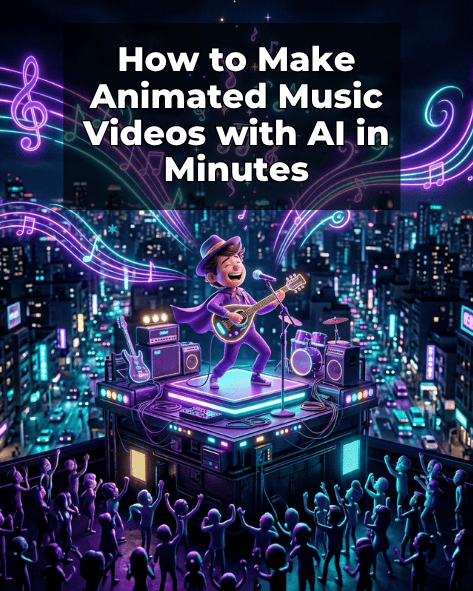
Animated music video, 3D Cartoon style. A young musician character performs on a tiny rooftop stage above a glowing city at night. Neon signs pulse in time with the chorus, paper plane lights sweep across the sky, and a crowd of little characters sways to the rhythm.
Try this in Atlabs Music Video
FAQ
How long does it take to make an animated music video with AI?
Most musicians finish a short animated music video in minutes once their track is uploaded. The exact time depends on the length of the segment you animate and the visual style you pick, but a fifteen to twenty five second cut is usually ready in a single sitting.
Do I need animation or editing skills?
No. The Atlabs Music Video workflow handles scene generation, character design, and motion for you. You upload a track, pick a segment, choose a style, and select a concept. There is no timeline editing, keyframing, or motion software involved.
What audio file types can I use?
You can upload an mp3 file up to 200MB, or paste a Suno music URL and click EXTRACT MUSIC. Atlabs auto-detects the track's tempo and mood and uses them to generate scenes that fit your song.
Can I make an animated music video in different styles?
Yes. The Visual Style library includes options like 3D Cartoon, Claymation, Cozy Plush, Soft Pastel 2D, Anime, and Paper Cutout, with more under Custom Styles. You can match the animation look to any genre, from a gentle lullaby to an upbeat pop track.
Get started
You have a track and now you have the steps. Open the Music Video workflow, upload your song, and watch your first animated music video come together in minutes.
Open Atlabs








