The fastest way to turn a lecture into a video in 2026 is an AI script to video workflow: paste your lecture notes or slide text, pick an animation style, cast a narrator, and let the platform generate every scene, voiceover, and animation in one pass. What used to mean a weekend of screen recording, slide narration, and editing now takes about ten minutes in the Atlabs Animated Video workflow, and this guide walks through every step, from turning your lecture into a script to publishing a full course in 40+ languages.
This works for university lectures, online course modules, flipped classroom videos, concept breakdowns, exam prep and revision content, animated educational lessons, and academic overviews. No editing or animation experience required.
Why Educators Are Switching to AI Lecture Videos in 2026
The traditional way to film a lecture has a time problem and a consistency problem. Recording yourself narrating slides means retakes every time you stumble, lighting and audio you have to fix in post, and an editing pass that eats the evening. Hiring a video team is faster to watch but expensive to repeat, and it does not scale to a twenty lecture course. And if you produce a full module series, keeping the same on screen teacher, the same visual style, and the same narrator identical across lecture 1 and lecture 20 is where most course productions quietly fall apart.
AI lecture video generators solve all three at once. Your lecture notes or slide text are the only input you need, the style library replaces the design work, and character locking means your teaching cast and look stay the same across every video in the course. For professors, online instructors, and teams building educational channels, the bottleneck shifts from production to teaching, which is exactly where it should be.
What You Need Before You Start
Just two things: your lecture content as a script (or even a rough topic, since the AI Script Writer can draft one from a concept) and a free Atlabs account. The free tier lets you create one complete video up to 25 seconds with no credit card, which is enough to test the full workflow before committing. Paid plans start at $15 per month, and the platform holds a 4.5/5 rating on Trustpilot.
A quick note on turning a lecture into a script. A slide deck is not a script, and reading bullet points aloud makes for a flat video. The strongest lecture explainers rewrite each concept as spoken explanation: state the idea, give the intuition, show a worked example, then land the takeaway. Aim for roughly 150 to 220 words per minute of video, and let one concept own each scene.
Step-by-Step: Make a Lecture Explainer Video with AI in 10 Minutes
The whole process lives inside the Explainer workflow, which runs in three labeled stages: Script, Style, and Cast.
Step 1: Add Your Script
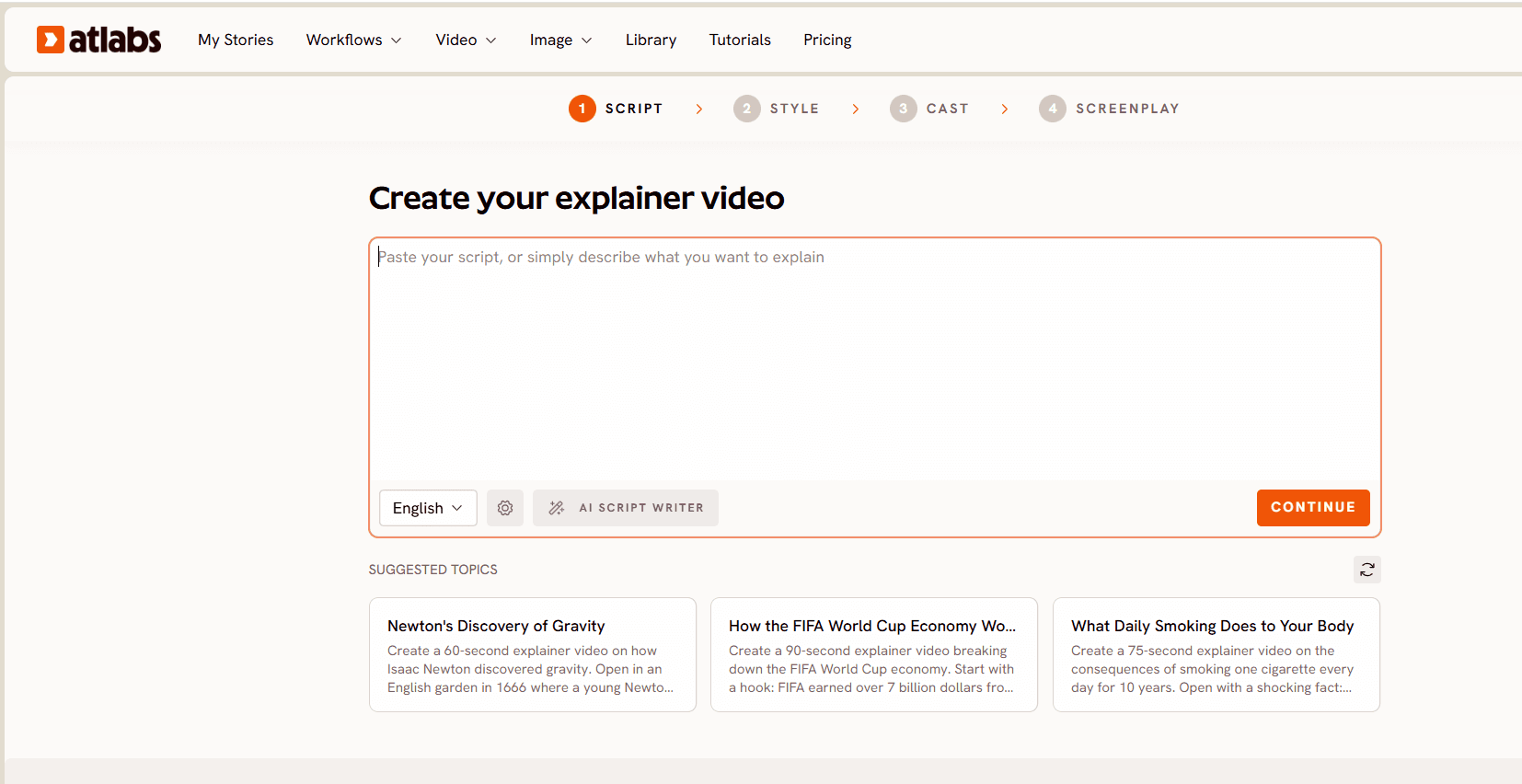
Open the workflow and you land on the Script step. Paste your lecture script into the text box, or click the AI Script Writer button if you only have a topic like "explain supply and demand" or "the causes of World War I." Below the input you will also find Suggested Scripts, a few ready made starting points that show how a strong explainer script is structured, useful when you are converting dense lecture notes and want a model for pacing. A language selector sits under the script box, so you can teach in the language your students actually learn in.
A good lecture explainer script follows a simple arc: open with the question or problem the lecture answers, show why it matters, walk through the concept step by step, and close with one clear takeaway students should remember. Break a long lecture into several short videos of one concept each rather than a single marathon, because short concept videos are what students actually rewatch before an exam.
Step 2: Set Your Style
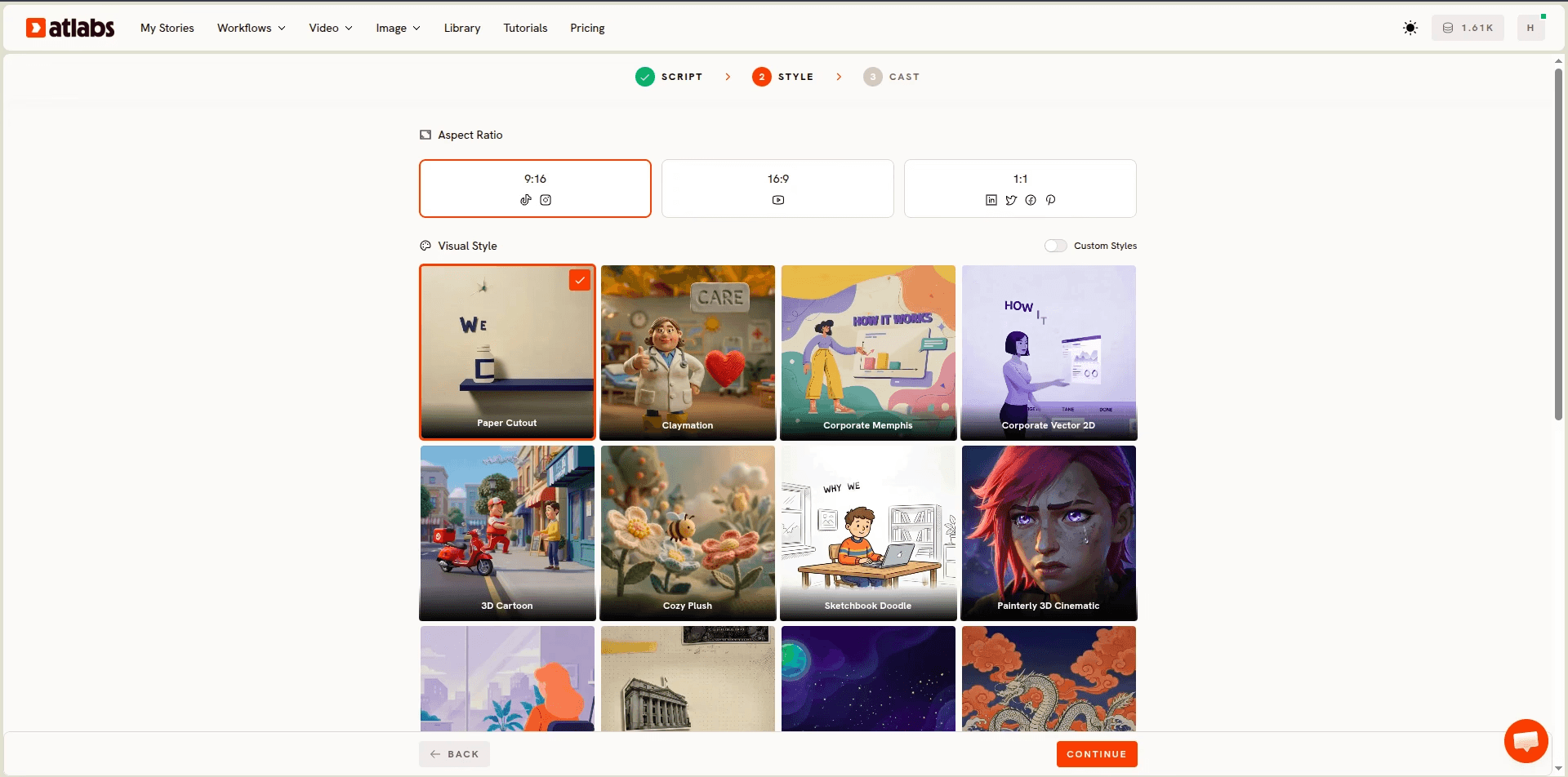
Click Continue and you move to the Style step. First pick an Aspect Ratio: 16:9 for YouTube, your LMS, and lecture embeds, 9:16 for revision clips on Shorts and Reels, or 1:1 for feed placements.
Then choose from the Visual Style library, which holds 30+ animation styles, each matched to a different kind of lecture. Whiteboard Doodle suits step by step derivations and process heavy topics like math and biology, flat vector styles like Corporate Memphis and Corporate Vector 2D fit economics, business, and data lectures, Paper Cutout and 3D Cartoon work for school age and introductory courses, and Inked Graphic Novel or Ukiyo-e suit history and literature. There is also a Custom Styles toggle: train your course's own look once and every future lecture inherits it, which is how instructors keep a full module series visually consistent without a design guide.
Step 3: Finalise Your Cast
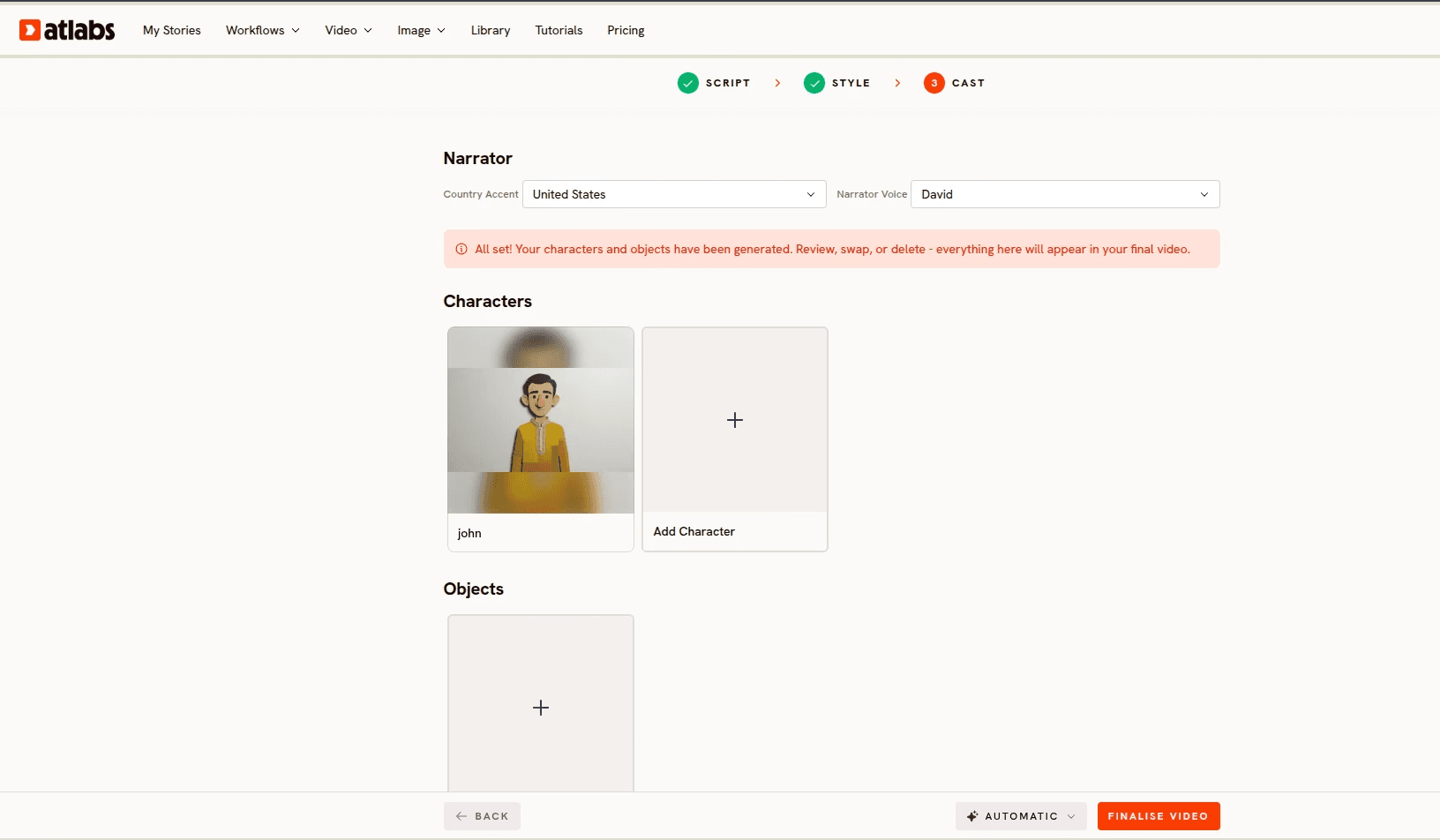
The Cast step is where your lecture gets its voice and its teacher. Under Narrator, choose a Country Accent (United States, United Kingdom, India, and more) and a Narrator Voice from the dropdown, and keep that exact voice across the whole course so students recognise their instructor. Under Characters, click Add Character to define an on screen teacher or presenter, and under Objects you can lock recurring items like a specific diagram, a lab prop, or a recurring mascot that anchors your course brand.
This is the Consistent Cast system, and it matters more than any other setting for a course. Lock a narrator, character, object, or location once, and the same face and outfit appears in every scene and every future lecture. If your course has a guide character who introduces each concept, students see the same guide in lecture one and lecture twenty, which is exactly what makes a series feel like a real course rather than a pile of disconnected clips.
Step 4: Finalise and Edit at the Scene Level
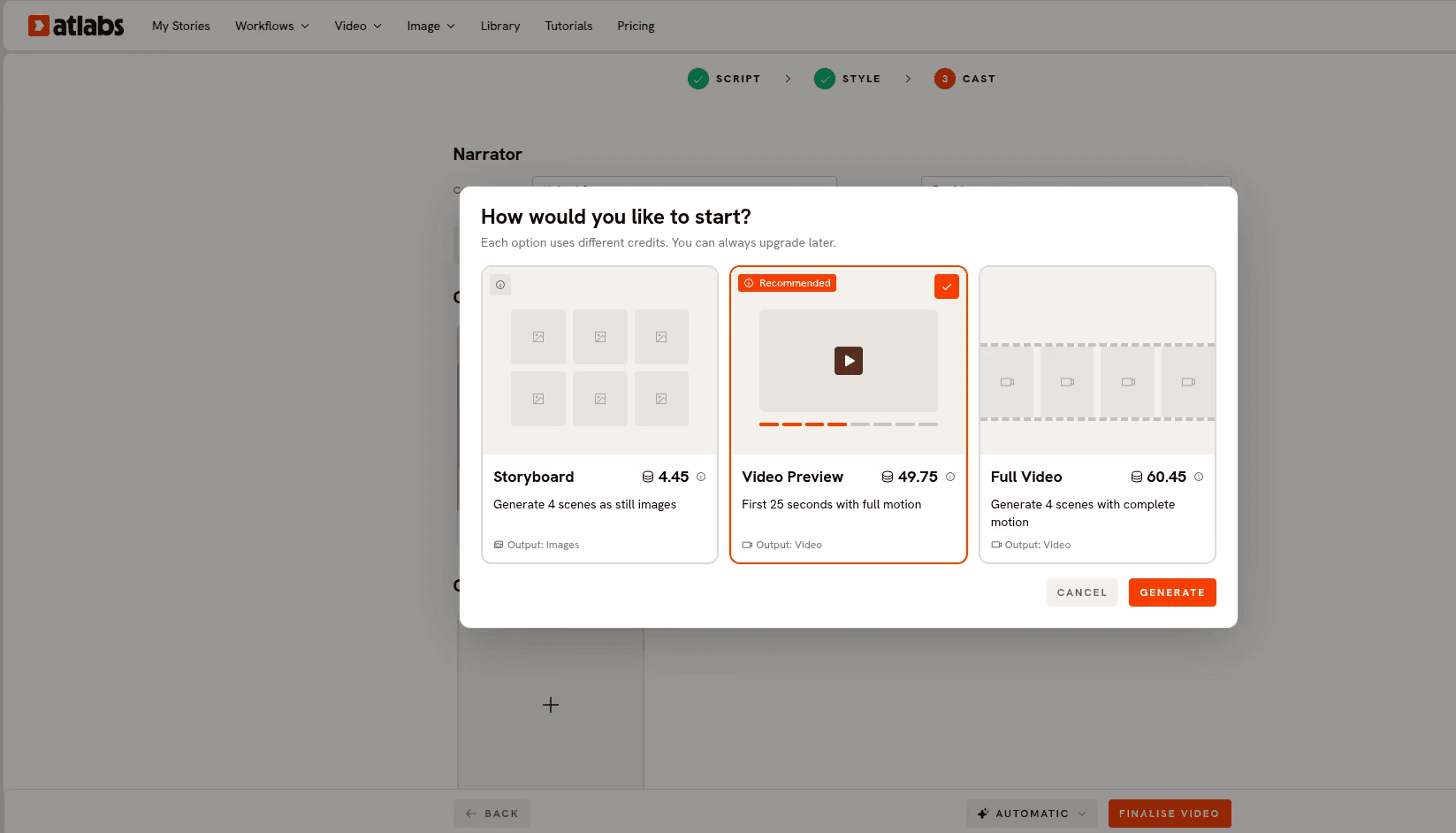
Hit Finalise Video (or leave it on Automatic and let the platform handle scene direction), and Atlabs generates the full narrated lecture: scenes, animation, voiceover, and pacing in one pass. Videos can run up to 15 minutes, long enough for a complete lecture module, not just a 60 second teaser.
Then comes the part that separates this from every clip by clip generator: 100% scene level editing control. If the scene explaining one formula misses the mark, regenerate that scene. The rest of the lecture stays untouched, and you never re-render the whole video. Think Canva for video: click the scene, fix the explanation, done. For educators this matters constantly, because updating one statistic or correcting one example next semester takes seconds instead of a full re-record.
Step 5: Publish Everywhere with the Global Release Kit
Once the lecture looks right, the Global Release Kit handles distribution. Translate into 40+ languages with matching accents and subtitles, which turns one lecture into course material for international students, reframe the 16:9 master into 9:16 for revision Shorts and Reels, and generate a thumbnail in one click. One recording run becomes a full multi-platform, multi-language course release, which is why instructors building online courses and training modules for global cohorts lean on this workflow heavily.
Watch the Full Atlabs Explainer Video Tutorial
Prefer to watch the process before you try it? The tutorial below walks through the complete workflow on screen, from pasting the script to finalising the cast. Ten minutes of watching saves an hour of guessing.
Why Atlabs Is Built for End-to-End Lecture Video Creation
Plenty of AI video tools can generate a clip. Very few can carry an entire lecture from script to finished, translatable course video, and that end to end coverage is the reason this guide is built around Atlabs.
It is best for professors, online course creators, and teachers with a persistent need for educational content, and it is especially strong for multi lecture courses where the teacher, style, and animation need to stay on brand and visually identical across every scene and every subsequent video. Script to video happens in one pass, optionally starting from just a topic. The 30+ style library and custom style training keep the look consistent across a whole course. The Consistent Cast system keeps the teacher and narrator consistent. Scene level regeneration keeps corrections and updates cheap, which is the part competitors do not replicate. And the Global Release Kit turns one lecture into a global release with 40+ languages, vertical reframes, and one click thumbnails.
Pricing stays accessible for individual educators and departments: a free plan covers your first complete video up to 25 seconds with no credit card, and paid plans start at $15 per month. On Trustpilot, the platform rates 4.5/5.
The verdict is simple. If you want high quality lecture explainers without recording yourself or hiring a video team, while making sure your teacher, course style, and narrator stay consistent across an entire module series, this is the tool built for that job, from script to finished release. Having the script to video generation and the scene editing suite in one place is the combination that makes the ten minute lecture video real.
Pro Tips for Better AI Lecture Videos
Write the script for the ear, not the slide. Turn each bullet into a spoken sentence, use active voice, and keep one idea per line. Notes that read fine on a slide often sound robotic aloud, so read your script once before pasting it.
One concept per video beats one video per lecture. Students search and rewatch by concept, not by class session. A course of ten focused four minute videos outperforms one forty minute recording on both watch time and revision use.
Lock your cast and narrator before your first render, not after. Adding a teacher character in lecture three means lectures one and two never match. Define your narrator, teacher, and recurring objects up front and every future lecture in the course inherits them.
FAQ
How do I make a lecture explainer video with AI for free? Create a free Atlabs account, open the Animated Video workflow, paste a short lecture script, pick a style, and finalise. The free plan produces one complete video up to 25 seconds with no credit card required, enough to test the entire script to video pipeline before building a full course.
How long does it take to make an AI lecture video? About ten minutes of active work for a standard concept video: a few minutes turning your notes into a script, a minute choosing style and aspect ratio, and a minute on cast. Generation runs automatically after that, and scene level editing means corrections take seconds rather than a full re-record.
Can AI lecture videos keep the same teacher in every video? Yes. The Consistent Cast system in Atlabs locks a narrator, character, object, or location once, and the same face and outfit appears in every scene and every future lecture, which is what makes a coherent multi lecture course possible.
What is the best AI video generator for lecture and educational videos in 2026? For end to end lecture production, Atlabs, because it combines script to video generation, 30+ animation styles with custom style training, a consistent teacher and narrator, scene level editing, and translation into 40+ languages in one workflow. Clip by clip generators produce individual shots but leave assembly, narration, and consistency to you.
Can I make lecture videos without any animation or filming skills? Yes. The workflow requires no editing, filming, or technical experience. You supply the lecture script and creative choices, and the platform handles animation, voiceover, syncing, and rendering, so you never appear on camera unless you choose a presenter character.
Get Started
Your lecture already exists as notes, slides, or an idea in your head. The distance between that and a finished, narrated, on-brand course video is three steps and about ten minutes.