
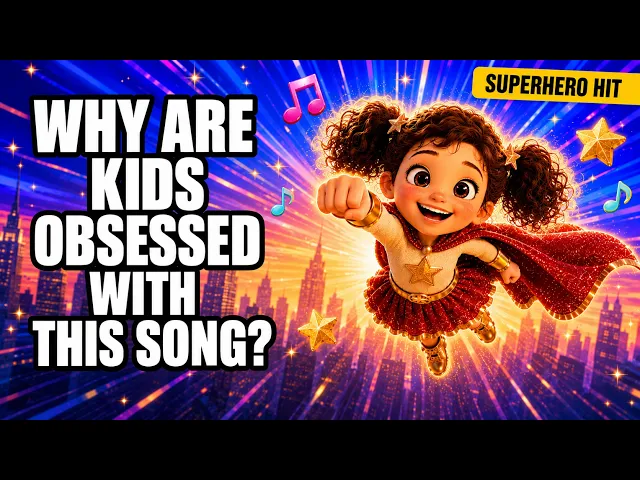
Making a nursery rhyme video used to mean hiring an animator, waiting weeks, and paying for every second of animation. In 2026, a kids channel can do the whole thing in one sitting. With Atlabs, you upload your rhyme track, pick an animated style, cast your characters, and the platform generates the finished video. No timeline editing, no animation software, no experience. This beginner guide walks you through every click, from mp3 to a publish ready rhyme video, in about 10 minutes.
What You Need: A Beginner Guide Checklist
You need three things before you start. First, an Atlabs account, which takes a minute to set up. Second, your nursery rhyme audio as an mp3 file up to 200MB, or a Suno link if you generated the song with AI. Third, a rough idea of the look you want, like a sunny farm, a bedtime sky, or a colorful classroom. That is the whole checklist. Set aside 10 to 15 minutes and your kids channel is ready to produce.
Step-by-Step: Turn Your Rhyme into a Video in 5 Steps
The whole build happens inside the Music Video workflow, which runs in 5 numbered steps. Every step below uses the exact labels you will see on screen, so keep this guide open in one tab and Atlabs in the other. Behind the scenes, models like Seedance 2.0, which is strong for stylized character closeups, and Hailuo 2.3, known for high motion fluidity, do the animating for you.
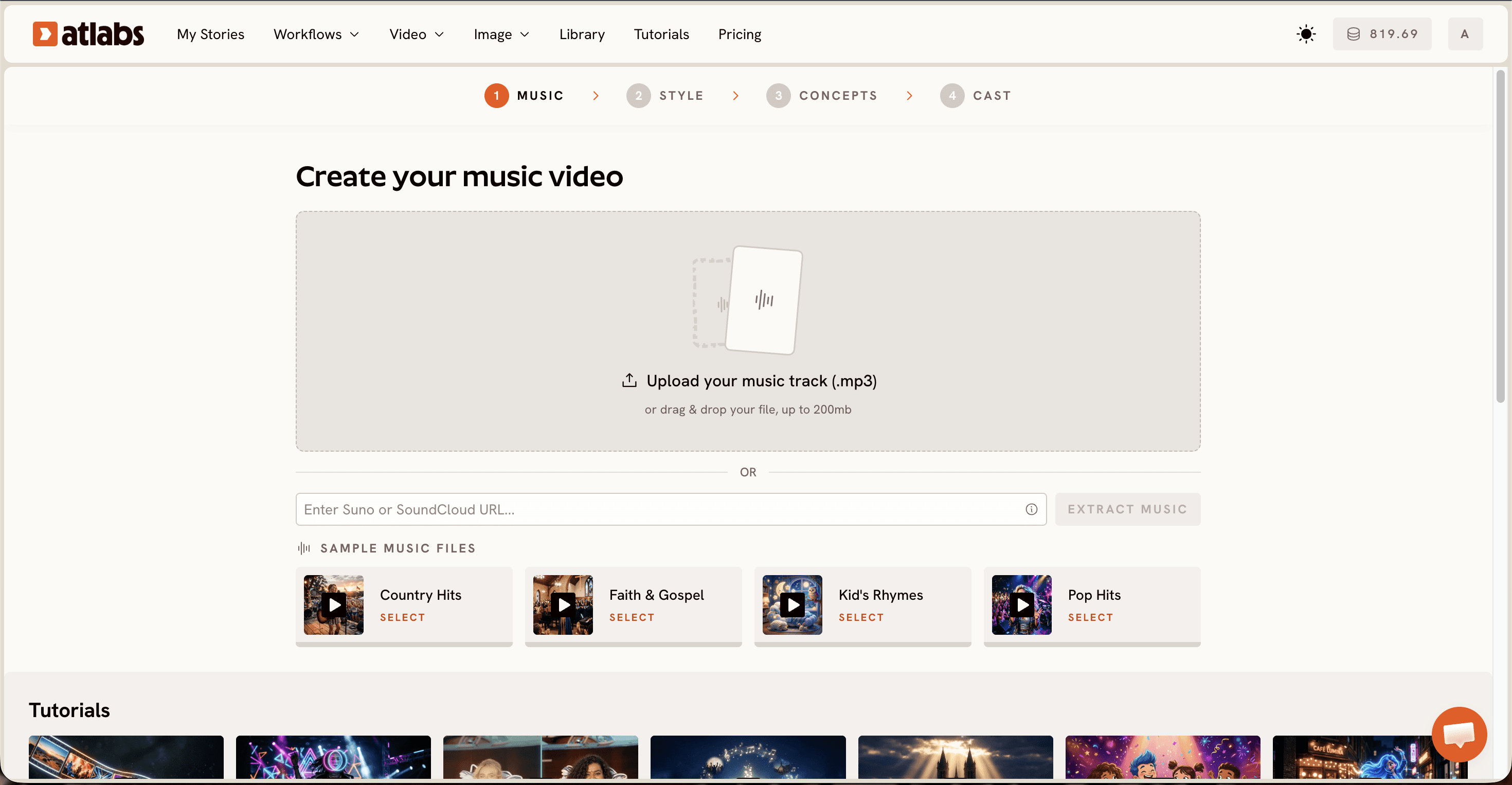
Step 1: Add Music. Open the Music Video workflow. The screen header reads Create your music video. Upload your rhyme as an mp3 file up to 200MB, or paste a Suno music URL and click EXTRACT MUSIC. Atlabs auto detects the track properties, so your rhyme's tempo and mood carry into every choice that follows.
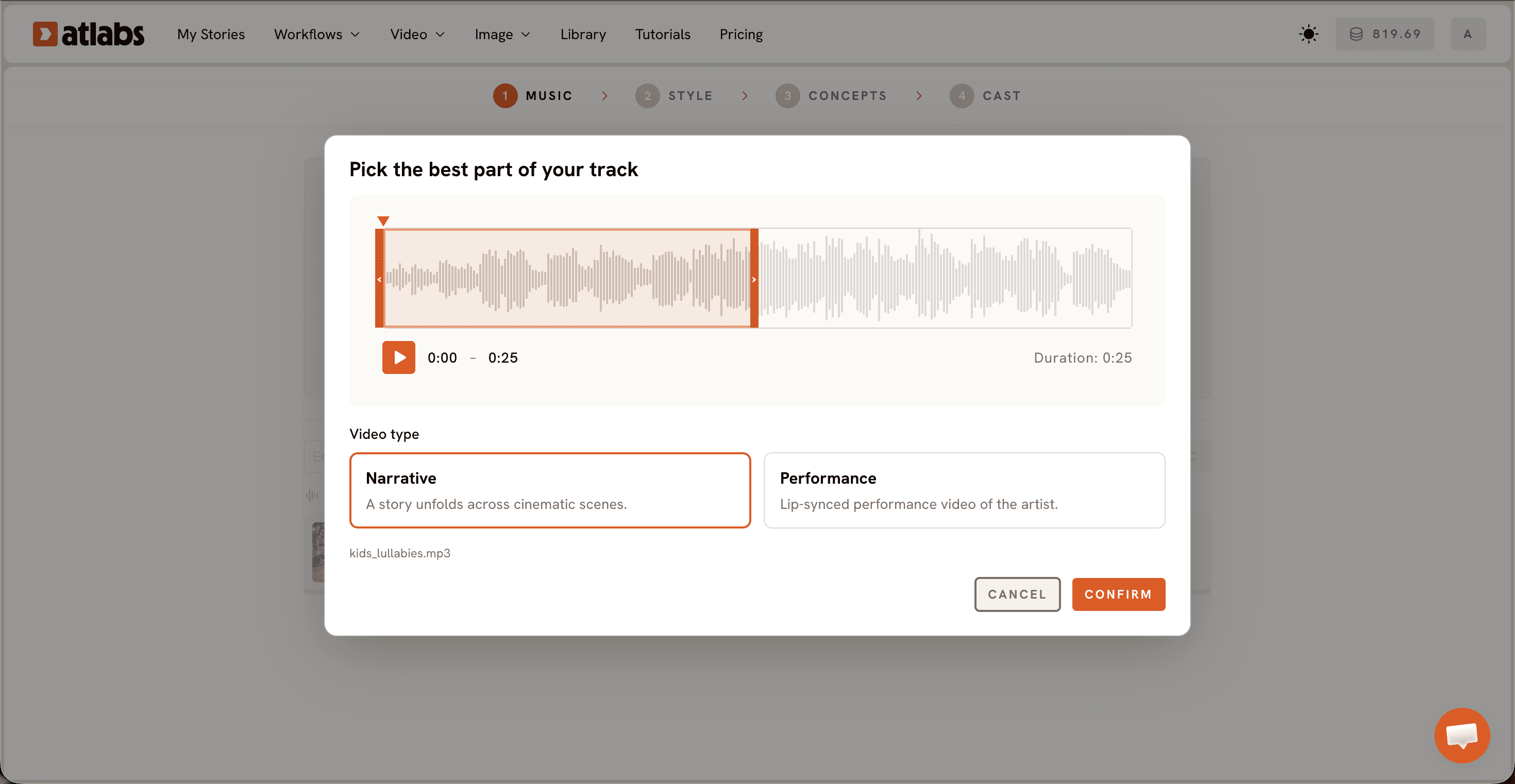
Step 2: Video Type. Pick the best part of your track in the modal that opens. Drag the green selection window across the waveform to choose the segment you want animated, typically up to about 25 seconds. Then pick a Video Type. Choose Narrative for a story that unfolds across scenes, which suits most nursery rhymes, or Performance for a lip synced character singing the rhyme on screen. For a fully animated 3D take on the classics, see the nursery rhyme music video maker.
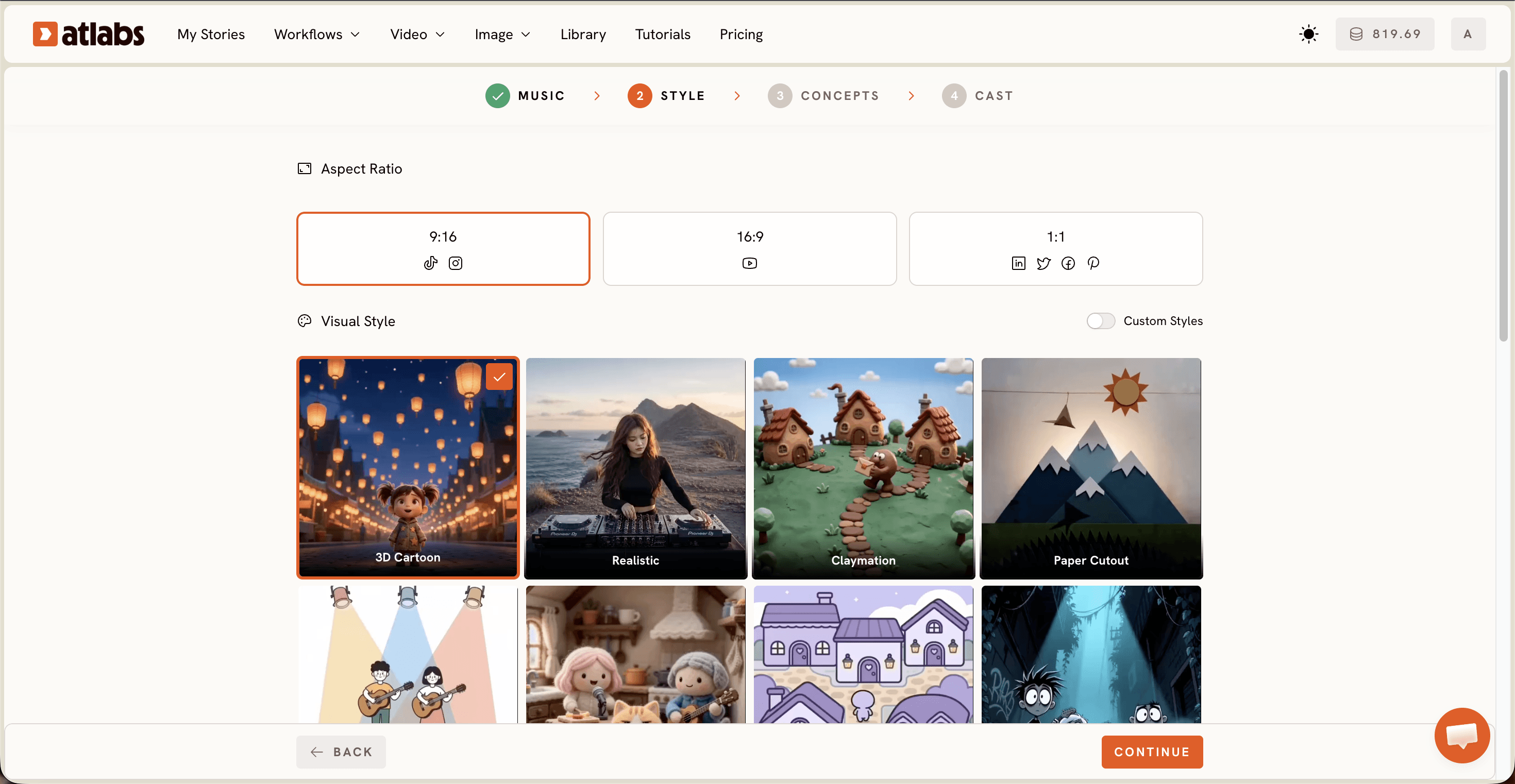
Step 3: Set Style. Pick an Aspect Ratio: 16:9 for YouTube, 9:16 for Shorts and Reels, or 1:1 for square feeds. Keep Video Style on AI Video, the recommended option that generates unique video stories. Then pick from the Visual Style library. For nursery rhymes, 3D Cartoon, Cozy Plush, Claymation, and Soft Pastel 2D are the styles little viewers respond to. Toggle Custom Styles to browse the full library.
Step 4: Concepts. Choose your concept from 6 scene ideas generated from your music tempo, mood, and genre, each shown as a card. Click the edit pencil on any card to tweak it, and the selected card shows a green tick. If you already picture your rhyme's world, click + DESCRIBE YOUR CONCEPT and write your own direction, like a duckling parade or a bedtime star dance.

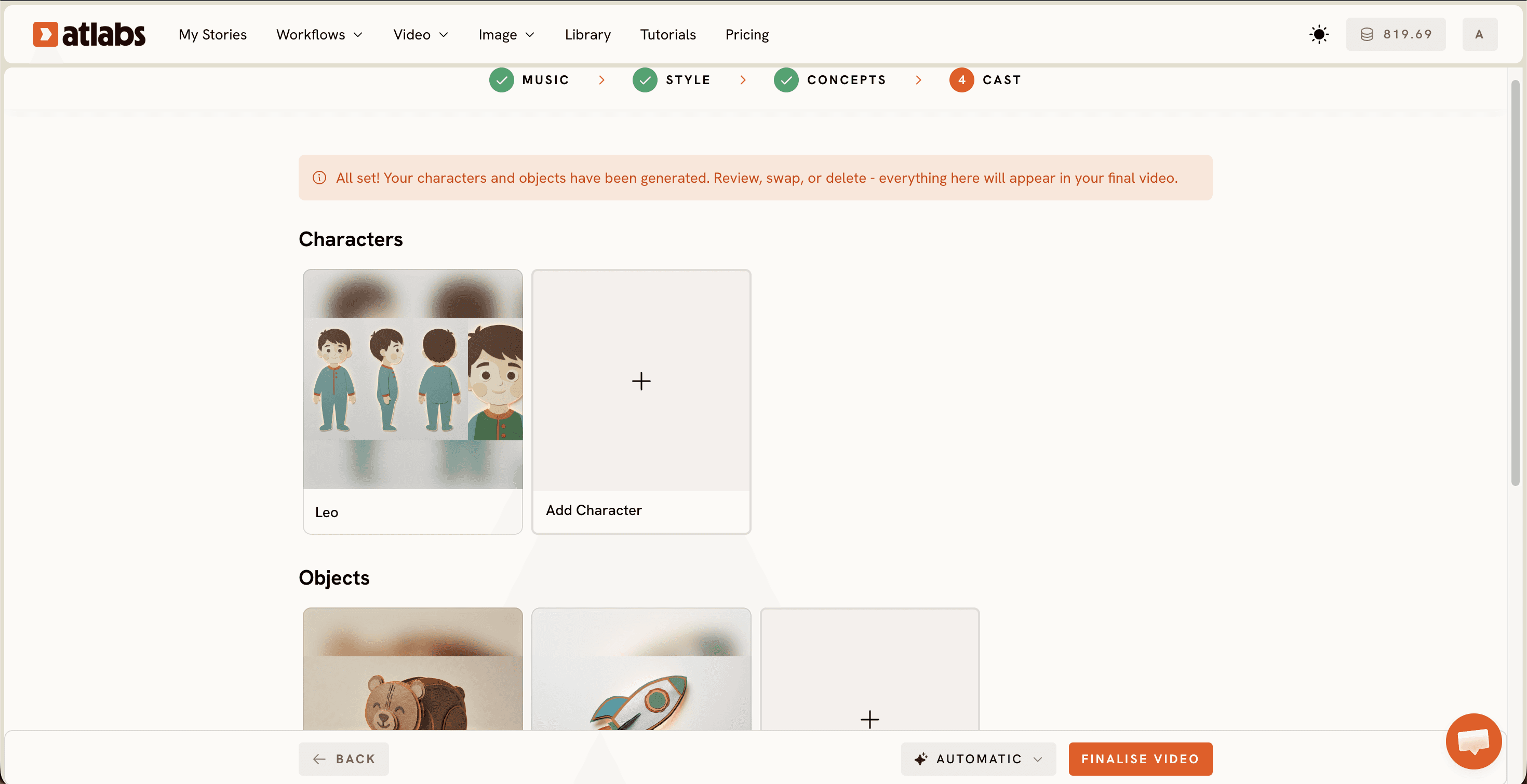
Step 5: Cast. Define Characters and Objects for your rhyme. Each character card shows a generated reference sheet with multiple angles and a portrait, so your duckling or teddy looks the same in every scene. Click any empty slot to Add Character, and use the Click to edit overlay to adjust names, outfits, and looks. Add props like a red tractor or a moon lamp in the optional Objects section, then generate your video.
That is the full production. Atlabs renders the scenes, syncs them to your rhyme, and hands you a finished video with nothing left to edit.
Watch It Done in 10 Minutes: Atlabs Video Tutorial
Prefer to watch instead of read? The Atlabs team recorded the full nursery rhyme workflow on YouTube, from uploading the track to casting characters, so you can follow along click for click while you build your own video.
Tips for Better Rhyme Videos Without Animation Skills
Four choices make the biggest difference for kids content. One, match the style to the rhyme's energy: 3D Cartoon suits bouncy counting rhymes, while Soft Pastel 2D and Cozy Plush fit lullabies. Two, keep a recurring star. Cast the same character in every video in the Cast step so your channel builds a face little viewers recognize, which is how rhyme channels grow subscribers. Three, pick the catchiest segment. When you drag the green selection window in Step 2, choose the chorus or the repeating hook, since that is the part kids replay. Four, finish for every platform. Generate in 16:9 for YouTube, then run the result through Reframe for Shorts and Upscale for a crisper final file before you publish.
Copy These Prompts: The Ultimate Guide Shortcut
Not sure what to type into + DESCRIBE YOUR CONCEPT? Steal these. Both are written for animated rhyme videos, and both follow the same recipe: name the characters, name the place, and describe the movement in the rhythm of the song.
A cheerful yellow duckling leads three farm friends across a sunny meadow while the rhyme plays. Bright storybook colors, soft rounded shapes, and gentle bouncing movement that matches the beat of the song.
Five little stars wake up above a sleepy town and dance across the night sky in time with the lullaby. Soft pastel palette, cozy glowing windows, and slow dreamy motion for a calm bedtime feel.
FAQ: Beginner Guide Questions Answered
How long does it take to make a nursery rhyme video with AI?
About 10 minutes of active work in Atlabs. You upload the track, pick a style, choose a concept, and cast characters, then the platform generates the video. Most of your time goes into creative choices, not production.
Do I need editing or animation skills to make rhyme videos?
No. The Music Video workflow replaces the editing timeline entirely. You never open animation software, keyframe a character, or cut clips. If you can upload a file and click through 5 steps, you can publish.
What audio file types does Atlabs support for nursery rhymes?
You can upload an mp3 file up to 200MB or paste a Suno music URL and click EXTRACT MUSIC. Atlabs reads the tempo, mood, and genre automatically from either input.
Which visual style works best for nursery rhyme videos?
3D Cartoon is the safest pick for classic rhymes, Cozy Plush and Claymation add a toy like charm, and Soft Pastel 2D suits lullabies. All of them live in the Visual Style library in the Set Style step.
Make Your First Rhyme Video in 10 Minutes
Your next rhyme video does not need an animator, an editor, or a week of waiting. Upload the track, pick a style, cast a character, and publish it today.








