Starting a kids educational YouTube channel in 2026 does not require a studio, an animation degree, or even a camera. Claude handles the scripting and educational planning. Atlabs turns that script into a fully animated video using AI models like Seedance 2.0. Together, they give any beginner the complete production workflow that used to cost thousands of dollars and months of training. This step-by-step guide covers everything from picking a topic to downloading your first finished episode, free.
What You Need to Get Started Free (Setup Takes 10 Minutes)
Getting started requires three things: a topic idea for your first episode, a Claude account for scripting, and an Atlabs account for animated video production. Both platforms have free tiers that are sufficient for a first video. The full setup takes roughly 10 minutes. No animation software, no video editing timeline, and no prior production experience are needed at any stage of this workflow. The only skill required is the ability to describe what you want the episode to teach.
Step-by-Step: Script Your First Educational Video with Claude
Open Claude and describe the topic for the first episode. A focused, single-concept episode performs far better than a broad overview for kids content. A question like 'Why does the moon change shape?' or 'How do plants drink water?' works well. A vague brief like 'an introduction to science' produces a script that is too wide for a short animated video. Give Claude the target age group, for example 4 to 7 or 8 to 12, the episode length in seconds, and the preferred tone. A friendly narrator voice, a question-and-answer structure, or a cartoon-character dialogue each suit different educational subjects.
Claude produces a structured script with a clear opening hook, a main explanation, and a closing takeaway. For a kids educational channel, that three-part structure maps directly to how Atlabs generates animated scenes: setup, content, and resolution. The tighter and more specific the script, the more coherent the final animation. Ask Claude to keep each sentence to one idea. That discipline at the scripting stage removes confusing or jumbled scene transitions in the finished video.
Write a 90-second educational script for kids aged 4 to 7 explaining why the sky is blue. Use a friendly narrator voice, simple vocabulary, and end with one fun activity the child can do at home.
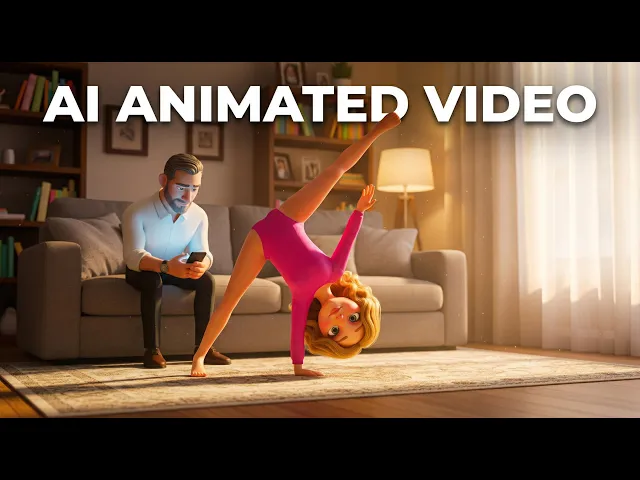
📺 Watch: How to Create a Kids Educational Video in 10 Minutes with Atlabs (Full Tutorial)
Create Animated Kids Videos Without Animation Skills: The Atlabs Step-by-Step Workflow
Once the Claude script is ready, open the Animated Video workflow in Atlabs. The three-step pipeline takes the script from the page to a fully voiced, animated video without any additional editing on your part. Each step has one clear decision to make, and none of them require prior knowledge of animation or design.
Step 1: Paste Your Script into Atlabs
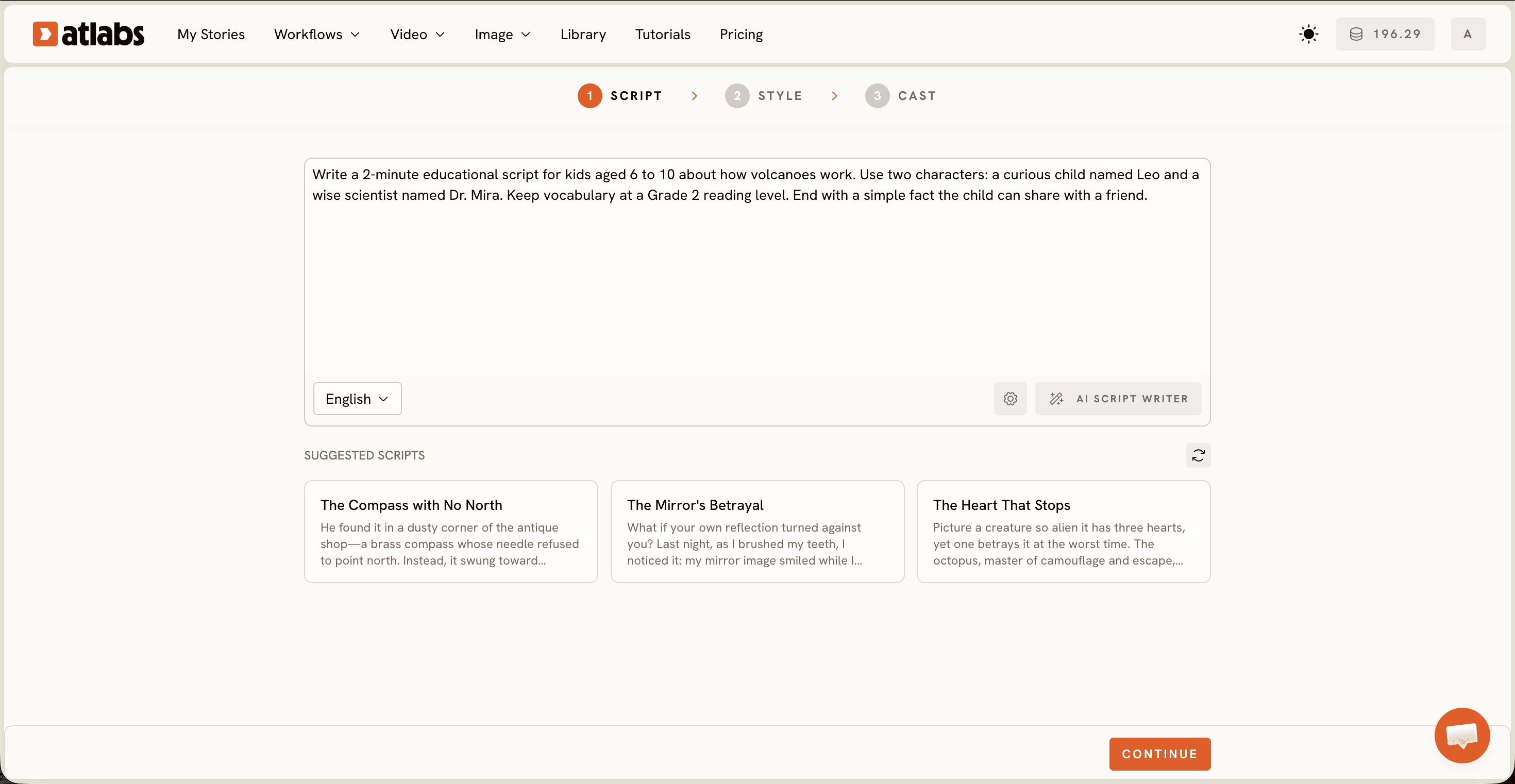
The first screen in the Animated Video workflow shows a script editor with two tabs at the top: Add your script and Add your screenplay. Paste the Claude script directly into the Add your script tab. Atlabs also provides an AI Script Writer button at the bottom-right of the editor, which can tighten phrasing or expand thin sections on demand. The Suggested Scripts section below shows three example story cards for inspiration. For a kids educational channel, your Claude script goes straight in and Atlabs builds the animation from there.
Step 2: Set the Visual Style for Your Kids Channel
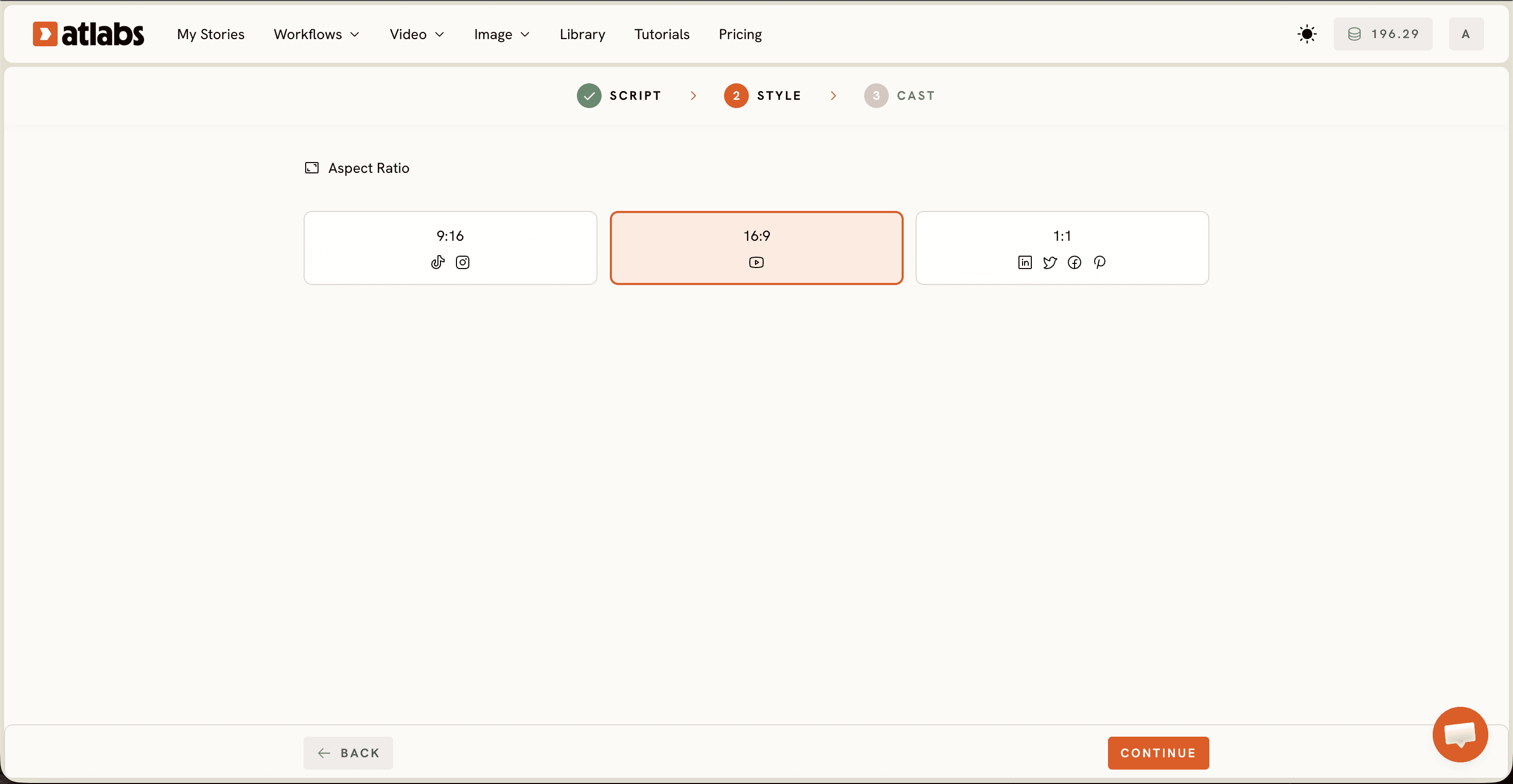
The second screen controls the visual format of the video. Set the Aspect Ratio to 16:9 for YouTube. Under Video Style, select AI Video, which is the recommended setting that generates full animated scenes rather than still images with motion effects applied on top. Then pick a Visual Style from the library. For a kids educational channel, Cozy Plush, 3D Cartoon, and Flat 2D Modern read best with younger audiences because the character shapes are warmer and more expressive. The Custom Styles toggle opens the full library, including Kawai Anime and Soft Pastel 2D, which work well for channels targeting slightly older kids aged 8 to 12.
Step 3: Cast Your Characters and Narrator
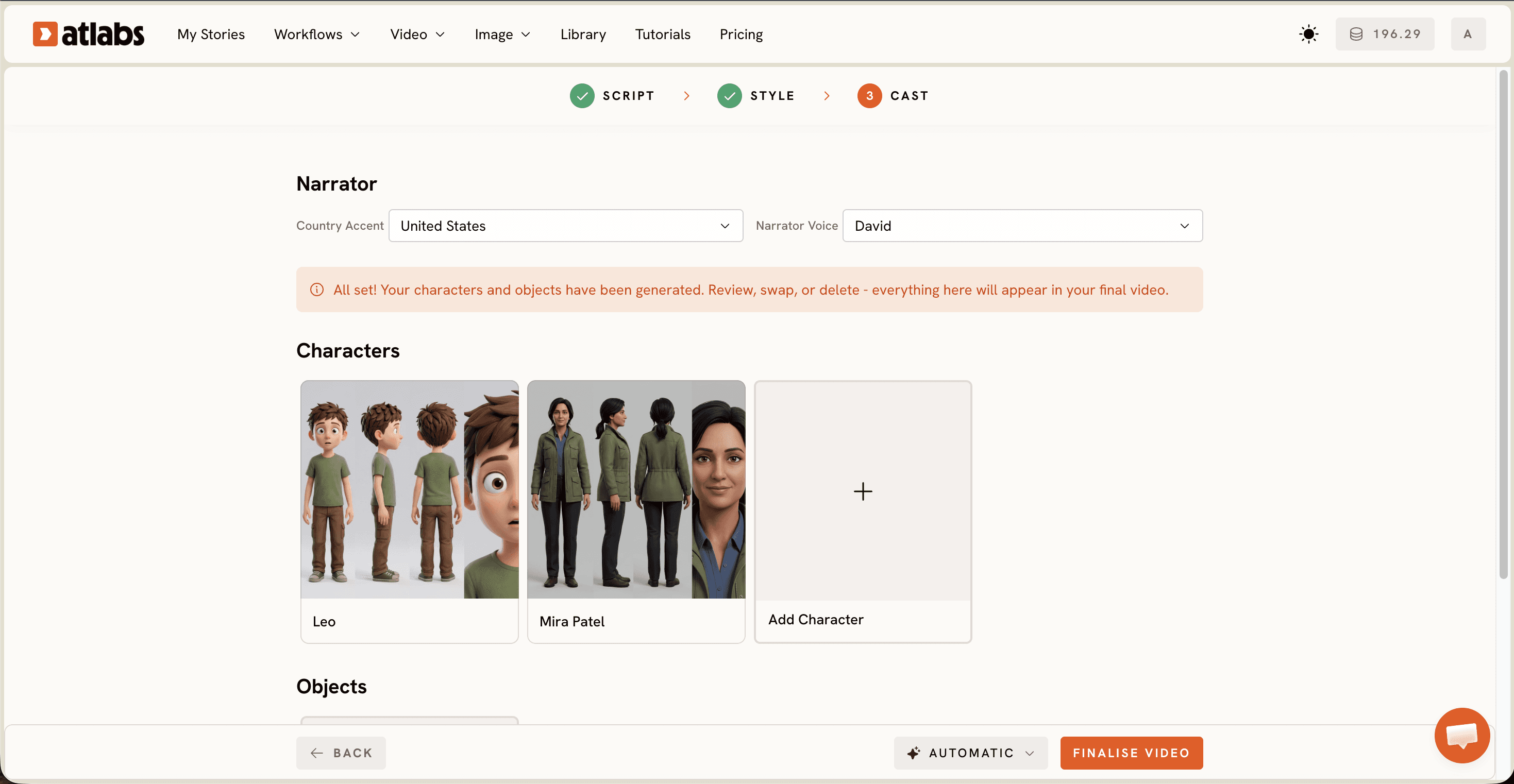
The Cast screen is divided into three sections. The Narrator area at the top controls the voice that guides viewers through the episode. Pick a Country Accent and a Narrator Voice from the dropdown, for example David in a United States accent, which is a reliable default for educational content aimed at a global audience. The Characters section below shows generated character cards with name tags. For a simple educational explainer, one narrator and one or two supporting characters is enough. The Objects section at the bottom is optional and useful for adding scene props that the script references directly, like a telescope, a leaf, or a globe.
Task | Manual Process (No AI) | With Claude + Atlabs |
|---|---|---|
Script Writing | 2 to 4 hours per episode | 5 minutes with Claude |
Animation | 40 to 100 hours of After Effects | 5 to 10 minutes with Atlabs |
Voice Over | Hiring a professional voice actor | Built into the Cast step |
Video Editing | Premiere Pro or DaVinci Resolve required | Not needed |
Production Budget | Studio-level investment required | Free tier available |
Skills Needed | Animation, editing, and scriptwriting | Topic knowledge only |
Beginner Tips for Producing Consistent Kids Channel Content Without Animation Skills
Three adjustments consistently improve kids educational content. First, pick 3D Cartoon or Cozy Plush over the Realistic style for any audience under 10. These visual styles hold younger attention longer because the character proportions and palette feel warmer and more inviting. Second, keep each episode under three minutes. Ask Claude to cut any sentence that does not teach a specific fact or advance the story. Tighter scripts produce more coherent animations with fewer jarring transitions between scenes. Third, after generating the video in Atlabs, use the Reframe tool to crop a 9:16 version for YouTube Shorts. One production run gives two publishable formats: a full YouTube video and a short that drives new viewers to the channel. The Upscale tool in Atlabs also improves resolution for channels targeting crisp delivery on large screens.
Sample Prompts to Copy and Use Right Now
These two prompt structures produce consistent results for kids educational channels. The first is built for science and nature topics. The second is built for early numeracy content, which is one of the highest-performing categories on kids educational YouTube.
Early numeracy scripts work best when each number is introduced through an animal or character that embodies one memorable trait. This structure gives Atlabs clear scene anchors to animate around, which results in more visually distinct and engaging scenes.
Write a 90-second animated script about the number 5 for kids aged 3 to 5. Use a cheerful narrator, include counting moments, and have five different animals appear one by one. Each animal introduces itself with one fun fact.
FAQ
Do I need any video editing software to start a kids educational YouTube channel with AI?
No editing software is needed. Atlabs handles everything from script to finished video inside one browser-based workflow. Claude generates the script and Atlabs animates it. The only external step is uploading the finished video file to YouTube.
How long does it take to produce one kids episode with this free step-by-step workflow?
A 90-second to 2-minute episode takes roughly 10 to 15 minutes from writing the Claude script to downloading the finished Atlabs video. Longer episodes with more characters take slightly more time, but the three-step workflow stays the same.
Can a complete beginner start a kids educational channel without any animation skills?
Yes. The Atlabs Animated Video workflow is built for people without animation backgrounds. Claude handles scripting and Atlabs handles visual production. The only thing needed is the ability to describe what the episode should teach and who it is for.
What visual style in Atlabs works best for a kids educational YouTube channel?
3D Cartoon and Cozy Plush consistently perform well for kids audiences under 10 because the character shapes are warmer and more expressive. For older kids aged 8 to 12, Flat 2D Modern or Soft Pastel 2D produce a more age-appropriate look while still reading as clearly animated.
Get started
Kids educational YouTube is one of the fastest-growing content categories in 2026, and the barrier to entry has never been lower. A Claude script and one Atlabs Animated Video are all it takes to publish a first episode this week.








