
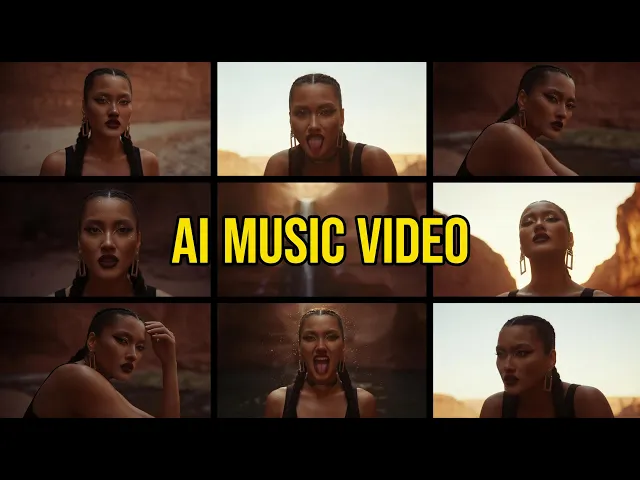
To turn a Suno song into a cinematic music video, open the Music Video workflow in Atlabs, paste your Suno track link, and let the tool build a video around the mood and tempo of your audio. You pick a realistic visual style, choose a scene concept, cast your characters, and render a finished cinematic video in about 10 minutes. No camera, no editing suite, and no animation software. This guide walks an indie artist through every step, from a Suno link to a YouTube-ready cut.
What You Need to Start for Free
Getting started takes almost nothing. You need an Atlabs account, one finished Suno track, and about 10 minutes. If your song already lives on Suno, you can paste its share link directly, so there is no need to export or re-encode anything first. The workflow does the heavy lifting of matching visuals to your audio, which means an indie artist with no video background can follow along and still end up with a cinematic result.
An Atlabs account, opened from the dashboard.
A finished Suno song, either the share URL or an mp3 up to 200MB.
About 10 minutes and a rough idea of the mood you want on screen.
The Step-by-Step Walkthrough (5 Steps)
The Music Video workflow moves through five screens, and each one builds on the last. Follow them in order and your Suno track becomes a finished cinematic video by the final step. You are never editing a timeline or keyframing anything by hand, so the whole flow stays fast even the first time you run it. Here is exactly what to click on each screen.
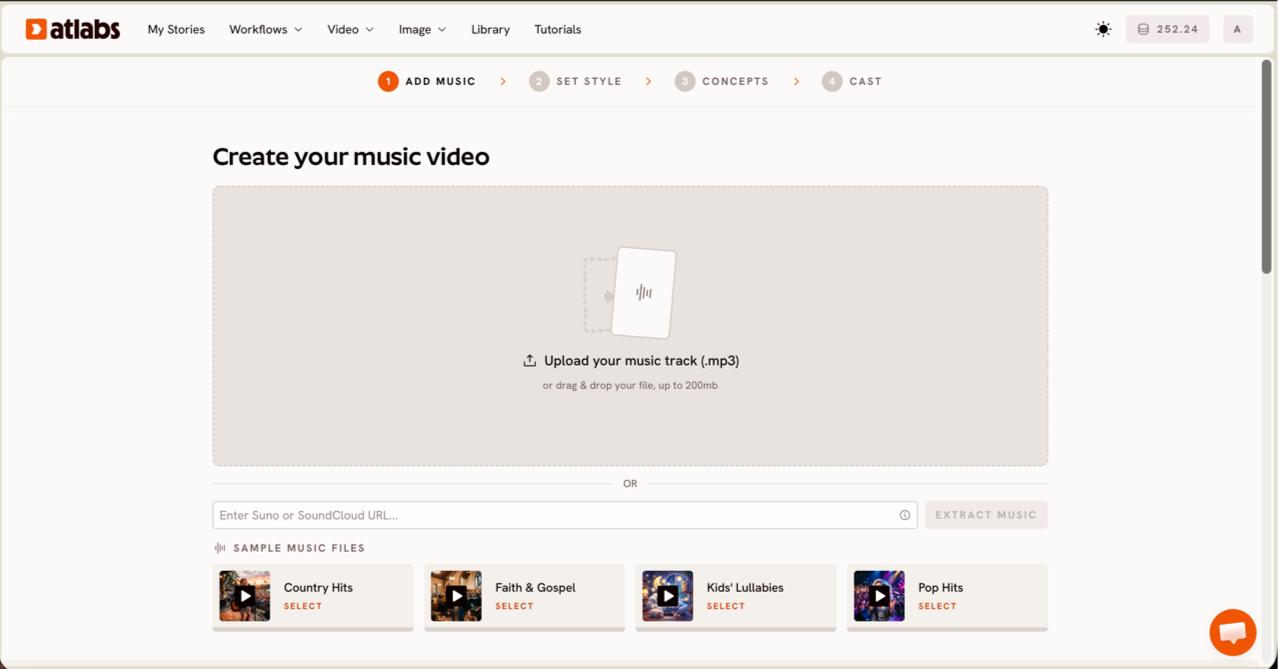
Step 1: Add your Suno track. Open the Music Video workflow and land on the screen headed Create your music video. Upload an mp3 up to 200MB, or paste your Suno music URL and click EXTRACT MUSIC. Atlabs reads the track and auto-detects its properties, so the video it builds later matches your tempo and mood.
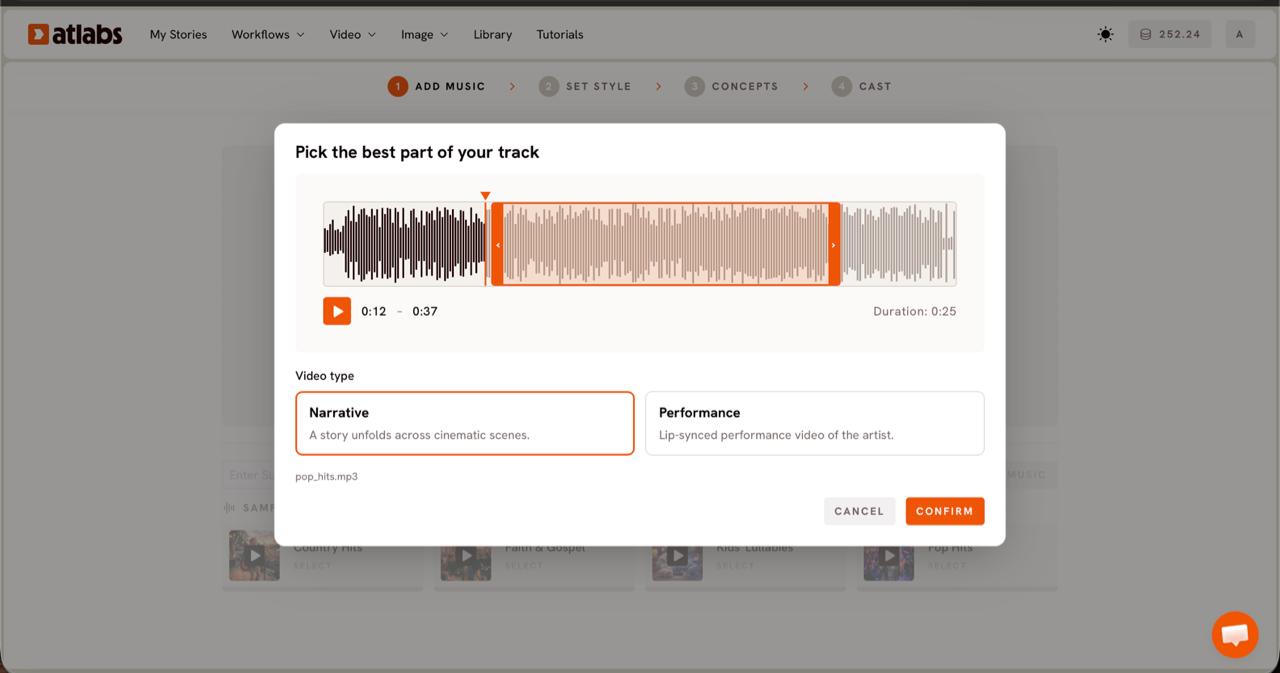
Step 2: Pick the best part and a Video Type. The Pick the best part of your track modal opens. Drag the green selection window across the waveform to choose the segment you want to feature, usually up to about 25 seconds. Then choose a Video Type. Pick Narrative for an atmospheric, story-driven cut, or Performance for a lip-synced performance video when your Suno track has vocals.
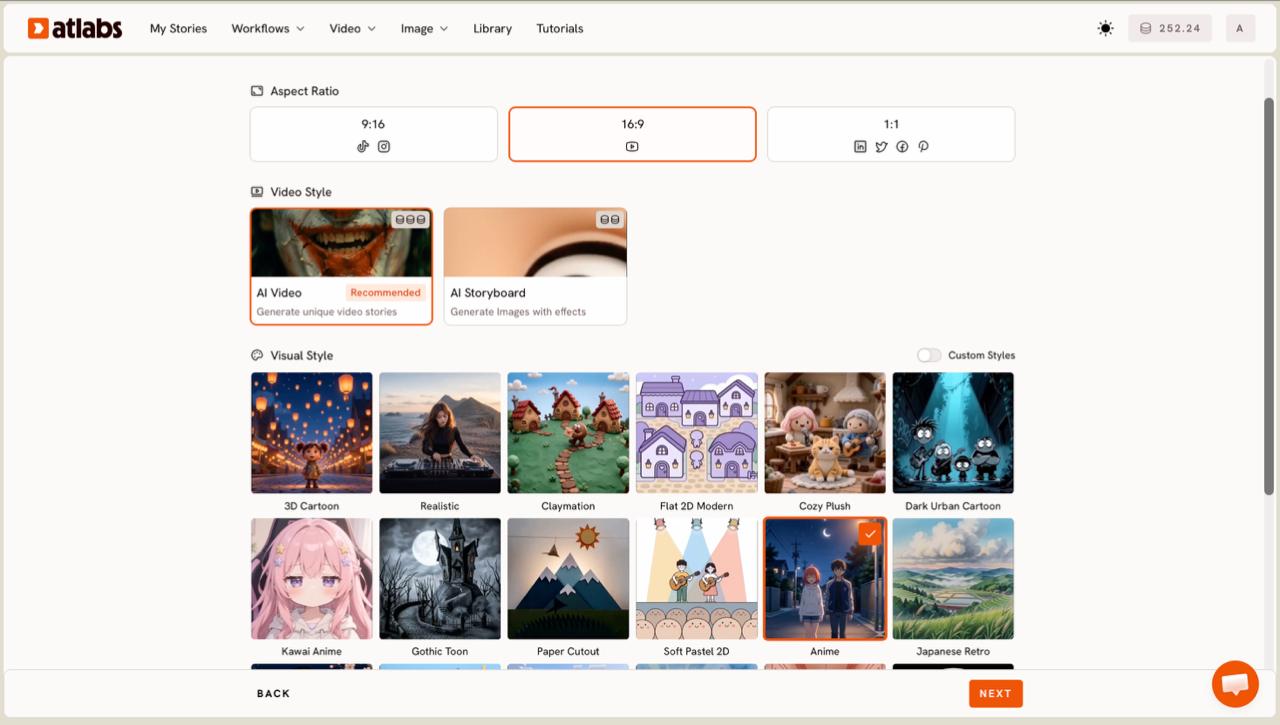
Step 3: Set a cinematic style. On the Set Style screen, choose your Aspect Ratio. Use 16:9 for YouTube, 9:16 for TikTok and Instagram, or 1:1 for square feeds. Keep Video Style on AI Video, which generates unique video stories rather than still frames. Then open the Visual Style library and pick Realistic for a live-action, cinematic feel that suits indie tracks.
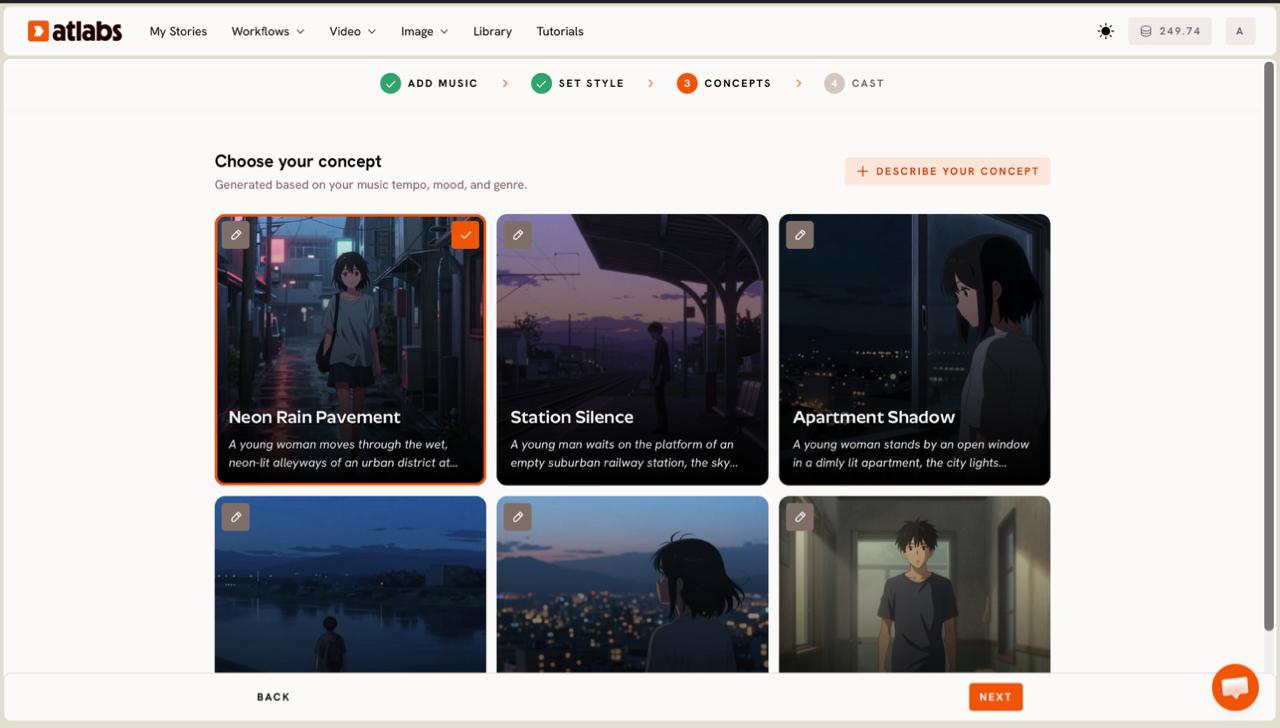
Step 4: Choose your concept. The Concepts screen shows six scene ideas generated from your track's tempo, mood, and genre, each on its own card. Click a card to select it, use the edit pencil to adjust the direction, or click + DESCRIBE YOUR CONCEPT to write your own scene from scratch. The selected concept shows a green tick.
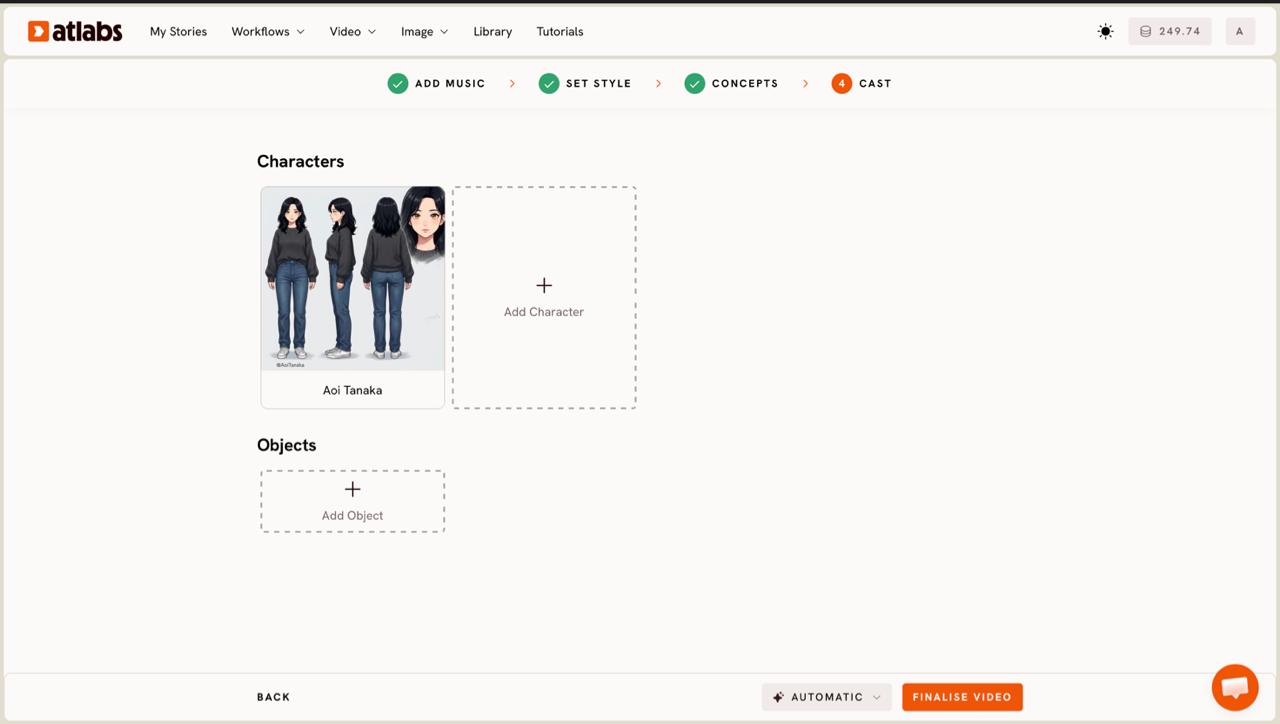
Step 5: Cast your characters and render. On the Cast screen, each character card shows a generated reference sheet with multiple angles. Click any empty slot to Add Character, or open Click to edit to refine a face, outfit, or look. Add props in the Objects section if your scene needs them, then render your cinematic music video.
Get a Cinematic Look in 10 Minutes: Pro Tips
Match the model to the mood. For a realistic, cinematic indie video, Kling 3.0 handles smooth motion and lifelike movement, while Google Veo 3.1 is strong for the wide establishing shots that open a track. Keep your featured segment tight, because a focused 20 to 25 second section reads as more cinematic than a full song stretched thin. Choose Narrative for instrumental or atmospheric Suno tracks, and Performance only when a vocal lead should appear on screen. Once your cut renders, polish it with a finishing pass: use Reframe to repost the same video in a vertical crop, and Upscale to push the resolution for a clean YouTube upload. If your Suno track has a strong vocal hook, add a Lip Sync pass so the on-screen lead matches the words, which makes a performance cut feel far more believable to your audience.
Copy These Cinematic Prompts (Free to Reuse)
If you write your own concept in Step 4, specific direction gives a more cinematic result than a vague mood. Copy either prompt below into + DESCRIBE YOUR CONCEPT and adjust the details to fit your Suno track.
A lone indie singer walks through a rain-soaked city at night, neon reflections on wet streets, slow handheld camera, warm streetlight glow, shallow depth of field, cinematic 35mm look, moody and intimate.
Golden-hour desert highway, a vintage car in motion, dust catching low sun, wide establishing drone shot cutting to close dashboard details, soft film grain, warm ochre palette, nostalgic and expansive.
Watch the Step-by-Step Video Tutorial
Prefer to watch it happen before you try it yourself? The full Atlabs walkthrough shows the same five steps in real time, from pasting a Suno link to rendering a finished cinematic cut.
FAQ
How long does it take to make a music video from a Suno song?
Most cuts render in about 10 minutes, from pasting your Suno link to a finished video. Time varies with your segment length, the model you pick, and current queue times, but the workflow itself is only a few clicks.
Do I need editing or animation skills?
No. The Music Video workflow handles the concept, scenes, and casting for you, so you never open an editor or animation software. You upload audio, pick a style, and render. Any indie artist can follow the five steps.
Can I paste a Suno link directly, or do I need to download the file?
You can do either. On the Add Music screen you can paste your Suno music URL and click EXTRACT MUSIC, or upload an mp3 up to 200MB if you already have the file saved.
What aspect ratio should I use for YouTube?
Choose 16:9 on the Set Style screen for a standard YouTube upload. If you also want a Shorts or Reels version, render again at 9:16 or use Reframe to crop the same cut vertically.
Get started
You already have the track. Turn it into a cinematic music video in the Music Video workflow and export a YouTube-ready cut today.








