
How do you batch produce kids content with AI? Write a batch of scripts, lock one visual style and one cast of characters in Atlabs, then run each script through the same Animated Video setup so every episode comes out visually consistent without re-building the show from scratch each time.
Posting daily only works if the production step stops being the bottleneck. A single animator hand-drawing frames cannot ship five kids episodes a week. A team that reuses a locked style and cast in Atlabs can.
What you'll need
An Atlabs account, a batch of short scripts or story ideas (five to seven works well for a week of daily posting), and about fifteen to twenty minutes per episode once your style and characters are set up. No animation software and no editing background required.
Step-by-step walkthrough
Start by opening the Animated Video workflow on the Atlabs app dashboard. The header shows a three-step progress bar: Script, Set Style, Cast. This is the same flow you will repeat for every episode in the batch, so the goal on episode one is to lock decisions that episodes two through seven can reuse.
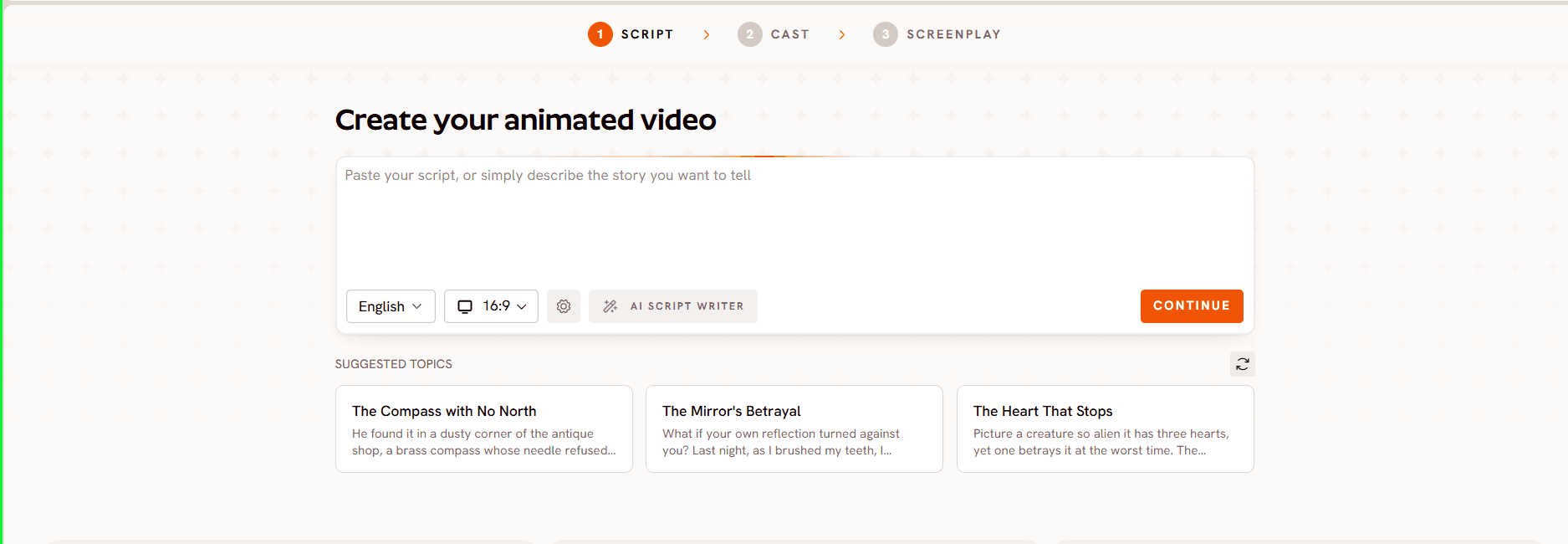
Write your first script using the Add your script tab, or use Add your screenplay if you prefer structured scene and dialogue formatting. If you have a week's worth of ideas but no scripts yet, click the AI Script Writer button to generate a draft from a short prompt, or pull from the Suggested Scripts cards if you want a ready-made starting point. Set the Language selector at the bottom left before generating; keep it consistent across the batch so narration doesn't switch languages mid series.
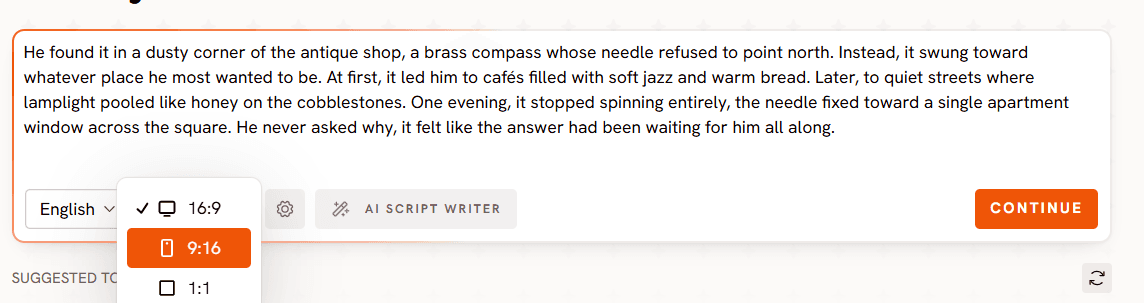
Choose 9:16 if the series is going to YouTube Shorts, Instagram, or TikTok, 16:9 for long-form YouTube, or 1:1 if you're posting to Facebook or Pinterest alongside the vertical cut. Select AI Video as the Video Style so Atlabs generates full motion rather than static Storyboard images. Then pick one option from the Visual Style library, such as 3D Cartoon, Cozy Plush, or Flat 2D Modern, and stick with that exact style for the whole batch. This single decision is what makes a daily-upload series look like one show instead of five unrelated clips.
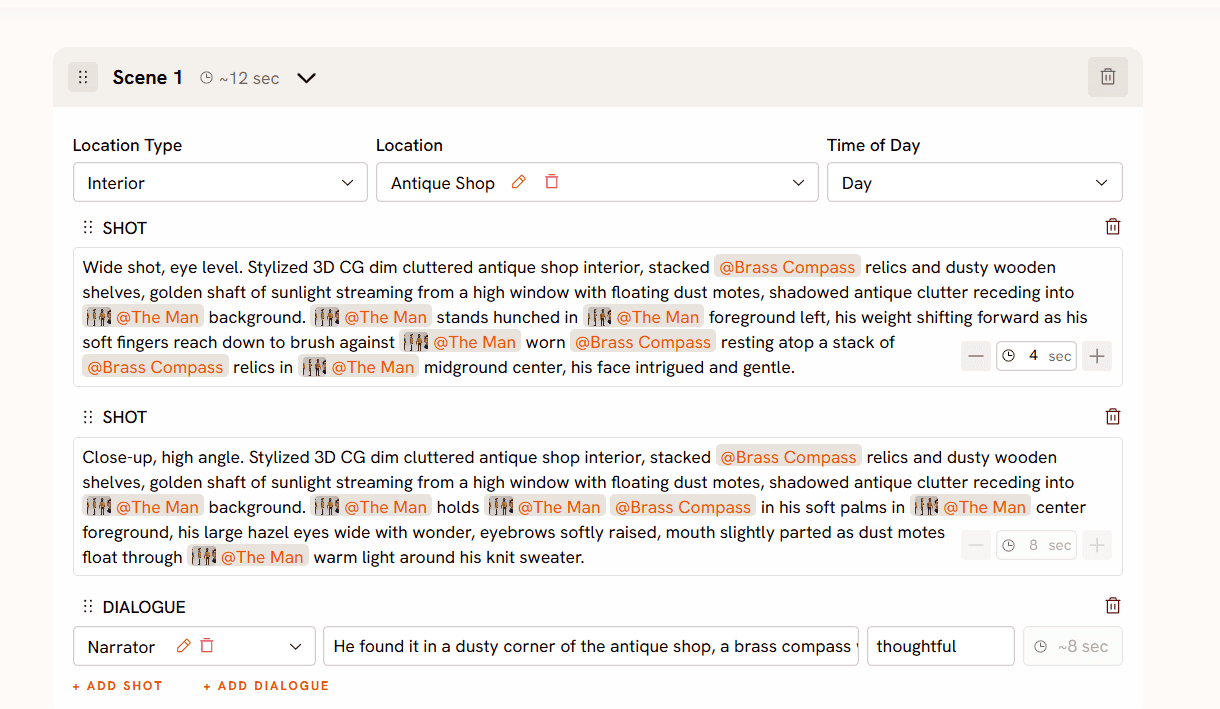
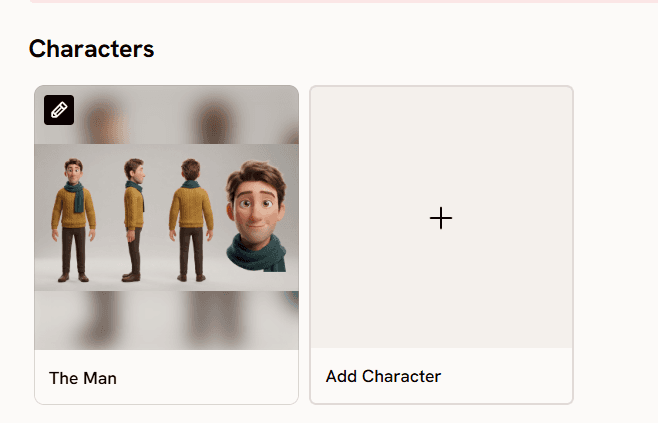
Move to Cast. Set the Narrator's Country Accent and Narrator Voice once here, and reuse the same voice for every episode so young viewers recognize the storyteller immediately. Build your Characters by clicking each empty slot to add a character, then use the character editor to lock their look. Add any recurring Objects your series needs, like a treehouse or a school bus, in the Objects section. Once this cast is generated, save the character setup as your template for the week; every following script reuses the same characters instead of generating new ones from scratch.
For episode two onward, the workflow repeats but gets faster: paste in the next script, keep the same Aspect Ratio and Visual Style, and re-select the same Characters from Cast instead of building new ones. This is the actual batching mechanic, one style and one cast, run through the Script step repeatedly.
Tips for better results
Batch your scripts before you batch your generations. Write and approve all five to seven scripts first so a rough patch in the writing doesn't stall the entire week's production. Keep episodes short, ninety seconds to two minutes works well for daily kids content and keeps generation and review time low per episode. Reuse your Narrator Voice and Visual Style choice as a locked template rather than re-picking them each time, since consistency is what makes viewers subscribe to a series rather than watch a one-off video. Before publishing, run each finished episode through Caption Video for accessibility and through Reframe if you need both a vertical and horizontal cut from the same generation.
FAQ
How long does it take to batch produce a week of kids content with AI? Once your Visual Style and Characters are locked on episode one, each additional episode typically takes fifteen to twenty minutes to set up and generate, so a batch of five to seven episodes can be produced in a single afternoon.
Do I need animation or editing skills to do this? No. The Animated Video workflow handles script interpretation, visual generation, and voicing through the Script, Set Style, and Cast steps, so no prior animation or video editing experience is required.
How do I keep my characters looking the same across every episode? Build your Characters once in the Cast step and reselect that same cast for every following script instead of generating new characters, which keeps faces, outfits, and proportions consistent across the series. For the full series setup, see how to create an animated series with AI.
What file types and posting formats does this support? Choose your Aspect Ratio in Set Style based on where you're posting: 9:16 for Shorts, Reels, and TikTok, 16:9 for long-form YouTube, and 1:1 for Facebook or Pinterest. You can also run a finished episode through Reframe to produce a second aspect ratio from the same generation.
Once your first week's batch is generated, the pipeline is mostly repeatable from there: swap in a new script, keep the locked style and cast, and post daily without rebuilding the show each time. Start your next episode in the Animated Video workflow.








