You can turn any children's story into an animated video using Atlabs, an AI video platform that builds cartoon scenes, characters, and narration straight from a written script. Paste your story, pick a storybook visual style, choose a narrator voice, and Atlabs animates the whole thing for you. There is no drawing, no After Effects, and no animator fees. This guide walks parents, teachers, and kids channel creators through the exact three step Animated Video workflow, so your first story is playing on screen today.
Open the Animated Video workflow →
What you will need
Before you start, gather three things. First, an Atlabs account, which is all you need to reach the Animated Video workflow. Second, your story, either a finished children's tale you already wrote or a rough idea you can expand inside the app. Third, about ten minutes. You do not need any animation skills, voice actors, or video editing software. Atlabs handles the scenes, the characters, and the voice, so a single written page is enough to begin.
Turn your children's story into an animated video in three steps
Atlabs uses one Animated Video workflow with a progress bar that reads SCRIPT, then SET STYLE, then CAST. Every children's story moves through these same three screens. Here is exactly what to do on each one.
▶ YOUTUBE TUTORIAL
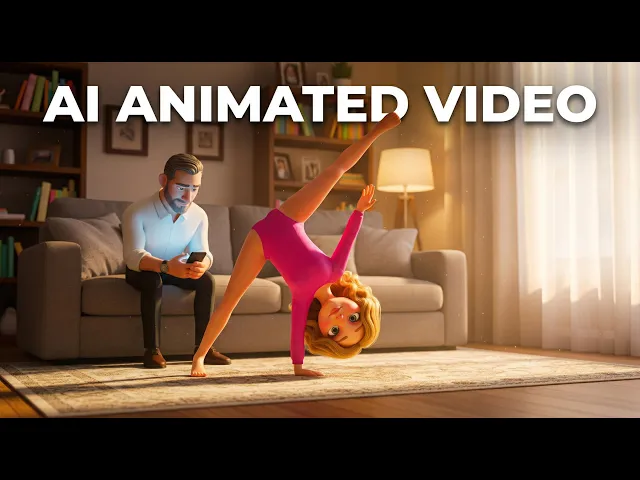
Watch: turning a children's story into an animated video, start to finish, inside Atlabs
Step 1. Add your script
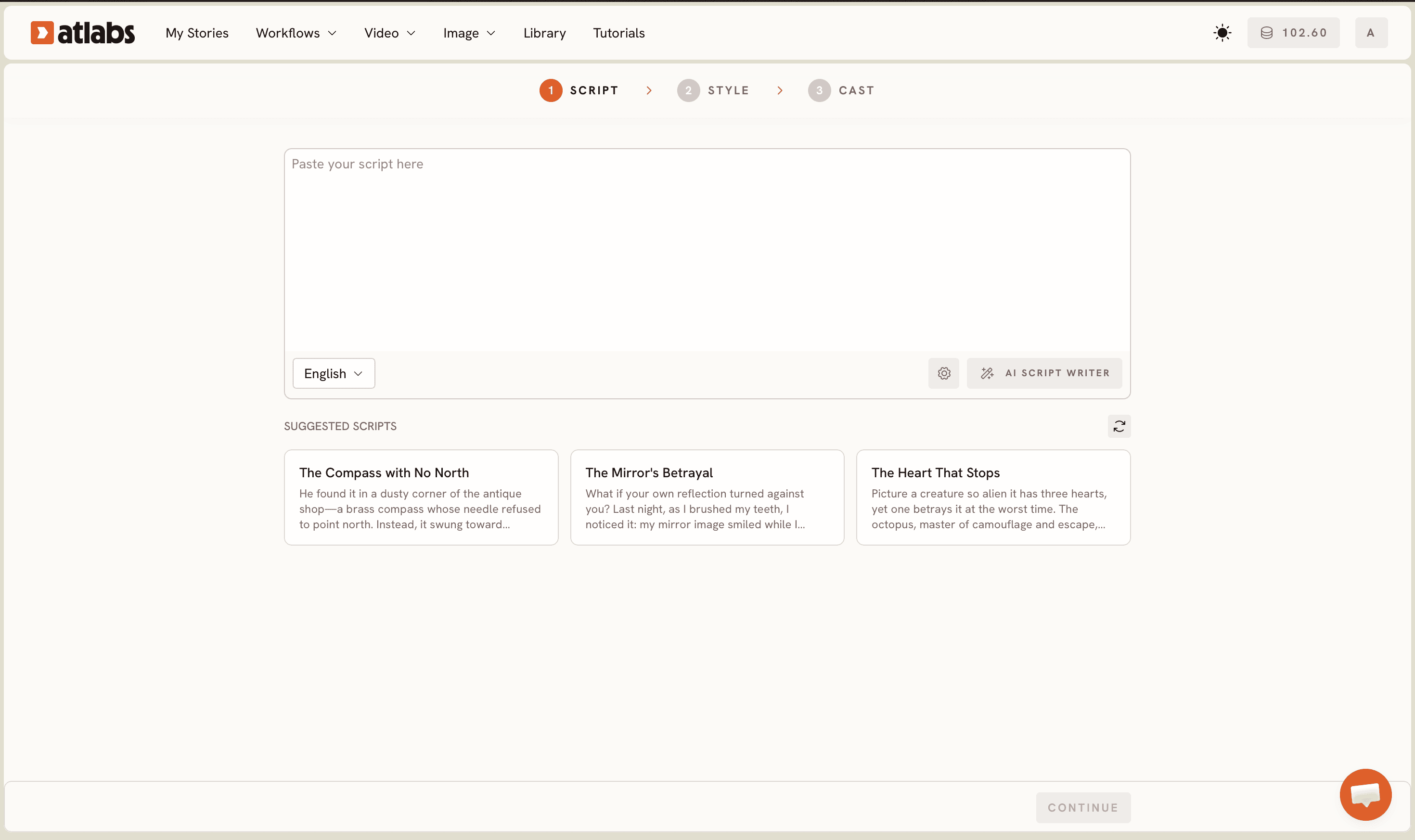
Open the Animated Video workflow and you land on the script screen. Two tabs sit at the top: Add your script for free form text, and Add your screenplay for a structured screenplay layout. For most children's stories, paste your text into Add your script exactly as you wrote it. If you only have an idea, click the AI Script Writer button on the bottom right and describe the story you want, and Atlabs drafts it for you. Short on inspiration? The SUGGESTED SCRIPTS cards near the bottom, with titles like The Compass with No North, give you ready made starting points. Set your reading language using the selector on the bottom left, which defaults to English.
Write your script in Atlabs →
Step 2. Set the style
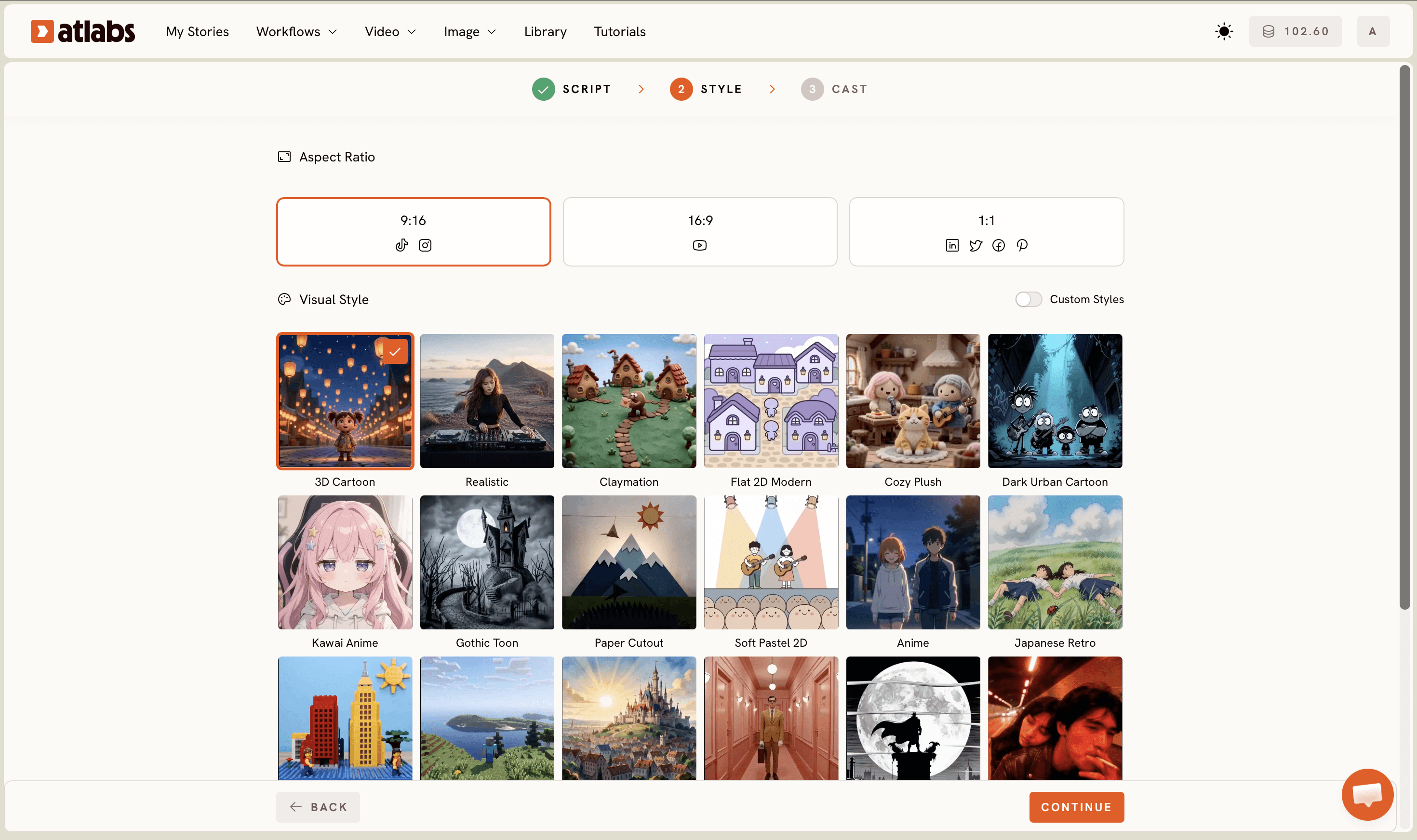
Click through to SET STYLE. This is where a plain story becomes a storybook. First pick your Aspect Ratio: 9:16 for TikTok and Instagram, 16:9 for YouTube, or 1:1 for square posts. For a kids YouTube channel, choose 16:9. Next choose your Video Style. AI Video is the recommended option and generates full animated scenes, while AI Storyboard produces images with effects if you want a gentler picture book feel. Then open the Visual Style library and pick the look. For children's stories, 3D Cartoon gives a warm modern animation feel, Claymation adds a handmade charm, Cozy Plush suits bedtime tales, and Paper Cutout mimics a pop up book. Toggle Custom Styles to see the full set.
Pick a visual style now →
Step 3. Cast the narrator and characters
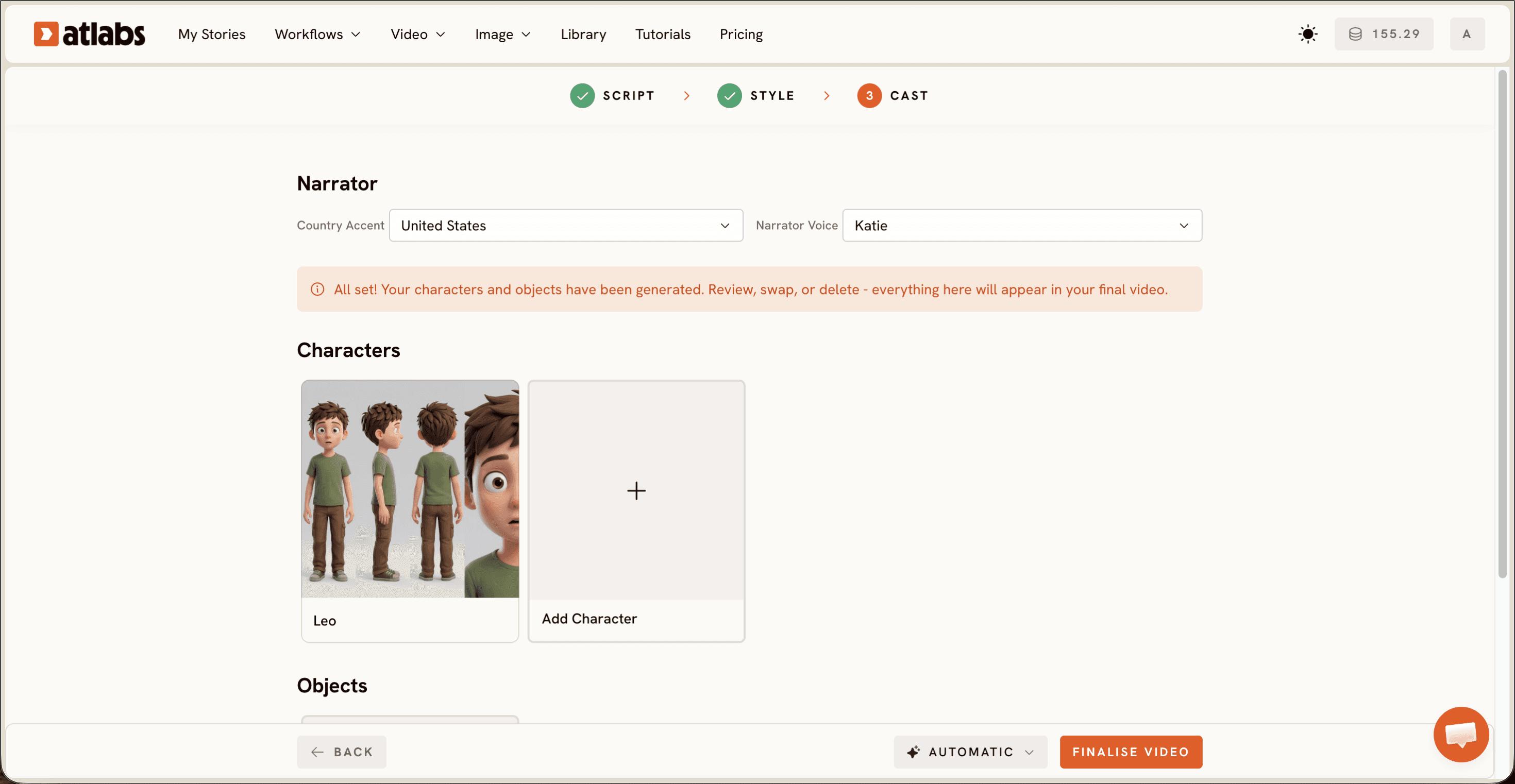
The final screen is CAST, and this is what makes a children's story feel read aloud. At the top, set the Narrator. Choose a Country Accent, which defaults to United States, then pick a Narrator Voice such as David from the dropdown. Pick a warm, clear voice, since narration carries a kids story. Below that, the Characters section shows generated character cards, one per character in your script, each with an editable name tag. If your story has a brave rabbit and a shy owl, they appear here for you to refine. The Objects section at the bottom lets you add key items from the story, like a magic lantern or a lost key. When everything looks right, generate, and Atlabs animates your story with scenes, characters, and narration.
Cast your narrator and characters →
Tips for better results
A few small choices make a children's story land better on screen. Keep each scene in your script to two or three sentences, because shorter beats give the AI Video model cleaner moments to animate. Name your characters consistently in the script text, so the Characters cards on the CAST screen match across every scene. For bedtime or calming stories, pick Cozy Plush or Soft Pastel 2D with a gentle Narrator Voice, and for adventure tales pick 3D Cartoon with a livelier accent. If you are posting to a kids YouTube channel, lock your Aspect Ratio to 16:9 before you generate, since switching later means regenerating scenes. And if a single scene comes out wrong, adjust that one character or object and regenerate, rather than starting the whole story over.
Two starter scripts you can paste in
Not sure what to type on the script screen? Here are two ready made scripts you can paste into Add your script and adjust to your own tale.
A gentle bedtime story for ages three to six. A sleepy little fox named Pip cannot fall asleep, so the moon sends down silver butterflies to carry him on a slow, dreamy flight over quiet hills, past a sleeping owl, and back to his cozy den, where he finally yawns and drifts off. Warm, calm, reassuring tone.
Try this in Atlabs Animated Video
A fun learning story for ages five to eight. A curious rabbit named Bo finds a magic lantern that only lights up when he is kind. Across three short scenes, Bo helps a lost duckling, shares his carrots, and cheers up a grumpy hedgehog, and each kind act makes the lantern glow a little brighter. Bright, playful, encouraging tone.
Try this in Atlabs Animated Video
Create your animated story →
FAQ
How long does it take to turn a children's story into an animated video?
Most short stories go from script to finished animation in about ten to fifteen minutes. The three steps take a couple of minutes to set up, and the AI models handle scene generation after that. Longer stories with more scenes take a little more time to generate.
Do I need animation or video editing skills?
No. The Animated Video workflow is built for people with no animation background. You write or paste a story, pick a visual style, choose a narrator, and Atlabs generates the scenes, characters, and voice. There is nothing to draw and no timeline to edit.
Can I make animated stories for a kids YouTube channel?
Yes. Set the Aspect Ratio to 16:9 on the SET STYLE screen for a standard YouTube frame, or 9:16 for Shorts. Many parents and kids channel creators use the workflow to publish weekly animated stories without hiring an animator.
What if I do not have a story written yet?
You have two options inside the app. Use the AI Script Writer button on the script screen to generate a story from a short idea, or start from one of the SUGGESTED SCRIPTS cards and edit it into your own tale.
Get started
Your children's story is one script away from becoming an animated video, complete with scenes, characters, and narration. Open the Animated Video workflow, paste your story, and watch it come to life.