

How do I get aesthetic, scroll-stopping photos out of Seedream?
Name the format first, put the subject and the light early in the prompt, and tell the model exactly what to keep when you edit an existing photo. Seedream 4.5 and 5 are both available through Atlabs, so you can run every prompt below in one place, then finish the result for Reels, Stories, or the feed without leaving the platform.
What Seedream Is Good At
Seedream is ByteDance's image model family, and it earns its place in a social media workflow for a few specific reasons. It responds strongly to lighting language, so cues like golden hour or soft window light change the result in a visible way. It can blend several reference images into one coherent composition, and Seedream 5 adds precise local edits that change one element while leaving the rest of the frame alone. It also renders on-image text well when the words are written in quotes, which matters for magazine covers, posters, and carousel slides.
The practical takeaway for aesthetic content is that Seedream behaves like a photographer who follows direction. Vague words like "beautiful" or "aesthetic" give it nothing to act on, while a named lens look, a light direction, and a color palette give it everything.
Core Prompting Rules for Seedream
Name the Format First
Open with the deliverable and the aspect ratio, such as "Portrait photo, 4:5 vertical" or "Overhead flat lay, 1:1 square." Seedream treats each clause as a direction, and the format frames the composition before anything else is decided.
Put the Important Details Early
Seedream gives more weight to what appears earlier in the prompt. Lead with the subject and the light, then add styling, background, and texture afterward.
Describe the Light Like a Photographer
Direction and quality matter more than a mood word. "Golden hour backlight with a warm rim glow" or "soft diffused window light from the top left" will outperform "dreamy lighting" every time.
Keep Prompts Short and Specific
For a clean single image, 30 to 100 words is the sweet spot. Very long prompts scatter the model's attention and details start dropping out, so cut anything that is decoration rather than direction.
Add a Preservation Clause When Editing
When you upload a photo to edit, state the single change and then say what stays exactly the same. Without that clause, Seedream treats unmentioned elements as open to change, and faces, backgrounds, and angles drift.
Put On-Image Text in Quotes
If a design needs words, write them in quotes exactly as they should appear, and name the type style, such as heavy geometric sans-serif or fine capitals.
How to Run These Prompts on Atlabs
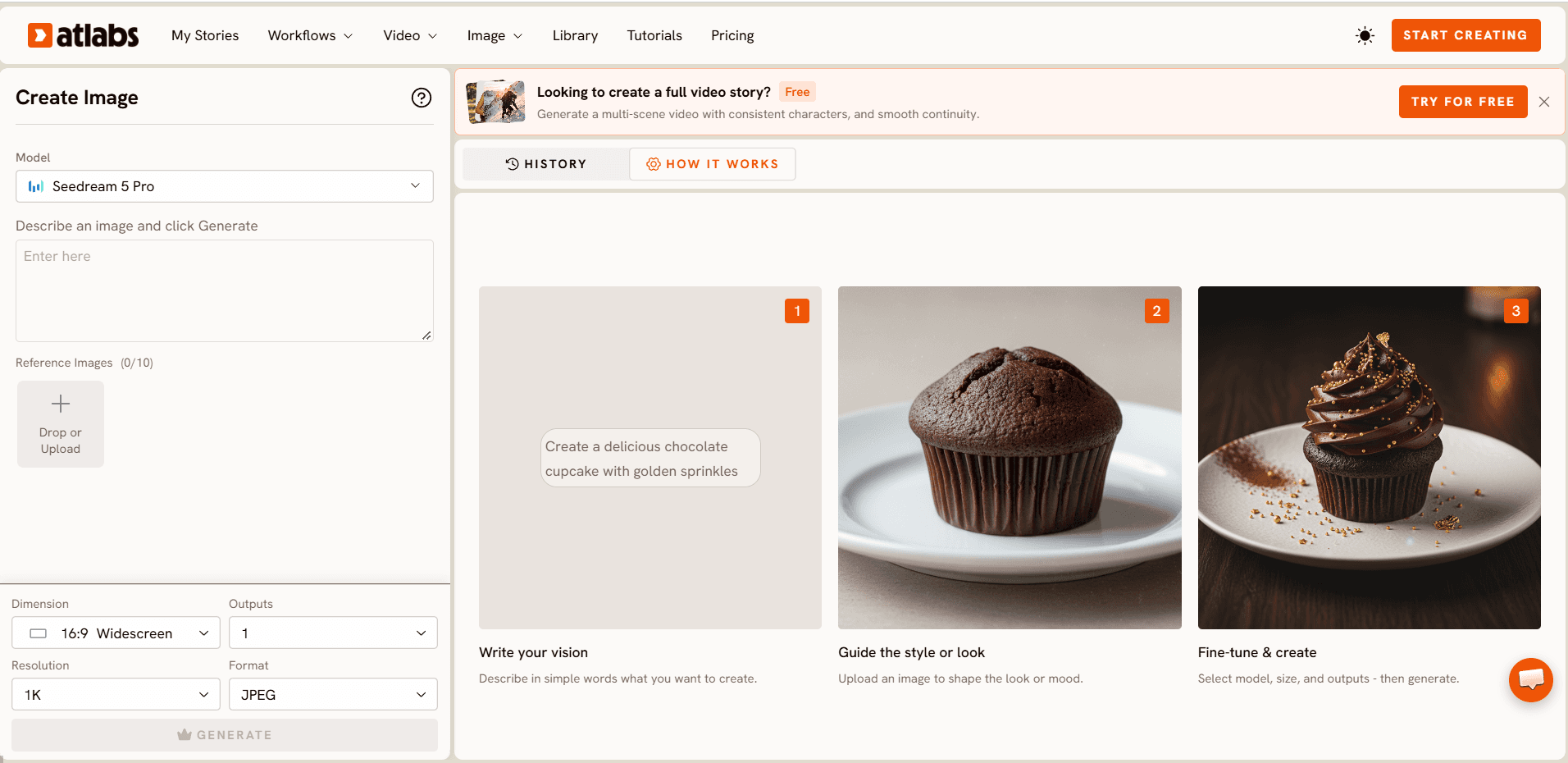
Open Atlabs and choose Create Image from the AI Apps.
Select your model from the dropdown, Seedream 5.0 for edits and text, or Seedream 4.5 for portraits and lighting-led scenes.
For an edit, add your own photo under Reference Images with Drop or Upload, which takes up to 4 references. For a fresh generation, skip this step.
Paste your prompt into the field that reads "Describe an image and click Generate," and set the aspect ratio for where the photo is going, 4:5 for the feed, 9:16 for Stories, Reels, and TikTok covers, or 1:1 for a grid post.
Click Generate, then export and download the result. Use Upscale Image for a sharper final and Reframe Image if the same photo needs a second aspect ratio.
Watch It In Action
See the full editing process in this Atlabs tutorial, How to Edit Images with AI.
Edit Your First Photo with Seedream on Atlabs →
Six Seedream Prompts for Viral Social Photos
Prompt 1: Golden Hour Portrait

Try this in Create Image on Atlabs for a feed portrait that reads as sunset warmth.
Prompt 2: Direct Flash Y2K Snapshot

Try this in Atlabs for the nostalgic flash look that keeps circulating on social feeds.
Prompt 3: Pastel Matcha Flat Lay

Run it in Create Image for a clean, cozy post that works as a carousel opener.
Prompt 4: Outfit Swap Edit (Reference Photo)

Upload your own photo and try this in Atlabs. The last sentence is the preservation clause that keeps the rest of the frame locked.
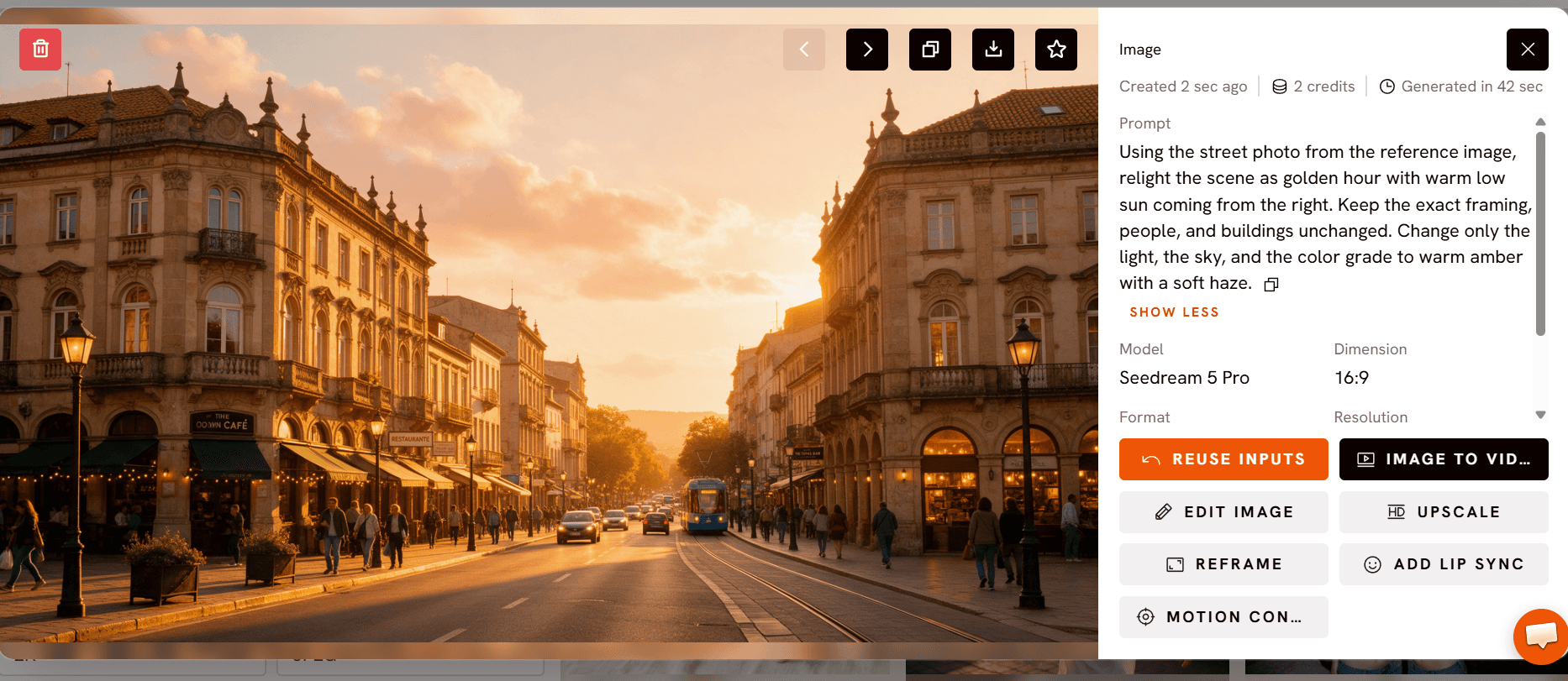
Prompt 5: Golden Hour Relight Edit (Reference Photo)

A flat midday photo becomes a sunset shot without reshooting. Try it in Create Image.
Prompt 6: Editorial Magazine Cover With Text
Good for a profile highlight or the first slide of a carousel. Try it in Atlabs.
Common Mistakes to Avoid
Using adjectives alone is the most frequent one. "Aesthetic" and "beautiful" describe a reaction, not a photograph, so replace them with a light direction, a lens look, and a palette. The second is skipping the preservation clause on edits, which lets faces and backgrounds shift between versions. The third is stacking too many ideas into one prompt. If a photo needs a new outfit, a new background, and new lighting, run them as separate edits so each one lands cleanly.
Tips for Better Results
Edit in place instead of regenerating when only one thing is wrong, since a regeneration re-rolls everything you already liked. Name items by what they are, such as "the tan leather bag," rather than by position when you work with several reference images. Pick the aspect ratio before you generate, because composing for 9:16 and cropping from 1:1 produce different framing. Save the prompts that perform and reuse their structure with a new subject, since the format, light, and palette scaffold is what carries the aesthetic from post to post.
FAQ
Which Seedream version should I use for aesthetic photos?
Seedream 5 is the stronger choice for edits and anything with text, since it handles precise local changes and typography, while Seedream 4.5 is a strong option for portraits and lighting-led scenes. Both are available on Atlabs, so you can run the same prompt on each and compare.
How do I keep a person's face the same when I edit a photo?
Upload the original as a reference and end the prompt with a preservation clause, such as "keep the exact face, pose, hairstyle, background, and lighting unchanged." Then change only one element per edit.
What aspect ratio works best for viral social photos?
Use 4:5 for the Instagram feed, 9:16 for Stories, Reels covers, and TikTok, and 1:1 for grid posts and carousel slides. If you need more than one, generate once and use Reframe Image in Atlabs instead of cropping by hand.
Can Seedream write text on the image?
Yes. Put the exact words in quotes and name the type style, for example a heavy geometric sans-serif masthead with a fine capitals cover line. Keep the copy short for the cleanest rendering.
Start Creating with Seedream on Atlabs →
Final Verdict
Seedream is at its best when you treat it like a photographer taking direction instead of a search box. Name the format, lead with the subject and the light, keep the prompt tight, and add a preservation clause the moment you edit a real photo. Those four habits are what separate a generic AI image from one that looks styled for the feed. Run the six prompts above as templates, swap in your own subject and palette, and you have a repeatable look that carries across posts. Doing it on Atlabs keeps generation, upscaling, and reframing in one place, which is what makes a steady posting schedule realistic.








