All Veo 3.1 features in this guide are available inside Atlabs AI. Try them free at atlabs.ai
The gap between a Veo 3.1 generation that looks like a student film and one that looks like a theatrical trailer is not the model. It is the prompt.
Veo 3.1 is currently the highest-performing AI video model on the market for prompt adherence, audio synchronization, character consistency, and physical realism. It leads human preference benchmarks across overall quality, visual fidelity, audio sync, and physics accuracy compared to every other model tested in 2026. The problem is that most creators are using 10 percent of what it can do.
This guide covers every major Veo 3.1 feature with a plain-language explanation of what it does, when to use it, and a copy-paste-ready prompt for each one. Whether you are building a product ad, a short film, an educational video, or a social media campaign, every section gives you something you can use today inside Atlabs AI, where Veo 3.1 is available alongside every other top AI video model in a single workspace.
What Is Veo 3.1 and Why It Matters in 2026
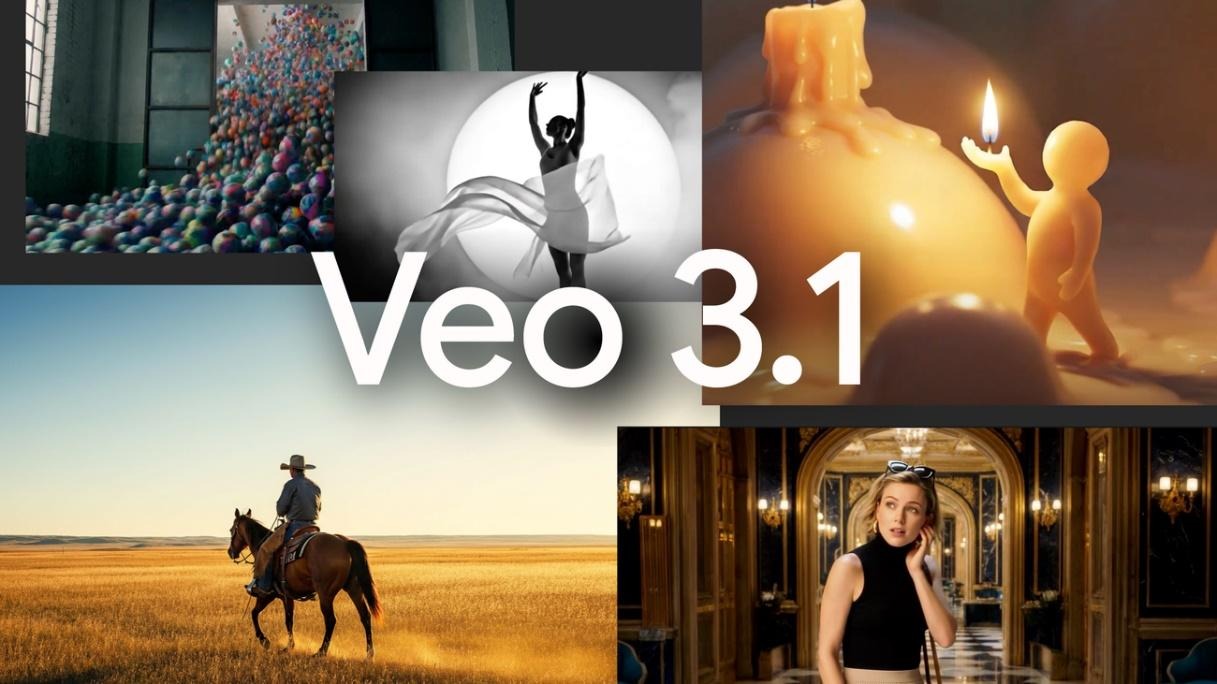
Veo 3.1 is Google DeepMind's most advanced text-to-video and image-to-video generation model. Released as a major update in January 2026, it introduced 4K upscaling, native vertical video support, enhanced Ingredients to Video, Scene Extension, and full audio generation across all creation modes.
Unlike earlier AI video models that processed each frame independently, Veo 3.1 processes space, time, and audio simultaneously. This unified architecture is why its lip sync, physics, and motion feel grounded rather than drifting. Characters' footsteps sound when their feet land. Clothes rustle when they move. Rain sounds like it is falling in the environment you described.
The January 2026 update made Veo 3.1 the first mainstream AI video generator with native 4K output, surpassing OpenAI Sora 2 which was capped at 1080p before its discontinuation in March 2026. It also introduced the first fully audio-capable Ingredients to Video pipeline, meaning you can now generate character-consistent scenes with synchronized sound in a single workflow.
Veo 3.1 is available inside Atlabs AI alongside Kling 3.0, Nano Banana, and other top models. You do not need a separate Google account, Vertex AI setup, or API key. You access it directly from your Atlabs workspace.
Veo 3.1 Complete Feature Reference
Every feature listed below is accessible inside Atlabs AI without any additional setup.
Feature | What It Does | Best Use Case | Available in Atlabs |
Text to Video | Generate video from a written prompt with no source image | New scene creation, concepts | Yes |
Image to Video | Animate a still image with motion and audio | Product ads, character animation | Yes |
Ingredients to Video | Lock character, object, or style across all shots | Films, series, campaigns | Yes |
First and Last Frame | Define start and end frames; AI fills the transition | Cinematic transitions, reveals | Yes |
Native Audio and Dialogue | Generate synced dialogue, SFX, and ambient sound | Talking scenes, ads, narratives | Yes |
Scene Extension | Continue a clip beyond 8 seconds with visual continuity | Long-form storytelling | Yes |
4K Upscaling | Upscale output to 4K for broadcast or large-screen use | Film, broadcast, commercial | Yes |
Native 9:16 Vertical | Generate natively in vertical format for social | TikTok, Reels, Shorts | Yes |
The Veo 3.1 Prompt Formula That Consistently Produces Cinematic Results
Every high-quality Veo 3.1 output follows the same structural logic. Once you internalize this formula, your generations become predictable rather than a lottery.
The formula:
[Cinematography] + [Subject] + [Action] + [Context] + [Style and Ambiance]
Cinematography: how the camera moves and frames the scene
Subject: the main person, product, or environment in the shot
Action: what is happening and how it evolves over the clip
Context: the location, time of day, environmental conditions
Style and Ambiance: lighting, color grade, mood, and film treatment
Not every prompt needs all five layers. A strong three-layer prompt beats a weak five-layer one. Add layers to increase precision, not length.
The Minimal Viable Prompt vs. the Full Cinematic Prompt
Minimal prompt (gets a result, not a great one) Best for: quick concept test
|
Full cinematic prompt (gets exactly what you want) Best for: hero frame, short film, brand campaign
|
The difference between those two prompts is the difference between a clip and a scene. The second one tells Veo 3.1 exactly how to direct the shot, not just what to put in it.
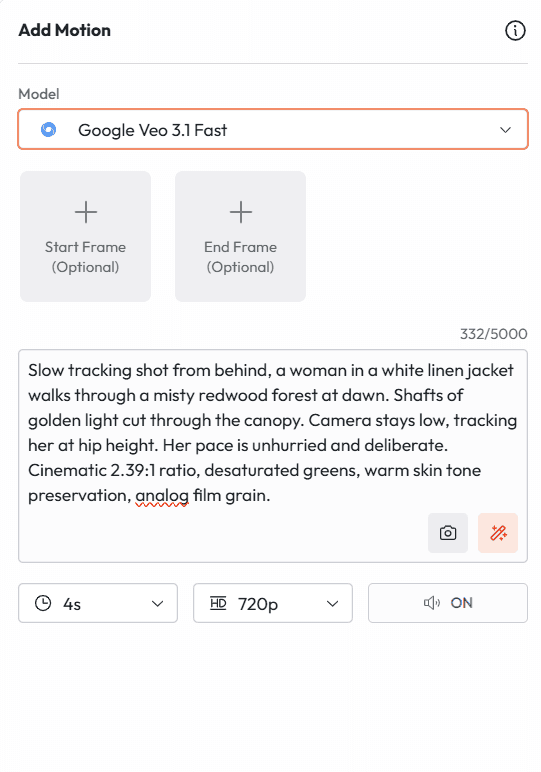
Feature 1: Text to Video
Text to Video is the foundation. You write a prompt, Veo 3.1 generates a clip. No source image required. The model builds the scene, the characters, the environment, and the motion entirely from your description.
This is the right mode when you are creating a scene from scratch: a concept that does not exist anywhere yet, an environment you cannot photograph, or a character you are inventing rather than referencing from real life.
The most common mistake with text to video is under-describing. Veo 3.1 fills in every gap you leave with its own interpretation. That is sometimes great. More often, it means you lose specific control over the things that matter most: camera position, character appearance, lighting mood.
Prompt 1: Cinematic Establishing Shot
Best for: short film openings, brand films, YouTube intros
Prompt 1 Best for: Short film open, brand awareness, cinematic content
|
Prompt 2: Character Introduction Scene
Best for: narrative video, YouTube channel intros, brand storytelling
Prompt 2 Best for: Character-driven narrative, brand story, documentary style
|
https://youtube.com/shorts/64-2c1-Cves?feature=share
Prompt 3: Product Hero Shot from Text
Best for: ecommerce brands, product launches, paid social
Prompt 3 Best for: Product ad, DTC brand, Meta or TikTok hero frame
|
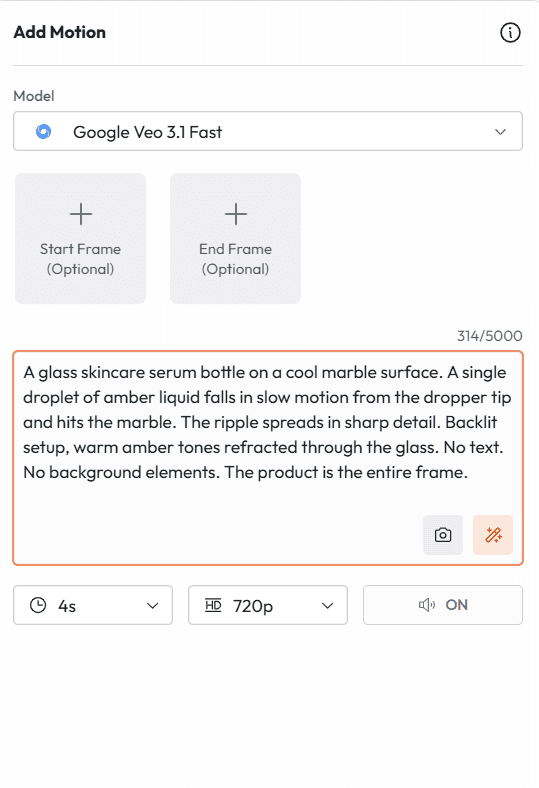
Prompt 4: Action and Energy Shot
Best for: sports brands, fitness content, activewear ads
Prompt 4 Best for: Performance brand, fitness campaign, high-energy ad creative
|
Feature 2: Image to Video
Image to Video takes a still frame you provide and adds motion, audio, and temporal consistency to it. You supply the visual anchor. Veo 3.1 brings it to life.
This mode is almost always more consistent than pure text to video for character-heavy content. When you need a specific person, a specific product, or a specific environment to remain visually identical to a reference, image to video is the right starting point. The model treats your uploaded image as the ground truth for identity, color, and composition.
The prompt in image to video mode describes the motion, camera behavior, and audio. You do not need to re-describe everything visible in the image. Focus on what changes: what moves, how it moves, and what the camera does.
Prompt 5: Animating a Product Photo
Best for: taking an existing product image and making it move for ads
Prompt 5 Best for: Product ad from existing photography, ecommerce video, social creative
|
https://youtube.com/shorts/nSn8lOoteC0
Prompt 6: Animating a Portrait for Brand Content
Best for: creator content, brand ambassador videos, social media
Prompt 6 Best for: Brand content, creator video, social media animation
|
Prompt 7: Environment Come to Life
Best for: real estate, travel, hospitality brands
Prompt 7 Best for: Real estate listing video, travel brand, hospitality ad
|
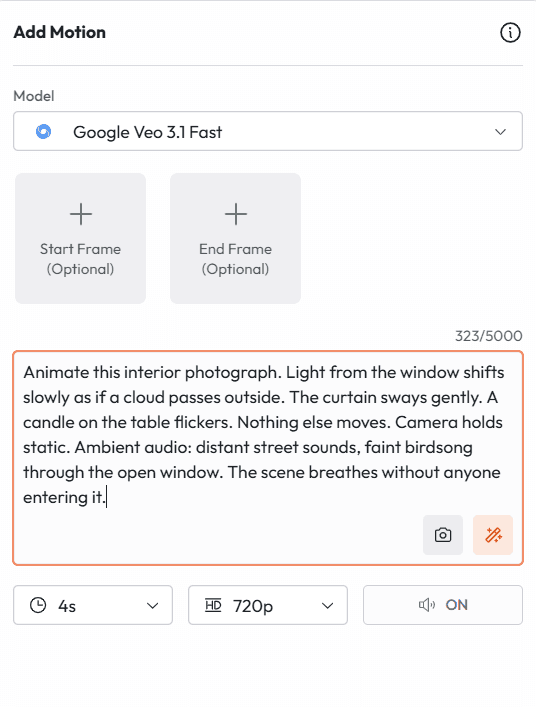
Feature 3: Ingredients to Video
Ingredients to Video is the most commercially significant feature in Veo 3.1. It solves the problem that makes AI video unusable for real production work: identity drift.
Without reference images, AI-generated characters change face, outfit, and proportions between shots. A character who looks one way in scene one looks like a cousin in scene three. Ingredients to Video eliminates this by letting you upload up to four reference images that anchor the generation. Your character stays your character. Your product stays your product. Your visual style stays consistent.
The January 2026 update made Ingredients to Video fully audio-capable, meaning your character-consistent scenes now also get synchronized dialogue, ambient sound, and sound effects. This is the complete production pipeline in a single feature.
Prompt 8: Consistent Character Across a Multi-Shot Scene
Best for: short films, educational video series, brand campaigns
Prompt 8 Best for: Multi-shot narrative, short film, brand ambassador campaign
|
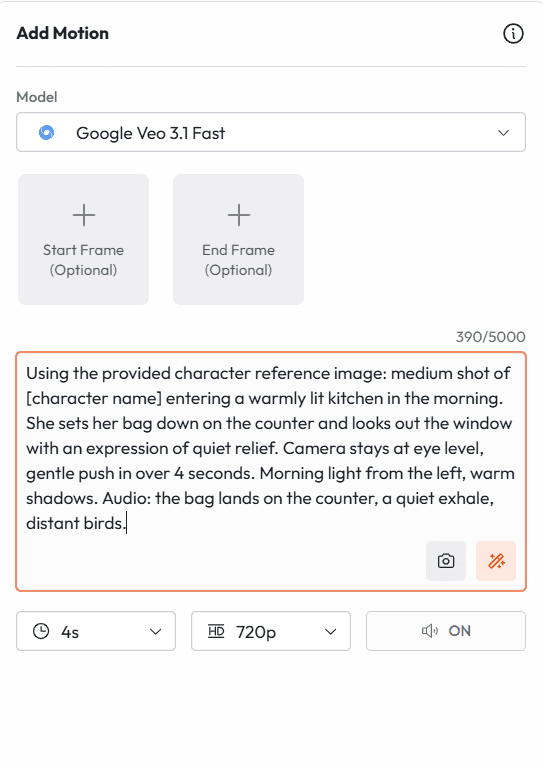
Prompt 9: Product Consistency Across Campaign Shots
Best for: DTC ecommerce campaigns, multi-ad creative sets
Prompt 9 Best for: Multi-ad campaign, DTC brand, ecommerce product video series
|
Prompt 10: Style Reference for Visual Consistency
Best for: maintaining a specific aesthetic across a video series
Prompt 10 Best for: Content series, brand campaign with locked visual style
|
Feature 4: First and Last Frame
First and Last Frame lets you define the exact opening and closing images of a clip. You provide both. Veo 3.1 calculates everything in between: the motion, the camera path, the physics, the audio.
This feature is what separates directors from prompt writers. Instead of describing a transition and hoping the model interprets it the way you intended, you show the model exactly where the scene starts and exactly where it ends. It builds the bridge.
The most powerful use case is visual storytelling. You can design the emotional arc of a shot by choosing a first frame that sets a mood and a last frame that resolves or transforms it. The AI handles the physical and temporal logic of getting between them.
Prompt 11: Camera Reveal Transition
Best for: cinematic reveals, scene transitions, product launches
Prompt 11 (describe the transition; provide start and end frames as images) Best for: Cinematic camera reveal, product launch, film transition
|
Prompt 12: Character State Change
Best for: emotional storytelling, before-and-after narrative, ad transformation arcs
Prompt 12 (provide portrait image as first frame, different expression image as last frame) Best for: Emotional narrative, brand story, transformation ad
|
Prompt 13: Environment Transformation
Best for: seasonal campaigns, before-and-after brand content, real estate
Prompt 13 (provide first frame showing environment in state A, last frame in state B) Best for: Brand transformation campaign, seasonal content, real estate marketing
|
Feature 5: Native Audio and Dialogue
Veo 3.1's audio generation is not an afterthought layered on top of a silent video. It is generated simultaneously with the visual content using the same unified architecture. This is why the audio feels physically grounded: footsteps happen when feet land, rain sounds like it falls in that specific environment, and dialogue is lip-synced at a level that holds up to close inspection.
The audio prompt language has three distinct components, and how you structure them determines whether your audio sounds designed or accidental.
Dialogue: use quotation marks for any specific spoken line. The model times the speech to the character's movement and expression.
Sound Effects (SFX): describe specific sounds with timing cues. Veo 3.1 generates them precisely against the visual action.
Ambient Audio: define the background soundscape. This is what makes a scene feel like a location rather than a backdrop.
Prompt 14: Dialogue Scene
Best for: short film scenes, brand spokesperson videos, testimonial ads
Prompt 14 Best for: Dialogue scene, short film, brand spokesperson, testimonial
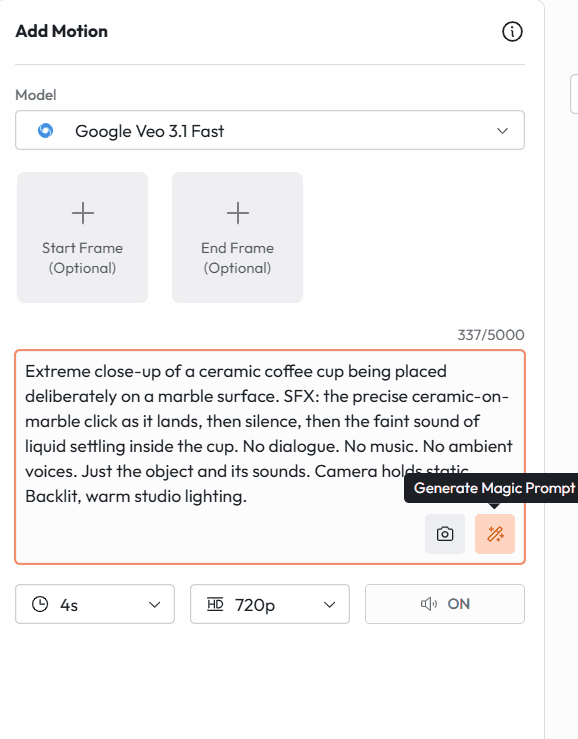
|
Prompt 15: Sound Effects Driven Scene
Best for: product ads where the product sound is the selling point
Prompt 15 Best for: Product ad, audio-driven content, ASMR-style product video
|
Prompt 16: Full Ambient Soundscape
Best for: atmospheric brand films, travel content, real estate video
Prompt 16 Best for: Brand film, travel content, real estate, atmospheric video
|
Prompt 17: Multilingual Dialogue Scene
Best for: international campaigns, global brand content, regional ads
Prompt 17 Best for: International ad campaign, multilingual brand content
|
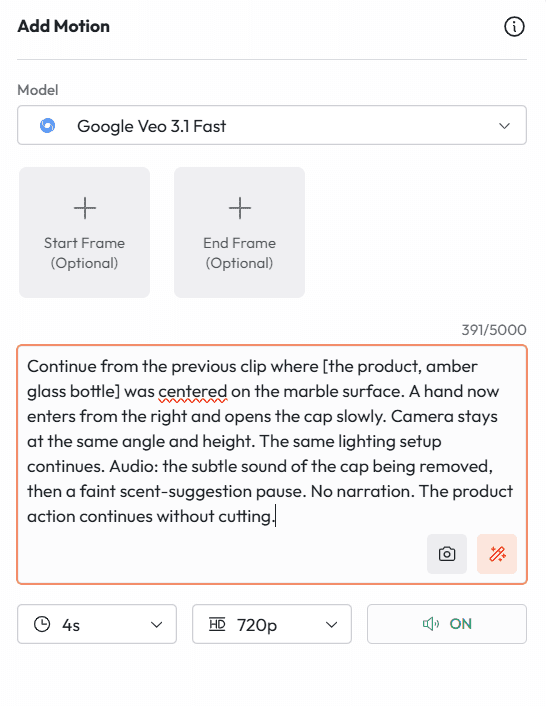
Feature 6: Scene Extension
Scene Extension solves one of AI video's most persistent structural limitations: the 8-second ceiling. Instead of being confined to short clips that need to be stitched together externally, Scene Extension lets you generate a continuation of any existing clip that connects seamlessly to the previous segment.
In practice this means you can build a narrative that runs for a minute or more, all generated inside Veo 3.1 with consistent visual identity, consistent audio environment, and consistent camera language throughout. Each extension inherits the visual and audio context of the segment before it.
The key to Scene Extension working well is overlap description. When you write the extension prompt, reference specific visual details from the previous segment: the character's clothing, the lighting condition, the ongoing action. The more specifically you anchor the extension to what came before, the more seamlessly it connects.
Prompt 18: Extending a Narrative Scene
Best for: short films, documentary content, long-form brand video
Prompt 18 Best for: Short film, long-form brand narrative, documentary content
|
Prompt 19: Extending a Product Campaign Scene
Best for: long-form product demonstrations, campaign video series
Prompt 19 Best for: Product demonstration video, long-form campaign, ecommerce
|
Camera Language: The Prompt Layer Most Creators Skip
Camera direction is the most underused element in AI video prompting. Most creators describe what is in the scene. The creators making cinematic output describe how the camera sees it.
Veo 3.1 interprets camera direction language at a professional level. These are not suggestions. They are instructions the model follows with precision when stated clearly.
Movement Prompts
What the camera does through space
Dolly in (push in) Best for: building intimacy, emphasizing emotion, entering a scene
|
Crane up Best for: establishing scale, ending a scene, revealing context above
|
Orbital track Best for: product shots, character reveals, spatial storytelling
|
Handheld Best for: UGC-style content, documentary feel, authenticity
|
Framing Prompts
How close the camera is to the subject and from what angle
Extreme close-up Best for: product texture, emotional intensity, detail shots
|
Low angle Best for: communicating power, scale, or aspiration
|
Over-the-shoulder Best for: dialogue scenes, revealing what a character is seeing or doing
|
Feature 8: 4K Output and Native Vertical Video
Two format specifications that matter enormously for how your Veo 3.1 output gets used downstream.
4K Upscaling
Veo 3.1 introduced 4K output (3840 x 2160) in January 2026, making it the first mainstream AI video generator to hit this resolution. The practical implication: outputs are now usable for broadcast, theatrical, and large-format commercial display without any visible quality degradation.
For most social media and web applications, 1080p is sufficient and faster to generate. Use 4K for:
Broadcast commercials and television placements
Large-format display advertising (out-of-home, event screens)
High-end brand films intended for theatrical or festival screening
Any output that will be significantly cropped or zoomed in post-production
Prompt 20: Native Vertical Video for TikTok and Reels
Best for: TikTok, Instagram Reels, YouTube Shorts
Prompt 20 Best for: TikTok ad, Instagram Reels, YouTube Shorts, vertical social content
|
Prompt 21: Vertical Product Ad
Best for: TikTok Shop, Reels product placement, vertical paid social
Prompt 21 Best for: TikTok Shop ad, Reels product placement, vertical social ad creative
|
Advanced Workflow: Building a Multi-Shot Scene Inside Atlabs
The most powerful way to use Veo 3.1 is not to generate isolated clips. It is to build a structured multi-shot sequence where each clip is planned as part of a coherent scene. Here is the exact workflow for doing that inside Atlabs, combining Nano Banana for reference images and Veo 3.1 for generation.
Workflow 1: Dialogue Scene with Consistent Characters
Generate character reference images using Nano Banana inside Atlabs. Create a reference for each character showing their full appearance, outfit, and expression. Generate an environment reference for the setting.
Upload all reference images as Ingredients to Video in Veo 3.1. This locks character and environment identity across every shot.
Write Shot 1 prompt: the establishing or wide shot that sets the scene and introduces the characters.
Write Shot 2 prompt: the first dialogue shot. Include the exact spoken line in quotation marks. Specify which character speaks and their position in frame.
Write Shot 3 prompt: the response shot. Same environment references, different character in foreground. Include their reply line.
Use First and Last Frame if you need a specific camera movement or transition between shots.
Use Scene Extension to connect shots into a longer unbroken sequence if the scene runs beyond 8 seconds.
Inside Atlabs, all of these steps happen in one workspace. You do not need to export, import, or rebuild between model switches. Nano Banana and Veo 3.1 share the same project environment.
Workflow 2: Product Campaign with Visual Consistency
Generate a hero product image in Nano Banana using the ingredient explosion or hero product shot prompt style.
Upload that image as the Ingredients to Video reference for all subsequent Veo 3.1 generations. Every scene will treat that product image as the visual truth for color, shape, and label detail.
Generate Shot 1: product hero with camera movement. 6 to 8 seconds.
Generate Shot 2: product in lifestyle context. Different environment, same product visual identity.
Generate Shot 3: product feature close-up. Same product reference, different framing.
Add voiceover or dialogue using Atlabs Avatar in any of the campaign's target languages.
Export each clip in the required format: 9:16 for TikTok, 1:1 for Meta feed, 16:9 for YouTube.
Negative Prompting: What to Avoid and How to Say It
Veo 3.1 does not respond well to instructional negatives like "no blurry background" or "no people." It responds much better to descriptions that make the unwanted element naturally absent.
Weak: "No man-made structures in the background."
Strong: "A barren wilderness stretching to the horizon in every direction, untouched grassland and sky, no roads, no buildings, no fences, nothing but land and light."
Weak: "No text on screen."
Strong: "Clean visual frame, no overlays, no watermarks, no captions, no graphics. The image is the only element."
Weak: "Not too dramatic."
Strong: "Quiet, understated atmosphere. Minimal contrast. Muted palette. The tone is observational, not theatrical."
20 More Copy-Paste Veo 3.1 Prompts by Use Case
Every prompt below is ready to paste into Veo 3.1 inside Atlabs. Swap the details in brackets for your specific content.
Short Film and Narrative
Prompt 22: Scene opening Best for: Short film, narrative video, YouTube series opening
|
Prompt 23: Emotional climax Best for: Short film turning point, emotional advertisement
|
Social Media and Organic Content
Prompt 24: Day in the life opener Best for: YouTube vlog, TikTok series, lifestyle brand content
|
Prompt 25: Satisfying process loop Best for: TikTok organic, Reels, Pinterest video
|
Educational and Explainer
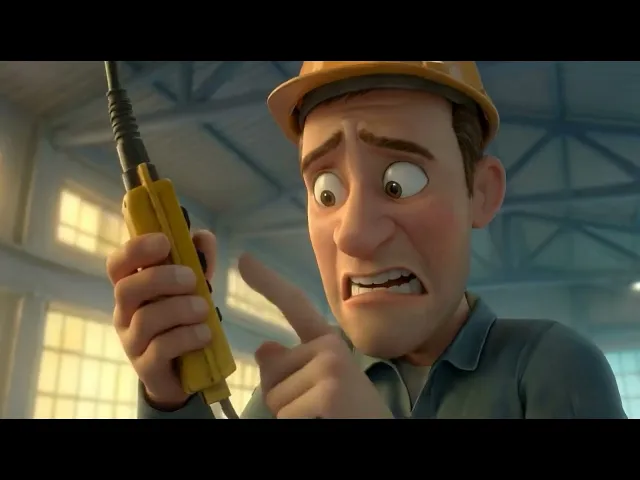
Prompt 26: Concept visualization Best for: Educational video, explainer content, online course
|
Prompt 27: Subject introduction Best for: Educational series, teacher avatar introduction, course module opener
|
Real Estate and Architecture
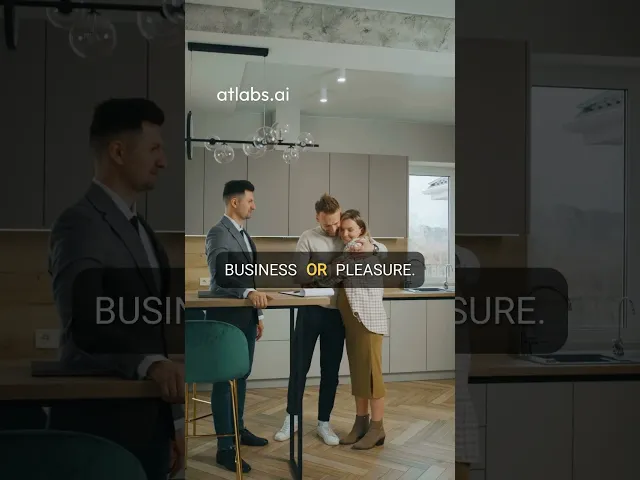
Prompt 28: Property walkthrough opener Best for: Real estate listing, property marketing, architecture portfolio
|
Prompt 29: Exterior establishing shot Best for: Real estate listing, architectural photography video
|
Travel and Hospitality
Prompt 30: Destination mood piece Best for: Travel brand, tourism campaign, hospitality brand
|
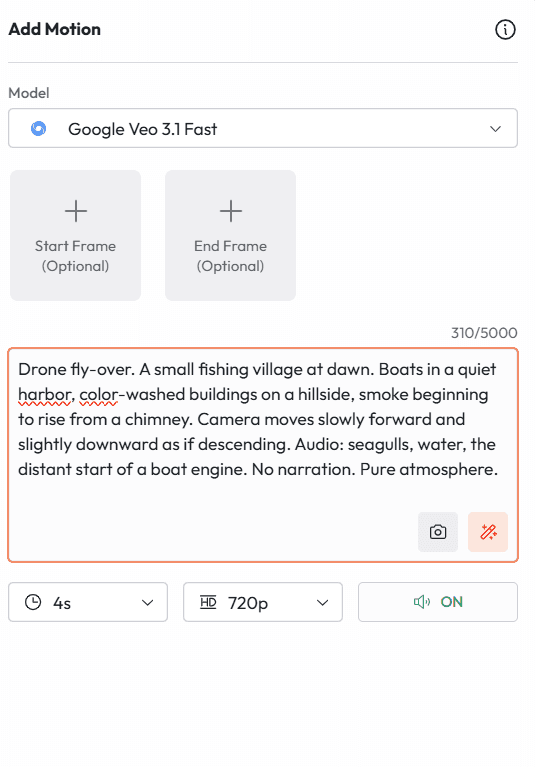
Prompt 31: Hotel room reveal Best for: Hotel brand, luxury travel, hospitality content
|
Health and Wellness
Prompt 32: Morning ritual Best for: Wellness brand, supplement ad, lifestyle content
|
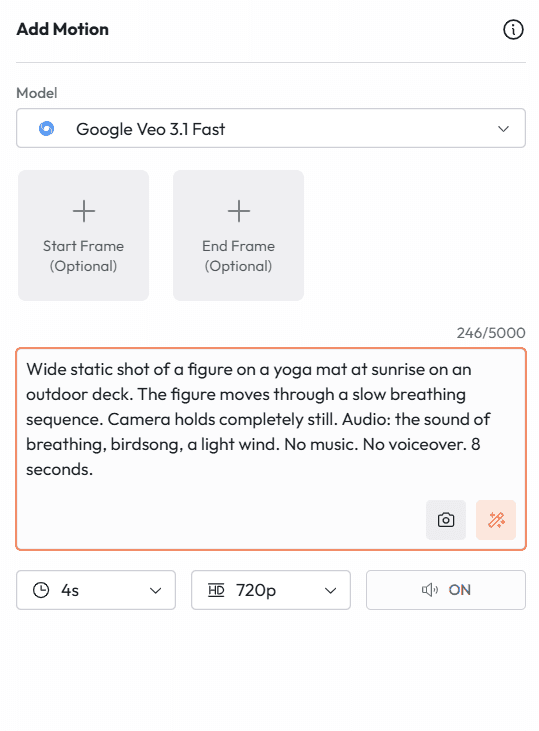
Prompt 33: Movement and breathwork Best for: Fitness brand, yoga studio, mental health app content
|
Finance and Professional Services
Prompt 34: Trust and credibility scene Best for: Financial services brand, legal firm, professional services
|
Prompt 35: Data visualization reveal Best for: B2B brand, fintech, SaaS product video
|
Fashion and Luxury
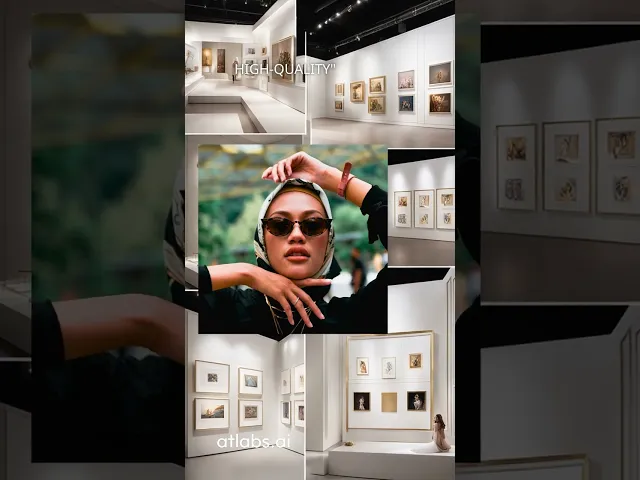
Prompt 36: Runway aesthetic Best for: Fashion brand campaign, luxury label, editorial content
|
Prompt 37: Product close-up for luxury brand Best for: Luxury product launch, high-end retail, watch or jewelry brand
|
Food and Restaurant
Prompt 38: Chef in action Best for: Restaurant brand, food brand campaign, culinary content
|
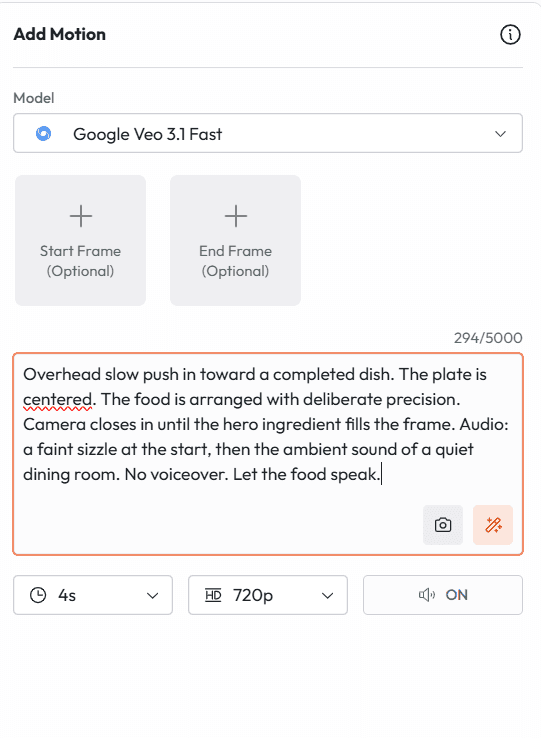
Prompt 39: The perfect plate reveal Best for: Restaurant marketing, food delivery brand, recipe content
|
Technology and SaaS
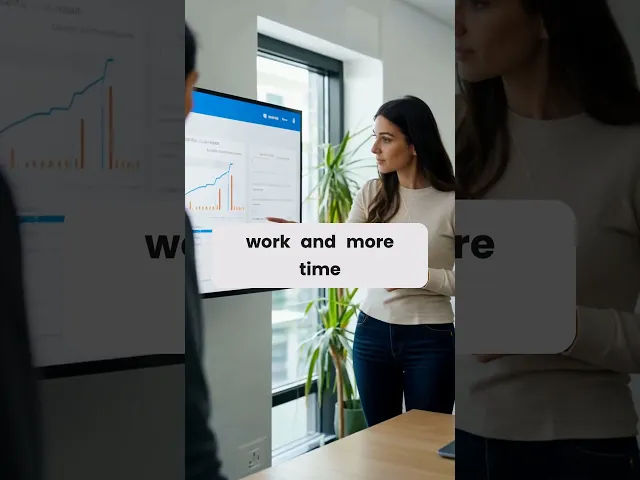
Prompt 40: Product interface walkthrough Best for: SaaS product marketing, app launch, B2B software brand
|
How to Use Veo 3.1 Inside Atlabs AI
Atlabs AI is the only platform where every Veo 3.1 feature in this guide is accessible in a single workspace alongside Kling 3.0, Nano Banana, and every other leading AI model. No API keys. No Vertex AI setup. No separate Google account.
Go to atlabs.ai and create a free account.
Open a new video project and select Veo 3.1 as your model.
Choose your mode: Text to Video, Image to Video, Ingredients to Video, First and Last Frame, or Scene Extension.
If using Ingredients to Video or First and Last Frame, generate your reference images first using Nano Banana in the same workspace.
Paste your prompt using the five-layer formula from this guide.
Select your output format: 720p or 1080p, 4K if required, 16:9 or 9:16 for vertical.
Generate. Iterate. Use the same workspace to add voiceover, captions, and audio mixing before export.
Total time from prompt to export-ready video: 8 to 20 minutes for a complete scene, depending on number of shots and iterations.
Try every Veo 3.1 feature in this guide free inside Atlabs AI. Start at atlabs.ai