
Atlabs is better for kids animation when you need a full animated story with the same characters in every scene, because the Animated Video workflow turns a script into a styled, narrated cartoon in three steps. Pika is better for short playful clips and effects you drop into something you already have. One tool builds episodes for a kids channel. The other builds a few seconds of spectacle. Pick based on whether you need a story or a moment.
Kids Animation in 10 Minutes: What Each Tool Actually Does
Atlabs is a multi model AI video platform. Instead of running separate accounts for every model, kids animation creators reach Kling 3.0, Google Veo 3.1, Seedance 2.0, Hailuo 2.3, Wan 2.6 and Nano Banana inside one interface, and the Featured Workflows handle the assembly. For a kids channel, the workflow that matters is Animated Video, a three step flow whose progress bar reads SCRIPT, SET STYLE, CAST.
Pika is a short form clip generator built around effects. Its best known tools are Pikaffects, which melt, inflate, crush or cake an object on screen, Pikaframes, which animates the movement between two or more images, Pikaswaps and Pikadditions for changing what is already inside a shot, and Pikaformance for lip synced talking characters. Everything about it is fast, fun and clip sized.
That single difference explains the whole comparison. A kids channel needs a rabbit that looks identical in scene one and scene nine, a narrator who reads the story aloud, and an episode long enough to hold a child's attention. A clip tool was never designed for that job.
Atlabs vs Pika: The Ultimate Guide Comparison Table
What matters for kids animation | Atlabs | Pika |
|---|---|---|
Best for | Full animated kids stories, rhymes and weekly episodes | Short playful clips and effect driven edits |
Workflow style | Guided three step flow: Script, Set Style, Cast | Prompt and effect based, one clip at a time |
Character consistency | Character cards carry a generated reference sheet reused across scenes | The character is rebuilt in every new clip |
Narration and voice | Narrator step with Country Accent and Narrator Voice dropdowns | Pikaformance lip sync, no story narrator step |
Kid friendly visual styles | 3D Cartoon, Claymation, Cozy Plush, Paper Cutout, Soft Pastel 2D and more in one library | Style comes from the prompt, no fixed cartoon style library |
Model lineup | Kling 3.0, Google Veo 3.1, Seedance 2.0, Hailuo 2.3, Wan 2.6, Nano Banana | Pika in house models |
Output formats | 9:16, 16:9 and 1:1 with platform tags in Set Style | Seven ratios including 16:9, 9:16, 1:1 and 4:5 |
Learning curve | Beginner friendly, the flow asks you the questions | Beginner friendly for clips, manual work for stories |
Pricing tier | Free tier available | Free tier available, paid tiers for commercial use |
Where Atlabs Wins for Kids Animation: Step-by-Step
Three advantages show up the moment you make a real episode instead of a test clip. Here is the flow a kids animation creator actually runs inside Animated Video.
Step 1. Write or generate the kids script
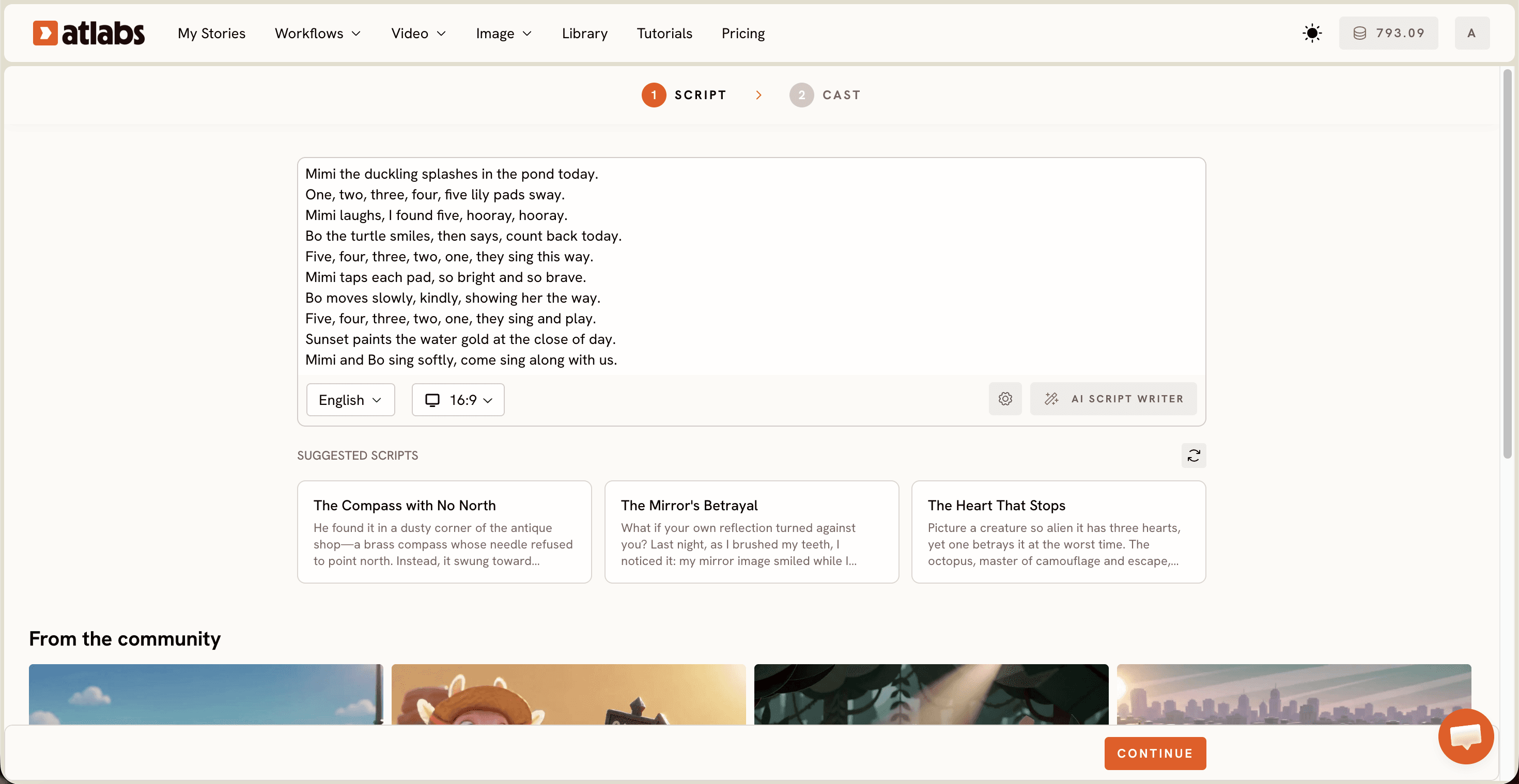
Open the Animated Video workflow and you land on the Script step. Two tabs sit at the top, Add your script for free form text and Add your screenplay for structured screenplay mode. Paste the rhyme or bedtime story you already wrote, or press AI Script Writer to draft one. The Language selector sits bottom left with English as the default, which matters for kids channels publishing the same story in more than one language. With no story in mind yet, the SUGGESTED SCRIPTS cards give you a starting point.
Step 2. Set the cartoon style and the aspect ratio
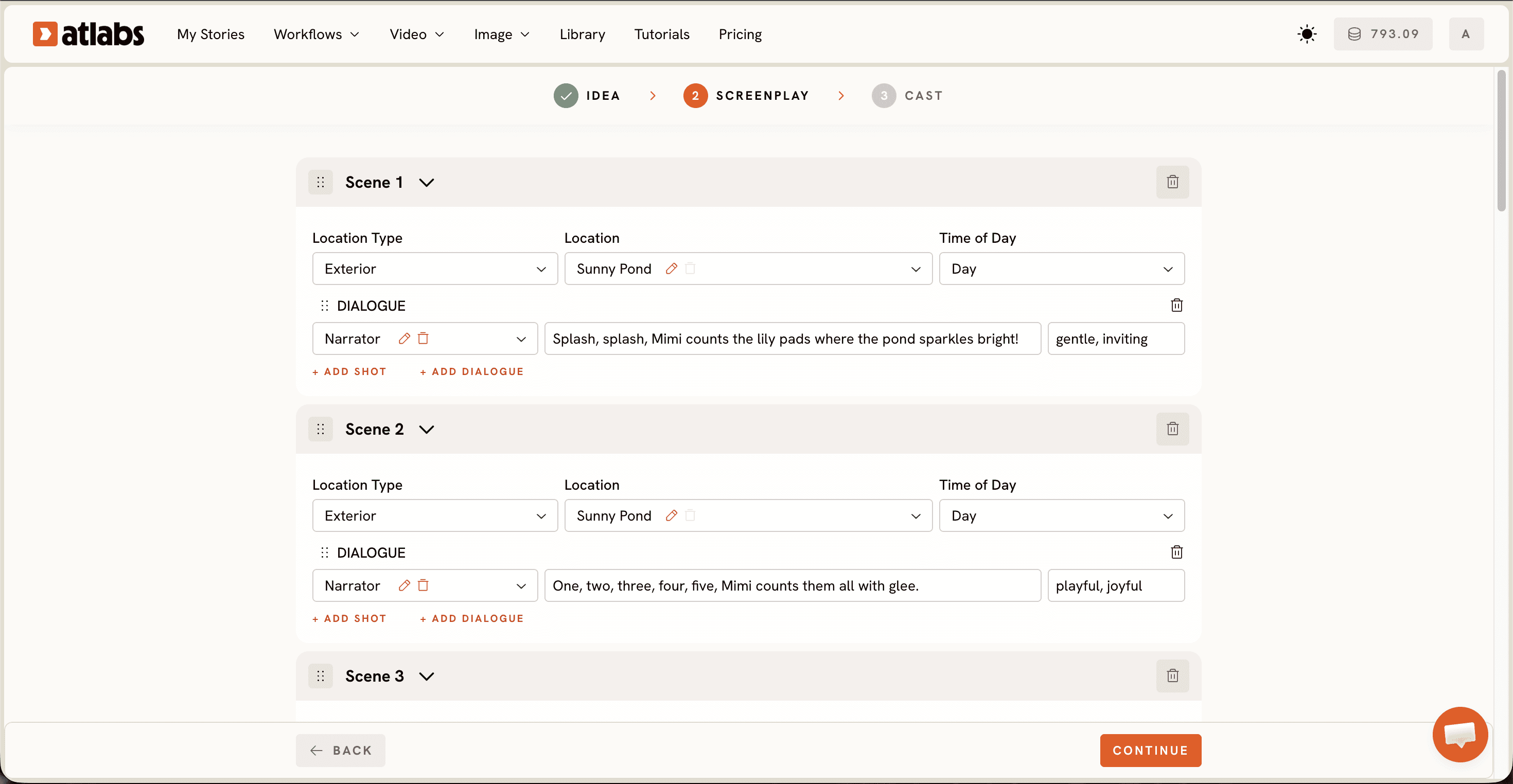
Set Style is where kids animation gets its look. Pick 16:9 for a YouTube episode or 9:16 for Shorts, keep Video Style on AI Video, then choose from the visual style library. 3D Cartoon, Claymation, Cozy Plush, Paper Cutout and Soft Pastel 2D are the ones that read as warm and safe to a five year old, and Custom Styles opens the full library. The chosen style holds across every scene, so episode four looks like episode one and the channel builds a face children recognise.
Step 3. Cast the characters and pick the narrator
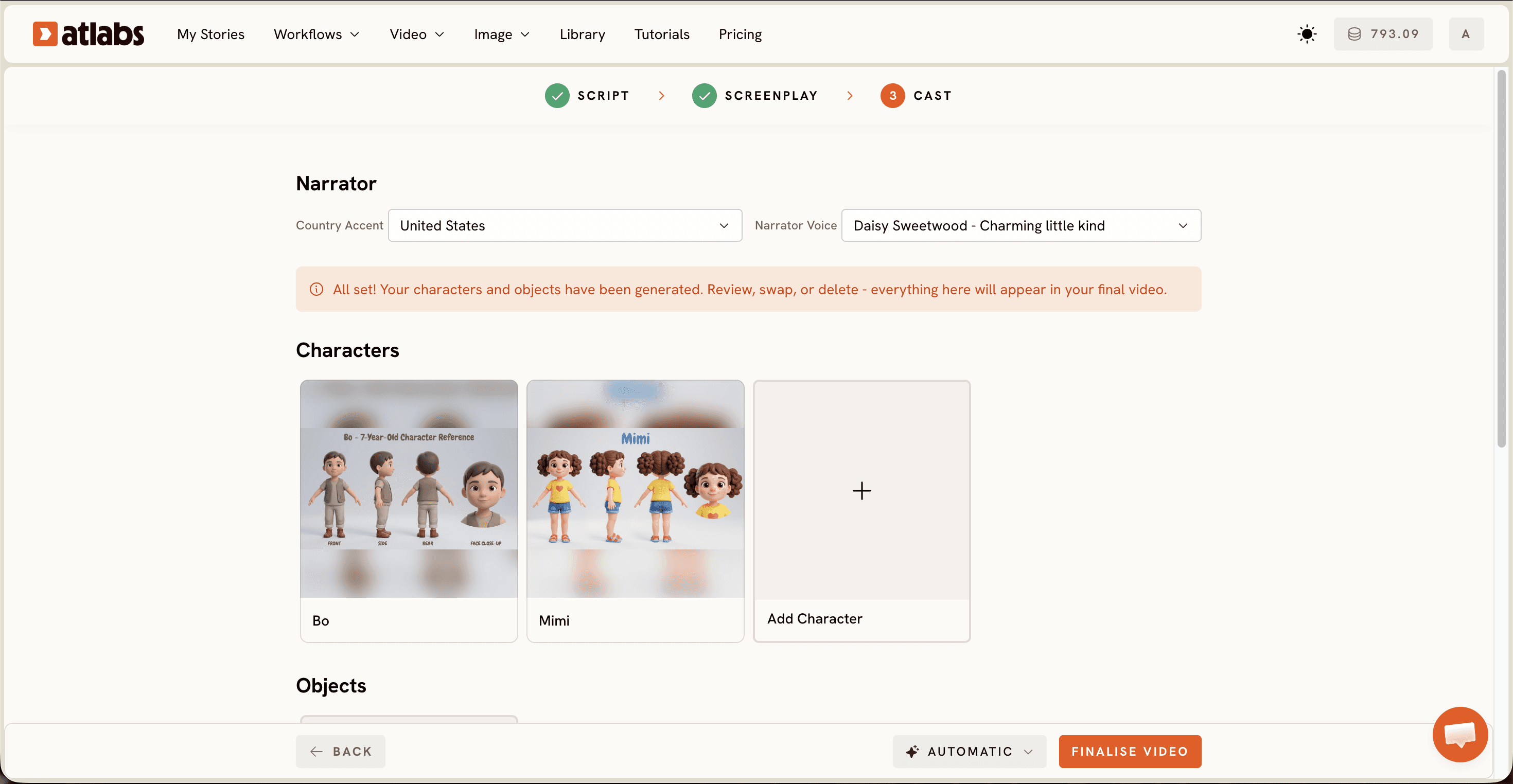
Cast is the step Pika has no answer for. The Narrator section at the top gives you a Country Accent dropdown, set to United States by default, and a Narrator Voice dropdown, so the story is read aloud in a voice you choose rather than one you record. Below it, Characters appear as cards with generated reference sheets showing each character from multiple angles, and an Objects section sits at the bottom for props. That reference sheet is the reason the same rabbit, the same red scarf and the same lunchbox survive from the opening scene to the last one.
Where Pika Wins: A Beginner Guide to Its Real Strengths
Pika deserves credit for what it does well. Pikaffects are the strongest effect set in AI video right now, and nothing else makes a birthday cake inflate and pop so convincingly. A kids episode that needs a three second pattern interrupt in the middle can use exactly that.
Pikaframes is the second strength. Hand it two or more images and it animates the movement between them, which suits illustrators who already draw their characters and only need motion added. Pika 2.5 also models physics such as gravity and collision, and it generates matching sound effects while it renders, so a bouncing ball sounds like a bouncing ball with no audio work. The mobile app is quick and the free tier is wide enough to test properly.
How to Make Your First Kids Cartoon Without Animation Skills
You need three things and about ten minutes. A story idea, a clear age group, and an Atlabs account. No After Effects, no Blender, no animator quotes and no drawing ability. Paste one of the scripts below into the Script step and let the flow ask you everything else.
A 60 second animated rhyme for children aged 4 to 6. Characters: Mimi, a curious yellow duckling, and Bo, a slow friendly turtle. Scene 1: Mimi splashes in a pond and counts five lily pads. Scene 2: Bo teaches her to count backwards from five. Scene 3: they sing the counting rhyme together as the sun sets. Warm and gentle, with a repeating chorus a child can sing along to.
A 90 second animated bedtime story for children aged 5 to 8. Characters: Arjun, a brave seven year old, and Pip, a small glowing firefly. Scene 1: Arjun cannot sleep because his room feels too dark. Scene 2: Pip appears and shows him the friendly shapes the shadows make. Scene 3: Arjun names every shadow and falls asleep smiling. Calm pacing, soft night colours, one gentle lesson about being brave.
Watch the Free Atlabs Tutorial on YouTube
If you want to watch the three steps run end to end before you try them yourself, the Atlabs walkthrough on YouTube shows a full kids animation build, from an empty script box to a finished episode with a cast and a narrator.
When to Pick Each Tool: A Beginner Guide Decision
Pick Atlabs if your output is an episode. Anything with a beginning, a middle, a small lesson at the end and a character who must look the same throughout belongs in the Animated Video workflow. It fits nursery rhymes, bedtime stories, animated biographies for children, classroom explainers and faceless kids channels that publish every week.
Pick Pika if your output is a moment. A single effect shot, motion added to an illustration you already drew, a five second reaction clip for a Short. Plenty of kids animation creators end up running both, building the episode in Atlabs and cutting in one Pikaffect at the point where the story needs a laugh.
FAQ: Kids Animation with Atlabs and Pika (Beginner Guide)
Is Pika better than Atlabs for kids animation?
Pika is better for single effect clips and for adding motion to illustrations you already have. Atlabs is better for a complete kids animation episode, because the Animated Video workflow holds one character design, one visual style and one narrator voice across every scene. For a channel publishing stories or rhymes, Atlabs is the stronger fit.
Can I make a kids cartoon without animation skills?
Yes. The Atlabs Animated Video workflow asks for a script, a visual style and a cast, then generates the animation for you. No After Effects, no Blender and no drawing ability is needed. Most first episodes take around ten minutes of input time before the render starts.
How do I keep the same character in every scene?
Use the Cast step. Every character card carries a generated reference sheet showing that character from multiple angles, and Atlabs reuses the sheet across the scenes in your script. Pika has no equivalent step, so a character has to be described again for each new clip.
Which aspect ratio should I use for a kids YouTube channel?
Choose 16:9 in the Set Style step for a standard YouTube episode and 9:16 for Shorts. Atlabs also offers 1:1 for square placements. Many kids channels build the 16:9 episode first, then reframe one highlight into 9:16 to feed Shorts from the same story.
Final Verdict for Kids Animation Without Animation Skills
For kids animation in 2026, Atlabs is the better pick if you are building stories, rhymes and episodes that need consistent characters, a narrator voice and a look that carries across a whole channel. Pika is the better pick if you want short effect driven clips or motion added to art you already made. If your channel publishes a story every week, start in the Animated Video workflow and let the three steps do the assembly for you. If you are moving away from Runway, see the best alternatives to Runway for animated video.








