
You make an animated cartoon video from text by pasting your script into an AI animation workflow that turns each line into a scene, then choosing a cartoon style and a narrator voice. On Atlabs this runs through the Animated Video workflow in three steps: Script, Set Style, Cast. You paste the text, pick a look such as 3D Cartoon or Flat 2D Modern, choose a narrator, and the platform generates the animated scenes, the characters and the voiceover for you. No animation software, no timeline, no drawing.
What You Need Before You Start (Beginner Guide)
The setup here is short, which is the whole point. You are not opening After Effects, you are not storyboarding on paper and you are not paying an animator by the second. Four things get you to a finished cartoon.
An Atlabs account with the Animated Video workflow open.
Your text. A short story, a rhyme, a lesson, a product explainer, or even a rough paragraph describing the idea.
A rough sense of the cartoon look you want, for example 3D Cartoon, Flat 2D Modern, Paper Cutout or Claymation.
About 10 minutes. No animation software, no voice actor, no editing timeline.
From Text to Cartoon in 10 Minutes: The 3 Step Workflow
The progress bar at the top of the workflow reads SCRIPT, SET STYLE, CAST. That is the entire process. Scene planning, character design, layout and voiceover recording all sit inside those three screens. Here is each one in order, with the exact buttons you will be clicking.
Step 1: Paste Your Text into the Script Tab (Step-by-Step)
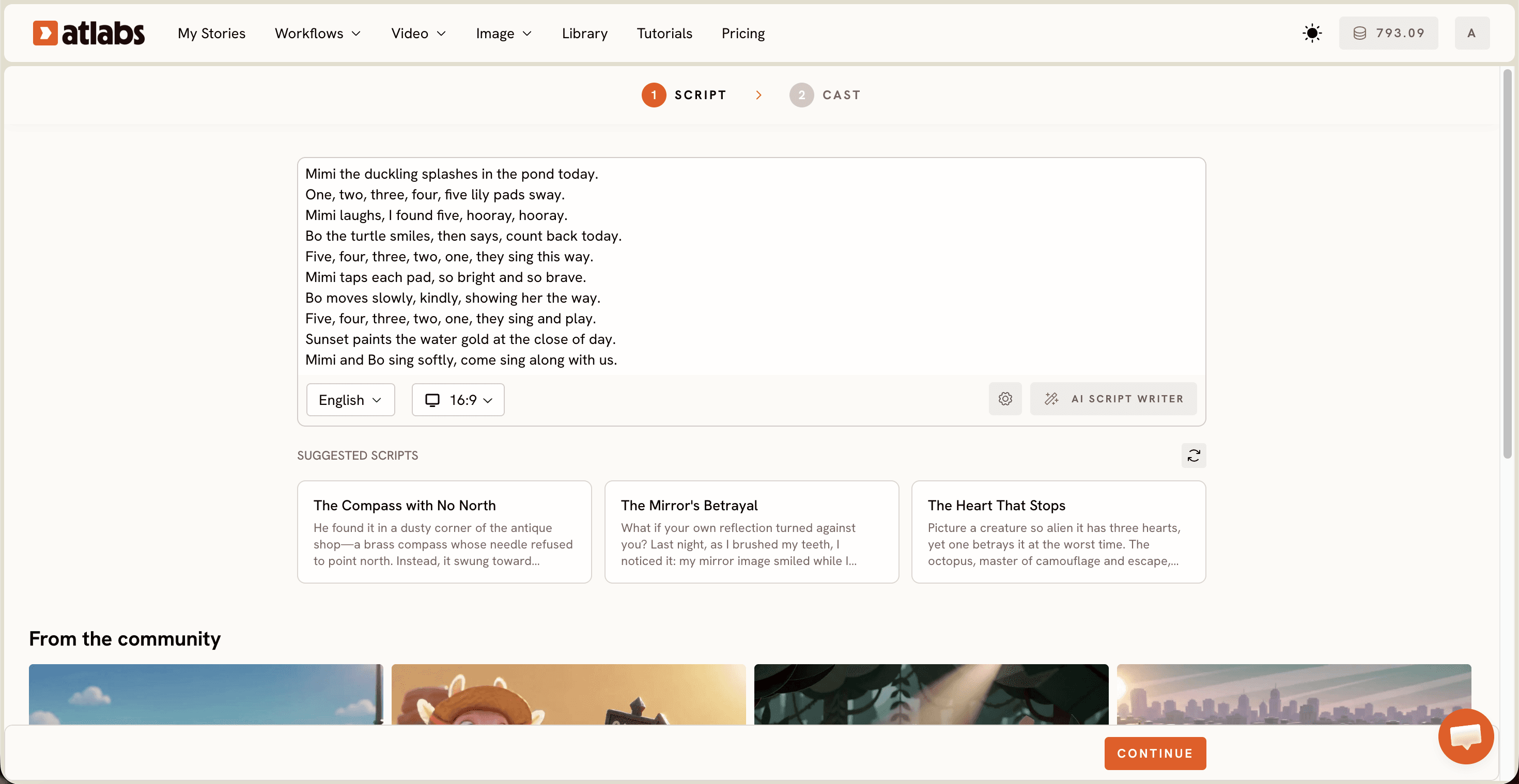
Open the Animated Video workflow and you land on the Script step. Two tabs sit at the top of the editor. Choose "Add your script" when you have plain text, a story or a paragraph of an idea. Choose "Add your screenplay" when your text is already broken into scenes and dialogue. Paste your text into the editor below, then set your language in the Language selector at the bottom left, which opens on English by default. If the text is not written yet, click AI Script Writer at the bottom right and describe your idea in one line instead. With no story in mind at all, the SUGGESTED SCRIPTS row underneath gives you three ready cards to test the flow, including The Compass with No North.
Step 2: Pick Your Cartoon Style Without Animation Skills
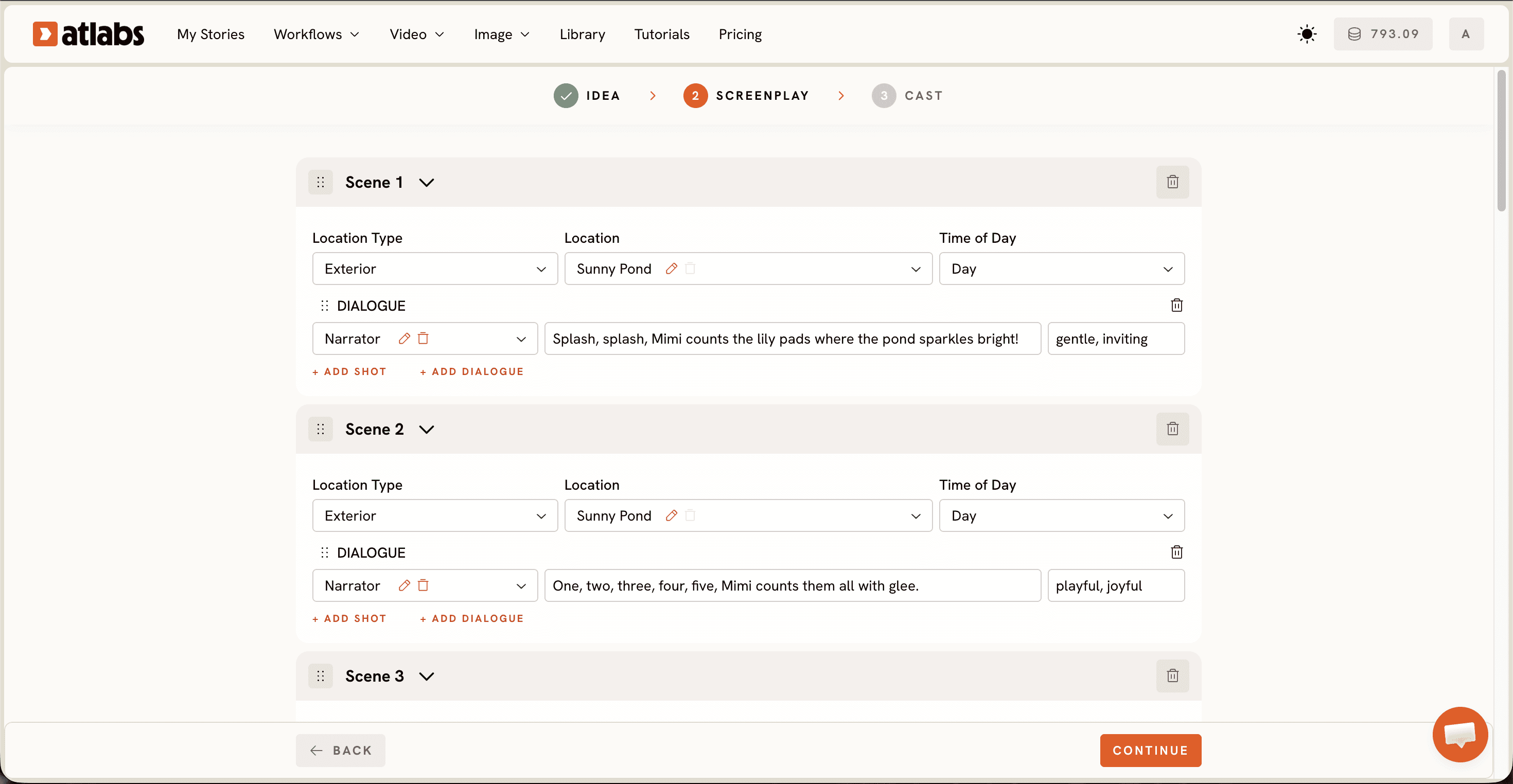
Move to Set Style and make three quick choices. Pick the Aspect Ratio first: 16:9 for YouTube, 9:16 for TikTok and Instagram, 1:1 for LinkedIn, Twitter, Facebook and Pinterest. Then pick the Video Style. AI Video is recommended and generates full animated motion. AI Storyboard generates images with effects, which is lighter and faster to review. Upload lets you bring your own visuals in later. Last, pick your cartoon look from the Visual Style library. 3D Cartoon lands closest to a modern animated feature. Flat 2D Modern suits explainers and classroom lessons. Paper Cutout, Claymation, Cozy Plush and Soft Pastel 2D all read as handmade, which works beautifully for children's stories. Toggle Custom Styles to open the full library.
Step 3: Cast Your Narrator and Characters (Beginner Guide)
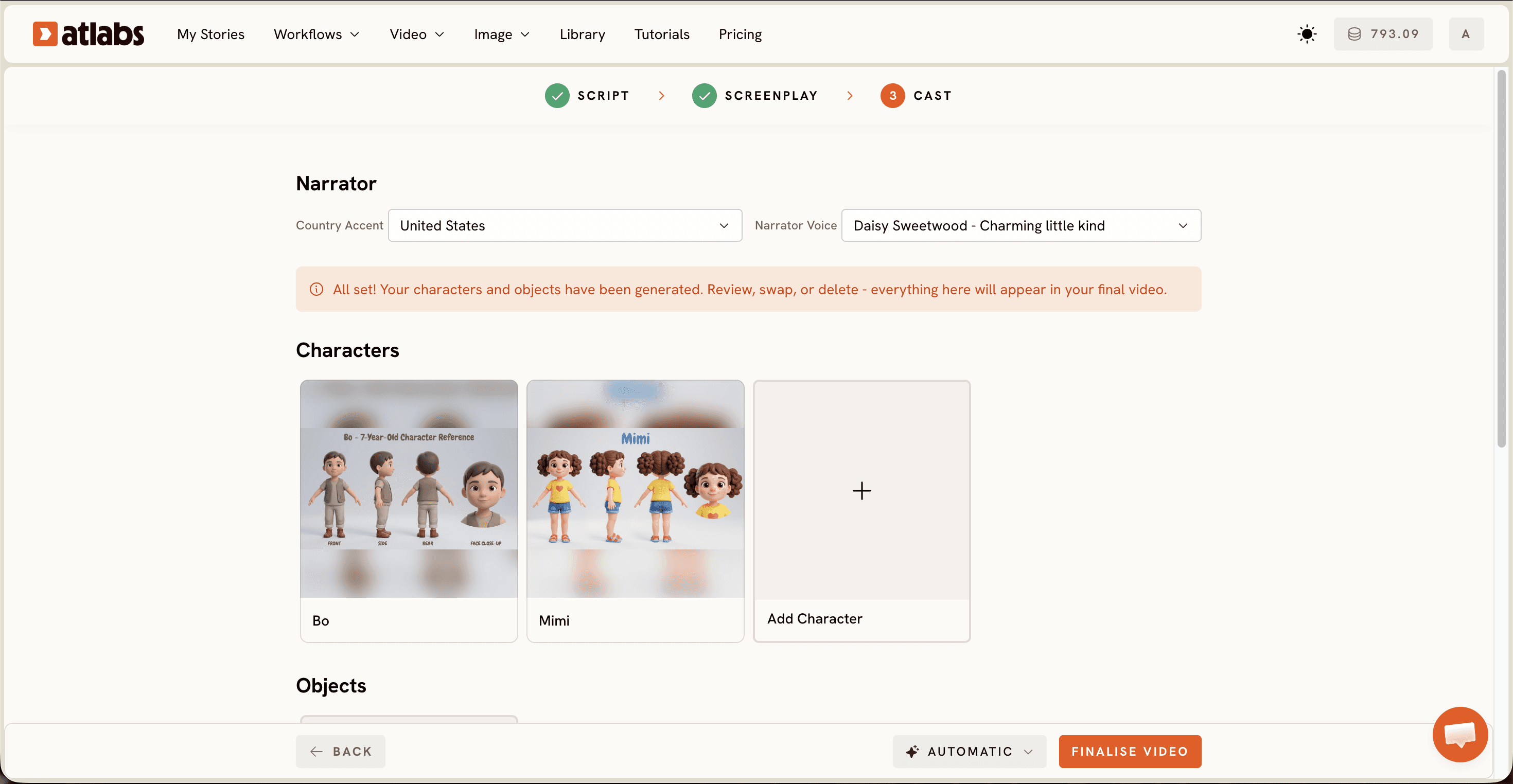
Finish in Cast. At the top, set the Narrator by choosing a Country Accent from the dropdown, which opens on United States, then a Narrator Voice such as David. Below that sits Characters, where Atlabs shows a card for every character it pulled out of your text with a name tag on each one. Open a card to adjust how that character looks so the same face carries across every scene. The Objects section at the bottom is optional and holds props that repeat through your story, like a paper boat, a lunchbox or a bicycle. Generate from here and your text comes back as an animated cartoon with scenes, characters and voiceover already in place. If you are making stories for children, follow the steps to make an animated kids story video.
4 Tips for a Better Cartoon: The Ultimate Guide
Write in short scenes. One or two sentences per scene gives the model a clear beat to animate and keeps the cartoon moving. Long paragraphs get compressed into a single flat shot.
Describe your characters the same way every time. If Bo is a small blue turtle with a yellow shell in scene one, say it that way again in scene four. Repeating the same wording is what keeps a character on model across the whole video.
Match the model to the look you want. Seedance 2.0 handles stylized content, character closeups and dialogue driven scenes, so it fits cartoon storytelling. Kling 3.0 leans cinematic with smoother motion. Hailuo 2.3 pushes high motion fluidity, useful when your story has a chase or a dance.
Finish inside the same platform. Lip Sync tightens mouth movement on talking characters, Create Image gives you a reference still before you animate, Caption Video adds captions for silent scrolling, and Reframe plus Upscale get the same cartoon ready for a second platform.
2 Text Prompts to Copy, Step-by-Step
Paste either of these into the Script step exactly as written to see how scene splitting and narrator tone change the output. Swap the nouns for your own story once you see the shape.
Scene 1: A small blue turtle named Bo wakes up on a quiet beach and finds a lost paper boat in the sand. Scene 2: Bo carries the boat past a crab, a seagull and a starfish, asking each one who it belongs to. Scene 3: A little girl runs down the dunes, hugs the boat and names it after Bo. Narrator tone: warm and gentle, made for ages 3 to 6.
Scene 1: A young shop owner stares at a growing pile of paper invoices on her counter. Scene 2: She opens a laptop and a friendly robot assistant sorts every invoice into three neat stacks. Scene 3: She smiles, closes the laptop and walks out into a sunset street. Narrator tone: upbeat and clear, about 30 seconds total, made for small business owners.
Watch the Free Atlabs Tutorial on YouTube
Prefer to watch someone build one first? The Atlabs tutorial runs through these same three steps on screen, from pasting a script to generating the finished cartoon, so you can keep it open in a second tab and follow along at your own pace.
FAQ: Text to Cartoon Video (Beginner Guide)
How long does it take to make an animated cartoon video from text?
About 10 minutes of your own time across the three steps, Script, Set Style and Cast. Generation runs on top of that and scales with how many scenes your text contains. A 30 second explainer comes back much faster than a three minute story.
Do I need animation or editing skills to make a cartoon video?
No. The Animated Video workflow builds the scenes, characters and voiceover from your text, so there is nothing to keyframe and no timeline to cut. If you can paste a paragraph and pick a style, you can finish a cartoon video.
Can I make the cartoon video in a language other than English?
Yes. The Language selector sits at the bottom left of the Script step and opens on English by default, so set it before you generate. In the Cast step you then pick a Country Accent and a Narrator Voice to match the language you chose.
What kind of text works best for an AI cartoon video?
Text that already has beats. A short story, a rhyme, a lesson broken into points, or an explainer with a clear before and after. Split it into scenes of one or two sentences each, because vague text produces vague visuals.
Make Your Cartoon Video in 10 Minutes
Paste your text, pick a cartoon style, choose a narrator and let the Animated Video workflow build the scenes for you.








