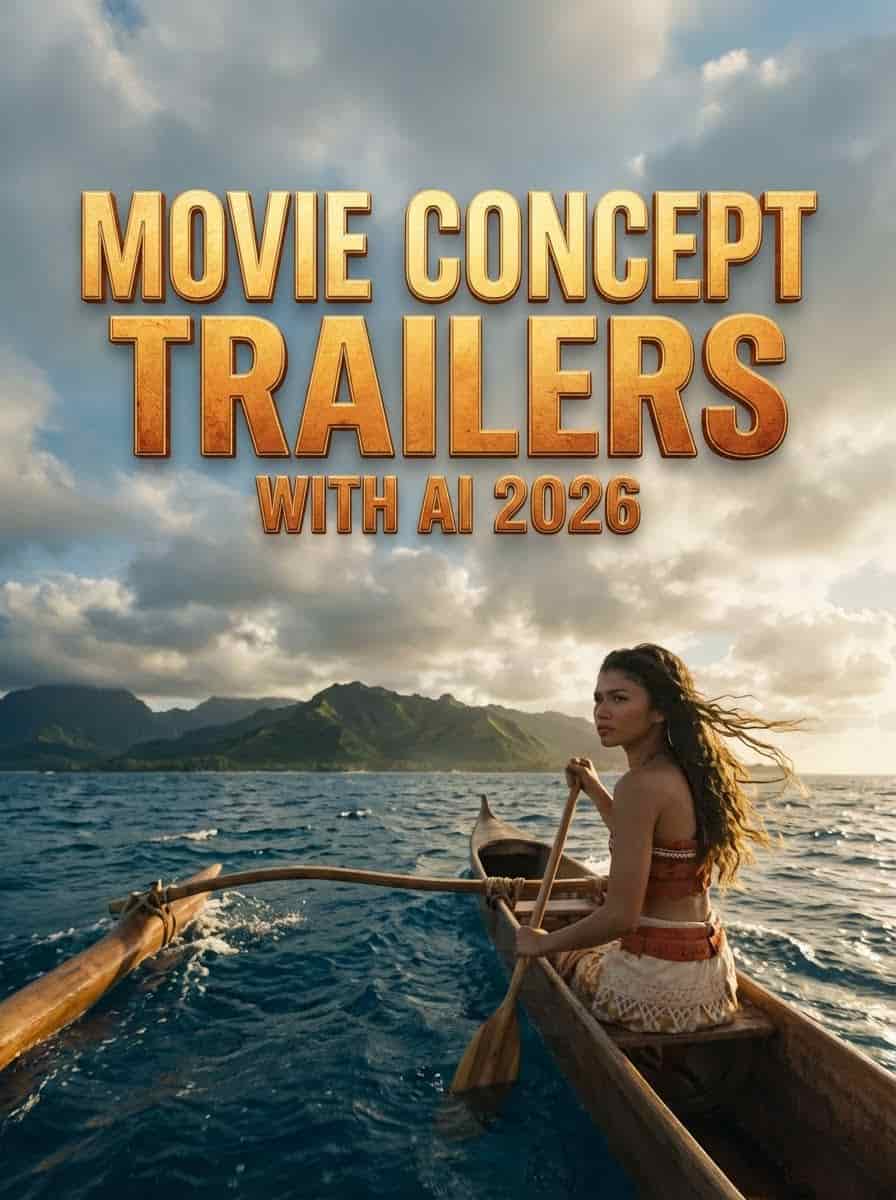
TL;DR
Create Hollywood-level movie concept trailers from your laptop using Atlabs AI.
The Tools: Atlabs AI + Nano Banana Pro (images) + Veo3 (video)
What you can build:
Recast actors in iconic roles
Create live-action versions of animated films
Generate full concept trailer sequences
Maintain character consistency across shots
Cost: Atlabs AI Subscription
Skills Required: None, just copy-paste prompts
Start Building Your Movie Trailer on Atlabs AI
Why AI Concept Trailers Are the Future
This isn't just a viral gimmick.
Concept art has been used for decades by advertisers and visual effects artists. AI merely speeds up the procedure. The visual logic of what you see on social media is the same as that of actual advertising and visual effects, which are now accessible to all.
What creators can now do:
Recast: See specific actors in iconic roles
Test Aesthetics: Experiment with lighting, costumes, and mood
Pitch Ideas: Show studios exactly what a film could look like before hiring a crew
No budget. No crew. Just your idea and Atlabs AI.
The 4-Step Workflow
Step 1: Generate Photoreal Images with Nano Banana Pro
The foundation of every great concept trailer is a stunning image.
Navigate to: Atlabs AI → Image → Nano Banana Pro
Why Nano Banana Pro?
It has incredible "world understanding", it uses data to understand pop culture references, actors' faces, and specific movie aesthetics without needing complex reference images.
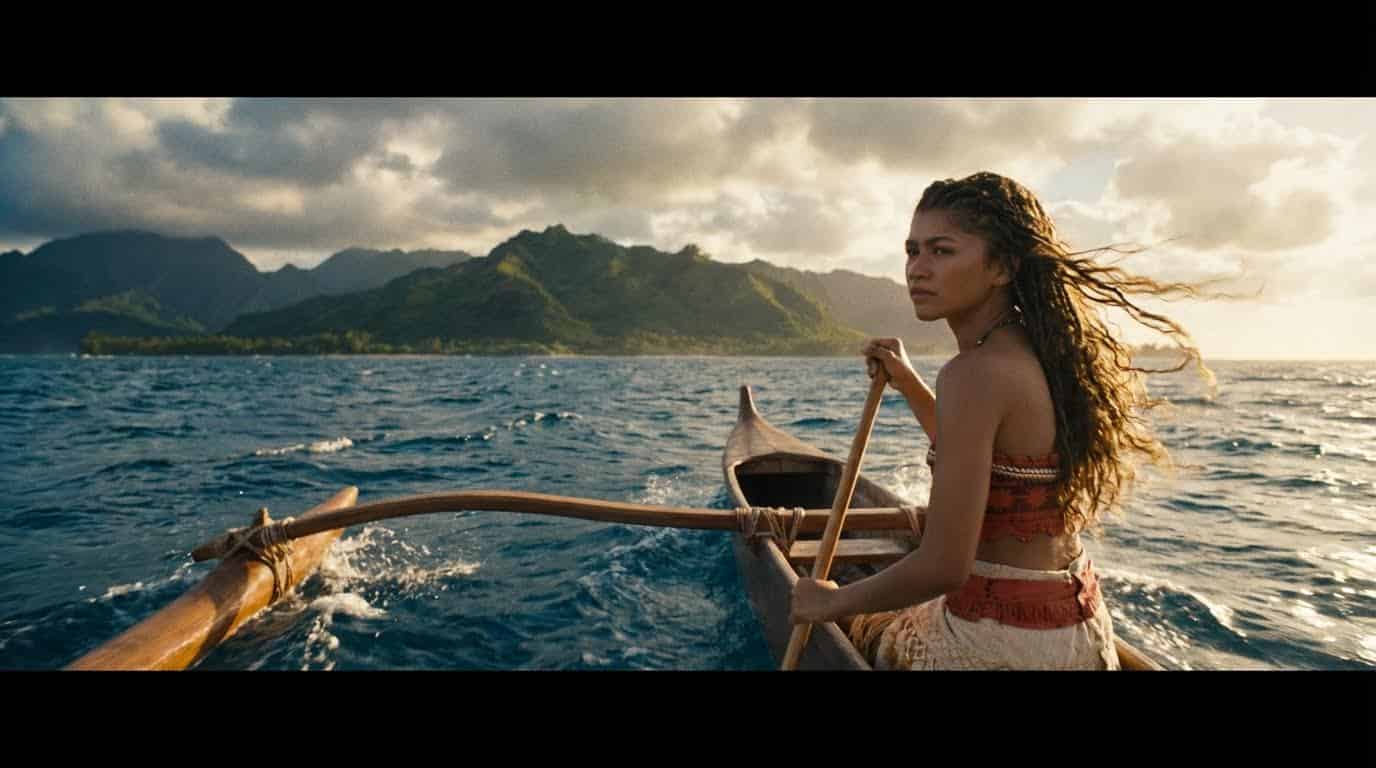
Example A: The Simple Prompt (Recast an Actor)
You don't always need a paragraph of text. The model already knows who actors are and what iconic films look like.
What happens:
Model accurately recreates the boat and ocean setting
Actor's likeness renders immediately
Cinematic composition applied automatically
Result: Movie-poster quality image in one generation.
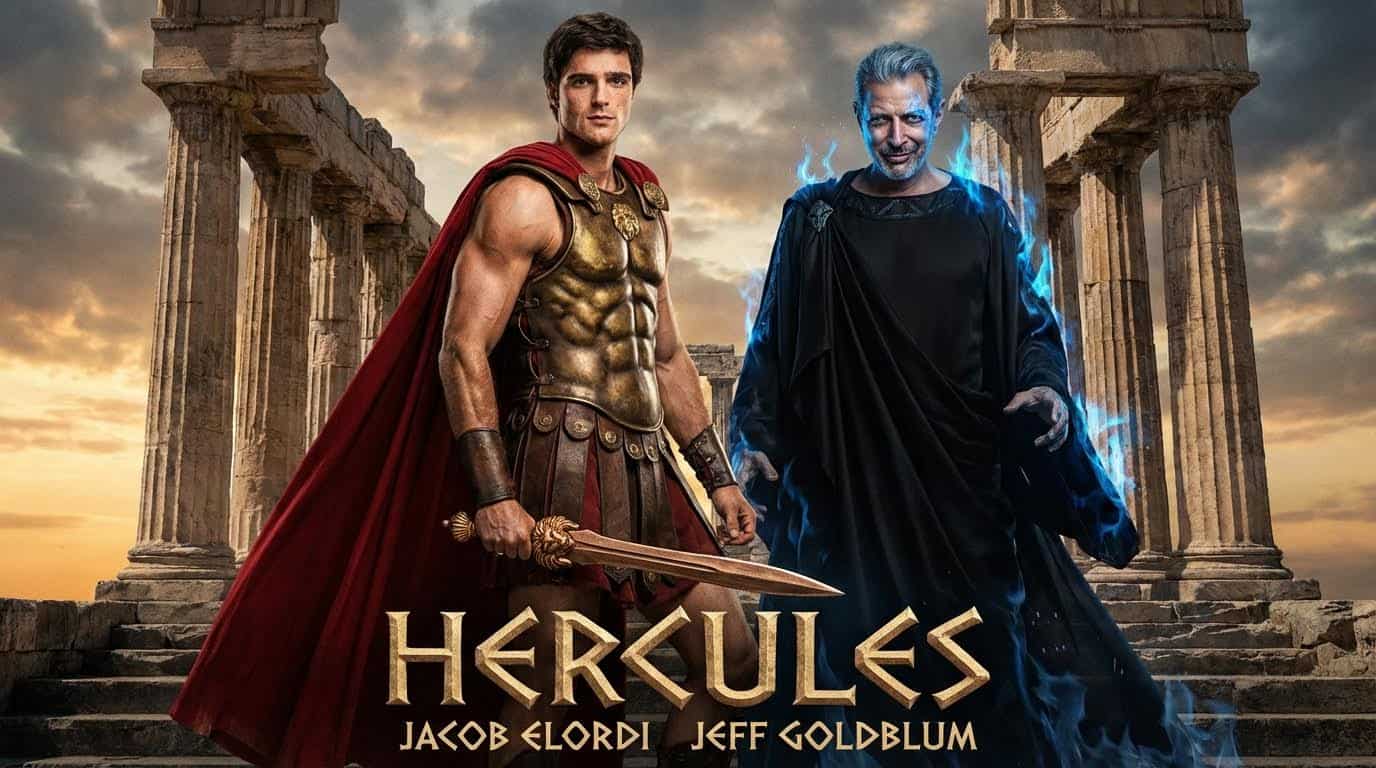
Example B: The Detailed Prompt (Build from Scratch)
For complex concepts with multiple actors and specific costumes, be detailed.
Customization Tips:
Always specify costume details (prevents generic outputs)
Describe the setting and mood
Add lighting: "dramatic backlighting" or "golden hour"
Specify expression: "heroic determination" or "villainous smirk"
Pro Tip: Always set 16:9 aspect ratio. This ensures your images are ready for video generation later without cropping.
Generate Movie Concept Images on Atlabs AI
Step 2: The "Behind-the-Scenes" (BTS) Aesthetic
One of the biggest trends in AI concept trailers: making it look like a leaked production photo rather than digital art.
This grounds the fake movie in reality and makes it feel authentic.
How to Achieve the BTS Look
Add production elements to your prompt.
Copy This Prompt (Pokemon Example):
Show a live-action shot from a Hollywood blockbuster Pokemon movie where Tom Holland plays Ash Ketchum. He is wearing Ash's iconic red and white cap, blue vest, and sneakers. Holding a Pokeball. Make it appear photoreal. Give it a behind-the-scenes look with green screens, studio lighting rigs, audio equipment, and camera crew visible in the background. Cinematic composition. 16:9 aspect ratio.
Critical Detail: No Masks
Always add this to BTS prompts:
Ensure none of the crew members are wearing masks.
Why? AI models often default to pandemic-era training data. Crew members in masks instantly dates your image and breaks the illusion.
BTS Prompt Formula
[Actor] as [Character] in [Movie/Franchise]. [Costume details]. Behind-the-scenes Hollywood production look. Green screens visible. Studio lighting equipment. Camera crew in background. No masks on crew. Photoreal. Cinematic. 16:9.
Works great for:
Marvel concept art
Disney live-action remakes
Video game adaptations
Anime live-action conversions
Step 3: Character Consistency
If you're building a full trailer, your main character must look identical in every shot.
How to do that?
Step 1: Generate a blank project and upload your character image
Step 2: Save the character
Navigate to: Story → Character → Add Character
Upload your character image
Name it (e.g., "Henry")
Step 3: Call up in future prompts using @mention
@Henry walking through a desert, drinking water from a canteen. Cinematic wide shot. Golden hour lighting. 16:9.
Step 4: Generate. Henry looks identical.
Set Up Character on Atlabs AI
Step 4: Animate with Image-to-Video
Static images become cinematic video clips using Kling 01.
Navigate to: Atlabs AI → Image to Video
The "Lock-In" Technique (Preserving Celebrity Likeness)
The biggest challenge: Moving faces distort during animation.
The solution: Restrict movement in your prompt.
❌ Bad Video Prompt (Face Will Morph)
Zendaya laughing and turning her head toward the camera while walking forward.
Why it fails: Too much head movement = AI hallucates new facial angles that don't match the actor.
✓ Good Video Prompt (Face Stays Sharp)
Slow dolly camera move in. Zendaya looks out into the distance. She keeps her head still as her hair gently moves in the wind. Subtle smile on her face. Cinematic lighting.
Why it works:
"Slow dolly" = smooth, professional camera move
"Keeps her head still" = face doesn't morph
"Hair gently moves" = adds life without risking likeness
Simple single action = AI handles it cleanly
The "Remind" Technique (Fix Morphing Mid-Clip)
If faces start distorting during animation, re-enter actor names in the video prompt.
❌ Bad:
The actors laugh together.
✓ Good:
The actors laugh together. On the left is Timothée Chalamet. In the middle is Bill Skarsgård. On the right is Zendaya.
Why it works: Reminding the model who the people are helps maintain facial structure during movement.
Video Prompt Templates
The Slow Reveal:
Slow dolly camera move pushing in toward [Actor] as [Character]. Character keeps head still, eyes looking into distance. Wind gently moves hair and clothing. Dramatic cinematic lighting. Epic movie trailer feel.
The Action Beat:
[Actor] as [Character] standing in battle stance, holding [weapon]. Camera slowly orbits around character at waist height. Character keeps head still, intense expression. Epic orchestral mood. Cinematic.
The Dialogue Moment:
Two characters sitting across from each other at a table. Camera slowly pans between them. Both keep heads mostly still. Subtle facial expressions only. Dramatic tension. Cinematic lighting.
The Epic Wide Shot:
Slow camera pull back revealing [Character] standing in front of [epic location]. Character is a small silhouette against massive landscape. Camera movement only, character completely still. Epic scale, dramatic lighting.
Animate Your Movie Trailer on Atlabs AI
Putting It All Together: Full Trailer Workflow
Example: Live-Action Hercules Trailer
Shot 1: Title Card
Generate epic temple background
Add text overlay in editing
3 seconds
Shot 2: Hero Reveal
Jacob Elordi as Hercules, slow dolly push in
Head still, dramatic lighting
4 seconds
Shot 3: Villain Introduction
Jeff Goldblum as Hades, blue flame effects
Slow orbit, head still
4 seconds
Shot 4: BTS Aesthetic Shot
Behind-the-scenes production look
Adds authenticity and viral appeal
3 seconds
Shot 5: Action Beat
Hercules in battle stance, sword raised
Slow orbit camera
4 seconds
Shot 6: Epic Wide
Hercules silhouette against Olympus
Camera pull back
5 seconds
Total: ~23 seconds of cinematic concept trailer
Edit: Sync cuts to dramatic music. Add sound effects. Export.
Pro Tips for Maximum Impact
Tip 1: Aspect Ratio Matters
Always use 16:9 for trailer content.
Cinematic, professional look
Ready for video generation without cropping
Matches YouTube and TV standards
Tip 2: Lighting Sells Mood
Hero shots: Golden backlighting, dramatic shadows
Villain shots: Blue/green cold lighting, harsh shadows
Action shots: High contrast, explosive lighting
Emotional moments: Soft, warm natural light
Tip 3: Less Movement = Better Results
Rule: The less you ask the character to move, the better the likeness holds.
Priority order:
Camera movement (safest)
Hair/clothing movement (safe)
Subtle facial expression (risky)
Head turning (avoid)
Full body action (use compositing)
Tip 4: Music Makes the Trailer
Use dramatic orchestral tracks:
Hans Zimmer-style builds
Epic choir moments
Dramatic percussion hits
Sync cuts to musical beats for maximum cinematic impact.
Tip 5: Hook in First 2 Seconds
Opening frame options:
Epic wide shot (scale and grandeur)
Close-up face reveal (intrigue)
Action moment (immediate engagement)
Text: "WHAT IF..." (curiosity hook)
Common Mistakes to Avoid
❌ Too much movement → ✅ Keep heads still, move camera instead
❌ Generic costumes → ✅ Describe specific costume details
❌ Wrong aspect ratio → ✅ Always 16:9 for trailers
❌ No character consistency → ✅ Use Elements feature with @mentions
❌ Forgetting crew masks → ✅ Add "no masks on crew" for BTS shots
FAQ
Which model is best for movie concept art?
Nano Banana Pro via Atlabs AI. Its deep understanding of pop culture, celebrities, and IP allows accurate rendering with minimal prompting.
How do I keep characters consistent across shots?
Use the Elements feature in Atlabs AI. Save your character, call up with @mention in future prompts. Face and costume stay locked.
Why do characters look weird when they move?
Too much head movement or camera rotation. Use Kling 01 with "slow dolly moves" and explicitly tell the prompt to "keep head still."
Can I use real actor names in prompts?
Yes. Nano Banana Pro understands celebrity references and renders likenesses accurately. Works best with well-known public figures.
Ready to Direct Your Own Movie?
The gap between a creative idea and a visual pitch has never been smaller.
By combining:
✓ Nano Banana Pro world knowledge for stunning concept images
✓ Elements for character consistency across every shot
✓ Veo3 for cinematic animation with preserved likenesses
You produce Hollywood-level concept trailers from your laptop.
What You Get with Atlabs AI
✓ Celebrity likeness rendering
✓ Character consistency with Elements
✓ Cinematic video animation
✓ BTS aesthetic generation
✓ Full trailer workflow in one platform
Cast Your Own Movie on Atlabs AI – Start Free
Quick Workflow Summary
Step 1: Generate images with Nano Banana Pro (16:9, detailed prompts)
Step 2: Add BTS aesthetic for authenticity (no crew masks)
Step 3: Save characters as Elements for consistency (@mentions)
Step 4: Animate with Kling 01 (Lock-In + Remind techniques)








